
NETGEAR ReadyNAS NV+ v2 NAS Server
NETGEAR ReadyNAS NV+ v2 NAS Server Review
Manufacturer: NETGEAR, Inc.
Product Name: ReadyNAS NV+ v2
Model Number: RND4000-200NAS
UPC: 606449079777
Price As Tested: $369.99 (Newegg / Amazon)
Full disclosure: The product used in this review was supplied by NETGEAR
My last NAS project was over-the-top, way over.... Retail cost of the assembled NAS, including eight drives and the 10GbE NIC was about $5,000. Let's get back to Earth, and spend some time with a NAS that we can all actually afford. The ReadyNAS NV+ from NETGEAR just got a tech refresh of its hardware and software, becoming the ReadyNAS NV+ v2 in the process. It's only $369.99 on a normal day, but until 9/30/12 NETGEAR has a rebate promotion going that will save you $100 on the diskless model, as well as the 2TB & 4TB versions.
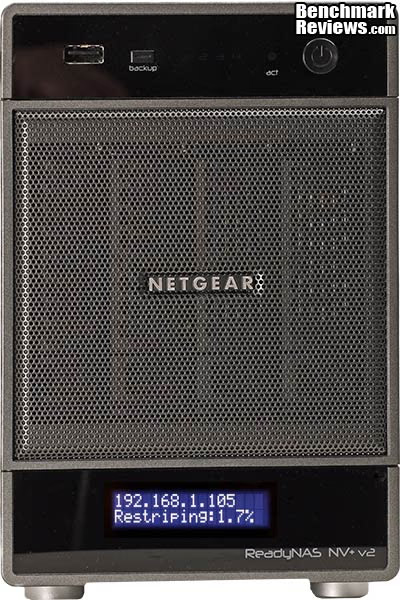
The NV+ v2 is aimed right at the typical small business owner or advanced home user, by virtue of its size and its form factor. With four bays you can have both capacity and redundancy with RAID 5 on a three or four disk array. RAID expansion and migration is made very easy with the built-in X-RAID2 software that manages all the hard work. NETGEAR currently offers three versions of the NV+ v2; a diskless model, with 2 TB pre-installed (2x1TB), and 4TB pre-installed (4x1TB). I tested the diskless model, so that I could use the same drives I have used during previous benchmark testing. I also wanted to test the ability to expand the storage size and migrate from a single disk to RAID 1 and then to RAID 5. In short, I wanted to get my hands dirty....
The NETGEAR ReadyNAS NV+ v2 uses a Marvell 6282 CPU, running at 1.6GHz and 256MB of DDR3 system memory to drive this storage server. A single Gigabit Ethernet network port is standard, and there is no expansion capability which will accommodate additional Network Interface Cards (NIC). Four SATA 3Gb/s drive bays offer single disk, JBOD, and RAID 0/1/5 configurations. The capability for hot spares is not available with any of the disk configurations. NETGEAR employs a 128MB flash memory module to store firmware and applications on the NV+ v2 motherboard. This acts like the system drive, yet it takes up very little space and uses almost no power.
Benchmark Reviews has tested a wide array of QNAP NAS products, ranging from the QNAPTS-119NAS single-disk offering made for home users, to the GoliathQNAP TS-879U-RP8-Bay NAS for the storage needs of large businesses. We've recently tested the 6-bay TS-659 Pro II and the 4-bay TS-419P II Turbo-NAS servers, which fall in the middle between those two extremes. Let's see how this domesticated 4-bay device compares to its competitors.
Closer Look: ReadyNAS NV+ v2 NAS Server
The bottom line with any high performance storage solution is that the number of drive spindles in play is more important than almost any other factor, assuming that everything else is based on reasonably modern technology. When you combine the higher level of performance with the greater flexibility for online RAID capacity expansion & online RAID level migration, the additional cost of the extra drive bays looks like a bargain instead of conspicuous consumption. This is the reason more and more people are opting for NAS systems with at least four bays, even though they may not need all that capacity now. What initially looks like overkill in a NAS system might just be the very thing that saves the day, some years down the road.
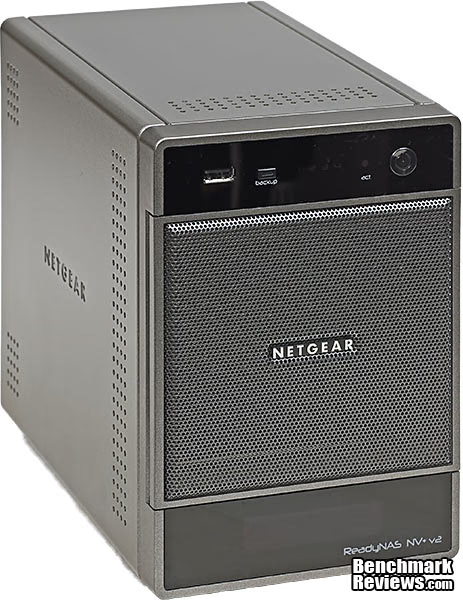
The ReadyNAS NV+ v2 is a small, unassuming unit, which should blend in no matter where you put it. There are diskless, 2TB, and 4TB units available, all in the same 4-bay tower format. The size and weight are a little smaller than the competition: 205mm (H) x 134mm (W) x 223mm (D), and 10.35 pounds without drives installed. Each HDD you install will add about 1-1/2 pounds, depending on your choice of drive. Many users will be looking at 2TB and 3TB drives for a unit like this, and they're heavier than most. There is a substantial handle mounted on the rear of the unit, which is very handy for picking the whole thing up once it's fully loaded.

We've all got data that we can't live without, the question is, how long do you want to be without it? Very few people are going to want to live without their important information for any length of time, and a RAID configuration that includes some redundancy is undoubtedly called for. With multiple SATA drives installed, you can have: RAID 0 (Disk Striping), RAID 1 (Disk Mirroring), RAID 5 (Block-level striping with distributed parity), and JBOD (Linear Disk Volume). The main choice is going to be RAID 5 because it offers the highest capacity with built-in redundancy. RAID 6 offers some additional redundancy, allowing for continued operation even with two simultaneous drive failures, but this option is not available for the ReadyNAS NV+ v2 at this time. This option is very popular for larger NAS units, because if one individual drive fails in a RAID 5 implementation, the array instantly starts operating as a RAID 0 configuration, which has NO redundancy. It stays in that vulnerable state until the array is rebuilt, which is a slow process that generally taxes the system to the max, and can take hours to complete.
Pulling the mesh front door of the enclosure open lets you see each of the four drive trays, with their locking handles. The small slider at the bottom of each handle locks the release lever that it sits inside. Trust me when I say that you do not want to start accidentally pulling drives out. If one drive is unexpectedly removed, the system is vulnerable to data loss. If two drives are removed, you can pretty much guarantee data loss, unless you can shut the system down before that happens. My advice is to use the locks and think twice before unlocking the release lever. The drive bays are marked 1,2,3,4 on the front bezel, but the drive trays are not marked, so there's another spot for human error to creep in. Key locks are not included to secure the trays in place, which may or may not be an issue for you (think of mechanically inclined, inquisitive children before you answer...). The LCD panel is providing useful information in the image below, and you can also see the backlit Power button, with its blue LED lighting up the universal on/off logo.
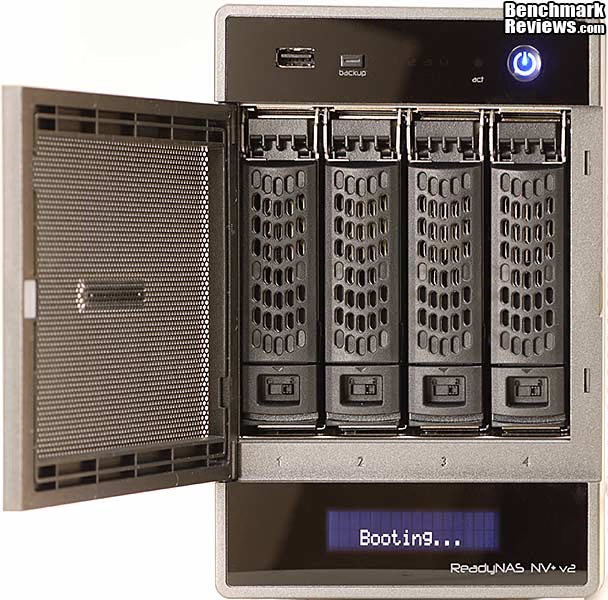
With the unit safely off, it's OK to remove one or more drives and they all slide out the front like this. Each steel-framed tray holds one individual drive in the NV+ v2, and the tray is a common part between the Duo and the NV+ models in the ReadyNAS product line. The trays are not labeled with the chassis slot number. They are all physically identical and you can mix and match them all you want, until you build a drive array and then you had better remember which one goes where. I recommend making your own labels as soon as you start installing drives into the unit; if you mix them up the NAS won't recognize the array, and worst case you could end up destroying data as you try to figure out which drive is which.

Around the back of the ReadyNAS NV+ v2, you can see all of the hardwired I/O points. Starting in the center is a stack of two USB 3.0 connectors in their customary blue plastic livery, sitting on top of a single 1000BASE-T Ethernet jack. Just to the right of that is the four pole power connector, which gets DC current from the brick style power supply. Just to the left of the USB ports is a small hole on the back panel that guards the reset button from accidental actuation. In the middle is the cooling fan, which keeps both the drives and the electronics cool. Moving further down, there is a small cable routing clip (which I would use for the power cable...) and a Kensington lock hole. Also, I mentioned it earlier, but the handle mounted just above the fan opening is a real handy addition that helps when you have to move the unit around. It's surprisingly heavy once you load it up with HDDs.

There are ventilation holes on every side of the ReadyNAS NV+ v2 chassis. The primary entry point for cool air is through the front of the drive trays; it passes over the HDDs and is then exhausted out the rear of the unit. The additional holes in the metal side and top panels help to balance the flow, especially if you let dust build up on the mesh front panel. I've yet to use a NAS that had effective filtering, but I guess the mesh on the front door does help catch some dust, and it's easy enough to wipe it clean if it builds up there. In order to keep things cool when needed and quiet the rest of the time, the fan speed is heavily modulated. I haven't paid much attention to fan noise in the smaller NAS models I've reviewed, as it was never really noticeable during my daily use. The ReadyNAS NV+ v2 had a more aggressive speed and noise profile though, and the fan noise was definitely conspicuous, even when running at idle speed.
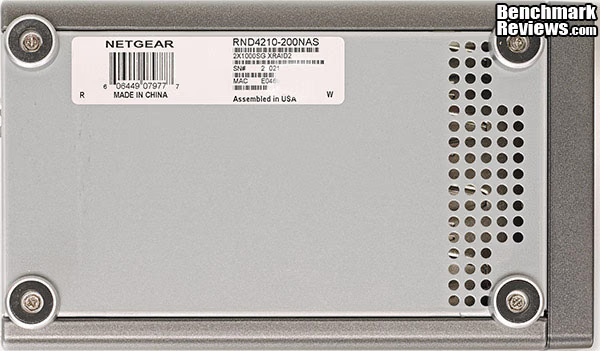
The bottom of the NETGEAR ReadyNAS NV+ v2 is a simple affair with four composite feet, a more utilitarian-looking set of ventilation holes, and a product label with Model, Serial and MAC ID numbers. The same information is provided on the rear label, along with all the product safety and environmental regulatory certifications. My guess is that the two labels are applied at different stages of the manufacturing process, and that the bottom label goes on first, in China where most of the product is produced. BTW, my labels don't match exactly, because it is a review sample that started out as a 2TB model and then got converted to a diskless version for testing purposes.
Now that we've had a thorough tour of the exterior, let's do a complete tear-down and see what the insides look like. The next section covers Insider Details.
Insider Details: ReadyNAS NV+ v2 NAS Server
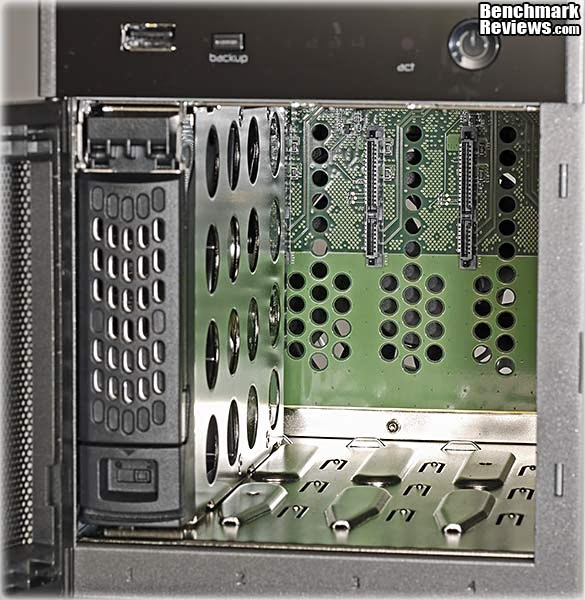
The insides of these things are always more interesting than the outsides, at least to me. My first look inside is the drive bay, with three drive trays removed. The sturdy printed circuit board that acts as a backplane has lots of ventilation holes and a fair number of screws holding it in place. Both are indicative of good design, and probably lessons learned along the way. Inserting and removing the drive trays was smooth and positive, both with HDDs mounted in the trays and without. The smooth surfaces and heavy plating on the metal parts was a helpful factor, I'm sure. The latches acted like a locking lever; once the trays reached the end of their travel, swinging the latch down levered the tray into firm contact. All in all, a nice, sturdy, well designed system for getting the drives in and out. Not that you want to take them out very often, maybe just for spring cleaning once a year!
Once you take a screwdriver to the chassis, it comes apart in several smaller pieces. Each of the sides, the top and the bottom has their own panel. In addition to their decorative function, they each add some portion of rigidity to the overall structure. All the panels are steel, so there's very little flexing going on, once everything is bolted together tightly. The rear panel comes off with the cooling fan attached, a 92mm unit that's 25mm thick, branded MAGIC, and spins at approximately 3500 RPM when it gets full voltage. Specs were hard to come by, so that's just an estimate, but judging from the fan speed display on the ReadyNAS Dashboard S/W, its close. At idle, the Dashboard utility indicated a fan speed of ~1100 RPM, with the drives running at temperatures ranging from 40C - 42C.

The main controller PC board is firmly attached to a steel tray of its own, and it slides into the chassis at the very top of the unit. The tray is not held in place by screws, but is captured by the mating panels which leave it with no room to move. The upper and lower drive bay guides are held in place by a number of rivets, ensuring that the inner frame is quite stiff and dimensionally stable. Honestly, this thing is built like a brick, mechanically at least. I can see a large number of areas where it would have been very easy to reduce costs in the mechanical package. I don't know what the original ReadyNAS NV+ looked like, but I'm betting it was built pretty much the same. In today's economy, it would have been too tempting to cut a few dozen corners on a new design, particularly for a product that's not geared toward a data center environment.
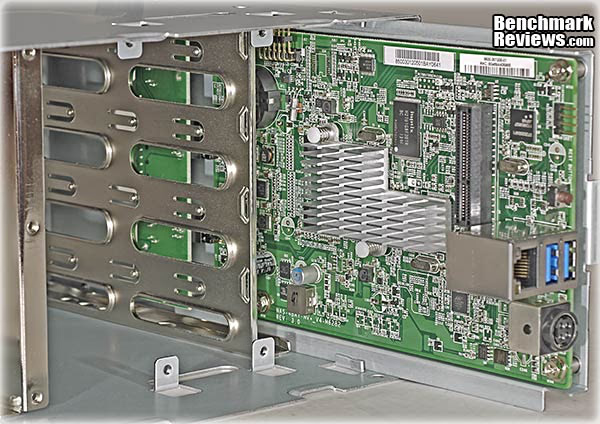
The main controller board and backplane connect with a PCI Express connector located toward the rear of the controller card, between the CPU heatsink and the stacked I/O connector. A couple of construction details to notice: the grounding pads on the backplane that mate up with the chassis mounting points, the lack of any active components on the backplane, and the use of a separate PC board for the front panel controls. The heatsink is a very meager affair, and it serves two chips, the Marvell 88F6282 CPU and the Marvell 88SM4140 SATA port multiplier. These two chips do the bulk of the work for this device; the only other chips that are stressed are the memory and the Ethernet controller. I suppose the USB 3.0 chip could get a workout, but only if you have an external drive with an SSD attached to it. Anything else wouldn't put too much strain on it.
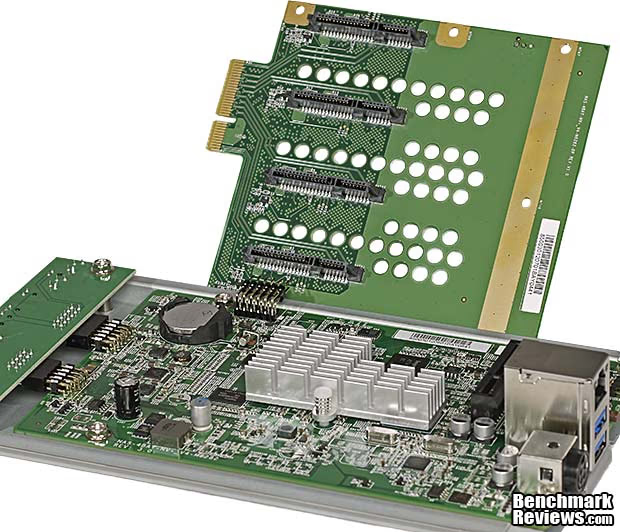
The limited cooling required for the two hardest working chips on the controller board is made even more obvious once you remove the heatsink and see the type of thermal interface materials in use. The CPU is thermally connected to the heatsink with that hard, plasticky material that we used to see on low-end video cards in the '80s and '90s. At least the assembly process and the viscosity of the material worked together to produce a thin interface layer. That's better than a 1mm thick layer of the good stuff, perhaps. The port multiplier gets a silicone pad, partly due to the need to make up the height difference between the two chips. Neither chip is working too hard, apparently. We'll see the result of their work ethic once we start testing throughput of the entire NAS. The CPU is readily available in 1.6, 1.8, and 2.0 GHz versions, and I do wonder how much the cost is reduced by using the slowest version of the chip.

Speaking of cooling - I know I mentioned the fan before, but here it is mounted to the rear panel with the traditional, stubby, thread-forming screws that 90% of PC case fans are fastened with. It's a standard 92mm case fan, with 3-wire tachometer control and is heavily modulated by the controller card. The foam and mesh composite shielding gasket surrounds the USB 3.0 and RJ-45 Ethernet connectors. That's where the high speed data path is, and it looks well protected from RFI. Good grounding practices were also in evidence throughout the construction of the rest of the chassis. Even though I didn't point them out in every image, most of them contain at least one feature that was put there specifically to improve grounding paths and to create a stable RF shield around the entire package.

So far we've had a good look at what there is to observe as far as hardware goes, but let's dig down one more layer, down to the chip level where the technology really starts to get interesting. I love my shiny hardware just as much as the next person, but it's only half the story....
Technology Details: NETGEAR ReadyNAS NV+ v2
The biggest chip on the board is not the Marvell ARM-based CPU, but it's still probably the hardest working hunk of silicon inside the chassis. That's because it's the most important IC on the board; it's the system controller, also known as an "Embedded Processor", "System-on-a Chip" (SOC) or just plain old CPU. Back in the day, the CPU was just the CPU, a number cruncher, but we all know that Large Scale Integration waits for no man. Today's "CPU" includes a whole bunch of other support and interface modules that simplify and streamline the system for the twin goals of increasing performance and reducing costs.

NETGEAR uses the Marvell 88F6282 processor, which houses an ARM®v5TE Single Core CPU running at 1.6 GHz, with a 256KB L2 Cache. The memory controller is integrated, and it handles DDR3-1066 or DDR2-800 memory modules. The ReadyNAS NV+ v2 uses DDR3-1333 9-9-9 memory, which is soldered directly to the motherboard. Some of the capabilities go unused on the TS-419P II, like the audio port, but many of the functions are utilized in the design. Although I see a Security Engine in the Marvell block diagram, the ReadyNAS models do not support AES 256-bit volume-based encryption. As slow as the Atom-based models are with encryption enabled, I can't see it being anything but a complete performance killer with the ARM processor.

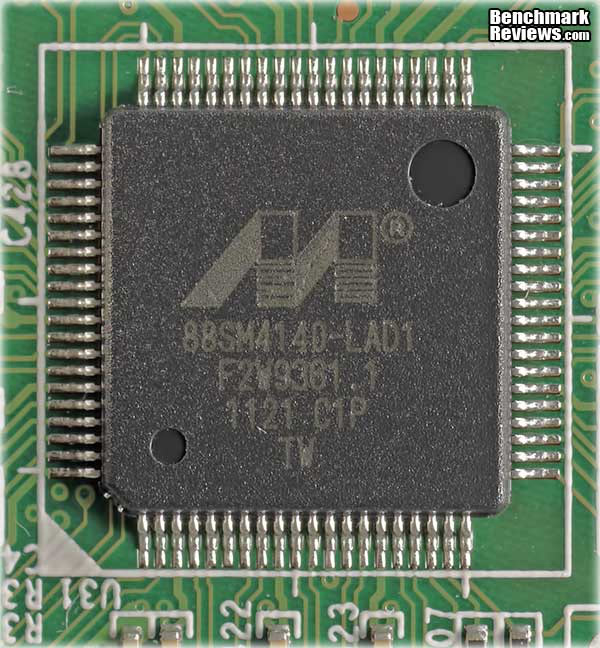
Marvell supplies several other ICs on the main board; they comprise the two main interfaces: one is for the four SATA devices and the other is the single port Gigabit Ethernet (GbE) controller. The 88SM4140 Serial ATA II Port Multiplier takes advantage of the existing SATA interface on the Marvell 88F6282 CPU, and expands that connection to the four SATA devices sitting in the HDD bays. The device uses adjustable pre-emphasis and amplitude settings on all 5 ports (1 host, 4 devices) for tuning high-speed, long-trace backplane implementations. This is a critical design feature for this application since the chip is mounted to the main board, and not on the backplane, where it would be closer to the drives.
The last of the three major Marvell ICs is the 88E1318, a Gigabit Ethernet PHY controller. PHY is a new acronym for many of us; it refers to a physical transceiver that operates at the physical layer of the OSI network model. Realtek is probably the most popular controller in the PC motherboard world, but Marvell currently produces nine different models of single port Gigabit Ethernet (GbE) controllers in their Alaska product line, so there must be a big enough market for a variety of vendors to survive.

256 MB of DDR3 memory is standard on the ReadyNAS NV+ v2; it's soldered directly to the board, and is not upgradeable. The two chips in my sample were supplied by Hynix and are rated for DDR3-1333 with timings of 9-9-9 for CL-tRCD-tRP. The memory controller built into the Marvell system controller can only access them at DDR3-1066, and the memory chips support that speed as well as a variety of other speeds and timings.

Last, but not least of the major ICs on the controller board is the Flash memory, which is 128 MB of SLC-based NAND sourced from Hynix again. It's actually the largest chip on the board, because the single H27U1G8F2B chip is built with 48nm features, which is ancient technology for the flash memory world. In this application, it's not anything close to a disadvantage; the designer just needed the cheapest part that was going to stay in production for the next couple of years. Serving up a Linux-based operating system to a 1.6 GHz ARM CPU is the dog's life for a flash memory chip; this one never, ever breaks a sweat.

To measure isolated NAS power consumption, Benchmark Reviews uses the Kill-A-Watt EZ (model P4460) power meter made by P3 International. Obviously, power consumption is going to depend heavily on the number and type of drives that are installed. The power draw also depends on the fan speed that's required to keep the drives cool. When the ReadyNAS NV+ v2 first boots up, 10 W is consumed at first. Once the system completes its boot process, and gets into idle standby mode, it consumed about 8 watts of electricity. With all four drives installed and during file transfer operations, it drew 47W, which is in line with the published specifications. When the unit is turned off, it still consumes 1W in Vampire mode; be aware that even when it's turned off, the 90W SMPS brick still pulls a small amount of power.
We've seen the ins and outs of the hardware, and the technology under the hood; now let's take a quick look through the list of features that you get with the ReadyNAS NV+ v2. The next couple of sections aren't overly long, but it's critical to understand what features you get with these units, and what you don't. It's not just a box full of drives; it's capable of more than that.
NETGEAR ReadyNAS NV+ v2 Features
As the volume of personal and business data continue to rise exponentially, the systems we use to store and manage it have become more complex. I started my long relationship with computers when program storage meant a shoebox full of punch cards. Now, a bare-bones PC starts off with almost a million files on it BEFORE you add your own data. I'm not going to tell you that computing is going to get any simpler, that's an outright lie, but I can say that the tools we use to manage them are going to make it easier.
 Robust Features Coupled with Easy Management
The ReadyNASTM NV+ v2 is designed for power users and home offices who need a cost-conscious network attached storage (NAS) appliance packed with robust high-end server features, including Gigabit Ethernet, hardware RAID, system monitoring capabilities and built-in backup. The NV+ v2 couples out-of-the-box deployment and easy management with robust file serving and data redundancy.
-
Serves files easily
-
Backs up data effortlessly
-
Streams music and video quickly
-
Shares printers with ease
-
Works with Windows®, Mac®, and Linux®
Easy Deployment and Management
With an easy Web browser interface and setup wizard, the NV+ v2 can be configured with minimal effort - saving you valuable time. Traditional file servers can take hours to configure and, even once up and running, don't have built-in system monitoring and email alerts. Automatic alerts give you the peace of mind that things are running smoothly because if trouble should arise, you will be notified.
RAID
Supporting hardware accelerated RAID (redundant array of independent disks) levels 0, 1, 5 and ReadyNAS's own X-RAID2TM technology, the NV+ v2 ensures full data redundancy with protection against hardware failure - something previously only available in high-end servers. If one drive fails, the data volumes can still be rebuilt with the remaining drives. Without RAID, once a failure occurs, you risk losing all of the data stored on the drive.
X-RAID2 Technology
ReadyNAS's patent pending X-RAID2 technology automates the volume expansion for you as you scale from 1 drive to 4 drives. Most NAS devices on the market aren't future-proof. You can't add or replace disks for larger capacity. ReadyNAS allows you to start with one disk, then add the additional drives over time, without reconfiguring the system and shuffling the data. Additionally, as disk capacity becomes larger and cheaper, you can replace all four disks, one by one, while X-RAID2 automatically manages the RAID details for you.
Backup
All ReadyNAS systems include multiple backup layers that you can customize to fit your needs. First, protect Windows and Mac clients with our included CDP software. Then, take a snapshot of your ReadyNAS data to ensure a recovery point. Next, backup to a USB drive on demand or on a schedule. Replication is a cinch between two ReadyNAS systems, and finally the ReadyNAS Vault option can move files and folders to an offsite secure data center for disaster recovery. It's all built in!
File Serving and Media Streaming
ReadyNAS is a single centralized source for all of your digital data. The variety of digital devices and hard drives that currently house the data in your home and office can make locating a particular file quite arduous. ReadyNAS can bring all of that data together for fast and easy file serving to multiple clients simultaneously. If it's video or other high-definition media you are working with, you can use your ReadyNAS for streaming to multiple devices at the same time. ReadyNAS also provides DLNA Certified media streaming to a wide variety of digital media devices (such as NETGEAR EVA products or Microsoft Xbox 360TM).
Advanced System Design
The industrial design and ultra compact form factor of the ReadyNAS makes it perfect for any home office or small business. Standing only eight inches tall and five inches wide, it can fit in any entertainment center or on any desk without taking up much space or making much noise. ReadyNAS also offers low power consumption and a special energy-saving mode that allows you to automate startup and shutdown.
NETGEAR ReadyNAS NV+ v2 Hardware Specifications
Hardware Specifications
Marvell ARM CPU
256MB DDR3 SODIMM
Four (4) Serial ATA II channels
Hot swappable drive trays
One (1) 10/100/1000 Ethernet port
Two (2) USB 3.0 ports in back
One (1) USB 2.0 port in front
Embedded 128 MB Flash Memory for OS
Kensington Lock security hole
Software controlled 92 mm chassis cooling fan
Dimension (H x W x D): 134 x 205 x 223 mm (5.28 x 8.07 x 8.78 in)
Weight: 4.70 kg (10.35 lb), without hard disks
Electrical
84/90W External AC power supply
Input: 100-240V AC~ 50-60Hz 7/7.5A(Max)
Power Consumption
52W typical with 4 x 2TB disks
48W idle, 22W with disk spin-down
Environmental Compliance
0 to 40 C (32 to 104 F)
20% to 80% Humidity (non-condensing)
FCC, UL, CE, RoHS, C-tick, VCCI, CCC, KCC compliance
Available Configurations
Diskless
Populated with 2 x 1TB
Populated with 4 x 1TB
Package Contents
ReadyNAS NV+ v2
Four (4) hard disk trays
Quick installation guide
Warranty card
Power cable
Ethernet cable
ReadyNAS Installation CD
ReadyNAS RAIDar Discovery Utility
Memeo Backup Premium for ReadyNAS
Warranty
3 years, limited
ReadyNAS NV+ v2 Software Specifications
The ReadyNAS Duo and NV+ v2 are designed for home use and small businesses. Nowadays, the typical home environment looks very similar to a small business anyways. When you have to combine the latest high tech devices, the legacy hardware and applications that everyone still has hanging around, the need to grant granular access to multiple terabytes of data with varying sensitivity, unified communications, and peripheral sharing - it's a daunting challenge. I also challenge you to tell me whether that last sentence refers to a small business or your own home network.
The Software feature list is small, but growing. There are a number of Add-Ons available in the ReadyNAS Community.
Software Specifications
Operating Systems Supported
Microsoft Windows 7
Windows Vista
Windows XP Home or Pro (SP1 or SP2)
Windows 2000 (SP4)
Macintosh OS X
Linux, UNIX, Solaris
Web Browsers Supported
Microsoft Internet Explorer 7.0+
Netscape Navigator 7.0+
Safari 2.0+
Mozilla Firefox 2.0+
Opera 9.5+
General
Setup Wizard and easy browser-based interface
Power-on schedule
Volumes
NETGEAR Auto-Expandable X-RAID2
RAID levels 0, 1, 5, and JBOD
Hot swap support
Journaled file system
Network File Services
CIFS/SMB for Microsoft Windows
AFP 3.2 for Macintosh OS 9 and OS X
NFS for linux and unix
FTP for standards based file transfer
rSync for data replication
HTTP/HTTPS for browser based file access
Media Streaming
DLNA Compatible (Certification in process):
Network Security
User authentication
Windows ACL
Encrypted network logins
Secure Socket Layer (SSL)
Microsoft Active Directory
Network Options
DHCP or static IP
NTP
System Management
Performance options
Device status
Email alerts and event logs
Optional SSH shell access
Add-on expandability
Backup
Integrated Backup Manager
Programmable backup button
Backup to/from CIFS, AFP, rSYNC, NFS
Backup to/from USB disks
Bundled Memeo Backup Premium for ReadyNAS backup software (with CDP and Versioning support)
USB Device Support
USB HDD and flash drives
UPS monitoring and auto shutdown
Power-saving Options
Disk spin-down
Power-on schedule
Wake-On-LAN (WOL)
Languages
File Name: Unicode
Management UI: English, Chinese, French, German, Italian, Japanese, Korean, Polish, Portuguese, Russian, Spanish, Swedish
Thermal
Fan failure alert
High temperature email alert with auto-shutdown option
Besides the core features available in the NETGEAR's RAIDiator 5.3.5 (ARM) firmware for the ReadyNAS network attached storage products, further capabilities are available from both NETGEAR and the ReadyNAS Community. Factory add-ons can be installed easily through the Local Update tab in the FrontView application. If you don't find what you want there, check out the ReadyNAS Community Add-on site. Many of the add-ons are for the other two NAS platforms, x86 and SPARC, but more are being added for the ARM-based models all the time. It pays to check back, or put yourself on the subscription list.
NETGEAR ReadyNAS NV+ v2 Setup & Usage
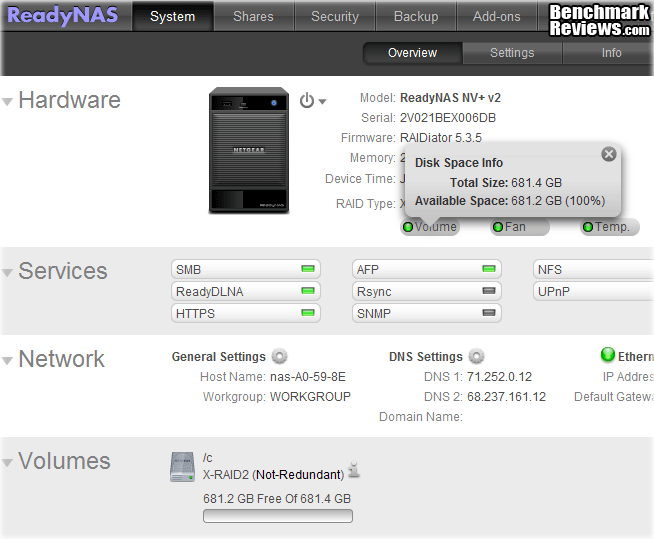
I requested a diskless model for testing, because I wanted to go through the process of starting from scratch, and I wanted to be consistent in my performance testing, by using the same drives for all NAS benchmarks. The ReadyNAS NV+ v2 doesn't really do much if there are no disks installed, so the first thing I did was to add a single disk, just to get the unit running. This is the Configure screen, which has sub screens for Overview, Settings, and Info. Dynamic Hover Text is used extensively throughout the interface, to good effect.
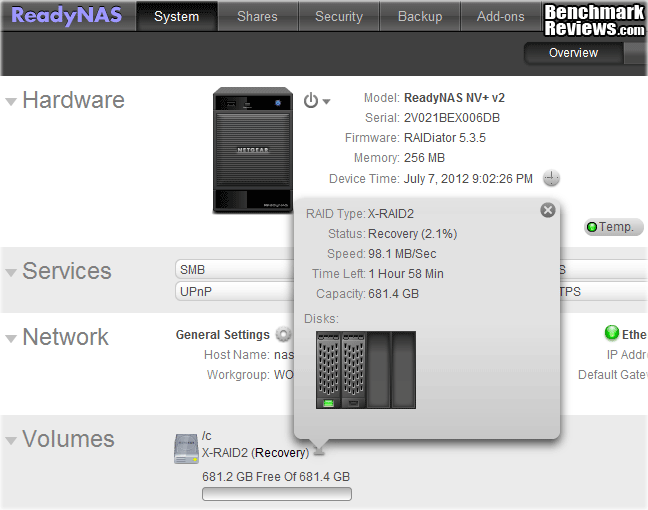
The image below shows the Disk Volume info available when the cursor is placed over the Volume button. Further below, the Volumes info-bar is open, and it shows additional information, like the fact that I have the disk set up with NETGEAR's X-RAID2. This is a setup option that gets decided by the user very early in the startup process, where the choice is between Flex-RAID and X-RAID2. I chose X-RAID2 because it makes it much easier to switch between RAID modes and it always presents a single volume. If you know you're going to use RAID 5 with 3 or 4 physical disks, or if you want to have two separate RAID 1 volumes on the same NAS, then Flex-RAID is perfectly useable.
The web-based setup and maintenance screens are easy to navigate and easy on the eyes. The first screen you encounter is the Dashboard; from there you navigate to the Configure, Documentation, Community, and How-To screens, by choosing the appropriate tab at the top. This version is Dashboard 1.0.0.224. There is some basic information displayed on this screen, as well. IP address, disk status, temperature, and fan speed are all shown in the Health box. The shares that have been configured are displayed as folders in the Shares box. Installed Add-Ons are listed in the Add-Ons box, and the Photos II Add-on is ready to be launched from its own box, on the right. I'm not going to delve into the ReadyNAS Photo II software in this article, but everything I see looks like a big step up, compared to typical photo-sharing software.

The System Info screen provides detailed information on the disks installed, including their SMART information. It's an easy way to see if one drive is getting hotter than the rest, for some reason. Whatever the reason, it's usually the first step in detecting bearing or motor failure. The rest of the screen is used for the detailed system log. This is where you go to see what's REALLY going on with the system. It's also a good place to look every now and then to make sure your automated backup jobs are running correctly. The log tells all...! There's a download button, if you want to keep copies in another location, or just want to share your logs with others on Facebook. You can also clear the log.

Let's look at the RAID expansion and Migration process a little. Since I started with a single drive and needed to perform benchmark testing on it, I then had to migrate to a full 4-disk RAID 5 configuration for the next round of tests. I did it in steps, adding one disk at a time, in order to see how long each expansion/migration step took. The first disk initialized very quickly - I was up and running in less than 5 minutes. Since I selected X-RAID2 during the initial configuration, all I had to do was physically add one more drive, and the ReadyNAS NV+ v2 took over from there. The second disk went through a "Resync" recovery process that took about three and a half hours (3:23). After that, I had essentially a RAID 1 setup, with two drives. After adding a third disk, the NAS went into a "Re-Striping" process to migrate the RAID volume from RAID 1 to RAID 5 with three disks. That process took over six hours (6:44) to complete. That's about normal, in my experience for an ARM-based device; it depends partly on the raw disk performance and partly on the NAS. Upgrading to a 4-disk array, still in RAID 5 mode, took over eight hours (8:23). Not that speedy, but it did it all while I was asleep, so I can't complain.
Lastly, the dashboard software provides for full-featured creation and management of shares on the NAS. Whether you're setting up your NAS for front-line storage, and you need separate shares for every user and some group shares, or you're setting up a multi-layer backup strategy, a flexible environment is a key success factor. Once again, NETGEAR has struck a good balance between the complex and the comprehensible. It's very easy to associate different users with the shares that they need access to. Read/Write access is configurable, as is the list of allowable protocols that can access the share. It's not 100% comprehensive, and my networking buddies in the Federal sector would feel constrained with only these options, but for a small business or home user it's as much as they can handle.

Ok, if you've been following along, there's not much more I can show you except how fast it is. So let's get down to some benchmarking, and compare it to a variety of other NAS products that we've looked at in the recent past.
Network Terminology
Benchmark Reviews primarily uses metric data measurement for testing storage products, for anyone who is interested in learning the relevant history of this sore spot in the industry, I've included a small explanation below:
The basic unit data measurement is called a bit (one single binary digit). Computers use these bits, which are composed of ones and zeros, to communicate their contents. All files are stored as binary files, and translated into working files by the Operating System. This two number system is called a "binary number system". In comparison, the decimal number system has ten unique digits consisting of zero through nine. Essentially it boils down to differences between binary and metric measurements, because testing is deeply impacted without carefully separating the two. For example, the difference between the transfer time of a one-Gigabyte (1000 Megabytes) file is going to be significantly better than a true binary Gigabyte (referred to as a Gibibyte) that contains 1024 Megabytes. The larger the file used for data transfer, the bigger the difference will be.
Have you ever wondered why your 500 GB hard drive only has about 488 GB once it has been formatted? Most Operating Systems utilize the binary number system to express file data size, however the prefixes for the multiples are based on the metric system. So even though a metric "Kilo" equals 1,000, a binary "Kilo" equals 1,024. Are you confused yet? Don't be surprised, because even the most tech savvy people often mistake the two. Plainly put, the Kilobyte is expressed as 1000 bytes, but it is really comprised of 1,024 bytes.
Most network engineers are not fully aware that the IEC changed the way we calculate and name data chunks when they published the new International Standards back in December 1998. The International Electrotechnical Commission (IEC) removed the old metric prefixes for multiples in binary code with new prefixes for binary multiples made up of only the first two letters of the metric prefixes and adding the first two letters of the word "binary". For example, instead of Megabyte (MB) or Gigabyte (GB), the new terms would be Mebibyte (MiB) or Gibibyte (GiB). While this is the new official IEC International Standard, it has not been widely adopted yet because it is either still unknown by institutions or not commonly used.
NAS Testing Methodology
All the NAS devices we test cannot accommodate all the different disk configurations, so our current test protocol has been based on two of the most popular setups: a basic (single) disk and RAID-5 configurations. Most NAS products that can support RAID 5 go beyond the minimum number of drive bays, to a total of four, so that is the number of drives that I typically use to test with, even though I could get by with only three. During initial setup, the NAS was tested for the latest firmware by checking the Netgear website, and also with the built-in updater function in the ReadyNAS Dashboard software. The firmware installed on the NV+ v2 was v5.3.5 when I received it, which is the most current version. The same version was also included on a CD-ROM provided in the accessory kit.
Normally, I connect the NAS directly to an Intel Gigabit CT Desktop LAN controller in the test-bench system, with ten-foot CAT6 patch cables. This time, the NAS wasn't being recognized until I set a static IP address of 192.168.168.xxx on the host PC. The ReadyNAS absolutely has to be on the same subnet as the host, or it will not be seen. I did a couple quick throughput tests and saw no appreciable difference, so I went with a more realistic network arrangement and plugged the NV+ v2 into the local GbE switch that I normally connect all my test systems to. At the transfer speeds I was seeing, the single GbE connection wasn't holding the unit back, so I used that setup for all the testing.
With the networking taken care of, the next potential bottleneck that needed attention is the disk system on the host PC. In previous tests, I relied on the third generation OCZ Agility SSD, which is good for at least 500 MB/s, input or output, on the appropriate Intel Platform Controller Hub. While I was doing some testing with an 8-bay monster NAS and 10GbE connections, I decided it was time to bypass the SSD on the test rig and install a RAM Disk. There are at least a dozen products on the market that will create and manage a RAM Disk on Windows systems; I chose RAMDisk v3.5.1.130R22 from Dataram based on performance tests in several reviews (we read 'em, too....) and its reasonable cost structure. I needed to assign at least 10GB of space to the RAM Disk, in order to replicate the test protocol I've been using for all my NAS testing, so none of the freeware products looked suitable. One other trick was necessary, to get the RAM Disk to transfer files larger than 2GB, I had to use the "Convert" utility in Windows to make the RAM Disk into an NTFS volume. Then I was able to perform the file transfers with 10GB files, no problem. If you want to avoid this extra step, be sure to look for a RAM Disk product that directly supports the NTFS file system.

For basic throughput evaluation, the NAS product received one test transfer followed by at least three timed transfers. Each test file was sent to the Western Digital Caviar Black 750GB (WD7502AAEX) hard drives installed in the NAS for a timed NAS write test, and that same file was sent back to the RAM Disk in the test system to perform a NAS read test. Each test was repeated several times, the high and low values were discarded and the average of the remaining results was recorded and charted.
The Read and Write transfer tests were conducted on each NAS appliance using the 1 GB file and then a 10 GB file. Normally, a second set of tests are conducted with Jumbo Frame enabled, i.e. the MTU value for the Ethernet controllers is increased from 1500 to 9000. Many of the NAS products tested to date in the Windows 7 environment have supported the Jumbo Frame configuration, but the ReadyNAS NV+ v2 uses the 1500 MTU setting by default and there are no user-accessible controls to change that. With only a single GbE connection available on the NV+ v2, I was not able to test using the IEEE 802.3ad mode. This is commonly called Link Aggregation Control Protocol (LACP), where the two cards use dynamic link aggregation. None of these network settings are going to be commonly addressed by the average consumer, which is where NETGEAR is targeting this device. They certainly have tons of experience selling networking gear to this market, and I think they chose wisely when deciding to keep the network configuration as simple as possible.
I also ran the Intel NAS Performance Toolkit (NASPT) version 1.7.1, which was originally designed to run on a Windows XP client. People smarter than me have figured out how to run it under Windows 7, including the 64-bit version that is used more often than the 32-bit version these days. NASPT brings an important perspective to our test protocol, as it is designed to measure the performance of a NAS system as viewed from the end user's perspective. Benchmarks like ATTO use Direct I/O Access to accurately measure disk performance with minimal influence from the OS and the host platform. This provides important, objective data that can be used to measure raw, physical performance. While it's critical to measure the base performance, it's also important to quantify what you can expect using real-world applications, and that's exactly what NASPT does. One of the disadvantages of NASPT is that it is influenced by the amount of memory installed on the client, and it was designed for systems that had 2-4 GB of RAM. Consequently, two of the tests give unrealistic results, because they are measuring the speed of the buffer on the client, instead of the actual NAS performance. For that reason, we will ignore the results for "HD Video Record" and "File Copy to NAS".

Benchmark Reviews was also able to measures NAS performance using some tests that are traditionally used for internal drives. The ATTO Disk Benchmark program is free, and offers a comprehensive set of test variables to work with. In terms of disk performance, it measures interface transfer rates at various intervals for a user-specified length and then reports read and write speeds for these spot-tests. CrystalDiskMark 3.0 is a file transfer and operational bandwidth benchmark tool from Crystal Dew World that offers performance transfer speed results using sequential, 512KB random, and 4KB random samples. Benchmark Reviews uses CrystalDiskMark to illustrate operational IOPS performance with multiple threads, which allows us to determine operational bandwidth under heavy load.

We are continuing our NAS testing with the exclusive use of Windows 7 as the testing platform for the host system. The performance differences between Win7 and XP are huge, as we documented in our QNAP TS-259 Pro review. The adoption rate for Win 7 has been very high, and Benchmark Reviews has been using Win 7 in all of our other testing for some time now. It was definitely time to make the jump for NAS products.
NAS Comparison Products
- Netgear ReadyNAS NV+ v2 Gigabit 4-bay SATA NAS Server
- QNAP TS-879U-RP Gigabit 8-bay SATA NAS Server
- QNAP TS-219P+ Gigabit 2-Bay SATA NAS server
- QNAP TS-259 Pro Gigabit 2-Bay SATA NAS server
- QNAP TS-659 Pro II Gigabit 6-Bay SATA NAS server
- QNAP TS-419P II Gigabit 4-bay SATA NAS Server
Support Equipment
- (4) Western Digital Caviar Black WD7502AAEX 750GB 7200 RPM 64MB Cache SATA 6.0Gb/s 3.5"
- Intel EXPI9301 CT Gigabit Ethernet NIC, x1 PCIe 1.1, 1x CAT5
- Trendnet 8-port GbE Switch TEG-S80g
- Dataram RAMDisk v3.5.1.130R22
- Intel NAS Performance Toolkit (NASPT) version 1.7.1
- ATTO Disk Benchmark v2.47
- CrystalDiskMark 3.0
- 10-Foot Category-6 Solid Copper Shielded Twisted Pair Patch Cable
- 1 metric Gigabyte Test File (1 GB = 1,000,000,000 bytes)
- 10 metric Gigabyte Test File (10 GB = 10,000,000,000 bytes)
Test System
- Motherboard: MSI Z68-Express Z68A-GD80 (1.23.1108 BIOS)
- System Memory: 4x 4GB Corsair Vengeance LP DDR3 1600MHz (9-9-9-24)
- Processor: Intel Core i5-2500K Sandy Bridge 3.3GHz (BX80623I52500K)
- CPU Cooler: Thermalright Venomous-X (Delta AFB1212SHE PWM Fan)
- Video: Intel HD Graphics 3000
- Drive 1: OCZ Agility3 SSD 120GB (AGT3-25SAT3-120G)
- Optical Drive: Sony NEC Optiarc DVD (AD-7190A-OB 20X)
- Enclosure: Lian Li Armorsuit PC-P50R
- PSU: Corsair CMPSU-750TX ATX12V V2.2 750Watt
- Monitor: SOYO 24"; Widescreen LCD Monitor (DYLM24E6) 1920X1200
- Operating System: Windows 7 Ultimate Version 6.1 (Build 7600)
1GB Single-Disk Test Results
The bottom line for any storage device is the combination of capacity and transfer speed. For a network attached storage server, the differences are all about the infrastructure that is placed around the basic HDD array. Since capacity is something that's easy to define and measure, the real question for any NAS product is how fast will it Read and Write data. For this reason, Benchmark Reviews primarily measures NAS performance as the bandwidth achieved during a file transfer test. The first tests we perform utilize a single 1GB (1000 megabytes / 1,000,000,000 bytes) file in a transfer to and from the NAS.
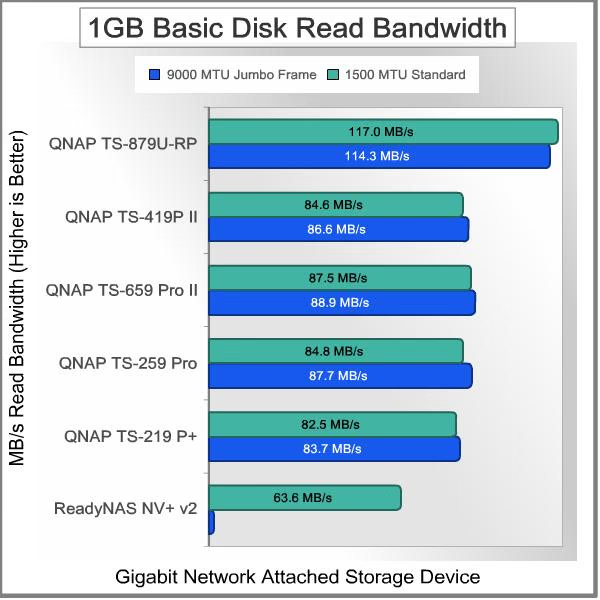
Since we started testing NAS units exclusively with Win 7, there aren't as many prior test results to compare with. We'll try and build up the NAS testing as best we can in the next year. With all the NAS units operating in single disk mode, most of the units have broadly similar performance. The TS-879U-RP tops the 1 GB Read tests, primarily due to its faster CPU. The rest of the QNAP units run in the mid-80 MB/s range, with little difference between Atom-based and Marvell-based models. The ReadyNAS NV+ v2 achieves a 63.6 MB/s read speed with a single disk installed using the X-RAID2 disk management protocol. All results for this model are with an MTU of 1500, since Jumbo Frame capability is not available on the Ethernet connection of the ReadyNAS NV+ v2. Most people who buy a 4-bay NAS don't care too much about single disk performance, but it's useful to get an understanding of any possible issues with the basic architecture of the system.
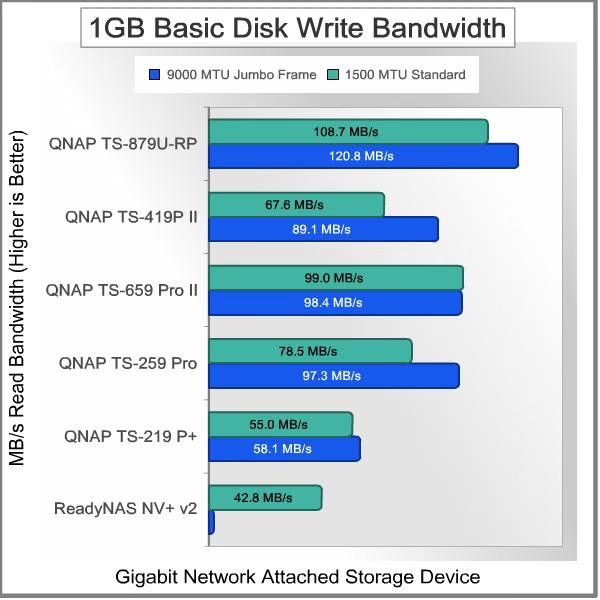
Moving on to the 1 GB write bandwidth test, there is a wider diversity within our results, with significant variation introduced by the MTU setting on the network interface. The QNAP TS-879U-RP posts the top numbers again, and the write speeds of the other models follow along with the pricing of the units and the processing power of their installed CPU. In general, the Intel Atom-based models are performing better than the Marvell-based units with the weaker CPUs. The ReadyNAS NV+ v2 achieves a 42.8 MB/s write speed with a single disk, installed using the X-RAID2 disk management protocol. Don't worry about the relative position of the ReadyNAS NV+ v2 on this list, the QNAPs are high-end models with high-end prices. The top model listed here goes for around $3,000 without disks.
Next up is 10 GB (1000 metric megabytes / 10,000,000,000 bytes) file transfer testing. Using the single-disk configuration in each NAS, and a Gigabit Ethernet connection, network throughput will be put to the test, and the effect of any system or hardware caches will be minimized.
10GB Single-Disk Test Results
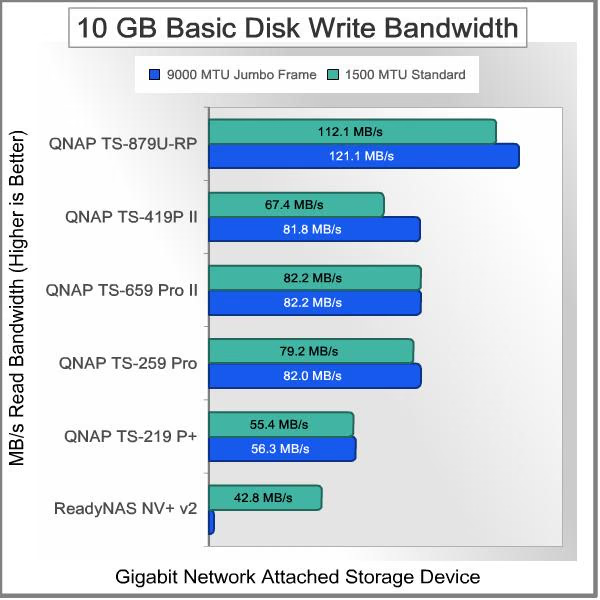
Examining 10GB basic file transfer speeds, the mid-range QNAP models all got a boost, compared to the 1 GB file transfers. Their read speed went up by approximately 10 MB/s, to a combined average of 95 MB/s. The TS-879U-RP delivered similar read performance with the two file sizes, as did the NETGEAR ReadyNAS NV+ v2. Interesting that the least and most expensive units in the test were not affected like the others.... The TS-879U-RP is built to handle the higher throughput of an eight-disk array in a corporate LAN environment, and it shows. The ReadyNAS has an infrastructure that is less than one tenth the cost, and that's what determines its performance here. Once again, you get none of the advantages of redundancy with a single disk or JBOD, and most NAS users will go for one of the RAID configurations. These figures are not what the average user will experience; those will be seen later in our RAID 5 tests.

In our 10GB write performance tests, the performance of all the NAS units is similar to their showing with the smaller sized, 1 GB file. The ReadyNAS NV+ v2 hits the exact same performance level, at 42.8 MB/s. One of the things I noticed while testing the ReadyNAS unit was the consistency of the results. During timed runs, the results were never more than two seconds apart; in most cases I had three or more runs with the exact same elapsed time.
Next we're going to look at RAID 5 performance, where the NETGEAR ReadyNAS NV+ v2 will have to compete with some heavy-duty challengers in the QNAP product line. Since the QNAP TS-259 Pro and TS-219P+ don't support the RAID5 configuration that we normally use to test large format NAS products, we won't be able to include their results in this next comparison.
NAS Comparison Products
- Netgear ReadyNAS NV+ v2 Gigabit 4-bay SATA NAS Server
- QNAP TS-879U-RP Gigabit 8-bay SATA NAS Server
- QNAP TS-219P+ Gigabit 2-Bay SATA NAS server
- QNAP TS-259 Pro Gigabit 2-Bay SATA NAS server
- QNAP TS-659 Pro II Gigabit 6-Bay SATA NAS server
- QNAP TS-419P II Gigabit 4-bay SATA NAS Server
1GB RAID 5 Test Results
If you've got more than three HDD spindle to put in play, it makes sense to use one of the more advanced RAID configurations. RAID 5 is one of the most popular setups, primarily due to the balance it exhibits between capacity and redundancy. Not surprisingly, most NAS units that can support more than three HDDs also support RAID 5, so it makes sense to use it for test purposes. Most NAS products that can support RAID 5 go beyond the minimum number of drive bays, to a total of four, so that is the number of drives that I typically use to test with, even though I could get by with only three. The NETGEAR ReadyNAS NV+ v2 uses a proprietary disk management tool called X-RAID2, which provides automatic volume expansion and RAID migration. You can manage the RAID configuration manually, but the X-RAID2 process is a lot easier and doesn't require you to migrate your data off the NAS during transitions.
The results for RAID 5 read testing show that the ReadyNAS NV+ v2 is optimized more for this configuration than for a single disk. It catches up to the more costly QNAP units in a big way, racking up a 93.5 MB/s average read speed with 1 GB files. It can't quite match the mighty TS-879U-RP, with its Intel Core i3 CPU and eight drive bays, but few NAS products can.

The 1 GB RAID 5 disk write test shows more clearly the strain that this particular RAID configuration puts on the NAS infrastructure. It's well known that RAID 5 write performance can be a weak point, with all the computation overhead involved and the extra parity bits that need to be calculated and written to each of the drives. The only way to overcome that is with raw computational horsepower, which is why the ARM-based models lag behind both the Intel Atom and Core i3 units. The simplest assignment any NAS can perform is basic backup duty, and in order to do that task well, you need to buy the most powerful system to effectively reap the benefits of a multi-disk array. That doesn't mean you can't do backups with a more modest unit, you just have to be smart about it. Don't have every workstation on the network set for an automated backup at the same time, for instance.

Next up is 10 GB (1000 metric megabytes / 10,000,000,000 bytes) file transfer testing. Using the 4-disk RAID 5 configuration in each NAS, and a single Gigabit connection, network throughput will be put to the test, and the effect of any system or hardware caches will be minimized.
10GB RAID 5 Test Results
Looking at read tests with a single 10GB file, the ReadyNAS NV+ v2 still hangs in there, with a read speed that's only 15% off from the highest performing unit. The results still favor the more expensive models, even though it's not a 1:1 ratio of improvement with higher cost. In order to do substantially better than this, you have to upgrade the network connection; GbE is only good for 125 MB/s, on a theoretical basis.

Looking at write tests with a single 10GB file, the results are not all that different from the 1 GB tests. The NETGEAR ReadyNAS NV+ v2 runs at almost exactly the same read speed - 42.3 MB/s v. 42.4 MB/s. The QNAP TS-659 Pro II is the only one that takes a hit with the larger file size, with a ~10 MB/s loss. If you're writing large files to a NAS, you can't afford to scrimp on system hardware; you need the biggest, baddest CPU you can afford. The various caches built into the host and target system help out on the smaller file transfers, but they get filled up and lose their effectiveness when dealing with large files like this. Once again, the TS-879U-RP just laughs at the additional load of four additional hard drives; the CPU utilization never got above 25% during this test. I had no way of gauging the CPU or memory load of the ReadyNAS NV+ v2, as the Dashboard tool does not have a monitoring capability that goes down to that level of detail.

All in all, my impression of these test results is that the ReadyNAS NV+ v2 is a good performer that should meet the market needs for its intended users. For home use or for a small business, it's a small, simple, rugged device that doesn't require a lot of knowledge to set up and use effectively. Nowhere was this clearer than when migrating from a single-disk configuration to a full 4-disk RAID 5 arrangement. The proprietary X-RAID2 software made it simple and easy; there was literally nothing to figure out - just add drives and wait. As a reviewer, I appreciate all manner of bells and whistles, especially if it makes it possible to measure sub-system performance. As a NAS user, I just want the thing to work reliably 24/7 for at least 5 years, be easy to set up, and have just enough features in the software to make it useful. The last part is different for everyone - there is no one size fits all.
NAS Comparison Products
- Netgear ReadyNAS NV+ v2 Gigabit 4-bay SATA NAS Server
- QNAP TS-879U-RP Gigabit 8-bay SATA NAS Server
- QNAP TS-659 Pro II Gigabit 6-Bay SATA NAS server
- QNAP TS-419P II Gigabit 4-bay SATA NAS Server
Intel NASPT Test Results
NASPT brings an important perspective to our test protocol, as it is designed to measure the performance of a NAS system, as viewed from the end user's perspective. Benchmarks like ATTO use Direct I/O Access to accurately measure disk performance with minimal influence from the OS and the host platform. This provides important, objective data that can be used to measure raw, physical performance. While it's critical to measure the base performance, it's also important to quantify what you can expect using real-world applications, and that's exactly what NASPT does. One of the disadvantages of NASPT is that it is influenced by the amount of memory installed on the client, and it was designed for systems that had 2-4 GB of RAM. Consequently, two of the tests give unrealistic results, because they are measuring the speed of the buffer on the client, instead of the actual NAS performance. For that reason, we will ignore the results for "HD Video Record" and "File Copy to NAS".
Shown here is a single run, which turned out to be typical. The numbers in the chart below are an average of five runs. With a single, basic GbE interface in place, the results look somewhat similar to the first set of data I have from this test. No individual test pushes past the ~ 120 MB/s theoretical barrier, but several of them are in the 70-90 MB/s range. Some of the tests have very low transfer rates, and that's due to the nature of the test. The Content Creation test for example, simulates a user creating a web page, accessing multiple sources for the content. The Directory Copy tests use several hundred directories and several thousand files to test a typical backup and restore scenario. That's one of the most real-world type of tests, and it's useful to have a standard set of test data to use, because my directory of 1,000 random files is never going to be the same as your directory of 1,000 random files.
To summarize things, here's a consolidated chart of the "Fast" NASPT tests, and another for the "Slow" ones. First, the tests with relatively fast transfer rates. The ReadyNAS NV+ v2 does pretty well against the well-healed TS-879U-RP from QNAP if you just look at the raw numbers. At somewhere between one eighth and one tenth the price, I'd say it does extremely well. Hi-Def Play & Record takes a hit, no doubt due to the lower write performance of the ReadyNAS NV+ v2, but all the other results are near to 70-80% of the performance of the biggest, fastest NAS I've ever tested. Once again, these units were both tested with a normal, GbE network connection, in order to eliminate that as a variable. Running the TS-879U-RP with one or two 10GbE interfaces turns that monster loose, like Ken Block in a Ford Focus.

The "Slow" tests show a mixed bag of results. The Directory Copy IN and Directory Copy OUT show exactly what I would expect, given the excellent Write performance of the TS-879U-RP. Most NAS devices can't handle RAID 5 writes as easily, because they are constrained by the CPU. That's undoubtedly the case here.

This was my second set of official tests with the Intel NASPT benchmarking tool, and I'm reasonably happy with the results. I'm not too pleased that two of the tests are so dependent on the amount of memory in the host PC, to the point of making their test results completely unusable. I'm also not willing to hobble the Windows 7 test bench to 2GB of RAM just to run this test suite. The fact that 10 of the 12 tests are not affected by this issue means I will choose to ignore the HD Video Record and File Copy to NAS results unless a patch is issued to fix this problem. All of the other tests give predictable and meaningful results that represent real-world scenarios, so I'll continue to use this benchmark in the future.
NAS Comparison Products
- Netgear ReadyNAS NV+ v2 Gigabit 4-bay SATA NAS Server
- QNAP TS-879U-RP Gigabit 8-bay SATA NAS Server
Non-Traditional NAS Test Results
In addition to measuring simple timed transfers, to determine how fast it will read and write contiguous blocks of data, Benchmark Reviews was also able to measures NAS performance using some tests that are traditionally used for internal drives. By mapping the ReadyNAS NV+ v2 as a local drive, some of our favorite HDD/SSD benchmarking tools worked just fine. Some NAS products don't work too well with this type of test program; even though they may have the ability to map the NAS device to a drive letter, they're still not treated like local drives by the Operating System. I didn't see that problem with the ReadyNAS NV+ v2, so let's look at some results...
ATTO Disk Benchmark Results
The ATTO Disk Benchmark program is free, and offers a comprehensive set of test variables to work with. In terms of disk performance, it measures interface transfer rates at various intervals for a user-specified length and then reports read and write speeds for these spot-tests. There are some minor improvements made to the 2.46 version of the program that allow for test lengths up to 2GB, but all of our benchmarks are conducted with 256MB total length. ATTO Disk Benchmark requires that an active partition be set on the drive being tested. Please consider the results displayed by this benchmark to be basic bandwidth speed performance indicators.
The NETGEAR ReadyNAS NV+ v2 turned in a solid performance on ATTO, reaching a peak Read speed of 90.4 MB/s and a peak Write speed of 50.6 MB/s. It's good to keep in mind that these tests are not always indicative of real-world performance. In this case though, these results were close to the numbers achieved in timed Read and Write tests. It's important to note that roughly 95% of the maximum performance level was reached by the 32 kB block size. That's a sign of both good RAID management, and the high performance hard drives that are used in our testing.
CrystalDiskMark Results
CrystalDiskMark 3.0 is a file transfer and operational bandwidth benchmark tool from Crystal Dew World that offers performance transfer speed results using sequential, 512KB random, and 4KB random samples. For our test results chart below, the 4KB 32-Queue Depth read and write performance was measured using a 1000MB space. CrystalDiskMark requires that an active partition be set on the drive being tested. Benchmark Reviews uses CrystalDiskMark to illustrate operational IOPS performance with multiple threads. In addition to our other tests, this benchmark allows us to determine operational bandwidth under heavy load.
The combination of the NETGEAR ReadyNAS NV+ v2 and four Western Digital Caviar Black WD7502AAEX 7200 RPM 64MB Cache SATA 6.0Gb/s generates some good numbers in this test. It pulls a respectable 57.4 MB/s on sequential Read and 46.5 on sequential Write tests. The 4k tests show very low numbers, but that's typical of HDDs, even in a RAID configuration. That's one of the huge advantages that SSDs bring to the table, is the ability to handle thousand of small data chunks very gracefully.

All in all, these are a respectable set of results for Network Attached Storage. Sure, they're a bit lower than a true local drive connection, directly into the SATA controller on the motherboard. But, for a NAS device mimicking a local HDD, the ReadyNAS NV+ v2 performs very well at the price point.
NAS Server Final Thoughts
My first and solemn duty is to remind everyone that relying on a collection of drives in any RAID configuration for data backup purposes is a huge error. RAID systems provide protection against loss of services, not loss of data. Several examples will illustrate the problem, I hope:
-
the drive controller goes bad and corrupts the data on all the drives in the array
-
the entire storage device is physically or electrically damaged by external forces
-
the entire storage device is lost, stolen, or destroyed
-
a single drive in a RAID 5 cluster dies and during the rebuild process, which puts higher stress on the remaining drives, a second drive fails
-
floods, earthquakes, tornadoes, etc. (AKA El Niño, Derecho)
All these points lead to the inescapable conclusion that multiple drives in a common system, in a single location do not provide effective and reliable data backup. Throughout this review I've talked about high-availability systems, and the NETGEAR ReadyNAS NV+ v2 fits that description well, especially when employed in a RAID 5 configuration. With a single drive failure, your data is still available and accessible. The NAS device stays online the entire time while the failed drive is replaced and the array is rebuilt. That's what RAID systems are designed to do. The inherent redundancy is not meant to serve as a backup file set. Remember, we're not talking about losing data here, we're only talking about the ability to keep working uninterrupted, if a drives should fail.
If you look closely at the ATTO Disk Benchmark for the NETGEAR ReadyNAS NV+ v2 NAS Server, you see another benefit of such a system, even when straddled with 1 GbE NICs. The full performance of the system is reached at the 32KB chunk size. That means that the system isn't just good at transferring data in a linear, sequential manner, it's good at handling smaller chunks of data too. Take a look at other system and see how well they handle smaller random chunks of data, compared to large sequential chunks, and you'll see how valuable this type of performance is.
In contrast to some Mega-NAS products I've tested recently, the ReadyNAS NV+ v2 is a product that most readers of Benchmark Reviews would probably contemplate purchasing. The cost of HDDs is coming down, although not to where they were before the Thailand floods, and the total storage needs of a modern household with all the latest high tech goodies is increasing rapidly. Although you can easily start with one disk and expand/migrate to RAID volumes later, I would recommend beginning with at least two drives, to get some data redundancy right away. Especially if you plan on using your NAS as front line storage, if you can avoid having to restore your data from backups, it's worth it.
NETGEAR knows a thing or two about networking, and especially the home networking marketplace. They've been in this market since 1996 and have a thorough understanding of what features and technology work well in a consumer environment and what things just cause trouble. So, I could beat them up for not providing a way to switch the ReadyNAS NV+ v2 over to 9k MTU and Jumbo Frames, but if 80% of their customers are going to configure it wrong when they change from the default settings, who's the smart one now? I've mentioned it before, but it bears repeating. Their X-RAID2 software makes RAID expansion and migration a complete no-brainer to execute. The fact that this activity is a common source of accidental data destruction just shows that NETGEAR have invested their development dollars wisely. Let's not call it "NAS for Dummies", but let's admit that when friends and relatives ask us for tech advice, we're always looking for the solution with the least amount of potential for user error.
The home and small business network is going to stay on gigabit Ethernet for awhile. The cost to upgrade switches and routers to 10 GbE is still cost prohibitive for everyone who doesn't have a dedicated LAN room with a couple racks of equipment. If you're making that kind of investment in IT infrastructure, this article isn't for you. For the rest of us, this 4-bay GbE NAS is sitting in the sweet spot of cost and performance. Its ease of deployment makes it an attractive recommendation for those among us who don't have an insatiable need to "understand everything, all at once".
So, what conclusions can we draw about this high performance, four-bay ReadyNAS NV+ v2 NAS server? Click NEXT to find out, and discuss...
NETGEAR ReadyNAS NV+ v2 Conclusion
Although the rating and final score mentioned in this conclusion are made to be as objective as possible, please be advised that every author perceives these factors differently at various points in time. As Albert Einstein said, "Not everything that can be counted counts, and not everything that counts can be counted." While we each do our best to ensure that all aspects of the product are considered, there are often times unforeseen market conditions and manufacturer changes which occur after publication that could render our rating obsolete. Please do not base any purchase solely on our conclusions, as they represent our product rating for the sample received which may differ from retail versions.
The performance of the NETGEAR ReadyNAS NV+ v2 is right where it needs to be for its target market. During timed transfers of 1GB and 10GB files the NV+ v2 recorded Read speeds of 94MB/s and Write speeds above 42MB/s. These are the RAID 5 results, and the only ones that really matter, since I suspect 90%+ of all users will choose that operating mode. The Marvell 6282 CPU is holding the performance back a bit, especially the 1.6 GHz model that is used. The use of a Serial ATA II Port Multiplier from Marvell is also a potential bottleneck. The balancing act of capacity, speed and cost had to land somewhere, and it's hard to argue with what NETGEAR has put together here. There are always ways to make a system faster by throwing more expensive parts at it. The USB 3.0 performance is a much needed shot in the arm for interfacing with portable devices. The standard GbE network interface is perfectly suitable here, and the lack of dual ports or Jumbo Frame support isn't going to matter much to the intended users.
The four-bay form factor of the ReadyNAS NV+ v2 allows for the use of a display on the front of the unit, which was handy for system monitoring and for out-of-the-box setup. The status LEDs for each HDD are backlit numerals, which is a nice touch. The mesh door hiding the drive trays is nicely finished, and blends well with the remainder of the front panel. It makes a huge difference in the appearance, compared to models that have exposed drive bays. NETGEAR wisely kept all the controls and the USB connector on the outside; nothing worse than having to leave the door open just because you need access to the jack that's behind it. The side and top panels are well finished, but have a duller finish than some competitors' products. On the positive side, they don't show every fingerprint that comes within an inch of their surface. You tend not to notice the feet on networking components, but these are nice looking ones, without being so big that they're noticeable.

The construction quality of the ReadyNAS NV+ v2 was actually a bit more robust than necessary, I thought. It's built like a tank, with all steel exterior panels on the sides and top. The drive trays are also very nicely built, and slide in and out more smoothly than I've experienced on other products. OTOH, I shouldn't complain, as I actually do appreciate these mechanical niceties. Not everything needs to be made in the cheapest manner possible. The only reason I'm looking closely at the cost of the mechanical packaging is that I sensed some hard economic choices were made on the controller side. The combination of a port multiplier design approach and the slowest version of the CPU impacted performance, and some money saved on the construction budget might have bought a faster controller. Still, I have to give credit where credit's due, and construction is top notch. One benefit of that is NETGEARS's confidence in the product, which gets you a 3 Year warranty, even for the models that have HDDs installed. Since drive manufacturers have been backing down the duration of their warranties lately, this is a real sign of good will on the part of NETGEAR.
The ReadyNAS NV+ v2 is targeted to a growing class of NAS users, I think. The expansion of cloud-based services has really opened the public's eyes to the advantages of centralized storage, that's universally accessible. Bringing that capability to the home network is not new, but the needs of that market have matured quite a bit in the last 5 years. I started off with a single-drive NAS about eight years ago, with a rudimentary set of features. Today, I use a four bay device that serves up all the different access modes that have become a part of our mobile lifestyle. The NV+ v2 has a limited set of features compared to my personal NAS, and a limited set of software add-ons to extend its feature set. But the truth is, the ReadyNAS has all the features that I need for the home environment. This v2 model brings a host of up-to-date capabilities that are perfect for today's user. There should also be more add-ons in the pipeline for the new ARM-based models.
As of August 2012 the diskless ReadyNAS NV+ v2 model was listed for $369.99 (Newegg / Amazon). Newegg also has a manufacturer's rebate of $100 available until 09/30/2012. That's a huge incentive to buy now, and a similar rebate is also available for the 2TB and 4TB models, which come preloaded with two or four 1TB HDDs. The value proposition for NAS devices is always clouded by the ability to assemble a cheap PC and run FreeNAS or one of Microsoft's Home Server products on it. As a certifiable DIY Lifehacker, I get that. I also have enough parts lying around to do it, but the fact is, I haven't. I honestly believe there's value in the dedicated NAS form factor, primarily because I really just want to treat it as an appliance. I don't want another system to maintain, to patch it on every third Tuesday, to vacuum or clean the filters on it, and I don't want to make any more space for it than I absolutely have to. For me, the NAS concept is a good value proposition, and the ReadyNAS NV+ v2 offers very good value within that paradigm.
Benchmark Reviews has enjoyed testing a variety of network storage solutions, and with the wide range of products on offer from a number of vendors, anyone in need of a NAS server can find one to fit their current and future needs. The biggest problem is choosing one; that's why we go into so much detail in our reviews, to help you figure out what level of performance and features is right for you. If you need a staggering array of features and higher-value RAID (6, 10, 20....) or 10GbE performance, and there really is no substitute, then you need to look elsewhere to meet those needs. If you just need the storage capacity, the throughput and continuity of service that RAID 5 provides in a small, reliable, easy to use package, then the NETGEAR ReadyNAS NV+ v2 is an excellent candidate for you to look closely at.
Pros:
+ Ease of use
+ Right features are built in and configured as default
+ Excellent value, especially with $100 MIR
+ X-RAID2 Expansion and Migration Software
+ High quality construction
+ Active Company and Community support
+ Two USB 3.0 ports on rear panel
+ Dual RAID 1 volumes can be created, managed separately
+ Basic Support Apps available
Cons:
- Controller specs hold back performance
- RAID 6 not available (OK, I really don't like drive failures....)
- Must be on same sub-net as workstation, or use static IPs
- Cooling fan is noisier than most
- Drive trays not labeled 1,2,3,4
Ratings:
- Performance: 8.75
- Appearance: 9.00
- Construction: 9.25
- Functionality: 9.00
- Value: 9.25
Final Score: 9.05 out of 10.
Excellence Achievement: Benchmark Reviews Golden Tachometer Award.
Benchmark Reviews encourages you to leave comments (below), or ask questions and join the discussion in our Forum.
Reader comments from the original article
23 comments were posted before commenting closed. They are preserved as written. Original avatars no longer resolve and are shown as a placeholder.
CFO Wade Eilrich Permalink:
Not having the drive trays labeled is a major annoyance as are the restrictive controller specifications, not being able to upgrade or expand the NIC capabilities, and not having a hot-spare available for fail-over. I've found that using an older computer, one of several Linux distros, a cheap Promise raid array card, and a couple of 1G NICs bridged in my favorite mode yield a much improved performance over the ReadyNAS at a similar price.
Viva la Difference.... Bruce Permalink:
The DIY option is definitely a valid one, but not everyone wants to go down that road. As I said in the review: I have enough parts lying around to do it, but the fact is, I haven't. I honestly believe there's value in the dedicated NAS form factor, primarily because I really just want to treat it as an appliance.....etc. Everyone has their own priorities. At one point I owned both a Honda Civic and an older Porsche 911. Did I enjoy the high maintenance costs for the 911? NO. Did I enjoy the unmistakeable driving experience? YES!!! The exact opposite goes for the Honda....it was an appliance. I was lucky to have the best of both worlds, at the same time. BTW, the NAS in daily use on my home network is a Marvell-based unit, and the performance is more than adequate in that context.
Choix c'est bon Wade Eilrich Permalink:
My first DIY NAS used the Linux FreeNAS OS and a software RAID 5, but I the performance, even using SATA 1TB drives (and 4GB of RAM) was not what I expected. A dedicated solution, such as one that uses the Marvell controller you mentioned, is much superior and has the added advantage of being a simple-to-use appliance. Marvell and Tuxera announced, earlier this year, a strategic alliance and Netgear was quick to implement solutions using their technology in the ReadyNAS line. A high-availability NAS is a permanent part of my network, both at home and work. Coupled with a reasonable backup strategy, downtime is minimal.
Looks like a decent unit Mergatroid Permalink:
I am amazed at the transfer rates on this unit. I mighty pick on up in the future. Currently I am using a ReadyNAS Duo and it's a little slow. I'm under the impression that this is from the speed of the CPU they used. I went with a ReadyNAS because I didn't want another computer with it's associated keyboard/mouse/monitor and all the cables. I wanted a nice little box sitting in the corner of one desk. I also got a great FTP site without having to dig around for FTP software and set it up (configuring the ReadyNAS is pretty easy, even for a noob like me). So I can access my NAS from anywhere, and it's a great media server for my PS3 and our WiFi tablets. A PC as a NAS may out perform it, but it's nowhere near as convenient.
Duo's good...... Bruce Permalink:
What drive setup are you using on your ReadyNAS Duo? I totally agree with you about ease of setup and ease of use for these Netgear products. Their extensive home networking experience really shows.
RAID 1 Mergatroid Permalink:
It's using 2 x 2TB Seagate "Green" drives in Raid 1. Overall I'm pretty happy with it. I also have a WD "MyBook" (or whatever it's called) single drive NAS. I've had it for a few years now and so far it's been reliable, but it's dead slow. Funny enough, both manufacturers go out of their way to advertise "Gigabit" connections, but the WD is fast as lightening if it ever gets close to 10MB/s, while I'm lucky if I'm reading a long file from the ReadyNAS and I get 43MB/s. It only writes at about 18MB/s, but I hear that may partially be due to the RAID 1.
RE: RAID 1 mdgm Permalink:
Mergatroid your speeds are to be expected with the Duo (v1 - Sparc). The Duo/NV+ v2 are very, very different. They use a Marvell ARM processor and due to the different CPU architecture have different firmware as well. The ARM CPU is much faster than the Infrant Sparc CPU in your Duo.
Partly RAID 1, and..... Bruce Permalink:
Partly the 5400 RPM drives that are in there. I've done all my NAS testing with 7200 RPM drives, which may not match up with everyone's idea of a suitable long-term storage device. Problem is, I don't have anything slower in the house. I have 7200; 10,000; and 15,000 RPM units here, not a single 5400 RPM drive. Even the 2.5" HDDs that I own are 7200 RPM (not counting the Velociraptors...)
RE: Partly RAID 1, and..... Olin Coles Permalink:
I consider 7200 RPM to represent the current standard rotational speed for hard disk drive storage, so your components match the most common user profile.
RE: NETGEAR ReadyNAS NV+ v2 NAS Server Skarp Permalink:
Hi Sorry for a couple of noobish questions.I read the review but admittedly don't understand much of it. I have 2x 3TB drives I wish to use in a box like this for RAID 1 Mirroring. Will the full 3 tb be accessible to a 32bit XP machine? Will I be able to connect with usb 2.0 or will I get better throughput with the Intel(R) PRO/1000 MTW Network Connection. It's a old machine but I really don't wanna replace if for a year or so as I have an i5 laptop for heavy processing and a superior desktop is unaffordable. I'm thinking £150 spent on a NAS will still have practical value in 3 years time whereas a used PC will look no better than this one. Thanks for any help.
Less expensive unit Mergatroid Permalink:
In your situation I would suggest a ReadyNAS Duo like I have. You can access the entire thing from Windows XP because the NAS has it's own little computer taking care of all the formatting issues. NAS is Network Attached Storage, so you will be connecting it through your network, not USB. This will allow you to access it from both your laptop and your desktop assuming you have either a router or a hub on your network to plug it into. If the unit you select has a USB port, it's most likely for plugging in a printer or a USB hard drive for more added storage. There are many great NAS solutions you could chose. You can't go wrong with Netgear products, but I've heard some decent things about some of the newer d-link NASs like the ShareCenter. All of them can be a bit of a chore to figure out. They all use local webpages to configure them through your network. Personally I would recommend staying away from the Western Digital (WD) "MyBooks". I have one here and it's dead slow, and you can't replace the drive in it. I'm also using a Netgear ReadyNAS Duo, which you can get for under $200 and it works great. Note you will have to purchase hard drives to install in it as it's just an enclosure.
Good advice from Mergatroid Bruce Permalink:
If you already have a pair of 3TB drives, the ReadyNAS Duo will work for you. The thing you ARE giving up is future expansion, to larger RAID volumes and higher level RAID configurations like RAID 5. It all depends on if you are comfortable that 3TB of storage space will hold you for the next several years, and if you want to spend the addditional $$ to get a 4-bay NAS to allow for possible expansion. These are questions only YOU can answer. I think you hit the nail on the head (sorry for the American eexpression...), by separating out the value of storage v. the value of your PC. Storage is something you will always need (unless you go into the cloud), and it's worthwhile investing in a solid solution that will serve you for a good period of time. How long that time is, is a personal question, as I said above.
RE: NETGEAR ReadyNAS NV+ v2 NAS Server skarp Permalink:
thanks for the advice Mergatroid and Bruce. 3TB is the minimum storage I require and I'll be looking to add additional drives asap. The extra cost of 4 vs 2 bays is only 50% more. The cost of per TB storage will halve also with only one extra drive.
Then the 4 bay enclosure is for you. Mergatroid Permalink:
Then by all means the 4 bay solution is a good fit for you. I'm not super experienced at NASs, having only owned two of them, but I do like how easy it was to set up the ReadyNAS, and I love the FTP software it came with so you can set up your own FTP site for access over the Internet. Very handy. It's also effortless to get it to work as a media server for PS3, XBox, Tablets and phones using WiFi and LAN. It was just a matter of checking one little box and it just worked. I love streaming movies from my ReadyNAS to my Galaxy Tab 10.1 over WiFi. You may want to poke around here a little more too as they have reviewed other NAS-like products that are pretty cool and allow you to RAID over the network. Some of them will work on both LAN and USB, which is pretty sweet. I haven't tried them myself, but they got decent reviews.
RE: NETGEAR ReadyNAS NV+ v2 NAS Server Skarp Permalink:
Thanks. I've had a look around but tbh I'm pretty skint and this seems the cheapest option with long term practical value - it's less than 150 quid in the UK and I had thought all NAS stuff was out of reach. I only get looking at this cos a 80 quid Oreco dual drive bay thingy didn't cut the mustard. Netgear seem to support it well and there's a 3 year warranty. I need reliability and capacity more than speed so this seems to fit the bill.
Do I have to reboot my ReadyNas NV+ v2 to get RAID 1 Kelly Permalink:
Hi All I am a complete novice but when my partner's machine crashed and as my Maxtor drive (160g) is now full I needed some reliable storage. I looked into things and went for the Netgear particularly because I wanted the Media streaming and storage capability of a NAS with a mirrored back up. I got a 4 bay for expansion downstream but for years I expect 2T of data will be loads for us. I got 2 x 2T WD Red's and have synchronised them but now it seems I can't change the RAID option now. I never caught where to do it in set up but do I now need to do a factory reboot which wipes the disks and reformats them to be able to get a RAID 1 set up? I think this is also called FLEX? Also the write speed seems incredibly slow. I think my router (BT Home Hub 3) may be the problem I have BT infinity and would have thought this meant stuff would fly over the network - but maybe not? Will that mean I can't stream from the NAS to the rest of my devices. Since the NAS install there does seem to be having a significant impact on the speed of all the devices in the house.All advice greatly appreciately thx Kelly
Hmmmmm Bruce Permalink:
What drive configuration do you have now? I recommend setting up the unit with X-RAID2 at the beginnning. If you specified FLEX at the initial setup, you may have to wipe the entire contents of the disks in order to create the RAID 1 volume. You HAVE TO chhoese either X-RAID2 or FLEX during setup, you can't use both, or switch without going through a ground-up setup process again. With the X-RAID2 software that Netgear created, you can go from a single disk or JBOD directly to a RAID volume without reformatting the disks. Even if you started with FLEX, though, you can use the FLEX Software to set up RAID 0,1, or 5. The only problem is you can't migrate between them with that re-format step. That's why I recommend the X-RAID2, especially if you are starting out with two drives and plan to expand later. Take a look here: #readynas.com/?p=656 As for the speed issues, it could be your router, I guess. I'm thinking that "BT" means British Telecom. I'm in the states, so I don't know much about their products, services, or hardware. I have never experienced any negative effects on the network as a whole by installing any NAS device on the network. In fact,I've had three NAS units from three different vendors running on the same network, all at once, and didn't have any issues. So, I'm having a hard time understanding how the NAS would slow down other devices (computers) on the network. Map one of the folders on the NAS as a network drive (Right click on the folder in Windows explorer...) and then run the ATTO drive benchmark on it. Compare that to the one I did in this review.
Should be.... Bruce Permalink:
...can't migrate between them WITHOUT that re-format step.
getting data onboard Skarp Permalink:
Ok. I've ordered the ReadyNas NV+ v2. I have 2 3tb drives to go in it. Both have the same data on them. If I put one it I assume I lose the data on it yes? If so then I need a way to transfer the data from my second drive to the NAS prior to adding the second drive to the NAS? Now as mentioned I have no PC capable of running the 3TB drive internally so I'm thinking I'll need a 3TB drive enclosure to connect directly to the NAS via USB for the transfer. If I can't connect directly I think my laptop can manage the transfer. I am right about this stuff? Thanks for your continued assistance :)
One More Drive.... Bruce Permalink:
Every drive you put in will have its data erased, the first, the second, the third, etc. Check the online HW and SW manuals for a possible exception, but I don't think there is one. BTW, What do you mean when you say "Both drives have the same data on them."? Were they in a RIAD1 setup? Are they two separate backups of your data? Is one your primary storage, and the other the backup for the primary drive? How did they get the same data on them, and how much data (..GB..) is on them? You will need to get one more 3TB drive that doesn't need to have its data retained. Put that in first, format it, and copy one of your exisiting 3TB drives over to it via that USB drive enclosure. Then put that drive in, and create a linear volume or a RAID0 volume. Then copy the data from your second drive over. Then install that drive and use the X-RAID2 software to migrate the volume over to RAID5.
thanks Bruce Skarp Permalink:
thanks for info. One drive was cloned from the other - each has about 2TB of data on them. I was fairly sure I'd lose whatever data that was on a drive I put into the NAS I just wasn't sure if the NAS would read from an external drive to transfer the data to the NAS. Once done the external can go into the NAS. Looks like I just need an enclosure right now and I wait for the price of drives to come down before adding a third.
Backup Should Work Bruce Permalink:
There is a backup function in the ReadyNAS software. Once you get one of the drives installed, you can suse the backup function to pull the data from the second drive onto the NAS. Just be REALLY REALLY sure that the data came over completely before you install the second drive.
Upgrade from NV+ to NV+ V2 Dinky Permalink:
I have ordered an NV+ V2 having had an earlier NV+ for a number of years. I've backed up all the data from the NV+ but I'm curious as to whether I can just replace all the disks from the NV+ & put these into the NV 2 plus without ill effects. It will be an interesting exercise as I think the worst that can happen is that everything gets reinitialized. It really depends how much information is carried in the firmware of the old NV+ I will let you all know what happens when I do the disk swap. This is an important exercise because of the scenario of your existing NAS unit needing to be replaced due to hardware failure.