
Microsoft Wireless Laser Desktop 6000 XSA-00001
Wireless Laser Desktop 6000
Keyboard and mouse innovations have been flourishing as of late, giving way to novel designs, many of which are vast improvements over old designs. Historically, every component of the computer was designed simply to function. The norm was a beige box with a mouse and keyboard that looked like every other out there. The past 10 years or so has seen the movement toward different styles and feels in just about every facet of computing. Keyboards and mice are no different and have received the same treatment.

The Microsoft Wireless Laser Desktop 6000 is another step in the refinement of a better input device. The keyboard and mouse utilize a 2.4ghz radio receiver dongle with an advertised range of up to 30 feet. The mouse hosts a range of refinements including a comfortable body meant to fit the hand, custom buttons and a smooth scroll wheel that tilts. Moreover, the mouse contains a 1000dpi laser working at 6000fps for excellent precision in all environments. The keyboard contains a plethora of media keys, function keys, custom program keys and Microsoft's comfort curve key design.
The Wireless Laser Desktop 6000 is the jack of all trades. It contains enough programmable keys to keep the most fervent multi-tasker happy and a very precise mouse that to keep the gamer happy. Its wireless range makes it suitable for the office, conference room or even the living room. The wireless dongle is small and fits within the bottom of the mouse, making it easy to transport. How well does it work? Benchmark Reviews will fill you in on the XSA-00001 kit from Microsoft.
About the company: Microsoft
Microsoft Hardware was formed in 1982 to develop a device that would help people use the company's new word processing program. The device was a mouse and the application was called Word, laying the foundation for a future of delivering hardware that helps people better and more easily use software.

In the quarter century since, Microsoft Hardware has continually raised the bar, designing revolutionary peripherals that deliver groundbreaking performance, comfort and design.
From the original "green-eyed mouse" to groundbreaking products like the LifeCam NX-6000 and Wireless Entertainment Desktop 8000, Microsoft Hardware has delivered exceptional mice, keyboards, communication products, and gaming gear that has changed the way the world works, plays, and connects.
Closer Look: Microsoft Desktop 6000
The Microsoft Wireless Laser Desktop 6000 is a combination of Microsoft's Wireless Keyboard 6000 v3 and Microsoft's Wireless Laser Mouse 6000 v2. Both are connected to the computer via a single USB transceiver. Everything came in a very nice looking box (typical of Microsoft hardware) along with a couple instruction booklets, a driver CD and a pair of rubber boosters for the keyboard.

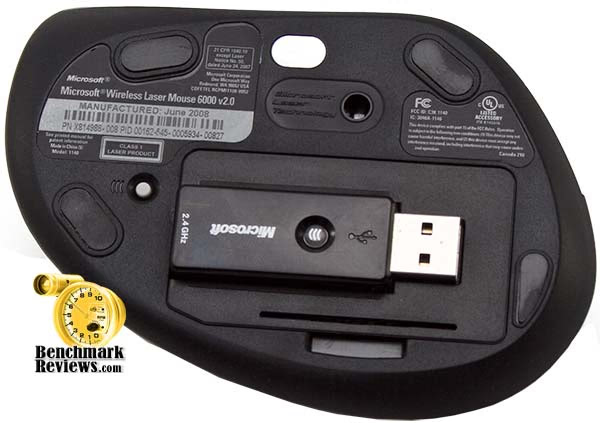
The mouse is ergonomically shaped for the user's hand. There are two front buttons that are seamless on the mouse with two thumb buttons on the left side. The scroll wheel is smooth without detentes (clicks allowing discrete movements of the mouse). The scroll wheel features tilt scrolling as well. The mouse is entirely constructed out of plastic with a slot on the bottom that fits the USB transceiver. The mouse takes two AA batteries.

The keyboard is constructed entirely out plastic as well. The keyboard features Microsoft's comfort curve design for ergonomic typing. The keys are short and very quiet. There are 30+ macro keys including a function lock with alternate functions for F1-F12, media keys and 5 shortcut keys.

The keyboard contains the typical 104 key assortment, with the right windows key replaced with a key that performs the flip 3D function in Vista (start button + tab) and the Instant Viewer function in XP (whereby a small picture of each program running is shown on the desktop). A nice touch is the descriptions of common shortcuts on the sides of the keys facing the user.
XSA-00001 Detailed Features
The mouse appears to have been designed specifically to fit the hand. Though, the buttons are placed above the thumb, requiring movement upward. The buttons are reachable, but doesn't make the mouse as friendly to gaming as one with the buttons directly under the thumb, like the Microsoft Sidewinder X5
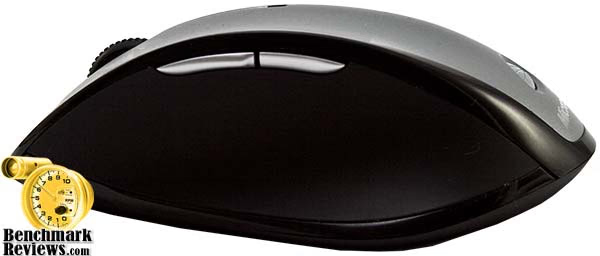
The mouse features a 1000dpi laser running at 6000fps, which means that mouse movement is both smoother and more precise. It also allows the mouse to be used on more environments, which should appeal to both the gamers as well as the living room computers.
The keyboard is also very elegant looking. The clear smoke trim all around the edges is a very nice touch as is the integrated, rubberized wrist rest. The comfort curve design provides a fairly ergonomic feel while not resorting to the rather radical split keyboard design.
A function lock switches between the regular F1-F12 keys as well as 12 different shortcuts. The top of the keyboard contains a series of shortcuts (such as Windows Live call), programmable keys and media keys. To the right is a zoom key and two shortcut keys.

The keyboard and mouse each take 2 AA batteries with battery indicators located on each device. The keyboard comes with 2 rubberized props that can be inserted into slots at the front and back of the keyboard allowing the keyboard to be propped forward or back. (Note: Current ergonomists recommend a keyboard lying flat or propped in such a fashion as to keep the wrists straight. I've personally found my wrists have less strain on them when my keyboard is flat than when the back is propped up).

The Wireless Laser Desktop 6000 connects to the computer via a USB transceiver dongle. The components operate on the 2.4ghz radio band. The USB dongle fits into a slot on the bottom of the mouse. The whole set came with instruction manuals, batteries and a drivers CD that contains IntelliPoint and IntelliType v6.3.

You can also download the necessary drivers and software from www.microsoft.com if you lose the CD.
Mouse Test Results
When testing the Wireless Laser Desktop 6000, I used two different computers. The initial computer is my main computer which I use for most business and media tasks: writing reports, graphic design, coding, web surfing, etc. The second computer is my living room computer or HTPC computer. I used this to surf the internet for video to watch, such as Netflix or Youtube and to navigate the computer for movie watching. On both computers, I tested a first person shooter and an RTS game in order to simulate different extremes of mouse usage.

Starting with the mouse, I found the molded grip somewhat difficult to get used to. Reason being that its design is different. Most mice I've used in the past have usually spread the fingers over the entire area, but the Laser Mouse 6000's design places the index finger above the thumb. Keep in mind that I said that it was difficult to get used to, but it wasn't uncomfortable. The grooves on the right side of the mouse for the pinky and ring finger were a nice touch, though I would have preferred a softer edge between the middle and ring finger areas. Once grasped, the mouse does feel quite natural.
The mouse's laser is very accurate. The higher sensitivity of the laser sensor makes the mouse far less prone to error compared to more traditional optical mice, which can become easily confused with fast movement (typically making the cursor bounce from one side of the screen to the other). The laser sensor also has very fine movement and precision, which helps immensely in a first person shooter game. Though, the mouse is also quite sensitive to movement, necessitating some tweaking in order to get the movement just right. Also, I recommend a low friction mouse pad to go with the mouse as the feet can be very gripping.

The thumb buttons are placed on the ridge between the thumb area and the finger area. This places them out of the way of normal use, but can make it a little difficult to use for any sort of game use. The wheel is smooth (non-detente) and provides tilt scrolling left and right. The wheel has very little resistance, which makes scrolling a webpage or document very easy, but can make weapon selection difficult in a game.
Keyboard Test Results
On to the keyboard: The keyboard is full size, including all the normal keys and a number pad on the right side. As such, its portability is decreased. It has a fairly typical weight for a keyboard. Basically, once it finds a home, it will probably not be carted anywhere. Granted, the full size makes they keyboard better for typing papers and playing games, it's not good for other wireless uses, such as the living room.

The keys themselves are short with short throw. This makes typing much faster as they keys don't need to pressed as far and the fingers can move from key to key easier and faster (no obstructions). The keys themselves are cushioned and very quiet. Unlike most regular keyboards that have a lot of plastic on plastic clicking sounds during typing, the Wireless Keyboard 6000 emits very little noise and no clicking. The keys are also in a curved shape. I found the shape to be more comfortable than the rectangular shape that many keyboards use. It allows me to place my hands in a formation that is more natural.
The keyboard features a rubberized wrist rest. However, leaning on the keyboard itself will cause the keyboard to tilt toward the user. It's not meant to support the entire weight of the hands and wrists. The keyboard includes a pair of nubs that fit inside slots on the bottom of the keyboard. The nubs tilt the keyboard either toward the user or away from the user, depending on their preference. However, it's important to note that doctors suggest, for proper keyboard ergonomics, not to tilt the backs of the hands toward the body. This introduces stress in the wrists.
The keyboard has a battery light in the top right hand corner. It lights up when batteries are inserted and shows green when the batteries are fresh and shows red when the batteries need to be replaced. Most of the time the battery indicator does not shine as it doesn't need to. There are no light indicators to let you know if caps lock, scroll lock, function lock or num lock are on. Rather, when you press any of the lock buttons a indicator shows on screen to let you know if the lock is on or not.
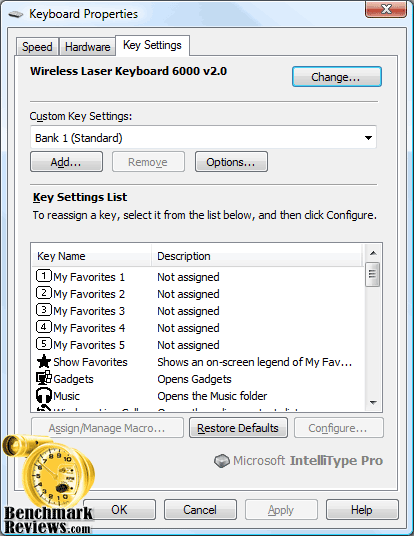
The media and function buttons are highly customizable. Each button corresponds to a specific function (such as play, pause, copy, shutdown, etc) or can be made to activate a shortcut. You can even assign keystroke macros to most of the buttons. However, there are 5 favorite buttons that are only able to open shortcuts but will not let you assign a function or use a Macro. The F1-F12 function keys have alternate functions as well when the F Lock button is actuated, each denoted by an icon on the button. These buttons have built in functions as well as the ability to be customized.
The IntelliPoint and IntelliType software for Windows and OSX allows you to customize the functionality of both the keyboard and the mouse. In IntelliPoint you're given many different options for customizing what the mouse can do for each button, including both the left and right click buttons. IntelliType allows you to assign and customize each of the function keys and set up the macros. I find the Intelli software to be rather intuitive and easy to use.
The wireless connection of the mouse and keyboard is generally quite good. I can type up to 20 feet line of sight away from the receiver. Microsoft advertises a range of up to 30 feet. I could not test any further because I don't have a 30 feet span anywhere in my house with which to test this range. From time to time, the wireless connection would inexplicably stop for the keyboard and then start up again, lasting no longer than 10-15 seconds. I cannot figure out what causes this disconnect, but it happens frequently enough to be annoying.
Another thing to note is that the wireless transceiver and emitters of the whole Wireless Laser Desktop 6000 operate on the 2.4ghz radio band, which a lot of other remote and wireless devices use. Placing two emitters/transceivers in close proximity to each other can affect range and operation. I, originally, tested the combo on my living room computer which sits next to my wireless router and both the router and keyboard interfered with each other. Afterward, after attaching the transceiver to a USB extension cable and placing 4 feet away, the keyboard functioned properly without interference.
Microsoft Wireless Final Thoughts
The Microsoft Wireless Laser Desktop 6000 is a very nice setup for most users. The mouse is precise and responsive allowing for quick movements without much confusion. The mouse is quite sensitive and requires at least some tweaking in order to achieve the proper amount of comfortable mouse usage. The mouse is very ergonomic, but its design is not optimal for games. The side buttons require the thumb to move and the scroll wheel is smooth which can make weapon selection difficult. My personal style of game play requires me to pick up and set down the mouse during play, which can be difficult with this mouse. For non game usage, I found the mouse to be fairly nice feeling. Its novel design requires getting used to.
The keyboard has a lot of pluses, including the soft keys, the comfort curve design and the incredible amount of customizable keys. However, I've found the random wireless disconnections to be highly detrimental, even though they're for a short period of time. When playing computer games with the keyboard, I was mostly free from disconnects, but it occurred twice during an hour of game play. As such, one must make their own determination of the worth of a wireless keyboard for gameplay.
Overall, the main reason to get a wireless keyboard and mouse is to eliminate the wires on a desk, which this set certainly does. The range is excellent, eliminating the need to have a wireless station sitting nearby. Along with the premium features, like a laser sensor and an array of over 30 customizable function keys, this combo certainly goes for the gusto. At an MSRP of $100, this combo isn't cheap, but places itself near the middle of the pack as far as wireless keyboard mouse combos are concerned.
Microsoft XSA-00001 Conclusion
The Microsoft Wireless Laser Desktop 6000 looks very nice. It feels nice and comes packaged very nicely. Everything about it is clean and meant to look good. It comes with the necessary items to get started, including batteries. The online support is pretty good, including easy access to drivers and information.
The keyboard is very excellent looking, especially the semi-transparent smoked plastic trim on the keyboard. I'm a big fan of the dark gray on black color scheme of the combo. The mouse is quite radical looking with a lot of sharp points meant to fit right under the hand.
Both the keyboard and mouse in the Wireless Laser Desktop 6000 feel sturdy. The keyboard's weight is somewhat average. Not light at all, but not at all heavy. Its size doesn't really make it portable. However, the wireless dongle fits into a cubby in the bottom of the mouse, making it easily transportable. The mouse is a bit heavier than normal (though mouse weight is more a function of user preference and, as such, should be left up to the buyer's discretion).
The mouse's laser sensor is very precise, reducing confusion on the sensor's part, but also increasing mouse movement, requiring tweaking on the part of the user. The thumb buttons feel out of the way, which isn't great for gaming. The wheel is very smooth making it very good for scrolling through web pages and documents. The keyboard's keys soft, quiet and allow for fast typing. The comfort curve feels very nice on the wrists. However, the keyboard's disconnects are annoying, albeit for short periods of time.
The Microsoft Wireless Laser Desktop 6000 retails for $99.99 MSRP, but appears to be sold at several very affordable prices with some searching. Heading into the 2009 New Year, prices for the XSA-00001 kit were $84.99 at Newegg.com, they also offer a v2 OEM kit for $44.99 and retail package for $59.99. As far as wireless combo sets are concerned, it falls somewhere in the middle of the pack. Even considering the shortcomings, I'd say that the combo is a pretty good value for the money.
Pros:
+ Very long range
+ Comfort curve design reduces wrist strain
+ Quiet keys
+ Short keys for fast typing.
+ High DPI laser mouse for high precision
+ Very small and portable wireless transceiver
+ 30+ customizable keys.
Cons:
- Mouse shape requires getting used to
- Keyboard wireless disconnections
- No on-keyboard indicators for the various lock buttons.
Ratings:
-
Presentation: 9.00
-
Appearance: 8.50
-
Construction: 9.00
-
Functionality: 7.00
-
Value: 8.00
Final Score: 8.3 out of 10.
Questions? Comments? Benchmark Reviews really wants your feedback. We invite you to leave your remarks in our Discussion Forum.
Reader comments from the original article
3 comments were posted before commenting closed. They are preserved as written. Original avatars no longer resolve and are shown as a placeholder.
Pastor Charles Rodgers Permalink:
I really like this keyboard & mouse Kit. I agree with all the Pro's and have reservations about the Con comments. All around this is the best I have ever used.
Mr. george matthew lauer Permalink:
I do NOT like the MS keyboard/mouse XSA-00001. Is there a better one for me to purchase?
RE: Microsoft Wireless Laser Desktop 6000 XSA-00001 Dennis Permalink:
I have had this combo for quite some time and am very pleased with it's operation. However,I have a problem, my #atoo chewed up the mouse and I need to buy a replacement. Can I use just a 6000 v2.0 and will it work with the combo's uSB receiver?