
AVIVO PureVideo HD DXVA GPU Acceleration Guide
AVIVO PureVideo DXVA HD Acceleration Guide
HTPCs and HD content are growing more and more around the GPU industry. ATI and NVIDIA have been working on technologies to playback and enhance this video content for many years. NVIDIA started working on their PureVideo technology and added the PureVideo HD some time ago. ATI on the other hand, has their own AVIVO technology and as it was obvious, they name their latest technology AVIVO HD. Now, while these technologies have been marketed too much, I´ve noticed that the big consumers majority doesn´t even know how to use them. The real problem is that neither NVIDIA nor ATI have done enough to help people use their technology. They can bombard you with so many pictures, images and text but neither of these things will offer a simple guide on how to use the software tools in the real world.
Here at Benchmark Reviews, we will teach you how to use your GPU to playback and enhance HD video content, and we´re not limited to DVD or Blu-ray content, because we´ll also address .mkv files so that you can enjoy your stored multimedia. There is so much content available for download from Internet which can be reproduced without using your CPU, that it makes good sense to enhance the image quality whenever possible. Please, have a read at our AVIVO-HD PureVideo-HD DXVA GPU Acceleration Guide and enjoy the Full High Definition experience as it was meant to be!
Why Accelerate Video with GPU and not CPU?
Well, if you think deeply about it, the answer remains at the name of the hardware component. Video Cards are meant to be processors which co-operate with the whole micro-controller so that they can actually work in anything that involves video creation, playback and 3d rendering. Let´s put it simple. If we have an enterprise which evolves into many departments for every task they do, why should the CEO Manager should be doing the counts if they have a counters department?
Your GPU can partially or completely decode any video in a faster and more productive way than your CPU does. This involves using less time, having better results and lower power consumption. Yes, you have that power on your high-end PC and you´re wasting it just to check your emails and read articles on Benchmark Reviews (and we particularly apreciate that), but certainly a good part of the time you will use your PC as a HTPC (Home Theater Personal Computer) watching videos on the net, having a second ride on an old/new DVD or enjoying the new Blu-Ray collection you just bought.
Meanwhile, you don´t want your GPU eating nachos and touching its belly while your CPU makes his best effort to decode your videos. Needless to say if you bought an HTPC, you really need to know how to take advantage of it, if not, the price will not be reattributed. Thus, Benchmark Reviews has prepared a whole guide on how to setup your PC to decode, playback and even enhance your video content in a very simple way.

Keep in mind the next things: I´ll show you how to enable DXVA on your PC for DVD, Blu-Ray and any other H.264 content you own. At this point you will actually notice a difference on performance and the effort your CPU needs to do for doing the same things. Next we will move to the matroska, which is a universal container format normally found in many videos with the .mkv termination. Here, I´ll show you how to enhance your Image/Video Quality and how it hinders the PC performance. All this processes done with MPC HC. What? You don´t know what does MPC means? Let me show you then...
About MPC HC and DXVA
Media Player Classic Home Cinema project is based on the original "Media Player Classic" SourceForge project created by Gabest. After the original author stopped working on it the new versions came under the new project called Media Player Classic Home Cinema also hosted at SourceForge.net.
Currently about 24 developers are working on the Home Cinema project. The player supports all common video, audio and image file formats available as well as video playback. The MPC HC programming language is C++ and was started on 06.21.2006. Modern graphics card offer the possibility to decode partially or completely a video stream using DirectX Video Acceleration (DXVA), in order to reduce CPU usage dramatically. MPC-HC includes an embedded video decoder that uses this technology, to decode H.264 and VC-1 with hardly any CPU time required.
Unfortunately the MPC-HC decoder only supports the "bit stream mode" at this stage, which means that only the most recent graphic cards are supported:
-
NVIDIA series 8(9)xxx for H.264 only
-
ATI Radeon HD series for H.264 and VC-1 decoding
Media Player Classic supports the next OS:
-
Windows NT
-
Windows 2000
-
Windows XP x32 and x64
-
Windows Vista x32 and x64
-
Windows 7 x32 and x64
ATI AVIVO HD Features
ATI Avivo HD is AMD's new reference for advanced HD image processing, delivering cool and quiet full-spec HD disc playback with hardware-based Unified Video Decoding (UVD) capability, built-in HDMI with multi-channel HD surround audio, and support for high-quality connectivity with multiple HDTVs and displays.

Watch stunning high definition entertainment from your PC, whether Blu-ray/HD DVD discs or other HD sources. Be thrilled by immersive high definition big-screen PC gaming, and view ultra high quality photo images and Internet videos. Get universal connectivity support for HDTVs and high-res PC displays, with HDCP1 support for reliably playing the latest HD entertainment on your Windows Vista media PC. Step up to ATI Avivo HD, and discover your ultimate PC entertainment experience. ATI Avivo HD technology is an ideal solution for home theater and entertainment on the PC. Enjoy smooth multi-format HD video playback with UVD technology and an easy one-cable connection to high-definition big screen TVs.
AVIVO HD supports the next features:
-
Smooth HD Video Playback with UVD
-
Universal Connectivity with HDMI
-
Sharp Videos and Photos
-
Fastest Content Creation and Transfer
AVIVO is supported by the next GPUs:
-
ATI Radeon HD 4000 Series
-
ATI Radeon HD 3000
-
ATI Radeon HD 2000 Series
-
ATI Radeon X1900 Series
-
ATI Radeon X1800 Series
-
ATI Radeon X1600 Series
-
ATI Radeon X1300 Series
NVIDIA PureVideo HD Features
PureVideo HD technology is the combination of a dedicated video processing core on the NVIDIA GPU and software in the NVIDIA drivers that delivers superb video quality with minimal CPU use and low power consumption when playing Blu-ray or HD DVD discs on a PC. It is the essential ingredient for the ultimate high definition movie and video experience on a PC.
NVIDIA GeForce 8 Series and above incorporate a revolutionary new video processing architecture, making them capable of offloading Blu-ray video decoding (H.264, VC-1, MPEG-2) from the CPU. This added processing power gives PureVideo HD technology the ability to support more features as they are added to Blu-ray movies, including "picture-in-picture", interactive games and menus, and higher bit-rate / higher video quality.
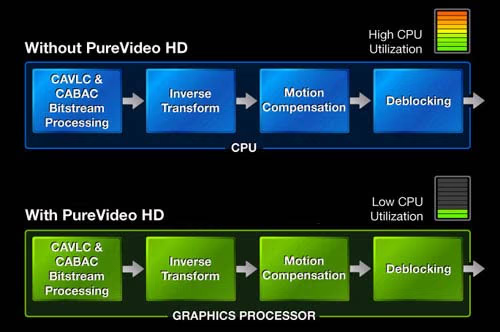
NVIDIA PureVideo comes with the next Features and Benefits:
- Discrete, Programmable GPU processor
- Hardware Decode Acceleration
- Bit-Stream Processing
- HDCP Capable
- Advanced Spatial-Temporal De-Interlacing
- High-Quality Scaling
- Inverse Telecine
- Bad Edit Correction
- Video Color Correction
- Noise Reduction
- Edge Enhancement
Power DVD 9 Settings
Power DVD must be the simplest application for GPU Acceleration. Both ATI and NVIDIA worked great on their support and as long as you have the latest drivers the rest will be all downhill.
What I must tell you here, is that Power DVD is rather limited with the video formats, and you can only use it when watching your favorite Movies (i.e.: DVDs or Blu-Rays) and not for lots of other content stuff downloaded from the Internet. You can actually accelerate every H.264/VC-I/MPEG-2 video you have on your PC, but we know these aren´t the widest formats available for sure. When opening Power DVD, you will see an ATI logo (if you have ATI GPU) or a PureVideo logo (in case you have NVIDIA GPU). From there you want to right-click on the main screen and go to the system settings. You will find what you want at the video tab. Just enable Hardware Acceleration and you´re good to go. Don´t forget you can´t use True Theater effects with GPU acceleration. After this, set your favorite Audio and general settings and click OK.

From what I´ve heard around, Power DVD 9 comes with better support for hardware acceleration, but I´ve used both 9 and 8 versions and they worked great without any issues. Also, if you´re planning to see some Blu-Ray action don´t forget to update to the latest version of Power DVD (which you can download from Cyberlink´s page by free, if you already have the full version). If you don´t do this, then forget about Blu-Ray.
Next step: Download MPC HC
Now, before I show you how to setup your Media Player Classic Home Cinema (that´s a long name!) I´ll ask you to download it, and remember, MPC HC is totally free and can be downloaded from SourceForge.net. Power DVD its not free, but can buy Cyberlink´s Power DVD 7.3 Blue-ray Disc edition at Newegg for $19.99, which is a very good deal. The newer versions of CyberLink PowerDVD 9 Standard sell for $44.99 while PowerDVD 9.0 Deluxe costs $61.24.
MPC HC comes in 2 formats with 2 presentations. Download the 64 bit´s if you have a CPU and OS based on 64 bits. I also recommend that you download the installer and not the zip file. Zip file works great too, but installing the software makes easier to save your settings without being erased or removed, so please consider this and use the zip file only if you want it on a portable device such an USB or any kind of flash memory.
Apart from this, you will want to download the latest version of Microsoft Direct X. Now, before you stand up yelling you have already DX10 or DX11 on your OS, please install this because you will need this if you want to enhance your videos with your Media Player Classic Home Cinema. Please don´t worry about your system APIs, they won´t downgrade to an earlier version of DirectX. Shall we go to the next page?
Settings for DXVA
Ok, here goes the more difficult part of this guide, which is actually, very easy. The next images will show you how to setup your DXVA on the MPC Home Cinema. Reason is, that software don´t come with the settings by default, even I noticed the latest version already had some options enabled.
Don´t get surprised about the MPC HC layout, it certainly looks very simple and old but this is one of the best players out there. Practically, it reproduces everything!

First step is to open the Options Menu. You can do this by right-clicking on the player or going to the play tab and then options. You might want to check the Launch files in full screen (this is not necessary for DXVA) option. Next go to Output at the left-menu.

DXVA is quite picky, so if you want to use it you have to respect those rules:
-
Windows XP users, select Overlay Mixer, VMR7, VMR9 or VMR9 renderless
-
Vista users, select EVR or EVR custom renderer
The MPC-HC Video decoder must be connected directly to the renderer. That means no intermediate filters such as DirectVobSub or ffdshow can be inserted between the decoder and the video renderer. Internal subtitles can work with the MPC Video decoder in DXVA mode, but the rules are even more restrictive:
-
Windows XP users, select VMR9 renderless
-
Vista users, select EVR custom renderer
-
In 'Options / Playback', tick the checkbox 'Auto-load subtitles'
I´ve tried the Vista settings for my Windows 7 OS and they work great, so don´t worry about the support. I normally select EVR Custom Press but in Windows XP I used VMR9 renderless.

The last step is click on Internal Filters at the left-menu and make sure you have Matroska enabled on the Source Filters. Additionally you can enable MOV/MP4 which could make Power DVD useless unless playing Blu-Ray. On the Transform Filters list enable H264/AVC (DXVA) and VC1 (DXVA). If you´re having audio problems when using other than analog signal output, you can play with the AC3, DTS or AAC options until you get the correct sound.
ATI Catalyst Control Center Options
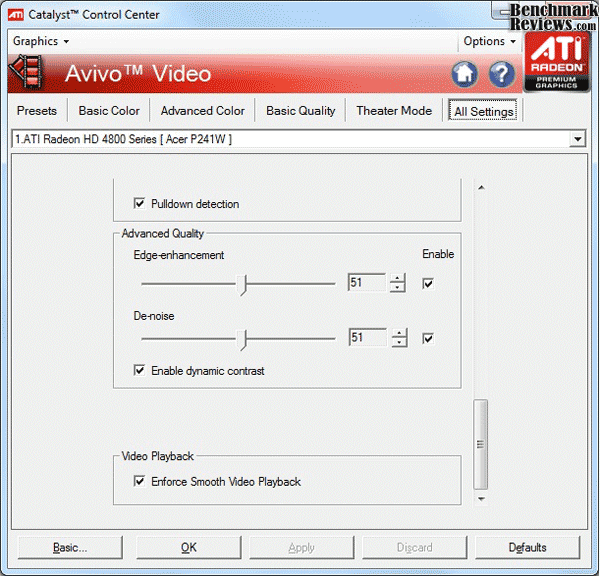
Before you start playing HD content please keep in mind you have some interesting settings depending on your GPU. Set your ATI GPU, right-click on your desktop and open ATI Catalyst Control Center. Having the latest drives will result into the new center layout which looks very simple. At the left-top click on Graphics and select the AVIVO Video option. This will display a menu pretty much like this:

Click on the all settings tab and access to all the AVIVO stuff. I recommend you to enable Color vibrance and Flesh Tone correction. I usually put this up to 100% but it´s up to you to put it where you desire depending on your monitor, environment and preferences. Scroll down the bar and enable Pulldown detection and Dynamic contrast. Also Enforce Smooth Video Playback and then the most important options are Edge-enhancement and De-noise. Enable those settings and play with them until you find the IQ desired. I use 100% de-noise and I´ve found Edge-enhancement works between 30%-50%. Don´t worry about finding the best profiles, you can even open a Video with Power DVD (GPU Accelerated of course) and change these options on the fly to find your best combination.
NVIDIA Control Panel Settings
If you have an NVIDIA GPU, press right-click on your desktop and go to the NVIDIA Control Panel. Select the Adjust Video Image Settings tab and you´ll find this:
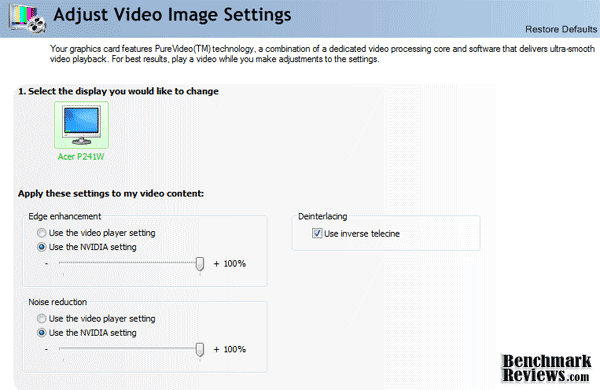
Please select the Use the NVIDIA setting on both options and test while you find the best setup for your conditions. Also enable De-interlacing. This time I prefer to bump to 100% both Edge-enhancement and Noise Reduction since I´ve found NVIDIA isn´t as aggressive as ATI (specially with Edge-enhancement) and the difference it´s less noticeable, but again, open a video on Power DVD and change this options in the fly until you find the best arrangement. Up to this point, we are ready to start playing some Full HD content and check results, so let´s show our contenders!
Testing Methodology
As I´ve told you at the beginning, DXVA is targeted to use a mid-low GPU in a system so it can match a high CPU performance when playing HD content. If you try using CPU, you´ll need at least a Core 2 Duo or AMD equivalent to watch it stutter-free. If you own a low-end system, HD contente playback is nearly impossible, but if you have a mid-low GPU that meets the required series then you´re done because that´s the clue for HD. Now, thinking on you, readers, the tests are targeted for 2 kinds of audiences:
-
Those who have a mid or high-end PC and they use it for all their activities including home entertainment.
-
Those who bought a low-end PC and they have a GPU or in fact, people who bought an HTPC for entertainment purposes. This second class needs to take advantage of all their components because otherwise it won´t do what it´s supposed to.
Playing music, watching image galleries, reproducing your favorite videos, movies, and surfing on the internet while still having some power to play from time to time is the reason HTPCs were done. From all this, a CPU can do them all without problems, even playing DVDs, but HD is the present and a low-end CPU or even a mid-grade CPU won´t be able to smoothly reproduce 1080p content. Let´s check our test systems and you will quickly understand why I choose them now.
Test System (High-End)
-
Motherboard: ASUS Rampage II Extreme X58
-
System Memory: 3x1GB Kingston Hyper X 1866MHz 7-8-7-20
-
Processor: Intel Core i7 920 Overclocked to 3.8GHz
-
Audio: X-Fi Titanium
-
Video: ATI HD 4870 1GB Edition
-
Disk Drive 1: Western Digital 150GB 10,000 RPM SATA
-
Disk Drive 2: (Paging File) Western Digital 320 GB 7,000 RPM SATA
-
Optical Drive: LG SATA 20x DVD R/W
-
Enclosure: Sunbeam Tech Station
-
PSU: Antec Signature Series 850 watts
-
Monitor: Acer P241w 2ms
-
Operating System: Windows 7 Ultimate x64
Test System (Low-End ION-based HTPC)
-
Motherboard: ASRock AMCP7AION-HT
-
System Memory: 2x1GB Elixir DDR2 800MHz 5-5-5 (1700Mb usable)
-
Processor: Intel Atom 330
-
Audio: On-board Realtek
-
Video: NVIDIA ION (256mb shared)
-
Disk Drive 1: Seagate 320GB 5,400 RPM SATA
-
Optical Drive: SATA 20x DVD R/W /Blu-Ray
-
Enclosure: ASRock enclosure
-
PSU: 65 watts AC-DC converter
-
Monitor: Acer P241w 2ms
-
Operating System: Windows 7 Ultimate x64
I won´t really show lots of graphics and numbers. Based on what we want to check, the important value is the CPU usage while watching HD videos. Additionally, I did some GPU usage tests for you on the High-end PC. Other than that, I´ll show you some image comparisons in order to see IQ with and without GPU usage. System RAM used will also change with the GPU acceleration so keep an eye on that value.
Software
-
Riva Tuner
-
Power DVD 9 Ultra
-
Media Player Classic HC
-
BBC Blue 1080p H-264 video
-
Transformers 2: The Revenge of the Fallen .mkv
Take one: High-End PC
Ok, so let´s get started with the results. First, let´s open a Full HD 1080p H.264 video. I took the BBC Blue 1080p video which you can directly download from Apple HD movie Gallery. It´s 1080p and fits since it´s H.264. You can try downloading any other video from there. Actually I tested many of them but because of the bitrates being almost the same makes no noticeable difference on CPU usage. Let´s check our Task manager:

As you can see our CPU usage is 5%. This sounds great, the CPU has plenty of room to do other things easily, but remember this is a Core i7 platform, so HD Videos are just a walk in the park for it. A Dual Core setup would be using around 20%. A single core CPU would be using around 40% (if it can take it and its powerful enough). Also check memory usage is 1.64GBs from 3GB total. Let´s enable AVIVO HD and see what happens:
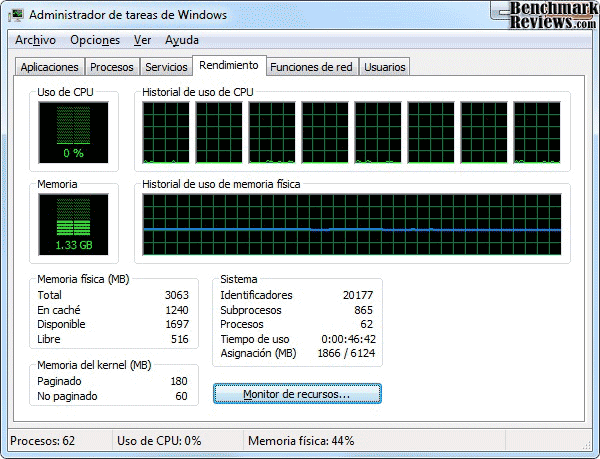
What? Were you reproducing HD content at the time you took the screenshot? Yes Sir, sure I did. You really did? Yes!
As long as you can´t even see it, your i7 isn´t doing a thing for HD playback. Since the GPU used is still a mid-high product it can take the task very easily. But if you have a lower CPU, let´s say Core 2 Duo/Core2Quad/Phenom II, you might probably see a little CPU usage around 1-5% maximum, don´t worry about it. Don´t forget RAM used is now 1.33GB, so that´s a 300Mbs drop just for enabling AVIVO.
Power DVD 9: ION based HTPC
Let´s have a look at the Power DVD 9 results on the ION system described before. You can see total physical memory is 1791Mbs, thus because 256Mbs are shared for the ION graphics processor. Now let´s try some 1080p H.264 content.
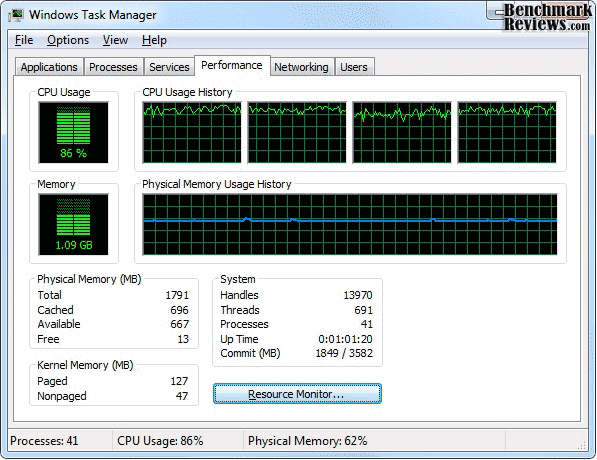
As you can see, the CPU usage is around 85% and memory used is 1.09Gbs. At this time, CPU is not used at full, but the video isn´t running very well. It stutters every second and the video is barely watchable. Even trying to close Power DVD becomes a nightmare since the CPU is already being used and clicking on the close icon could make you wait around 20 seconds (meanwhile, you can have a sandwich done). In conclusion: 1080p is a no go for an Intel Atom 330 and probably a no go for any low-end CPU. Let´s enable PureVideo HD and see what it happens.
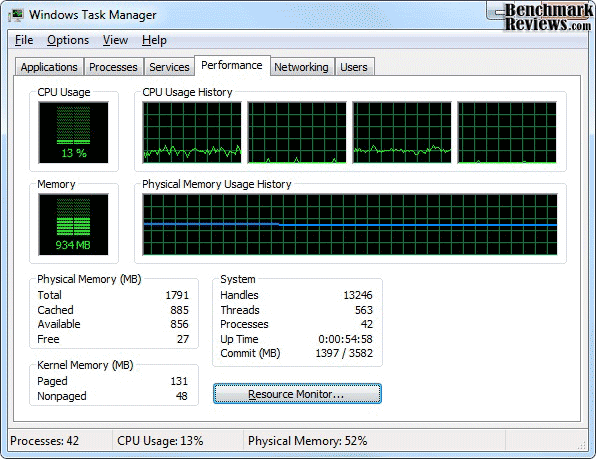
Ok, now we are talking. CPU usage went from almost 100% to only 13%. It will spike up to 20% sometimes and go below 10% also, but the average number lays around 13%-15%. System memory also went down 150Mbs. The video is stutter-free and running smooth. I just don´t recommend doing anything else while watching because the HTPC is barely enough for this kind of task. If you have a HTPC based on NVIDIA 8200/9300 or ATI integrated HD3200/HD4200 equipped with a better CPU then watching HD and doing some other things will be ok.
High-End PC IQ
Next thing is Image Quality. I told you I´ll help you enhance your video too, but first, let´s check the difference between having AVIVO HD enabled and disabled. Remember the main changes on the video Quality are found on the Catalyst Control Center. Here´s a screen with AVIVO disabled:

I tried to capture the image at the same time on all the tests. Right now, the video looks good enough, so let´s enable AVIVO HD:

Do you notice a difference in color, edge-sharpen or whatever? Neither does me. So why did I told you guys that you could calibrate your settings on the fly? Well, using a High Quality HD video for the tests makes those settings almost useless. The video already comes with a very high quality and resolution, so enabling AVIVO HD won´t makes a difference unless we talk about the CPU usage (which isn´t that big on this platform). Now try reproducing any DVD or a lower resolution H.264/VC-1/MPEG-2 video and adjust settings on the fly, there you will actually see a difference. I´ve experimented on DVDs before and the difference between 30% and 50% on Edge-Sharpening is very notorious. Trying the same for a Blu-Ray makes no sense since me can´t see the difference. Want to have a look on the HTPC? Sure!
Low-End HTPC IQ
Now let´s check if NVIDIA´s PureVideo has something to offer that ATI can´t at higher resolutions. Here the same video with PureVideo disabled:

Now have a look at the video with GPU acceleration enabled:

Again, there is no difference for the human eye. This is rather disapointing but as I´ve told you, a good Blu-Ray disc or HD video already has a superb quality, so there isn´t a lot to work on with the GPU but the colors range (which isn´t very notorious here). Remember again, that the ION based HTPC has a big advantage on GPU acceleration since it makes the video watchable while without PureVideo the video suffered from stuttering and frequent pauses every second.
Enhancing Video with GPU shaders
Ok, so we´ve already tried Power DVD and we discovered GPU acceleration works well but the Image Quality, especially on High Quality content isn´t worth it. Here enters the MPC Home Cinema. The creators of this Software not only managed to get DXVA working great on it with better and a much wider format support, but they also let it use your GPU shaders to enhance the video quality whenever you can use DXVA. To enable this, you need to open your MPC HC and start reproducing a video. While on it, right-click on the screen and then go to the shaders menu and click on combine shaders. A little menu like this will appear if you did it right:
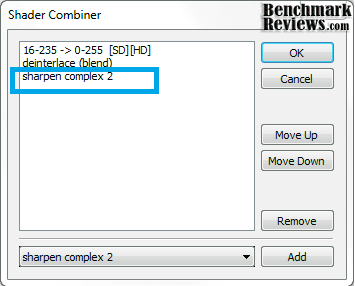
Here, you can actually mix different kind of shaders to get a better quality on your video, including HD content of course! So, just select the shaders you want and click add. When you´ve finished click ok and the shaders processing will start. I recommend selecting the next shaders for a great combination:
-
16-235 -> 0-255
-
De-interlace (blend)
-
Sharpen Complex
I must say there are some different variants of the shaders which you can try. For example: there is sharpen, sharpen complex and sharpen complex 2. Either of them works ok but you might want to have a try on all of them (not at the same time). Now, before I continue, if you´re using a low-end GPU or a similar setup as our HTPC, then you might want to disable any sharpening process. The first two shaders I mentioned work great even with a low profile GPU, but sharpening process is too hard for the ION. The movie might be watch-able but you will definitively see a drop on frames. Please, try it and comment us how did it go in the forums.
For Sharpen/sharpen complex shaders I recommend at least an NVIDIA Geforce 9500 or ATI HD 3450. Any lower GPU won´t have enough shaders power to playback your 1080p content without having a hard day. Other than that, 720p mixed with sharpening shaders is fast enough and your GPU won´t sweat that much. Let´s have a look at the numbers.
CPU/RAM/GPU usage on High-End PC
This time I added Riva Tuner showing the GPU usage. The reason is I want you to see how the GPU works when enabling shaders. I didn´t even tried the MPC HC without DXVA enabled since the results are pretty much the same as when using Power DVD without AVIVO/PureVideo enabled. Have a look at the Task manager with Shaders disabled. The video used is a 1080p .MKV rip from the Transformers 2: the Revenge of the Fallen movie.
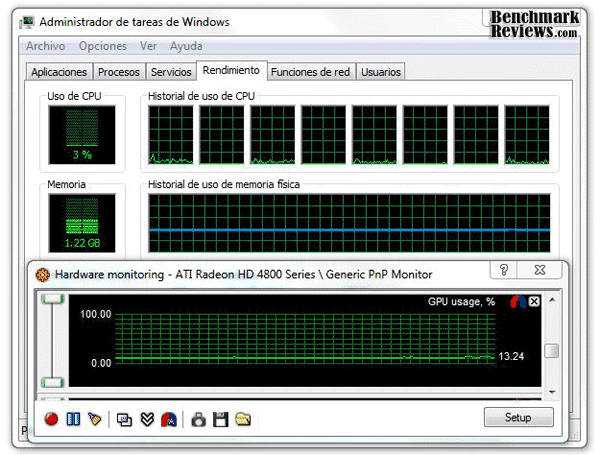
Again, the i7 is powerful enough to playback HD content with no respect at it. CPU usage is 3% which is close to nothing, and have special attention on the GPU usage which is 13.24%. Now let´s enable shaders and see what happens:

All remains the same but the GPU usage increased in 5% because of the shaders. Now, this is a HD4870, but let´s imagine this being a low-end GPU then it would increase a lot more.
CPU/RAM usage with ION-based HTPC
Finally, let´s have a look at the HTPC results. First of all, Riva Tuner can´t show GPU usage, neither GPU-Z on this Motherboard, so we are stuck with CPU/Ram results. As you can see, CPU usage is about 37% and memory went below 850mb. This is using the same movie as above with Shaders disabled.
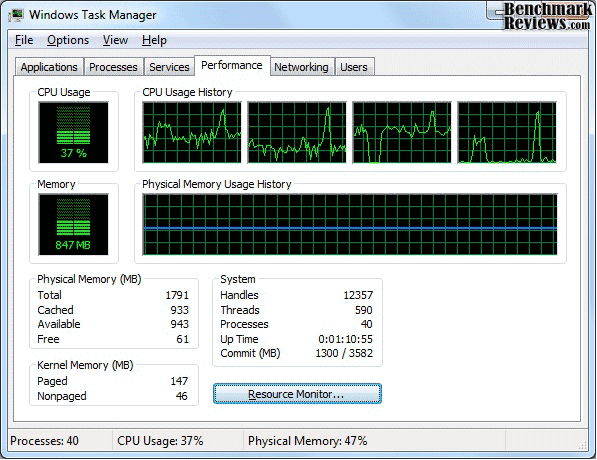
I won´t show you an image with Shaders enabled since the main change is the GPU usage but we can´t monitor it. Instead of that, I´m showing you the Image Quality results on the next page. Remember on this ION-based HTPC, the Sharpen shaders were not enabled, but the other 2 remained.
Shaders on High-End PC
At last but not least, let´s have a look at the Video Quality. I stopped the movie at the same time to make the comparison easier. First image is with Shaders disabled:

As you can see, MPC HC reports Pixel Shader off. You can quickly enable or disable pixel shaders by pressing Ctrl+P. Now have a look at the same movie with Shaders enabled:

Notice a difference? Actually, just because of the new color´s range the black is now darker and the brilliant colors are more vivid. Check the sky and the shadows and notice the difference in color. Also, the image looks more sharpen now. Definitively there is a difference between having shaders enabled and disabled.
Shaders on HTPC
Now let´s have a look at the ION results. I picked another image first with Shaders disabled:

Now, remember the ION won´t process the Sharpen shaders as fast as you want, so I used the remaining shaders without Sharpening. Have a look:

Now, there is a difference and it´s noticeable without special bionic eyes. If you have a higher-range GPU you could enable Image Sharpening also and the results would be the same as the High-End PC. Now that you know how to enable GPU acceleration, playback and enhance your HD and any other video content any different formats, lets wrap it up together for the conclusions.
GPU Acceleration Final Thoughts
There you have it. This is a very simple way to use your GPU for video playback and enhancement. Now that you know both Power DVD and MPC HC settings you can start playing around with other settings and environments. Before we move to the conclusions I´d like to add some extra info, some of which is so new that it actually changed when I was writing this article.
First of all, it´s very odd to think that a little group of programmers could manage to enable DXVA on almost any video format and give you the opportunity to use shaders to enhance your video even when talking about HD content for free. How is it that NVIDIA and ATI only gives support to H.264, VC-1 and MPEG-2? I can think the industry being behind this, so that they only support original content, but still, there are lots of videos people download every day (or night) from the internet, and matroska, DIVX and others are much popular formats there. Actually, it would be difficult to find some H.264 content on the internet other than official sites or movie trailers. What I mean here, is that NVIDIA and ATI are losing some big opportunities here, and they have not done anything to change this. Actually, they don´t even give the right info to the end-user and so that´s why DXVA has been acting like a ghost in the last years.
The original PureVideo engine was introduced with the GeForce 6 series. Based on the GeForce FX's video-engine (VPE), PureVideo re-used the MPEG-1/MPEG-2 decoding pipeline, and improved the quality of de-interlacing and overlay-resizing. Compatibility with DirectX 9's VMR9 renderer was also improved. Other VPE features, such as the MPEG-1/MPEG-2 decoding pipeline were left unchanged. NVIDIA's press material cited hardware acceleration for VC-1 and H.264 video, but these features were not present at launch.
Starting with the release of the GeForce 6600, PureVideo added hardware acceleration for VC-1 and H.264 video, though the level of acceleration was limited when benchmarked side by side with MPEG-2 video. VPE (and PureVideo) offloaded the entire MPEG-2 pipeline (except the initial run length decoding, variable length decoding, and inverse transform), whereas first-generation PureVideo offered limited VC-1 assistance (motion-compensation).
The latest implementation of PureVideo HD, VP4 added hardware to offload MPEG-4 (Advanced) Simple Profile bit stream decoding with the GT216 & GT218 GPUs (sold as GeForce GT 220 & GeForce 210/G210) & GT215 GPU (sold as the GeForce GT 240) in addition to formats supported in previous VP3 implementation, as well as an additional high quality scaler. The functionality of the H.264-decoding pipeline was left mostly unchanged but no longer has the limitations of the VP3 implementation.
I strongly recommend if you want a HTPC, then use Vista or Windows 7 OS. Windows Media Player 11 started supporting DXVA on WMV HD and with Windows 7, WMP 12 supports a wider range of formats, some of which are GPU accelerated, so don´t get surprised if your video opens and plays flawless on it.
Update: The tendency on the market is the GPU being used more and more on everyday applications. NVIDIA is doing their homework with CUDA and ATI is doing their proper work with ATI-Stream. Some months ago, Adobe announced its Flash player would be able to support DXVA and guess what? Flash is already available in BETA stage. Yes, that means you can play every flash video with your GPU, and that´s not as simple as it sounds. This means every video you watch on Hulu, or in the mighty YouTube will be GPU accelerated. This makes the net tops or any low profile platform with iGPU a more powerful platform for internet surfing since you will be able to reproduce YouTube HD without problems.
Remember I told you about trying GPU settings on the fly with DVDs? YouTube is a better and easier choice. Just open any video on YouTube and your ATI/NVIDIA Control panel. Move the settings and set image quality as you prefer. I promise it´s easier than HD content. You can download the Adobe Flash Player 10.1 prerelease here.
DXVA Conclusion
Let's finish with the a conclusion on DXVA technology, whether it´s officially supported or not by NVIDIA (with PureVideo) or ATI (UVD) works really well. Performance is good and the CPU usage decreases a lot. For the GPU it´s easy to playback, decode and process the videos in real time so why don´t we take advantage of it?
In order to officially use PureVideo or UVD you need software supported by those enterprises, and guess what? Power DVD is the best out there, but still lacks on different formats playback ability. Luckily MPC HC and some other players around, which are 100% free, can support DXVA on a large list of different containers, which actually makes me think why NVIDIA and ATI have not worked on this? MPC HC won´t be accepted by some users since the interface makes it appear old, and it just doesn´t fit on Vista or Windows 7 GUI.
Remember to check if your model supports DXVA on these applications in order to enjoy the best HD experience, and if you´re using a HTPC with a low based GPU, then I recommend you to play with shaders and if necessary, disable Edge-Enhancement. Other than that, it´s really up to you to make tests and reach the best adjustments for your setup.
I recommend having different profiles and adjustments, since some settings will be more noticeable on some videos and some others just won´t. Now, have a great time testing HD movies/videos and feel free to give us your comments.
You can buy Cyberlink´s Power DVD 7.3 Blue-ray Disc edition at Newegg for $19.99, which is a very good deal. The newer versions of CyberLink PowerDVD 9 Standard sell for $44.99 while PowerDVD 9.0 Deluxe costs $61.24.
Questions? Comments? Benchmark Reviews really wants your feedback. We invite you to leave your remarks in our Discussion Forum.