
Adobe Flash HD-Video GPU Acceleration Guide
Adobe Flash GPU Acceleration Guide
Let's think the first words coming to our minds when reading: Adobe Flash Player. Youtube, Hulu, vimeo, HD videos might be some of them. If you don´t understand or relate this words you probably live under a rock or have been out of the game, and by game I mean technology world, for a long time. In our AVIVO Purevideo DXVA HD Acceleration Guide we show you how to use your GPU to playback and enhance many kinds of video formats, normally used on DVDs and Blu-Rays, but not limited to them. The benefit is clear. As long as you can use your graphics card to playback your videos instead of using the CPU, you are doing things easier for your machine, thus consuming less energy and freeing your CPU to do other stuff at the same time.

This was the original idea of the DXVA technology. But what happens to the rest of the content we normally watch at the web? Flash is one of the biggest and more used formats today. Youtube being ranked 4th (by traffic stats) is knocking hard at our doors asking for some attention. Some other sites like Hulu (USA) or vimeo have enormous quantities of traffic also, and it wouldn´t be a problem if they weren´t constantly evolving and offering better quality services. For example, Youtube just went up to 1080p support the last month. But I fear 1080p isn´t an easy task for a mid-low CPU, it is? The answer to all this is very simple: DXVA for Adobe Flash Player, and that's what we are testing today in our Adobe Flash GPU Acceleration Guide.
Why Accelerate Video with GPU and not CPU?
Well, if you think deeply about it, the answer remains at the name of the hardware component. Video Cards are meant to be processors which co-operate with the whole micro-controller so that they can actually work in anything that involves video creation, playback and 3d rendering. Let´s put it simple. If we have an enterprise which evolves into many departments for every task they do, why should the CEO Manager should be doing the counts if they have a counters department?
Your GPU can partially or completely decode any video in a faster and more productive way than your CPU does. This involves using less time, having better results and lower power consumption. Yes, you have that power on your high-end PC and you´re wasting it just to check your emails and read articles on Benchmark Reviews (and we particularly appreciate that), but certainly a good part of the time you will use your PC as a HTPC (Home Theater Personal Computer) watching videos on the net, having a second ride on an old/new DVD or enjoying the new Blu-Ray collection you just bought. Meanwhile, you don´t want your GPU eating nachos and touching its belly while your CPU makes his best effort to decode your videos. Needless to say if you bought an HTPC, you really need to know how to take advantage of it, if not, the price will not be reattributed.
Here at Benchmark Reviews, we did some extensive testing on how does DXVA affects on HD flash videos. We measured CPU usage and image quality as well. To complete our target, we used the new Adobe Flash 10.1 release, which enables DXVA acceleration on ATI and NVIDIA GPUs. One month ago, when this pre-release version was launched there were some driver issues with ATI cards. They solved this with their new drivers and it seems all is working flawless now, so we think right now, after a month, it ´s a good time to test and publish our guide.
About Adobe Flash Player
The Adobe Flash Player is software for viewing animations and movies using computer programs such as a web browser. Flash player is a widely distributed proprietary multimedia and application player created by Macromedia and now developed and distributed by Adobe after its acquisition. Flash Player runs SWF files that can be created by the Adobe Flash authoring tool, by Adobe Flex or by a number of other Macromedia and third party tools.
Adobe Flash, or simply Flash, refers to both a multimedia authoring program and the Adobe Flash Player, written and distributed by Adobe, which uses vector and raster graphics, a native scripting language called Action Script and bidirectional streaming of video and audio. Strictly speaking, Adobe Flash is the authoring environment and Flash Player is the virtual machine used to run the Flash files, but in colloquial language these have become mixed: "Flash" can either mean the authoring environment, the player, or the application files.
Flash Player has support for an embedded scripting language called Action Script (AS), which is based on ECMAScript. Since its inception, Action Script has matured from script syntax without variables to one that supports object-oriented code, and may now be compared in capability to JavaScript (another ECMAScript-based scripting language).
The Flash Player was originally designed to display 2-dimensional vector animation, but has since become suitable for creating rich Internet applications and streaming video and audio. It uses vector graphics to minimize file size and create files that save bandwidth and loading time. Flash is a common format for games, animations, and GUIs embedded into web pages.
The Flash Player is available as a plugin for recent versions of web browsers (such as Mozilla Firefox, Opera, Safari and Internet Explorer) on selected platforms. Adobe states each version of the plugin is backwards-compatible, with the exception of security changes introduced in Version 10.
ATI GPU Acceleration Problems
In our last AVIVO Purevideo DXVA HD Acceleration Guide at Benchmark Reviews, we showed how to use your GPU to playback and enhance your videos. While many formats are available thanks to the MPC-Home Cinema player, some users reported some videos which did NOT work with ATI GPUs. While the 90% of the people won´t even play a video which can´t be accelerated with an ATI card, there is a small users percentage which will try and won´t be able to achieve it.
Some examples you won´t be able to reproduce when using DXVA on ATI GPUs are:
-
Quantum of Solace Trailer
-
AIR OP Theme: Lia - Tori no Uta
-
BBC Planet Earth: From Pole to Pole
All these videos can be found at "ahmygoddess" and they also have a great guide on how use DXVA technology. Now, the reason you can´t playback these videos when using your GPU without having black screens or green stuttering is that ATI hasn´t worked out a driver able to reproduce H.264 specs. NVIDIA in the other hand supports with their PureVideo technology.

This guide was meant especially for all those who watch Blu-Ray and some other official video content. This normally falls straight to L4.1. Now, if ATI fails to reproduce specifically h.264 specs then we can´t really do anything but asking ATI do fix that out. Even that, they will think it´s not really a problem for them since they are offering what they promised, and it´s not a problem NVIDIA offers wider support. Even that, ATI should care about the competition.
Watch stunning high definition entertainment from your PC, whether Blu-ray/HD DVD discs or other HD sources. Be thrilled by immersive high definition big-screen PC gaming, and view ultra high quality photo images and Internet videos. Get universal connectivity support for HDTVs and high-res PC displays, with HDCP1 support for reliably playing the latest HD entertainment on your Windows Vista media PC. Step up to ATI AvivoTM HD, and discover your ultimate PC entertainment experience.
The way ATI sees this is simple. They actually want the end-users to buy or pay for software which does everything without any difficult setups, and so they also want you to buy your Blu-Ray /HD-DVDs instead of downloading videos form the net. While that works, they will offer no more, and ATI works all right on this section, so they don´t see any factor to change. So, the only thing we can hope is that ATI brings new drivers and update their H.264 specs support up to . Meanwhile, if you are planning to download or watch any content with those specs, you should stick to NVIDIA´s GPUs. Keep in mind that this update could change later, since it is (hopefully) a temporal problem.
Now that we explained this problem we are good to go to some extensive flash testing. So, let´s move to the next page and prepare our GPUs for some DXVA testing with Adobe Flash Player.
Catalyst Control Center Settings
ATI has been working very close with Adobe lately. It´s easy to know this since many Adobe products have got GPU acceleration lately and ATI won´t stand back on the competition. When Adobe Flash 10.1 was launched, ATI had some problems which evolved into bad performance when using DXVA. ATI solved this with their newest drivers and they even added some goodies to their Catalyst Control Center. Let me show you what I´m talking about in the next steps. So, first of all, we need to access to our ATI CCC by right-clicking anywhere on our desktop´s background.

Keep in mind you need the latest ATI Drivers installed for a proper DXVA performance. The new Catalyst Control Center comes with a new look. Now go to the main menu and select Avivo Video and then select the all settings tab (highlighted in green).

Here, we can set a proper configuration for image quality, which is an important plus when accelerating flash videos with your GPU. Go to the Advanced Color options and enable Color Vibrance and Flesh Tone correction as it has been done in the next image.

Now scroll-down to Basic Quality settings and enable automatic deinterlacing and Pulldown detection. You should also enable Edge-enhancement and de-noise settings along with Dynamic contrast on the Advanced Quality settings. As I´ve told before, the Edge-enhancement on ATI GPUs is very aggressive, so you need to try different configurations on your PC to get the quality desired. I personally set it up to 50%, but ended adjusting it to 15% only. I find 15%-25% being the best range depending on which kind of videos I´m going to watch.

Finally, let´s enable Enforce Smooth Video Playback on ATI CCC. The next setting is the Video Demo Mode. This is a very nice feature available on ATI GPUs which let us enable or disable all the settings selected above. There are 3 different modes. Enhancements off and enhancements on are clear to understand. They just enable/disable the settings selected before in real-time so you can compare the IQ of your videos.
The Split Screen Mode actually does split the screen and shows you both enhanced and not enhanced video on your screen. So, when you playback a video, you will have a line at the half, and the left side will be the non-enhanced IQ while the enhanced IQ will be at the right side. This might sound complicated but it isn´t. You will fully understand this on the next pages. I personally recommend split screen mode to notice the IQ difference on your videos while testing.

NVIDIA Control Panel Settings
While ATI has many settings for enhancing the Image Quality of our videos, NVIDIA is a lot simpler. Let's open the NVIDIA Control Panel the same way we opened the Catalyst Control Center. Then navigate through the main menu to the Adjust video color settings tab.

Tell your PC that you want to make color adjustments with the NVIDIA Settings and go to the advanced tab. Then select Full 0-255 for dynamic range. Now navigate through the main menu and go to the Adjust Video Image settings.

Enable Edge-enhancement, noise reduction and select your favorite range on these settings. Remember NVIDIA is not as aggressive as ATI when talking about edge-enhancement, so bump it up to 100% if you want. I personally use both at 100%. Also, don't forget to enable deinterlacing at the right side of the menu.
This is all you can change on NVIDIA GPUs at the moment. There is no video demo mode or whatever similar to ATIs options. Let´s hope NVIDIA IQ enhancements get noticeable while testing DXVA on Adobe Flash Player.
Testing Methodology
As I´ve told you at the beginning, DXVA is targeted to use a mid-low GPU in a system so it can match a high CPU performance when playing HD content. If you try using CPU, you´ll need at least a Core 2 Duo or AMD equivalent to watch it stutter-free. If you own a low-end system, HD content playback is nearly impossible, but if you have a mid-low GPU that meets the required series then you´re done because that´s the clue for HD. Now, thinking on our readers, the tests are targeted for 2 kinds of audiences:
-
Those who have a mid or high-end PC and they use it for all their activities including home entertainment.
-
Those who bought a low-end PC and they have a GPU or in fact, people who bought an HTPC for entertainment purposes. This second class needs to take advantage of all their components because otherwise it won´t do what it´s supposed to.
Playing music, watching image galleries, reproducing your favorite videos, movies, and surfing on the internet while still having some power to play from time to time is the reason HTPCs were done. From all this, a CPU can do them all without problems, even playing DVDs, but HD is the present and a low-end CPU or even a mid-grade CPU won´t be able to smoothly reproduce 1080p content. Let´s check our test systems and you will quickly understand why I choose them now.
Test System (High-End)
-
Motherboard: ASUS Rampage II Extreme X58
-
System Memory: 3x1GB Kingston Hyper X 1866MHz 7-8-7-20
-
Processor: Intel Core i7 920 @ 2.66GHz
-
Audio: X-Fi Titanium
-
Video: ATI HD 4870 1GB Edition
-
Disk Drive 1: Western Digital 150GB 10,000 RPM SATA
-
Disk Drive 2: (Paging File) Western Digital 320 GB 7,000 RPM SATA
-
Optical Drive: LG SATA 20x DVD R/W
-
Enclosure: Sunbeam Tech Station
-
PSU: Antec Signature Series 850 watts
-
Monitor: Acer P241w 2ms
-
Operating System: Windows 7 Ultimate x64
Test System (Low-End ION-based HTPC)
-
Motherboard: ASRock AMCP7AION-HT
-
System Memory: 2x1GB Elixir DDR2 800MHz 5-5-5 (1700Mb usable)
-
Processor: Intel Atom 330
-
Audio: On-board Realtek
-
Video: NVIDIA ION (256MB shared)
-
Disk Drive 1: Seagate 320GB 5,400 RPM SATA
-
Disk Drive 2: (Paging File) Seagate 320GB 5,400 RPM SATA
-
Optical Drive: SATA 20x DVD R/W /Blu-Ray
-
Enclosure: ASRock enclosure
-
PSU: 65 watts AC-DC converter
-
Monitor: Acer P241w 2ms
-
Operating System: Windows 7 Ultimate x64
I won´t really show lots of graphics and numbers. Based on what we want to check, the important value is the CPU usage while watching HD videos. Other than that, I´ll show you some image comparisons in order to see IQ with and without GPU usage.
We used the latest Official Adobe Flash Player version 10.0.32.18 for non DXVA tests and Adobe Flash Player 10.1.51.45 for the DXVA tests. While these both where the latest versions available before the tests, Adobe updated both official and BETA versions some days ago. Download latest Adobe Flash Player Versions on the next links:
Tested Videos
For our Flash tests we used a pair of videos which everyone can use and test. Youtube was selected because it is the biggest Flash-based site on the web, and it´s getting very common on social networks like facebook or others. Since Youtube added 1080p support in November we are using 1080p videos for the CPU usage tests. The same videos in 720p resolution are used for the Image Quality tests. The reason behind this is that 1080p videos normally don´t get any difference when enhanced with the GPU. For example, a Blu-Ray disc won´t see lots of IQ enhancements when using DXVA because the source is High-Quality already. In the other hand, if you enhance a DVD or a 720p or lower video, chances are that you see a big difference between enhancing your video with GPU and not doing it. The videos used for our Adobe Flash Tests are:
As you can see, when pressing the HD button on Youtube, you can select either 720p or 1080p. More and more videos will be uploaded at 1080p the next months. CPU usage tests were done while reproducing Big Buck Bunny animation @ 1080p resolutions and measuring the CPU usage average after the credits. IQ tests were done with both Big Buck Bunny animation and New Moon Scene at 720p resolution.
High-End PC CPU usage
Let´s start with the High-End PC. Being a Core i7 CPU I don´t expect it to hinder with 1080p flash videos, not even using CPU. In fact, reproducing 1080p videos for a high-end CPU like this is like a walk in the park. So, the next image shows CPU usage average without DXVA after reproducing Big Buck Bunny animation 1080p.
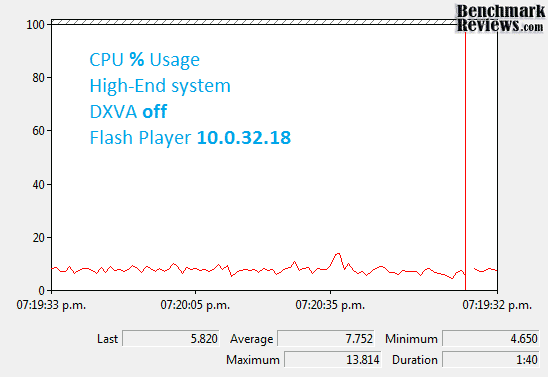
Now, that was easy. CPU average is 7.752% while it maxed at 13.814%. Flash HD videos for CPU are very easy to handle. Now let´s have a look at the same test with the new BETA flash version. Let´s see if we can lower the CPU usage even more.

It´s possible! DXVA made CPU usage go to 2.778% average and 9.33% for maximum peaks. Adobe Flash Player did a good job with ATI enabling DXVA support. Let´s see if we can measure a bigger difference on CPU usage when switching to a low-end, I mean, and ION based PC.
ION PC CPU Usage
We are watching a whole different story on the next tests. The PC is a low-end ION based system. This means, an Intel Atom 330 CPU, with less than 2GB available RAM and NVIDIA 9300 GPU. At this point, trying Youtube HD playback is almost useless. The video will stutter a lot, and by a lot, I mean really a lot. In fact, the CPU won´t be able to do anything else and even a click on any menu will take many seconds to load. This is how an Atom 330 works without DXVA:

Check that CPU usage. Average almost went to 90% while maximum tops at (practically) 100%. Video playback isn´t fluid and system shows hard stuttering. Before I show you the magic behind DXVA, I need to explain the tests done in our ASRock Nettop ION 330 review. After publishing the ION 330 revision, many people went out and bought the product. Olin Coles tested all his platforms with Solid State Drives to keep the comparisons fair. After that, we ended with some people at the forum saying they had problems with Flash HD playback.
Olin answered he didn´t have problems when watching Youtube HD or Hulu, and he is right, but here is the reason behind it. I had the same problems with Flash HD videos. The only way to view flash HD was using DXVA and the new BETA version. Going on deeper tests, the only difference between Olin and all the ION 330 users was the SSD. I was convinced that the HDD/SSD shouldn´t make a difference with HD playback but I was so wrong.
First, I did all the Flash tests with a small 2.5" 5400rpm HDD. The result was not even 720p playback being fluid. Next I tried a 3.5" 7200 rpm HDD, and to my surprise 720p was viewable in that situation. I re-tested everything to make sure the HDD was doing the difference and surprisingly, it was. So, I slapped a RAID 0 array with a pair of 2.52 5400 rpm HDDs which resulted into a faster system and voila! Flash HD up to 1080p was able to be reproduced on my ION system at fair FPS. Not only that, but 720p was now as fluid as when using DXVA.
I can recall Olin words when he says HDDs are the bigger bottleneck on our systems and a SSD makes a whole new difference on our system performance. This is true, so true that even Video playback works better with a faster HDD. Of course, using a fast SSD like Olin did in his ION 330 review makes any Flash HD experience easy even without DXVA. This doesn´t mean Olin, I or anyone with an ION system should ignore the newest BETA flash version, but we needed to point and sort this out for our readers. Please, at this moment you should try Adobe Flash Player with DXVA support. It really worth's it.
Let´s have a look at the Flash HD playback with DXVA enabled:

Now, that's a difference! Average CPU usage is 29.05% while it peaks at 41%. HD content playback is now fluid and stutter-less, and your CPU is available for other tasks (even I don´t recommend it). It seems like NVIDIA and Adobe also did a great job together to bring DXVA technology well implemented on the new Flash Player. Let´s move on to Image Quality...
ATI Image Quality
Our next target is to test different configurations in order to see how does image quality is affected by enhancing the videos with the Video Card. ATI made the process much simpler by adding a demo mode with split screen. The left part of the screen shows the video unaffected by the GPU enhancement and the right side shows the video with the image enhanced. Let's have a look at Big Buck Bunny IQ.
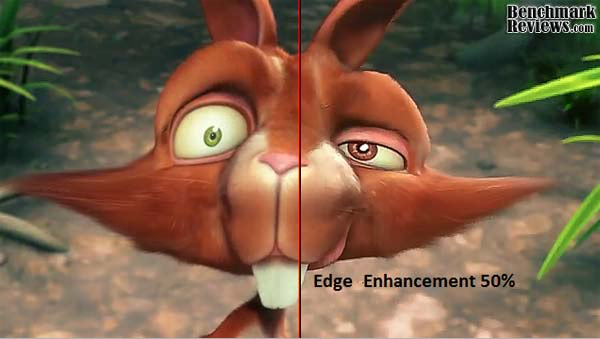
The difference is pretty clear. I added Edge-enhancement percentage because that's the most aggressive feature on ATI cards. You can see the difference on the eyes and teeth. Practically, edge enhancement is all around. In this image there is no noticeable difference in colors. Let´s have a look on another picture.
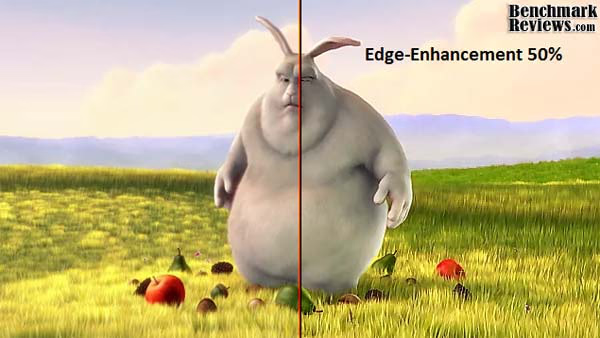
Again, if you can´t see the difference by watching at the grass you definitively need glasses. The grass looks totally different when enhanced by the GPU. I think the fruits look somewhat over-exaggerated so maybe lowering the edge percentage would be better. Again, no color difference in this image, but I need to clarify the source is already very vivid and it would be difficult to make it more colorful. Let´s move to our second video New Moon Scene.

In this image we can notice a difference in color and edges. First of all, the enhanced image is more vivid and bright. In 3d animated movies it looked like 50% edge enhancement was all right, a little bit exaggerated, but still good. In movies like this, we can see edge-enhancement is too much for the IQ. The girl at the picture looks weird and somewhat plasticized.

So I tried lowering edge enhancement down to 15% and I think this fits the image much better. The edges look enhanced without looking out of the scheme, and colors are still more vivid and bright than the original video. I added a pair of pictures more but this time without split mode.


Now, I bet you see the differences a mile away off distance. The background looks more bright and vivid. Colors are more dynamic and edge enhancement make things look more detailed. ATI did a great job with the Image Quality and that's good to hear. To the green side of the force (NVIDIA), follow me you should...
NVIDIA Image Quality
It´s time to see how NVIDIA GPUs enhance image quality. Let's start with our favorite Bunny, should we? Here is an image with IQ settings and DXVA mode off.

Now please have a look at the next image. Do you see any difference?

Yes sir, that's the DXVA ON NVIDIA GPU enhanced image. Do I see any difference? Well, I actually do. The first difference is the background color. The non-enhanced image looks a little bit red at the background, while the enhanced image looks more natural. Other than that, I can´t see any noticeable difference between the images. I repeated these tests 3 times in order to make sure IQ settings were enabled on the NVIDIA control panel, and they were. Grass looks the same, bunny looks the same, and basically everything is the same except for the red background color which is caused by enabling a wider color range on the NVIDIA control panel. How bad is this? Well, the difference isn´t noticeable enough. Most people wouldn´t have noticed the color range adjustment in the photos. Let's try the second video in order to see if we can find bigger differences this time.

IQ Enhancements with DXVA ON at the next image:

Again, if you force your eyes, you will notice the red color is somewhat changed. Look at the house on the background and you will notice a colder red color. In general, the picture looks colder (color temperatures) but anything else is practically the same. Also, the girl´s face is a little bit brighter.
GPU Acceleration Final Thoughts
DXVA for all kind of videos, that's the tendency. When AVIVO and Purevideo were launched some years ago, the main targets were to playback and enhance video quality for DVDs. This was later opened to a wider sector and different formats. Then they evolved to an HD version targeted to HD-DVDs and Blu-Ray Discs. Right now, DXVA technology is growing more and more, so that you can enhance any video in your PC. While the formats list is still large, adding DXVA support to Flash Player is a great and very big step. Even Flash is not recognized as a perfect nor excellent format, I can´t say it´s not used worldwide. Many websites use flash format to upload videos, and of course, Youtube, vimeo and Hulu are just some big examples. 
Technology grows and now many of these popular sites added HD support, which is great, but not as popular as it should because a low-end CPU won´t be able to reproduce the videos fluidly. All this means that GPU applications are growing more and more to a visual computing concept and if you want to flow with the current, you must know how it works. Again, the advantages of using GPUs instead of CPUs normally result into lower power consumption and better IQ, while some others even make possible to watch HD content in a low-end system like the ION used in our tests.
My Flash Videos are not being reproduced and enhanced by my GPU? Sure, this can happen. When I was testing many videos on the net, there were some which didn´t received GPU acceleration or enhancements. Keep in mind this is a BETA release of the Flash Player, and still has some bugs around. The reason your videos probably aren´t being reproduced by your GPU is because they may have an odd resolution. For example, if you playback any 1280x720p video you will have DXVA working and IQ enhancements. Now try weird resolutions like 1235x712 and DXVA won´t work.
In Youtube, an easy way to force DXVA is adding &fmt=22 (for 720p) or &fmt=37 (for 1080p) at the end of the URL. This way you make sure the video resolution to be recognized by your Flash Player even if the video isn´t actually recorded at that resolution. Most problems will be solved on the official release and some will be solved with new ATI/NVIDIA drivers, but you can enjoy DXVA on many flash videos already.
DXVA Flash Conclusion
I can resume the whole article in 5 words: DXVA works great on Flash. The reality is that both ATI and NVIDIA have done a great work on DXVA. Videos are reproduced flawlessly even on low-end systems, and CPU usage is lowered in a big percentage which sets your CPU free to do some other stuff at the same time. DXVA also allows HD flash videos to be reproduced on low end systems which won´t be able to reproduce HD flash with the CPU power, so that's a great start and the main target of DXVA.
About image quality enhancements, that´s an easy choice. We can draw a winner so easily because at the time we tested IQ ATI was just amazing and it offers more variables to set. Personally, Dynamic Contrast and Edge-enhancement totally rock on ATI GPUs, while NVIDIA GPUs didn´t make much of a change on the IQ of our videos. ATI also added Video Demo Modes which lets users to tweak their settings until they find the IQ desired and even compare it to the original image in real-time. That's great, but I can´t say NVIDIA won´t come with similar controls near in the future, so... ATI, enjoy the IQ crown for the moment, because it could end sooner than you think. Now that you know how to playback and enhance your Flash videos, enjoy the tests!
Questions? Comments? Benchmark Reviews really wants your feedback. We invite you to leave your remarks in our Discussion Forum.