
ROCCAT KONE XTD Gaming Mouse
ROCCAT KONE XTD Gaming Mouse Review
Manufacturer: ROCCAT
Product Name: KONE XTD
Model Number: ROC-11-810
UPC: 4250288118102
Price As Tested: $69.99 (MSRP)
Full Disclosure: The product sample used in this article has been provided by ROCCAT.
This time last year ROCCAT released the KONE[+] to replace the original KONE Gaming Mouse, this year there are two upgrades for the KONE gaming mouse line - the KONE XTD and the KONE Pure. In this article Benchmark Reviews will be looking at the ROCCAT KONE XTD Max Customization Gaming Mouse (model# ROC-11-810).
The ROCCAT KONE XTD looks exactly the same as its predecessor but there have been a few changes under the hood. For starters the KONE XTD boasts an 8200 DPI Pro Aim R3 laser sensor, a 32-bit Turbo Core V2 72MHz ARM MCU processor, upgraded Omron switches and an advanced Tracking & Distance Control Unit. We were impressed with the KONE[+] so let's see if the KONE XTD is a worthy replacement.

During the course of this review we will take a look at the aesthetics and features of the ROCCAT KONE XTD and also test it in our usual mix of software and games. We aim to be thorough here at Benchmark Reviews but we still need reader interaction to tell us where we might be coming short, if you have any queries or suggestions on how we can improve our articles then please don't hesitate to comment below.
Features & Specifications
ROCCAT KONE XTD Features
- FULLY-ADJUSTBALE 8200DPI PRO-AIM (R3) SENSOR With 41 DPI settings ranging from 200 to 8200
- ROCCAT TITAN WHEEL - 4D The world's toughest and most accurate 4D scroll wheel
- ROCCAT CLICK MASTER Switch tech powered by Omron for precision button activation
- EASY-SHIFT[+] BUTTON DUPLICATOR With Easy-Aim + Easy-Wheel functions for max command power
- 32-BIT TURBO CORE V2 PROCESSOR For lightning-fast computing speed
- TRACKING & DISTANCE CONTROL UNIT For less pick-up flight & more precise gaming
- 576 KB ON-BOARD MEMORY For storing a wealth of macros and settings
- 4-LED LIGHT SYSTEM For customizable colors + effects
- 8 MOUSE BUTTONS + SOLID 4D WHEEL For a full complement of command options
- 4 EASY-TO-CLIP-IN WEIGHTS (4 X 5G) For customized weight adjustment
- ROCCAT DRIVER + MACRO MANAGER For advanced customization + presets for games & apps
- ROCCAT ACHIEVEMENTS DISPLAY For monitoring gaming performance
ROCCAT KONE XTD Specifications
- Pro-Aim Laser Sensor R3 with up to 8200dpi
- 1000Hz polling rate
- 1ms response time
- 12000fps, 10.8megapixel
- 30G acceleration
- 3.8m/s (150ips)
- 16-bit data channel
- 1-5mm Lift off distance
- Tracking & Distance Control Unit
- 72MHz Turbo Core V2 32-bit Arm based MCU
- 576kB onboard memory
- Zero angle snapping/prediction
- 1.8m braided USB cable
Closer Look: ROCCAT KONE XTD
In this section we will have a good look at the ROCCAT KONE XTD to see what sets it apart from the rest.

The KONE XTD box front is quick to boast about the most important features of this mouse and when you open the front flap you get even more info. There is a nice window to showcase the unit itself. The flipside of the box goes into more detail about these features, you would not be short of information if you were to pick it up on a store shelf and you would quickly be able to make an informed decision.

It is quite obvious that the KONE XTD is designed for right handed people but lefties would only lose the function of the two side buttons, this is a compromise but it means you don't have to overlook this mouse. The KONE XTD is quite a large mouse measuring approximately 13cm x 7.5cm at its longest and widest points respectively. This coupled with the high arch profile makes it quite a handful, suited to the larger hand although my 7 and 9 year old sons don't seem to have any problems using it.

The KONE XTD has quite a high arch profile that manages to merge the 'claw' style grip and the 'palm' style grip into one, it is hard for me to translate the feeling into words but the KONE XTD feels really comfortable in the hand whatever the grip style I tried.

This shot of the KONE XTD shows all of its buttons, while it looks minimal compared to offerings by other manufacturers you actually have 22 mouse functions thanks to ROCCAT's Easyshift[+] feature and 4D mouse wheel. Not counting scroll and tilt there are eight clickable mouse buttons; Left click, Right click, Wheel click, + button, - button, < button, > button and Ξ button. All of the buttons on the KONE XTD are programmable using the ROCCAT mouse settings utility. If you pair this mouse with the ROCCAT ISKU keyboard then you can utilize the ROCCAT Talk feature and assign the Easyshift[+] key on the ISKU to be the function modifier for itself and the KONE XTD too and vice versa the EasyShift[+] button on the KONE XTD can be the modifier for the ISKU keyboard and itself.
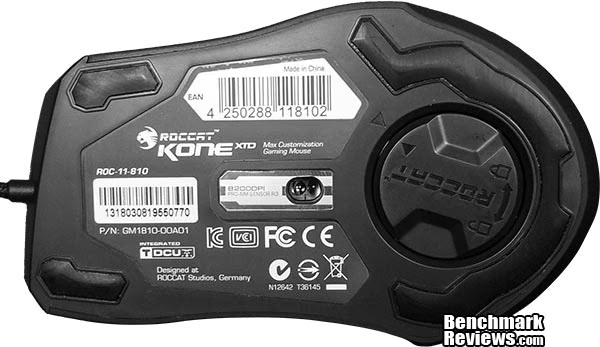
Flip the KONE XTD over and you have access to the weight adjustment system, simply rotate the disk to unlock it which allows you to populate it with up to four 5g weights (shown below). Also shown here is the layout of the low friction mouse feet, the entire heel is one big U shape of low friction material and two smaller pieces are used at the front corners. It is important that you remember to clean the bottom of the mouse regularly to maintain optimal performance as these feet pick up a lot of dirt on their travels which will introduce drag. This won't be noticeable during rapid movement but precision movement will be affected slightly.
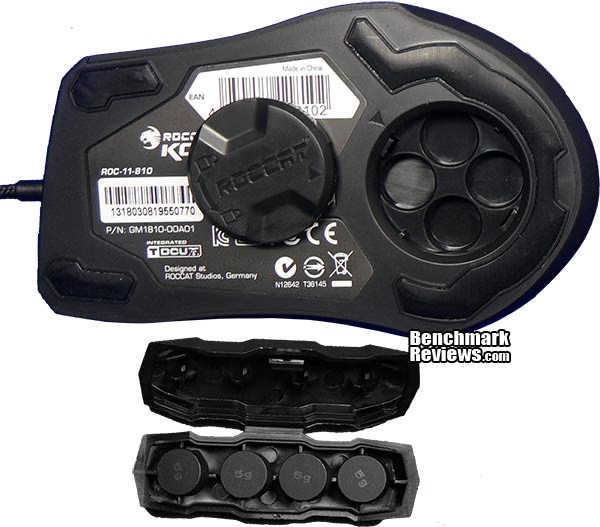
Changing the weight of the ROCCAT KONE XTD won't be an on-the-fly procedure, and it is a bit fiddly to say the least. The weight compartment cover it a bit tricky to get off and once you put the weights in they can be a bit of a pain to remove. I personally prefer to use the KONE XTD without any weights, but it goes without saying that we are all individual and have different preferences so the option is there if required.
ROCCAT KONE XTD Detailed Features
Now that we have had a look at the KONE XTD mouse it's time to look at what drives it. In this section we look at the KONE XTD utility to see what level of customization and adjustment we have available.

Opening the ROCCAT KONE XTD mouse settings utility can be done in one of two ways, either by clicking on the KONE XTD icon in the windows notification area or by holding EasyShift[+] and pressing the Ξ button. The first screen you will see deals with the sensitivity options, wheel speed, DPI stages and double click speed. Adjusting the various options doesn't require explanation and sliders make changing settings super easy. The contrast of blue on black neatly matches the color theme of the company.
The KONE XTD can have up to five different profiles set to activate when a certain game or application is launched. You can also set one of these profiles as windows profile (by clicking the WP button on any of the five profiles), as soon as you exit any application or game that has a profile assigned to it, the settings utility will automatically switch back to your defined windows profile so you don't need to worry about (or check) which profile is active.
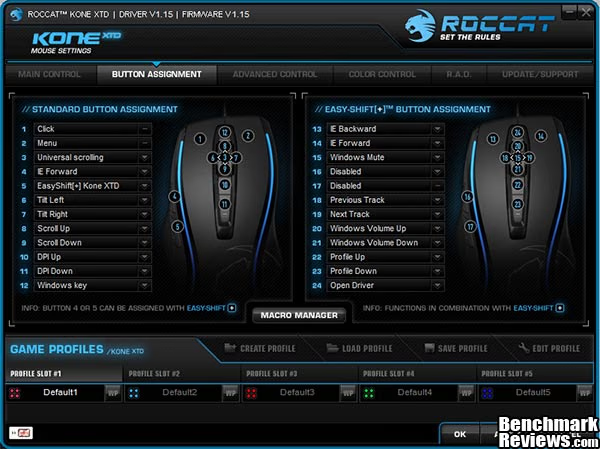
Next is the button assignment tab, pretty much self explanatory I think you'll agree. Settings on the left are the default functions and settings on the right are the functions executed when each button is used in conjunction with the EasyShift[+] key. By default the EasyShift[+] key is assigned to button 5 as seen above, and can only be assigned to buttons 4 or 5 unless you have a ROCCAT Talk compatible gaming keyboard which can also have a key assigned as the EasyShift modifier for the KONE XTD.
Creating a macro should be simple but unfortunately it isn't, at the same time it isn't a difficult task it's just more long winded than anything. Fist you must select or create a macro set before you can create a macro, and then of course record the macro. Macro's can also be created within existing sets. From here it is quite simple but the steps up to here were unnecessary in my eyes.
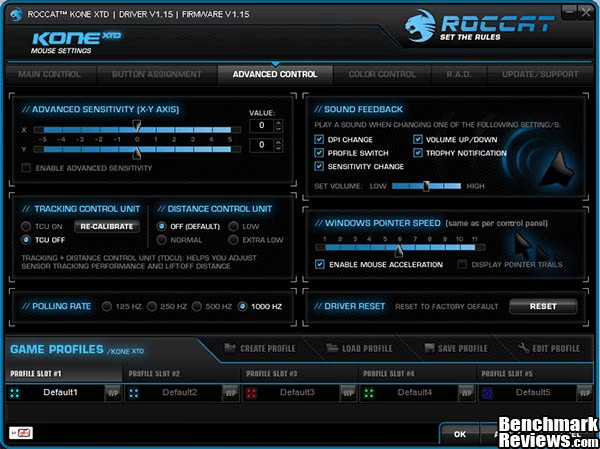
Next up are the advanced options and here we have a couple of options unique to ROCCAT, known as the Tracking and Distance Control Units. These two features really take the KONE XTD to a new level when used in conjunction and give you great control of the mouse. Lift off has long been an issue with some well known brands and ROCCAT's distance control unit goes a long way to alleviating this problem. Tracking on a wide range of surfaces can also be a big issue for some laser mice and the tracking control unit allows the KONE XTD to adapt the laser sensor to track at its best on nearly any flat surface. It is recommended that the surface should be one uniform color for the most optimal results. The DCU (Distance Control Unit) set to extra low really had an impact on cursor movement during mouse lift-off, keeping it very low indeed. I'm not sure who would want cursor movement during lift-off but leaving the setting to default (off) or on normal will see some movement for sure.
You can have a sound (voice) play when you change various options as shown above in the top right corner, this is really helpful when you are in game to get aural feedback rather than visual feedback as the latter will definitely distract you more. The voice also has variable tone which is a nice touch but the voice is a novelty and a bit too much for me. I have gone down the silent route as I prefer it that way.

Next up is color control, from here you have a plethora of color choices guaranteed to suit any preference. There are four points of illumination on the KONE XTD mouse and 33 colors to choose from, which gives you lots of different color combinations. There are also quite a few possibilities with light effects when mixed with flow effects. When you start playing with the light effects, and mix them with the flow effects, the color selection is disregarded and the KONE XTD will cycle through all of the colors available. Better still, you could have the lights stay on (no color flow) or turn it all off altogether.
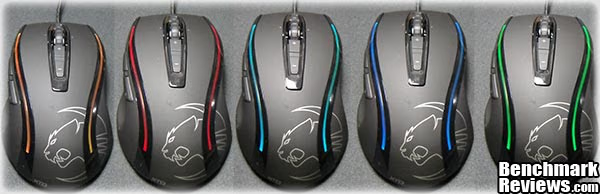
The lighting effects on the ROCCAT KONE XTD are impressive but not all colors are accurately reproduced. Most colors will come out as intended but there are just some colors that the RGB LED's inside the KONE XTD won't do.
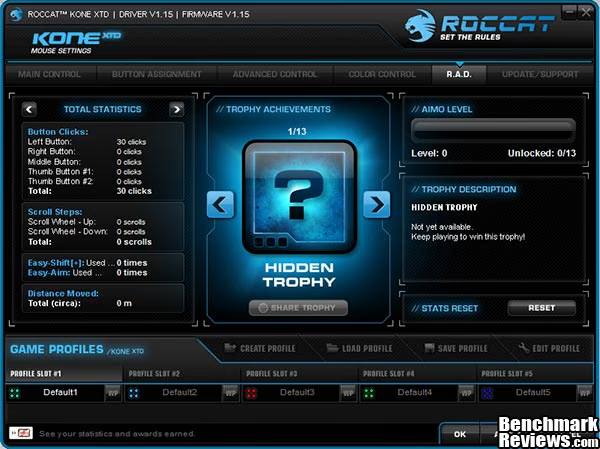
A new addition to the ROCCAT KONE utility is the above screen grab of the R.A.D tab, which stands for ROCCAT Achievements Display. Pretty much self explanatory this one, the utility tracks your usage and awards you with gold virtual achievement trophies and also gives some stats on your usage. It's a bit of a gimmick but interesting all the same.
As was the case with the ROCCAT KONE[+] which I reviewed last year, after applying any changed settings there is a ~28 seconds wait from clicking apply to the changes actually taking place on the mouse. While 28 seconds might not seem like a long time, imagine you are experimenting with color combinations and these 28 seconds each time can soon mount up. Changing settings, configuring buttons or trying different color combinations can become a time consuming and laborious task.
Note from ROCCAT regarding malware/antivirus scanners
This issue (above) has to do with the malware scanner/software on the particular PC. The software scans the driver and that's what makes it slow. If users contact ROCCAT support with this issue, they are given this answer:
When the driver is taking very long to open or to accept changes then please make sure to create an exception rule for it in your anti-virus program. In case you use Microsoft Forefront please also follow this process:
- Settings -> Excluded files and locations
- Write into locations: C:\Program Files\ROCCAT
- Click on "add"
- Save changes
ROCCAT Hiro 3D Supremacy Surface Gaming Mousepad
ROCCAT also sent along a HIRO - 3D Supremacy Surface Gaming Mousepad (model# ROC-13-410) for testing. The MSRP for the HIRO 3D Supremacy Gaming Surface on the ROCCAT website is €49.99, this is a lot of money for a surface on which to move your mouse around, so it had better be good.

The box is very informative as one would expect and there is a little cut-out in the bottom left corner so you won't need to rip it open to see what it looks or feels like. In the bottom right corner there is a claim of "Field tested for gaming mice with resolutions of up to 16800 DPI", yet none of the gaming mice listed on the ROCCAT website to have been tested with the HIRO have a sensor anywhere close to that sensitivity. From what little research I have conducted, 8200 DPI is currently the highest sensitivity sensor available right now.

The ROCCAT HIRO gaming surface is not too much bigger than an A4 sheet of paper, but is more than big enough for the current generation of high sensitivity gaming mice. It is quite heavy as mouse mats go but this adds to stability in the heat of the moment. From this distance the ROCCAT HIRO looks just like any other mouse mat but the detail is only obvious when you look closer. The ROCCAT HIRO has a vulcanized silicon treated surface to make your mouse glide easier and to also be water resistant, which is useful for when (not if) you spill something on it and it ultimately needs cleaning.

Thee reverse of the ROCCAT HIRO 3D Gaming Surface is made from non-slip shock absorbing rubber, designed to keep it stable in the heat of the moment. Despite this construction I still get a little bit of movement on my laminated wood desk top, not enough to be a problem but I do definitely find the HIRO migrating a little during normal use.

A nice macro shot here to emphasize the level of detail of the ROCCAT HIRO 3D Gaming Surface, it has a similar look and feel to denim. One thing is for sure though is that the HIRO feels very rugged and durable.

Another feature of the ROCCAT HIRO 3D Gaming surface that ROCCAT advertise is the "power bonded construction" which, as seen above, gives nicely rounded corners and edges that won't fray.
Before I received the ROCCAT HIRO 3D Supremacy Surface Gaming Mousepad I have never seen the point of using a mouse mat, and haven't used one in all my 12 years of PC gaming. Ultimately, I still think mouse mats are a bit of a marketing gimmick, mouse mats were almost essential for ball mice but the advent of optical sensors did away with the need for them. Unless you are trying to game on a slab of concrete I really don't see the need for one. There may be benefits for ultra competitive professional gamers but it must be marginal at best, average Joe gamer will do just fine without one.
Testing & Results
Testing Methodology
Testing an input device is simple, all one needs to do is use it, unfortunately there are no quantitative benchmarks to run, no numbers to compare, and no software used that can test the quality of the hardware. Testing an input device like the Roccat KONE XTD Max Customization Gaming Mouse is going to be based around personal opinion and preference. In this section I will present my unbiased opinion with regards to the use and operation of the Roccat KONE XTD and report back any improvement benefiting directly by its use in various games and programs listed below. Your mileage may vary slightly and as such this should be taken as a guide only.
Test Software
- Adobe Photoshop CS5
- Firefox and Internet Explorer web browsers
- Microsoft Office applications
- Call of Duty: Black Ops (mainly zombies)
- Call of Duty: Modern Warfare 3
- Battlefield: 3
- Need for Speed: World
- GTA IV
- Just Cause 2
Results
Using the Roccat KONE XTD on its highest sensitivity (8200 DPI) for the first time was like starting all over again, the cursor just ran away from me as I fumbled around trying to find it on the screen. Suffice to say there is a definite adjustment period for getting used to this sensitivity, and I think that it will only really serve as an added edge in professional /competitive gaming where every little advantage will count. I think that the KONE XTD was just about the right weight to suit my preference without adding any of the weights. After adding the weights I found it too heavy and it was a bit of a pain to remove the weights as they were such a tight fit so I decided to use the KONE XTD without them.
In the button configurations there is a function called EasyAim, what this does is allows you to assign a different DPI setting to a mouse button that is only active while you hold the selected button down. In my case I used my lowest setting of 800dpi assigned to the EasyAim button, this is really effective for sniping and also really useful for precise movements during image editing in Photoshop.

As games these days get more complex and require more keys assigned to important tasks, along with having external programs such as teamspeak etc. running, it is essential to have many commands at your finger tips. It is hard to give a mouse more buttons while at the same time keeping it easy to use but I think ROCCAT may have cracked it with their EasyShift[+] feature. What EasyShift[+] does is it allows you to assign two commands to a single key, with the EasyShift[+] key acting as the modifier.
This feature is expanded further with ROCCAT Talk, a communication protocol between compatible ROCCAT devices. Using ROCCAT Talk allows you to assign the EasyShift[+] and EasyAim keys to either device, the benefit inherent here is that you will have more control of the mouse and/or keyboard in many different situations. The limit is your imagination, pressing the side buttons of a mouse in the heat of action to modify a function isn't the easiest thing to do but controlling two peripherals has become second nature to us now. The benefit also works the other way round. While holding the EasyShift[+] button of the mouse you can change certain keys on your compatible keyboard to perform another task without contorting your fingers. The 4D mouse wheel is another great feature and uses no extra room whatsoever, it takes a little getting used to but is a great addition that should become a standard.
ROCCAT KONE XTD Final Thoughts
To describe the KONE XTD Max Customization Gaming Mouse in ROCCAT's words, "To build the mighty ROCCAT KONE XTD - Max Customization Gaming Mouse, our ROCCAT Scientists increased the already formidable capabilities of the legendary KONE[+] - while keeping the legendary design of the KONE[+] 100% intact. The result? A supreme gaming weapon". Which means they upgraded what was essentially an upgrade for the original KONE gaming mouse. Don't get me wrong the KONE XTD is an excellent gaming mouse but the only real noticeable upgrade is the laser sensor, the Omron switches were not present on the KONE[+] but they are not so noticeable in the short term - they are designed for longer life and durability.
ROCCAT KONE XTD Conclusion
In this section I am going to write a brief five point summary on the following categories; Performance, Appearance, Construction, Functionality and Value. These views are my own and help me to give the Roccat KONE XTD Max Customization gaming mouse a rating out of 10, a high score does not necessarily mean that it is better than a similar mouse which has been reviewed by another writer here at Benchmark Reviews, which may have received a lower score. It is however a good indicator of whether the KONE XTD is good or not. I would strongly urge you to read the entire review, if you have not already, so that you can make an educated decision for yourself.
The Roccat KONE XTD Max Customization Gaming Mouse performs very well in all tasks, the 8200dpi R3 laser sensor really takes it to another level in FPS games, it's also quite amusing to watch a noobie family member trying to use my PC at this level when they are used to the basic 800dpi of a normal mouse. The software utility is very intuitive and gives a lot of options for customization.
Appearance is normally a touchy subject but with the level of customization available with the KONE XTD I'm sure there is a look that could suit you personally, the LED's won't reproduce all colors perfectly but they are close enough to call.
The construction of the KONE XTD is of exceptional quality. There is no doubt in my head that this mouse will last a long time and it can take a bit of a beating along the way and remain in good order. The materials used are of high quality which is expected in a gaming mouse of this level. As noted in the review, the weight compartment of the KONE XTD really holds on to the weights and puts up a good fight when you want to remove any (I resorted to banging it on my desk).
Functionality is top notch, EasyShift, EasyAim and Roccat Talk really set this mouse out from the rest, the issue of the waiting time when changing settings is almost moot next to these. It used to be the case that DPI was the only highlight of a gaming mouse, it does play a massive part but it is not a deal breaker. The KONE XTD does not disappoint with its 8200 DPI R3 laser sensor, it takes some time to get used to but when you have got to grips with it you will love every minute of gameplay.
The ROCCAT Kone XTD - Max Customization Gaming Mouse will be widely available soon with an MSRP of $69.99, a quick search of Amazon.com will throw out a pre release over inflated price between $120 and $220 so wait till it is officially released to grab a great bargain. Not everyone can afford to throw $70 at a gaming mouse and I understand that but the KONE XTD has features that not all other mice have. For that reason Roccat could have easily charged more (like others often do) but they played it just right I think.
The Roccat KONE XTD is a great all around mouse. If you are an FPS gamer then you will really appreciate the 8200dpi R3 laser sensor and the EasyAim function, but all the extra buttons may well be wasted on you. MMO and RTS gamers will really appreciate the EasyShift[+] and Roccat talk capabilities that will surely increase your APM to all new level.
Pros:
+ 8200dpi Pro-Aim R3 Laser Sensor
+ EasyShift[+] and EasyAim are game changers
+ Roccat Talk compatible
+ Loads of color customisation and effect options
+ 22 functions thanks to EasyShift[+]
+ 8 programmable buttons + solid 4D scroll wheel
+ Tracking and Distance Control Unit
+ Low friction mouse feet really work well
+ Excellent build quality
+ Omron switches for long life and durability
Cons:
- Takes 28 seconds to apply settings
- Weights are a pain to swap out
- Drivers not included - Must be downloaded from Roccat website
- Macro creation is over complicated
Ratings:
-
Performance: 9.50
-
Appearance: 9.00
-
Construction: 9.00
-
Functionality: 9.00
-
Value: 9.25
Final Score: 9.15 out of 10.
Excellence Achievement: Benchmark Reviews Golden Tachometer Award.
Benchmark Reviews invites you to leave constructive feedback below, or ask questions in our Discussion Forum.
Reader comments from the original article
6 comments were posted before commenting closed. They are preserved as written. Original avatars no longer resolve and are shown as a placeholder.
Serious review? Michael Permalink:
In the beginning you write "We were impressed with the KONE[+] so let's see if the KONE XTD is a worthy replacement.".. Really? How on Earth could you be impressed with the KONE[+] mouse?? The tracking of that mouse was sooo bad I threw it away after 1 day. I find it hard to take your review serious if that is the standard you think so highly about!, Makes me wonder if you are paid off by the manufacturer :-/
RE: Serious review? Aaron Permalink:
It must be a fault with your particular product.
RE: RE: Serious review? Michael Permalink:
Eh no.. Sorry! Just Google the internet and see plenty of threads that shows exactly the mouse jitter I'm takling about.. Try "roccat kone sensor problem"..
RE: Serious review? Steven Iglesias-Hearst Permalink:
No one at Benchmark Reviews gets paid off by any manufacturer, I'm sorry you feel that way. If I had the issue you speak about with the KONE[+] I would most certainly have reported it. It would not have impressed me and it would not have got a high rating. Needless to say the KONE XTD and the KONE Pure do not suffer this issue.
roccat build good quality fact. stevenicks Permalink:
not saying this is your problem but try using an powered USB hub that will make sure there will be enuff volts to power these type of devices, many people load up the computer with usb devices and don't think that maybe just maybe the device is not getting the power it needs thus a powered usb hub has solved a lot of problems with a few device's that require power. worked with and solved problems with usb wirless headset and tracking problem with R.A.T 7 MMO i had .. just a thought.
RE: ROCCAT KONE XTD Gaming Mouse Argos Permalink:
After having earlier Kone's break down on me (mouse wheel construction is/was prone to breaking) I would be afraid to buy a Roccat mouse ever again. I loved everything about the Kone. I never perceived tracking problems and I love the design, but a gaming mouse has to be sturdy and be able to take punishment in the heat of the moment. So I went back to Logitech. I have been using a G700 for a long time now. Great, versatile and strong mouse.