
Logitech G710+ Mechanical Gaming Keyboard
Manufacturer: Logitech
Product Name: G710+ Mechanical Gaming Keyboard
Model Number: 920-003887
UPC: 097855089007
Price As Tested: $149.99 (Newegg/Amazon)
Full Disclosure: Logitech provided the product sample used in this article.
I am not sure who the largest manufacturer of aftermarket keyboards is, but surely Swiss company Logitech must rank among the top tier. Founded in 1981, the company makes a dizzying array of computer accessories, including keyboards, mice, touch pads, speakers, web cams, and tablet accessories. It seems odd that after all these years, they're just now introducing their first mechanical keyboard, the Logitech G710+ Mechanical Gaming Keyboard. Equipped with Cherry MX mechanical switches, controllable backlighting, and supported by Logitech Gaming Software, this new product is aimed squarely at the gamer who wants more than a rubber-dome keyboard can supply.
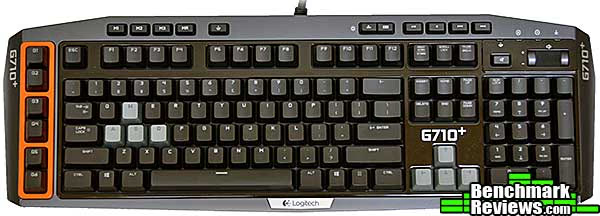
The German company Cherry provides the bulk of mechanical keyboard switches to manufacturers, and offers a variety of switch models, distinguished by their "action" and the color of the key switch plunger. Logitech has made the somewhat unusual choice of Cherry MX Brown switches for this keyboard, and I'll discuss the ramifications of this choice later in the review.
Logitech G710+ Features
-
Tactile, high-speed mechanical keys
-
Whisper-quiet keys
-
Adjustable dual-zone backlighting
-
6 programmable G-keys
-
26-key rollover
-
Media access keys
-
Game/desktop mode switch
-
USB 2.0 pass-through
-
Removable palm rest
-
Tilt legs
Mechanical Keyboard Specifications
Model number: 920-003887
Color: Black and gray
Key switch: Cherry MX Brown (rubber dome switches used on smaller top keys)
Interface: USB 2.0
Switch life: 50 million keystrokes
Warranty: One year limited hardware warranty
Closer Look: Logitech G710+ Keyboard
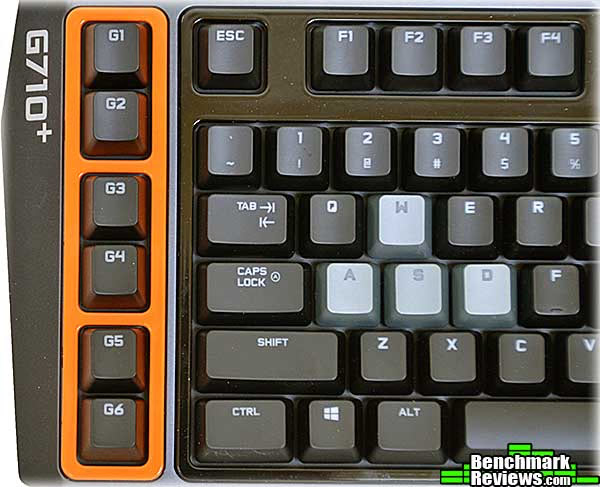
The Logitech G710+ Mechanical Gaming Keyboard has a standard layout with the addition of six programmable keys arranged vertically on the left, and some smaller macro and media keys along the top. The smaller keys use rubber dome switches, but all full sized keys are mechanical. The keyboard comes with a snap-on plastic wrist rest (not shown in this image).
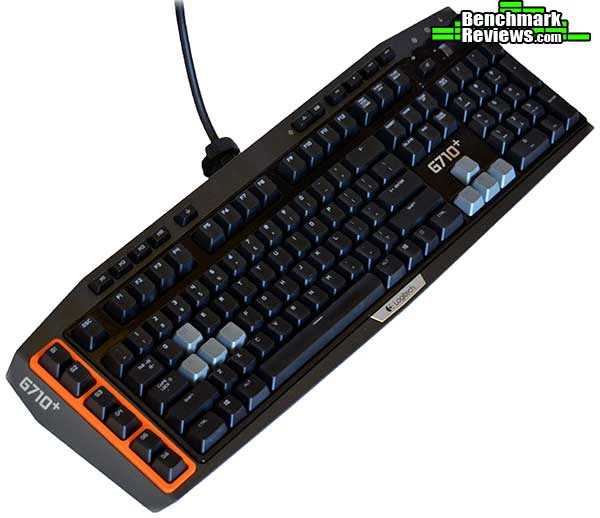
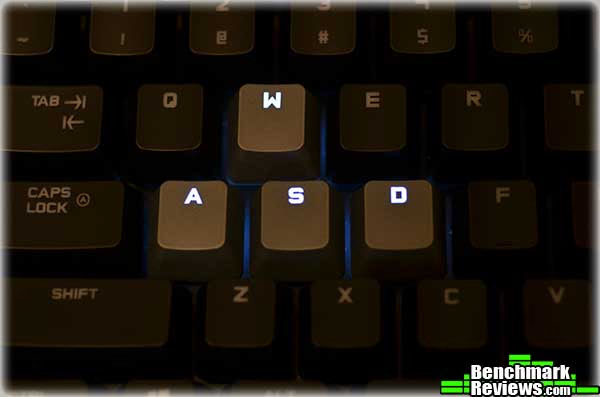
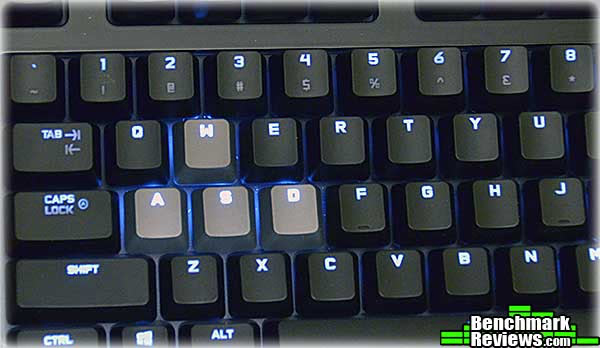
While many keyboards sport backlighting these days, Logitech has implemented a dual-zone backlighting system: you can adjust the brightness of the WASD cluster and arrow keys independently of the brightness used for the rest of the keyboard. Both "zones" have four levels of brightness, plus off.
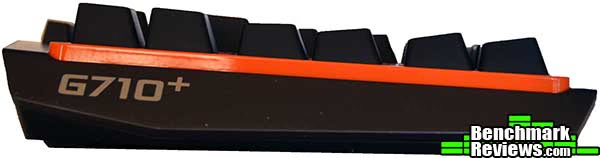
You can always tell a "serious" keyboard: the slope of the keys, when viewed from the side, forms a gentle curve. There's a reason for this, and that's because it just works better for extended typing.
The G710+ is a USB keyboard, but the cable bifurcates at the end, so there are two USB connectors: one for the keyboard connection, and one for the USB pass through feature. The secondary USB port is on the back of the keyboard, near the center. This can save some cable clutter when plugging in your mouse or other USB accessory, but the port would have been more convenient on the side of the keyboard. You can flip down plastic feet at the rear of the keyboard to prop it up by half an inch or so if you prefer.

The six macro or "G" keys are arranged vertically at the left side of the keyboard, highlighted with a thick orange plastic bezel. This adds aboutg 2" of width to the keyboard.
Let's take a closer look at this keyboard in the next section.
Gaming Keyboard Detailed Features
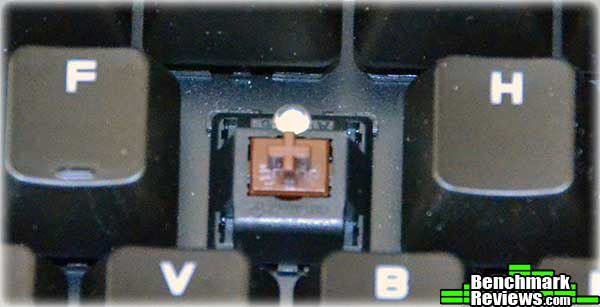
Unlike most other mechanical keyboard vendors, Logitech doesn't talk much about their key switches. The box notes "High speed, low noise tactile switches for feedback you can feel.", but that's as far as they go. The switches are in fact Cherry MX Browns with the optional (from Cherry) individual LED lighting on each switch, as shown below. MX Browns are an unusual choice for a gaming keyboard, since they're "tactile" switches: there's a "bump" you feel as you press the key down, which is the point where the character registers. The brown key switches don't make an audible clicking noise as do the Cherry MX Blue key switches, but the conventional wisdom is that linear switches (i.e. no "bump") such as Cherry's MX Black or lighter-effort MX Red are better for gaming keyboards.
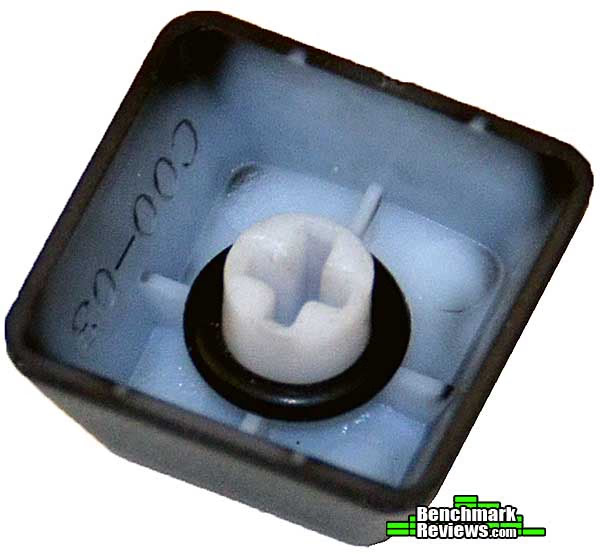
Like all mechanical key switches, the MX Browns have the potential to be noisy. While they don't make a clicking noise on actuation like MX Blue switches, you'll normally hear a fairly loud "thump" or "clack" when the key cap bottoms out against the key switch base. I say "normally" because Logitech has taken a simple step to alleviate this problem: a rubber O-ring in each key cap provides a soft landing surface, and makes the keyboard almost as quiet as a rubber dome keyboard. Of course if you prefer the noise and crisper feel of the "naked" switches, you can simply pull each key cap and remove the O-rings. This view of the key cap also highlights the cap's construction. I had initially thought that these must be "double shot" caps, with the legend molded through in a contrasting color of plastic so that it can't wear off. Instead it appears as though the entire cap was molded in translucent plastic, then somehow coated with a moderately thick layer of some black material. It took a lot of scraping with a knife blade to remove enough of the black material to see the whitish layer underneath, so I think wear on the black layer won't be a problem.
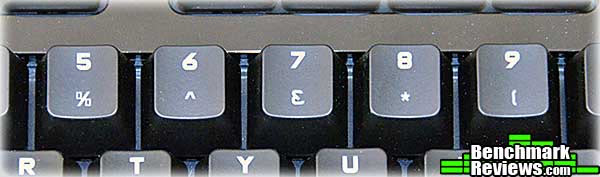
The legends on every dual-character key are reversed...that is, the primary character is on top, and the shifted character is on the bottom. Logitech did this because the LED is at the top of trhe key switch, and the legends must be near the top of the cap to be illuminated evenly. The one other keyboard I have with backlit Cherry switches puts both legends side-by-side at the top of the key cap. With either solution I'll sometimes get the wrong character on keys like the semicolon-colon or single quote-double quote.
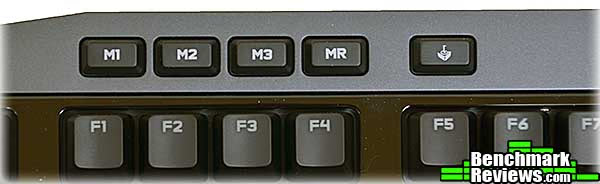
Above the function keys are the macro selector keys M1 through M3, the on-the-fly macro recording key MR, and the "game" key with its little joystick logo. The three macro selector keys switch among the three banks of a game profile to change the definitions for the six macro keys G1 - G6, yielding 18 possible macros per game; a yellow LED illuminates the chosen key. The Macro Recorder key lets you define simple macros on the fly: press the key (which will light up red to indicate recording is in progress), then press the G key you want to define, then type whatever you want, then press the MR key one last time to close the definition. Pressing the game key turns on a light over a matching joystick emblem on the right end of the keyboard and disables the Windows key, so pressing it accidentally won't blow you out of your game. It took me a while to figure out what this key did since Logitech does not include any documentation with the keyboard.
The backlight control and media keys are at the top right of the keyboard. The backlight keys cycle through the five available brightness levels (including off); the first key controls the brightness of the WASD and arrow keys, while the second controls the brightness of the rest of the keyboard. The media keys are standard: play/pause, stop, and previous and next track. Just above the numeric keyboard are the mute key and a scrolling volume control, and you can see the "game" indicator light above its joystick icon, just above the Mute key.
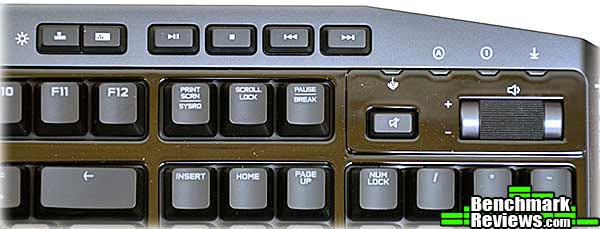
The media keys work without any software required on both Windows and Mac platforms, which is nice. However, to get the full benefit of this keyboard, you'll need Logitech's software. We'll take a look at this in the next section.
Logitech Gaming Software
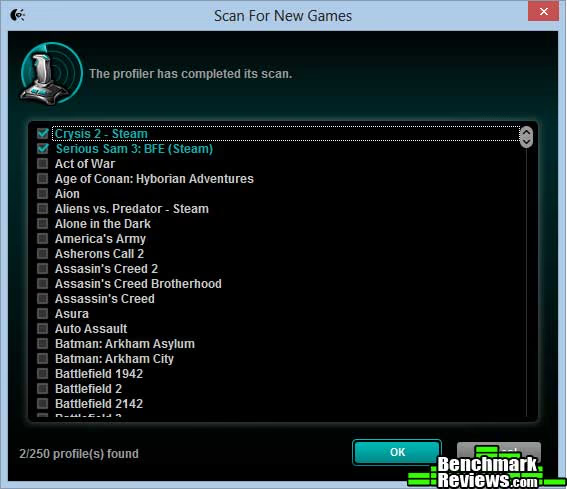
The first thing you'll want to do after plugging in your keyboard is go to Logitech's web site and download and install the unimaginatively named Logitech Gaming Software. Logitech provides this application to control and configure the features on their various keyboards and mice. The first thing this program will do when you run it is scan your system for games it knows about. As you can see from the image below, it even knows about Steam games. You select the games you want to define keys for by checking the box by the game title.
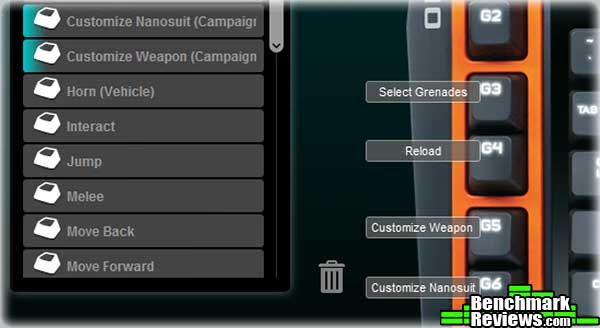
Clicking on the "G" key button at the lower right of the window takes you to the Profiles screen (a profile is a collection of key definitions for a given game or application). The games you selected in the previous screen appear in a horizontal list at the top of the window, and clicking on one populates the commands list at the left with a pre-filled list of game commands. To assign a command to one of the G keys, simply click and drag it to the desired key. You can select which "bank" the current definitions go into by clicking on the image of the M1, M2, or M3 selector keys on the picture of the keyboard. You can search your profiles by name, as well as save and print them. A "+" icon lets you add a new profile manually, but you'll have to be familiar enough with Windows to dig down through the file system and identify the correct executable. Logitech's software automatically loads the defined profiles when you run a game or other application, but you can also define a "persistent" profile that's always active. For example, you could use a persistent profile to define the G1 key as ALT-F4 so that pressing it would always close the current window. Of course this would exclude this key from being used in any other profile.
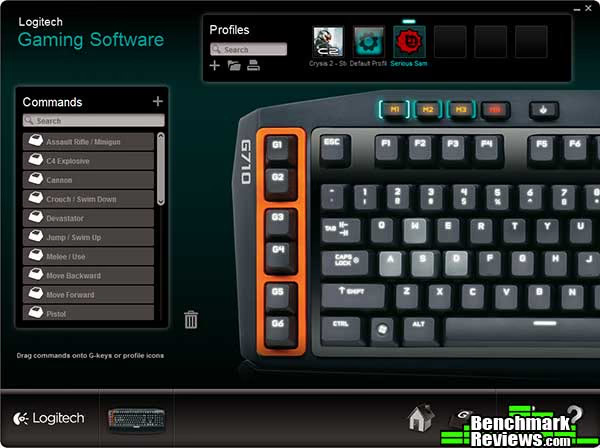
Once you assign commands to keys, they'll show up as floating titles over their assigned keys in the macro definition screen.
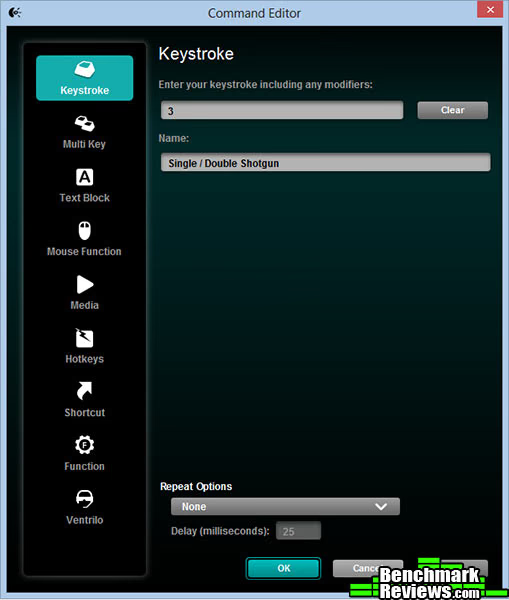
You're not limited to simply using the game commands the software knows about; you can also configure keys manually in the Command Editor. Logitech even allows you to assign mouse functions to a keystroke, such as a right click or even a scroll wheel event. Blocks of text, multi-key combinations, and even Ventrilo support are all present and accounted for. An interesting feature is the milliseconds-delay parameter you can set for repeating keys. This is handy for rapid single fire in FPS games without running ahead of your weapon's cycle time.
Although the Logitech software works well, its "all sizes" nature peeks through occasionally. Since the Logitech G710+ is delivered without any documentation (other than a flyer instructing you to plug in the USB cables and download the Logitech Gaming Software), the "Help" function in this software is all you have, and it's peppered with phrases like "If your device supports this feature..."
Testing & Results
Testing Methodology
Testing a keyboard isn't like testing a video card, processor, motherboard, or even a case. All you can do is use it day to day, and exercise the product's unique features. Sometimes a keyboard that looks great in the store and works well in gaming doesn't turn out to be so great for extended periods of text entry, or vice versa.
Test System
- Motherboard: ASUS Crosshair V Formula
- System Memory: 8GB DDR3-1600
- Processor: AMD FX-8150
- Audio: Onboard
- Video: AMD Radeon HD7970 + Radeon HD7950 in CrossFireX
- Disk Drive 1: Patriot Torqx 256GB SSD
- Disk Drive 2: Western Digital 1GB
- Optical Drive: Generic
- Enclosure: Secret
Software Tested
- Day-to-day use: mainly review writing!
- Crysis 2
- Serious Sam BFE
- Portal 2
I'm a keyboard snob: my day to day keyboard is a 20-year-old IBM Model M, working through layers of adapters to be usable on a modern computer system. I have a collection of other mechanical keyboards, with most of the Cherry switch types represented, as well as a keyboard that uses the much less common ALPS mechanical switches. However, the Logitech G710+ Mechanical Gaming Keyboard is the first keyboard I've ever used with Cherry MX Brown switches. I used this keyboard over a week on both Mac and Windows systems, playing a variety of games on the latter. Logitech's software doesn't support Mac OS X, so the macro keys were useless, but all the media keys worked perfectly with no extra software required.
Results
The first test any keyboard must pass is use as a general purpose typing keyboard. Unless you keep a dedicated gaming rig, or actually switch out keyboards depending on what you're doing, you will probably spend more time typing than gaming on any keyboard you own, so even hard-core gaming keyboards must perform well as normal keyboards.
I've spent the past week typing on this keyboard, and I have to say there was somewhat of a learning curve. The feel of the MX Brown switches was new to me, but my main problem was with the vertical row of macro "G" keys. I have certain typing reflexes instilled over the decades, such as "the upper leftmost key on the keyboard is always the Escape key", except now it's the G1 key. This took me a couple of days to adapt to (and now I'll probably have problems when I move to another keyboard). The different feel of the MX Brown switches meant that it took a day or two for me to get back to full typing speed, but that's something that would be true moving to almost any new keyboard.
Although Logitech's O-ring trick quiets the typical clacking sound of a mechanical keyboard, it's still noticeably noisier than a good rubber dome keyboard.
Logitech's Gaming Software worked without a hitch in my experience, across a variety of games. Most of the games that I play are first person shooters, and since this is the first "gaming keyboard" I've tested, it was liberating to see how much more quickly I could switch weapons or perform other in-game functions with some judicious key assignments. And the Macro Recording (MR) key was very useful for performing in-game tests of specific commands or features...as long as they could be accomplished from the keyboard, since the macro recording feature doesn't work with mouse commands.
Gaming Keyboard Final Thoughts
I found myself warming to the Cherry MX Brown key switches the more I used them, but they remain an acquired taste. Some people will prefer the linear action MX Red or MX Black switches for a gaming keyboard, but I think that the tactile but non-clicky MX Brown switches might represent a pretty decent compromise if you're going to use a keyboard for lots of typing and lots of gaming.
The Logitech Gaming Software works well, but doesn't break any new ground in capability or features. It automatically identifies the applicable Logitech mouse and keyboard you're using, but its help system remains generic and thus isn't as usable as it could be, especially given that the keyboard comes with no documentation, sometimes leaving you to guess whether your device has the capability you're trying to get help on or not.
The most interesting feature this keyboard has is its dual-zone lighting. I don't think it makes that much difference in actual use, but it does look cool. Some other vendors have started shipping keyboards with optional, differently-textured caps for the WASD cluster, letting you find them by feel. This is something Logitech should consider.
The mechanical keyboard renaissance means that this G710+ is up against some pretty heavy competition. It seems that a new mechanical gaming keyboard is announced every time you turn around, and price competition is starting to heat up. This means that people looking at this keyboard will be cross-shopping competitors' products like the Corsair Vengeance K90, which offers 18 definable keys based on Cherry MX Red switches but costs $30 less. At $149.99, it's not the most expensive keyboard Logitech makes, but the G710+ is still a very expensive keyboard.
Logitech G710+ Conclusion
Keyboard and mice are some of the most "individualized" components in your computer system. As such, different people will prefer different keyboard layouts, functions, and "key feels". In any case, mechanical switch keyboards are significantly more expensive than keyboards that use rubber dome or membrane switches, so consumers looking at this type of keyboard will spend more time evaluating them than they would a $10 generic keyboard, since a keyboard at this price level is going to be a long-term purchase.
The Logitech G710+ Mechanical Gaming Keyboard is sheathed in dark gray plastic with light gray accents, and a bright orange bezel around the six macro keys. The keys are black with gray lettering that lights up when the keyboard illumination is turned on, but the WASD and arrow keys are molded in silver plastic to visually distinguish them. The orange bezel around the macro keys struck me as a little garish but probably works well for the intended gamer demographic.
The top and bottom of the keyboard case are heavy duty plastic, and the keys themselves are snapped into a thick metal base plate, which gives the keyboard a significant dose of weight and stability. The quality of the Cherry MX Brown switches is excellent, of course. The USB cable, rather than being sheathed in mesh braiding as is the custom these days, has instead a very thick rubber coating that makes it about the size and weight of a standard AC power cord. It's a little odd but works well; in my experience, braiding tends to snag on things and start frazzling in short order.
The functionality of the keyboard is very good. I was surprised, but pleased, to see that all the media keys work without any software required on both Mac and Windows platforms. The Logitech Gaming Software adds a robust suite of macro functionality although it's nothing you won't see in other vendor's gaming keyboards. Six definable function keys, with 18 definitions available via the M1/M2/M3 keys, should be enough for almost any game, although having only six macros available at any one time might prove limiting in some of the more complex RPGs. The reversal of the regular and shifted legends on the keys is dictated by the location of the under-key LED, but can still prove potentially confusing.
The value proposition is the weakest point of the keyboard. For $149.99 (Newegg/Amazon), the G710+ is significantly more expensive than competing keyboards with similar or better functionality such as the Corsair Vengeance K90, Razer Black Widow Ultimate, or Thermaltake eSPORTS MEKA G.
The Logitech G710+ Mechanical Gaming Keyboard will please any serious typist or gamer, but its price makes it a tough sell when so many less expensive alternatives exist.
Pros:
+ Cherry MX Brown key switches nicely balance regular typing with gaming
+ Dual illumination zones highlight WASD and arrow keys
+ USB pass through
+ Heavy keyboard won't slide around under intense gaming
+ On the fly recording of simple macros
Cons:
- More expensive than competing keyboards
- Only six macro keys available at any one time (without switching)
- Reversed standard/shifted legends
- No documentation included with the keyboard
Ratings:
-
Performance: 9.0
-
Appearance: 8.5
-
Construction: 9.50
-
Functionality: 9.0
-
Value: 7.25
Final Score: 8.65 out of 10.
Recommended: Benchmark Reviews Seal of Approval.
Benchmark Reviews invites you to leave constructive feedback below, or ask questions in our Discussion Forum.
Reader comments from the original article
3 comments were posted before commenting closed. They are preserved as written. Original avatars no longer resolve and are shown as a placeholder.
RE: Logitech G710+ Mechanical Gaming Keyboard G710 owner Permalink:
After looking for a full size mechanical keyboard for months, I purchased a G710+ because it uses Cherry Brown MX keys and offers a combination of features not found in other mechanical gaming keyboards. 1) Dedicated/separate media controls. I use my keyboard volume controls daily. Having to adjust or mute volume a combination keystroke of FN + another key by comparison is cumbersome and annoying. Neither the Razor Black Widow Ultimate (2013), nor Ducky Shine II, nor Max Keyboard Nighthawk (my original choice), nor Thermaltake mechanical keyboards offer designated media controls. Only the Corsair K90 matches the G710 here. 2) 100% Mechanical Full Size Keys. If I buy a mechanical keyboard, I want all the full size keys mechanical. While the Ducky, Nighthawk and Razor have this feature, the K90 does not. In the K90, some full size keys use rubber domes. Not sure about Thermaltake. 3) Game ("G") keys. A primary reason to buy a gaming keyboard is having a separate, designated set of macro or gaming keys. While, the K90 (in spades) and Razor BW have them, the Ducky, Nighthawk and Thermaltake (2 listed on NewEgg at least) do not. Even more so than media, combination FN + another key is bothersome and certainly less advantageous in fast paced gaming. Personally, I'd rather have a set of 5 or 6 G-keys with banks than a block of 18 or more keys. I've never needed more than six at once and the banks make it easy to organize. 4) O-ring dampeners. Not for everyone, but something I planned to do anyway. Logitech saves me $20+ (seriously, like $15 for the o-rings + ship :
RE: Logitech G710+ Mechanical Gaming Keyboard G710 owner Permalink:
(4 cont.) Plus I don't have to spend time on installation. The G710 is not perfect by any means. I hate the orange border. It should come with matching versions of the WASD/arrow keys along with a cheap key puller. The USB cable is too thick - only one USB connection should be required. The second one (a pass-thru for the hub) should be separate and removable not to mention USB 3.0. $150 isn't cheap, but the other 100% full size key mechanical boards (Ducky, Nighthawk, Razor BW, etc.) all run about $140-$145 when not on sale. The K90 is cheaper, much cheaper, but it should be since it has less premium components. Rubber dome keys are very, very cheap to make. Still, I can understand why some claim it's a better value - just depends on whether you don't mind mechanical/rubber dome hybrid. On sale, I think the G710 is a pretty food value given all the features it offers. It's the first thing I've really liked from Logitech since the G9 mouse.
Great Review Chris Permalink:
Great review, spot on. I'm waiting for my G710+ to come in the mail. I almost got the GK-Osmium, but the Cherry MX Brown switches did the trick for me. I wanted the light touch, but, if you're going to get mechanical anyway, why not have the tactile response? Brown has the best of both. The addition of O-rings to minimize noise was genius, too. The K90 looks beautiful, but, I heard they had a lot of driver/firmware issues. This is definitely the most expensive in its class, and I could've went with the Razer BW-U Stealth, but I like Logitech stuff so far. I use the Optical Trackman, and I think it's hands down the best trackball and superior to mice in general. I wish it had more gaming features (like high polling rate), but nobody makes a gaming specific trackball, and I refuse to drive a brick across my desktop. I've been using trackballs for many years, and my wrists thank me for it.