
Gigabyte Aivia K8100 Gaming Keyboard
Gigabyte Aivia K8100 Gaming Keyboard Review
Gigabyte may be a name known to some due to their motherboards, but it seems the company has recently decided to venture into the over saturated peripheral market with the release of the Gigabyte Aivia K8100 keyboard. This keyboard - similar to their recent motherboards - is aimed at the enthusiast computer crowd. With features such as 20-key simultaneous anti-ghosting as well as up to 100 programmable, on-board macros, this keyboard is clearly for the hardest of hardcore gamers. Within this review, Benchmark Reviews tests the Gigabyte Aivia K8100 gaming keyboard.
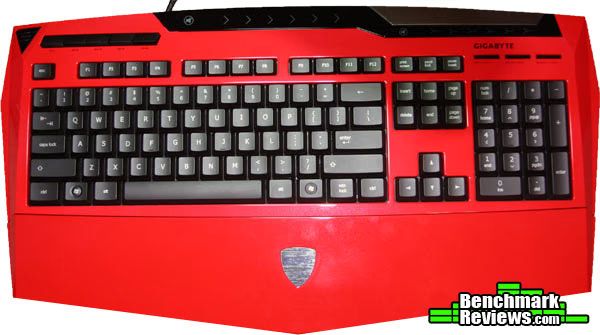
Coming in two unique colors, as well as the generic black, the Gigabyte K8100 bears a very unique look. It resembles a deep red ferrari and deep yellow lambourghini in both colour and design.
Within this review, I'll put the Aivia K8100 through a variety of tests, including gaming (FPS and MMOs) as well as standard tasks such as word processing. On the outside this keyboard looks like It'll be able to perform well, but does it really? Keep reading to find out!
Gigabyte Aivia Features
- Ghost Macro Engine
- 20 Anti-Ghost Keys
- Touch and Slide Volume Control
- More Sensitive & Report Rate
- Considerate Design & Gift
K8100 Specifications
| Interface | USB 2.0 |
|---|---|
| Supported OS | Windows 98/200/ME/XP 32bit Vista/Win7 32/64 bit |
| Switch life | 10 million times |
| Weight | 1300g |
| Operating humidity | 10% to 90% |
| Dimension | 490 * 263 * 32.8 mm |
| Color | Black, yellow, red |
Manufacturer: Gigabyte Technology
Product Name: Aivia K8100
Model Number: GK-K8100-RED (Red) or GK-K8100 (Standard Black)
Price As Tested: Red $79.99 / Black $69.99
Full Disclosure: The product sample used in this article has been provided by Gigabyte Technology.
Closer Look: Gigabyte Aivia
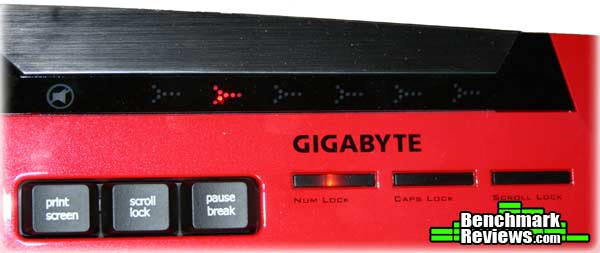
The front of the Gigabyte Aivia gaming keyboard features standard black keys, as well as five macro buttons in the top left, a touch volume indicator at the top, and three num/caps/scroll lock indicators at the right.
The back of the keyboard bears a lack of red, replaced by a modern black. Mesh covering surrounds the 3" USB cabling, protecting it. Two small, solid feet are positioned at the top of the keyboard, allowing it to sit on an angle when placed on a flat surface.

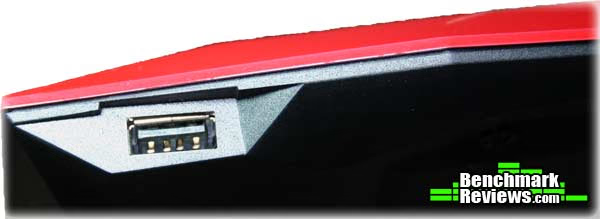
On either side of the keyboard, single USB ports are positioned. These ports are to be used for quick access to USB-related activities. Plugging a wireless USB mouse into either of these would be an example for their use.
A rubber key protector is included with the purchase of the Aivia K8100. This protector is intended to be used by gamers who are accustomed to eating greasy and messy foods on their computer. It does a very good job of protecting the black keys, and may easily be washed in case it gets dirty. This key protector was an unnecessary - but welcome - addition to this keyboard.

Gigabyte Aivia Detailed Features
The Gigabyte Aivia K8100 comes bundled with many welcome additions, on top of the basic functionality required with any keyboard. An example of this is the touch volume control. Positioned above the 'function' keys is a touch volume / mute control, which allows you to simply touch it to increase/decrease the volume. I found, with my Realtek software, only the very first and last touch volume control worked; they decreased / increased the volume by 1 step respectively. All the middle touch controls don't work. I don't know if this was intentional, but I would have like if each one changed the volume by a different stepping.

At the very left side of the keyboard, a "Mode" button can be found, which allows you to change the mode of the adjacent macro buttons. Set in the software, each individual macro button is able to be programmed on five different levels. For instance, you may program the mode "blue" for FPS macros (reloading, bunnyhopping, etc), and program the mode "red" to word processing macros (cut, copy, etc.) As you can see, there is many variations of macros which are able to be used. I'll go into greater detail into the software aspect of this keyboard on the next page.

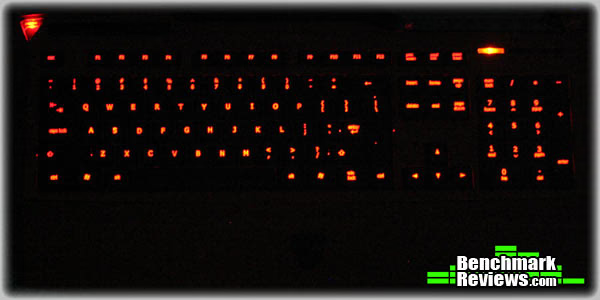
On the back-right of the keyboard, a backlight toggle key can be found. It seems Gigabyte hid this key for some unknown reason, as it's fairly easy to miss. With the backlight on, the keys are very well lit, and provides good light for those who enjoy late-night gaming.
Gigabyte Aivia Software Features
The Gigabyte Aivia comes bundled with very powerful, easy to use software. Including a versatile macro editor, the software is able to be used to replicate and streamline many tasks. The only thing this software seems to be lacking is a great UI. Seriously, it seems as if the devs design every input-device's software with the idea of making it as tacky as possible. If you can get past the GUI, then this software is indeed very powerful.
The center area of the software is a section for each macro button - labelled 1 to 5 - as well as each of the different, color-coded modes. By dragging an icon from the left side to the center area, you're able to assign each macro a function.

Clicking on the right side - the macro area - brings you to a separate window which allows you to create, edit, and store macros in the keyboard's memory. By recording your key and mouse presses, or using the already-programmed presses, you're able to create macros for a wide variety of tasks. With the possibility of up to 100 onboard macros, a macro is able to be created for many different programs in many different scenarios.

To complete your macro, a choice of different icons may be assigned to it.
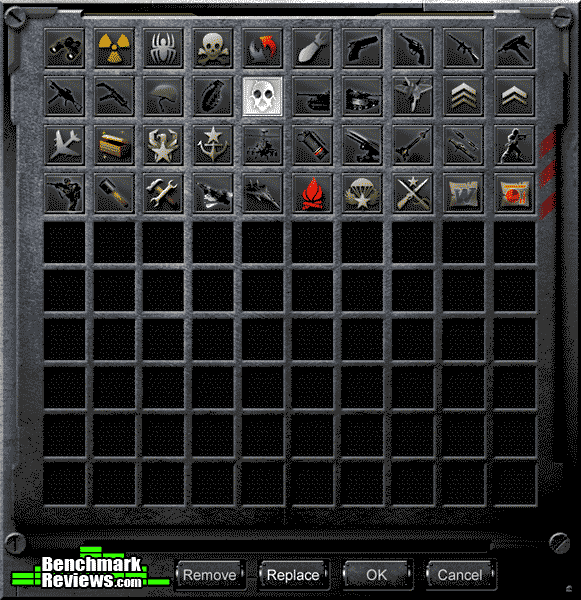
I've included only three pictures in this section because that's literally the entire software - only the core functionality is included, nothing more and nothing less. It may seem a bit daunting at first, but after experimenting with the different settings, you'll be writing macros like a pro in no time.
Testing & Results
Testing Methodology
Testing any input device isn't like testing a different computer component: there are no benchmarks to run, no numbers to compare, and no software used to test the quality of the hardware. Testing an input device - like this keyboard - is mostly based around personal opinion and preference. For instance, I really like the red hue used in the Aivia K8100, however, it naturally isn't for everyone. Within this section, I'll test the most important factors that decide the quality of the keyboard: the construction, the functionality, the appearance, and the performance.
Test System
-
Motherboard: Asus P6T
-
Processor:Intel Core i7 920
-
Mouse: Mionix Naos 5000
-
Video: ATI Radeon HD 4890
-
Disk Drive 1: OCZ Vertex 30GB SSD
-
Operating System: Windows 7 x64
Results
Throughout my use of the keyboard, I was very impressed by the overall quality it has. The keys are very responsive and quiet (especially with the key protector), and the hand rest included is very comfortable and suitable for long lengths of typing and gaming. As stated before, I personally like the appearance of the keyboard. The bright colours may not be for everyone, but I didn't find any problem with it.
The rubber key protector was a very nice addition; it prevented dust, dirt and grime from getting under the keys of the keyboard. The covering around the USB cable made it impossible to accidentally cut or tear it in everyday use. Small, thoughtful additions like this were very welcome, and created a solid keyboard in general. Another small addition was the inclusion of a key remover, which lets you easily take out individual keys for cleaning, as well as spare WASD keys, in case the default ones get worn out. Clearly a lot of thought has been put into this keyboard.
The included software topped the keyboard off with a powerful software backend. It allows you to make a wide variety of macros, suitable for many different tasks.
Aivia K8100 Final Thoughts
The Gigabyte Aivia K8100 may not be for everyone, as it seems to be appealing to hardcore gamers. If you fit this genre of gamers perfectly, then this keyboard is a dream: programmable, onboard macros, solid construction suitable for long hours of gaming, and even backlit keys for late-night gaming cause this keyboard to be an extremely well-made gaming tool. However, for the rest of the population, the included features may seem like overkill.
I would have really liked seeing a better touch-volume control system: only the first and last arrows decreased/increased the volume respectively. The four other arrows didn't do anything. I'm unsure if this was intended or merely a bug, but it should have been changed nonetheless.

Gigabyte Aivia Conclusion
The performance of the Gigabyte Aivia K8100 is supreme; the keys are swift and quiet, the bundled backend software is very powerful, and up to 20 may be pressed at once due to the anti-ghosting functionality included. This is as good as the performance of a keyboard gets.
As stated before, the appearance of this keyboard may not be for everyone. If you enjoy bright, strong colours, then you'd like the shades of yellow or red this keyboard comes in. If not, then the Aivia also comes in a generic black. The backlit keys, as well as the LED touch-volume indicator light, create a quality appearance comprised of LED lights.
The overall construction of this keyboard is very solid. The entire keyboard feels well put-together, including the handrest and keys. The individual keys are very quiet when pressed, and are made even quieter with the included rubber key protector.
With the software backend, you're able to create many different macros for use in a variety of situations. This, along with all the included features (ie: a key remover, and extra WASD keys) give this keyboard great functionality.
The value of this keyboard is decent, but seems to be a tad expensive for the average gamer. If you're looking for a solid keyboard with many different features and functionality but are willing to pay a bit more (ie: a dedicated hardcore PC gamer), then this keyboard is for you. The price of the Gigabyte Aivia K8100 is $79.99 (red model GK-K8100-RED) and a version of $69.99 (black model GK-K8100).
If you're a hardcore gamer seeking only the best features included in a keyboard, then consider purchasing the Aivia K8100. However, if you intend to use this keyboard for something like word processing - or if you don't game very often - then there are cheaper alternatives.
Pros:
+ Powerful software
+ Onboard memory
+ Backlit keys
+ Quality construction
Cons:
- Expensive price
- Touch-volume control difficulty
Ratings:
-
Performance: 9.50
-
Appearance: 9.25
-
Construction: 9.50
-
Functionality: 9.75
-
Value: 8.00
Final Score: 9.0 out of 10.
Excellence Achievement: Benchmark Reviews Golden Tachometer Award.
What do you think of the Gigabyte Aivia K8100 gaming keyboard? Leave comments below, or ask questions in our Forum.
Reader comments from the original article
1 comment were posted before commenting closed. They are preserved as written. Original avatars no longer resolve and are shown as a placeholder.
k8100 in red amrith Permalink:
pl;ease could someone point me in the direction of an online store to purchase a k8100 keyboard in colour red