
MSI Z77A-GD65 LGA1155 Motherboard
MSI Z77A-GD65 LGA1155 Motherboard Review
Manufacturer: Micro-Star International (MSI)
Model Number: MS-7751
Product Name: Z77A-GD65
Price: $189.99 MSRP
Full Disclosure: The product sample used in this article has been provided by MSI.
It's getting hard to keep track of all the Intel chipsets out there, and Intel adds another 10 new chipsets to accompany Ivy Bridge: HM77, UM77, HM76, and HM75 comprise the mobile chipset line, while the Z77, Z75, H77, Q77, Q75, and B75 fill out the desktop line. As you might expect from the model number, the MSI Z77A-GD65 uses the Z77 chipset. While the main reason for the existence of the Z77 Express is the forthcoming "3rd Generation Intel Core Processor" (whose name we are prohibited from mentioning in this article), existing Z68 motherboards will also support this new CPU family with a simple BIOS update, which many manufacturers have already made available.

Since there are some very nice Z68 motherboards out there, and they'll run your spiffy new "3rd Generation Intel Core Processor", what does the Z77 chipset have that the Z68 doesn't? Let's take a look in the next section.
Intel Z77 Express Chipset
The MSI Z77A-GD65 is the first motherboard Benchmark Reviews has tested with Intel's new Z77 Express desktop chipset. This chipset replaces the Z68-- itself less than a year old-- which in turn replaced the P67. All three chipsets are tied to the LGA 1155 socket and motherboards based on these chipsets can support either Sandy Bridge CPUs or "Intel third generation Core CPUs". P67 and Z68 motherboard will require a BIOS upgrade for the latter processors, and many vendors already have such updates available.
The diagram below shows the major features of the chipset. If you were expecting a major upgrade from Z68, you'll be disappointed.
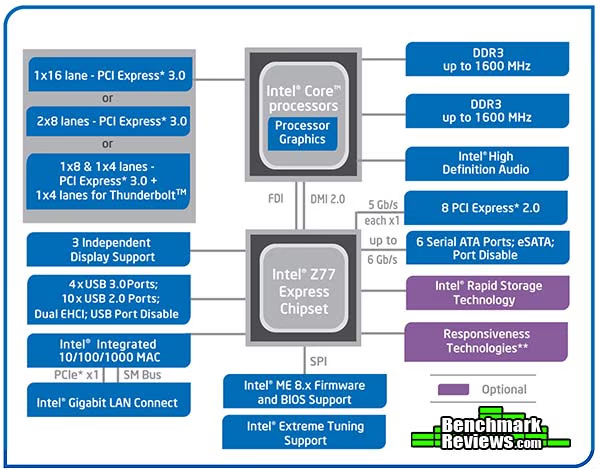
The major new features are:
-
On-chip USB 3.0. Finally. The Z77 Express provides four USB 3.0 ports as well as 10 USB 2.0 ports; the Z68 supported 14 USB 2.0 ports
-
More versatile use of PCI-E slots. While Sandy Bridge processors are limited to 16x and 8x8 PCI-E lane configurations, with a "third generation Intel Core CPU", the Z77 supports an additional 8x8x4 configuration
...and that's pretty much it! There's native support for the forthcoming "third generation Intel Core CPUs", of course, but that feature's only a BIOS update away with the Z68. Disappointingly, Intel has not followed AMD's lead in making all of their SATA ports SATA 6Gb/s ports, and while some PCI-E lanes may be used for a Thunderbolt port, a separate Thunderbolt controller is required. The Z77A-GD65 does not have a Thunderbolt port.
MSI Z77A-GD65 Specifications
Specifications supplied by MSI.
| CPU | Intel Socket 1155 for 2nd and 3rd Generation Core Processors |
|---|---|
| Chipset | Intel Z77 |
| Memory | 4 x DIMM, Max. 32GB, DDR3 2667(O.C.), 2400(O.C.)/2133(O.C.)/1866/1600/1333/1066 MHz ECC, Non-ECC, Un-buffered Memory Supports Intel Extreme Memory Profile (XMP) |
| Multi-GPU Support |
Supports NVIDIA SLI Technology |
| Expansion Slots | 3 x PCIe 3.0 x16 4 x PCIe 2.0 x1 |
| Storage | Intel Z77 chipset : 2 x SATA 6Gb/s port(s) 4 x SATA 3Gb/s port(s) Support Raid 0, 1, 5, 10 ASMedia ASM1061 controller : 2 x SATA 6Gb/s port(s) |
| LAN | Intel 82579V, 1 x Gigabit LAN Controller(s) |
| Audio | Realtek ALC898 8-Channel High Definition Audio CODEC, THX certified - Supports : Jack-detection, Multi-streaming, Front Panel Jack-retasking |
| IEEE 1394 | 1 x IEEE 1394a port(s) |
| USB Ports | Intel Z77 chipset : 2x USB 3.0 via internal connector, 2x USB 3.0 on back panel, 6x USB 2.0 via internal connector, 4x USB 2.0 on back panel |
| Back I/O Ports | 1 x PS/2 keyboard/mouse port 1 x Clear CMOS button 1 x Coaxial S/PDIF out port 1 x optical S/PDIF out port 4 x USB 2.0 ports 2 x USB 3.0 ports 1 x Intel Gigabit LAN port 6 x Audio ports 1 x HDMI, 1 x DVD-I, 1 x analog VGA. Any two video ports may be used at once. |
| Internal I/O Ports and buttons | 3 x USB 2.0 headers 1 x USB 3.0 header 1 x IEEE 1394 header 1 x Multi-BIOS switch 1 x TPM module connector 1 x front panel audio connector 1 x chassis intrusion connector 1 x Voice Genie connector (optional) 1 x Multiconnect panel connector (optional) 1 x V-Checks points set |
Let's take a closer look in the next section.
Closer Look: MSI Z77 Motherboard
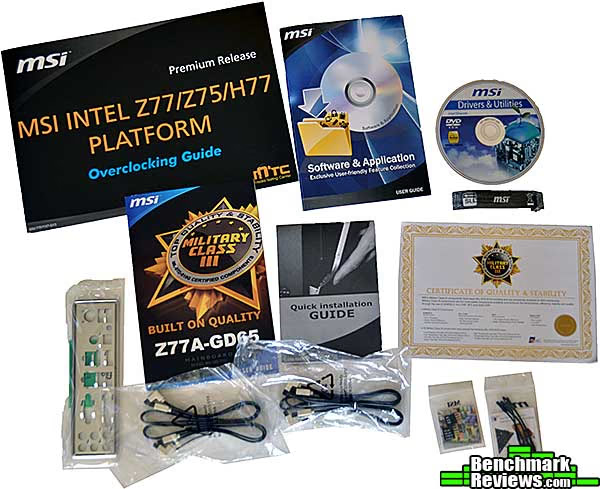
MSI provides a comprehensive accessories bundle with this motherboard, including a separate overclocking guide and voltage probe wires. Playing on their "Military Class III" theme, they also provide a "Certificate of Quality and Reliability" printed on heavy stock paper. MSI backs up their reliability claims with a three-year warranty, which while nicer than the one-year warranty of most motherboards doesn't equal the five-year warranty ASUS provides on their TUF series.
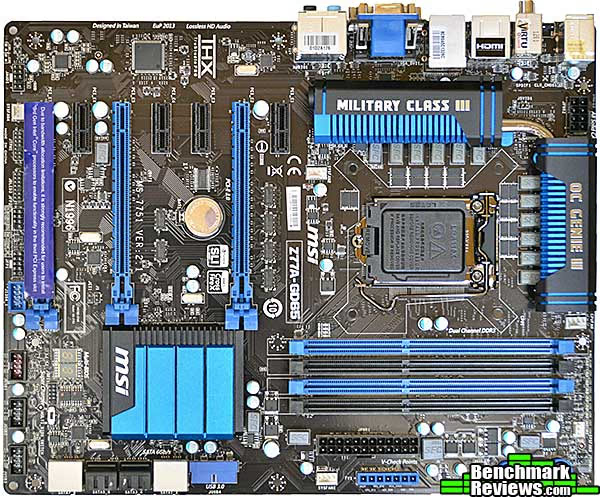
The motherboard layout is standard ATX form factor. The VRM heat sinks are connected with a heat pipe, while the Z77 chipset makes do with a simple aluminum plate. The voltage test points are placed just in front of the main ATX power connector. There are five fan connectors, three of which are four-pin PWM connectors. Like MSI's other high end motherboards, it's equipped with MIL-STD-810G certified components, which means the components are rated to handle high and low temperatures, thermal shock, sand, dust, and salt fog (corrosion resistance), and a host of other nasty environmental conditions that it's very unlikely your motherboard will ever experience. Still, the tantalum-core capacitors in the voltage regulation circuitry, super ferrite chokes, and aluminum-core capacitors elsewhere should give you a warm, fuzzy feeling.
Like other enthusiast-level motherboards, the Z77A-GD65 has gone to an "all PCI-E slots" setup, with three PCI-E x16 slots and four PCI-E x1 slots. I have heard some complaints about boards that lack an old-school PCI slot, but really, folks, it's well past time for you to upgrade that 5-year-old Sound Blaster card. The third PCI-E x16 slot is covered with a sticker (removed in the photo below) that says "Due to bandwidth allocation limitations, it is strongly recommended for users to install 3rd Gen Intel Core Processors to enable functionality in the third PCI Express slot". See the previous section on the Z77 Express chipset for details on this limitation. The first two PCI-E x16 slots are ideally spaced for SLI/Crossfire setups, but the positioning of the CMOS battery means you'll have to remove your primary graphics card to change it.
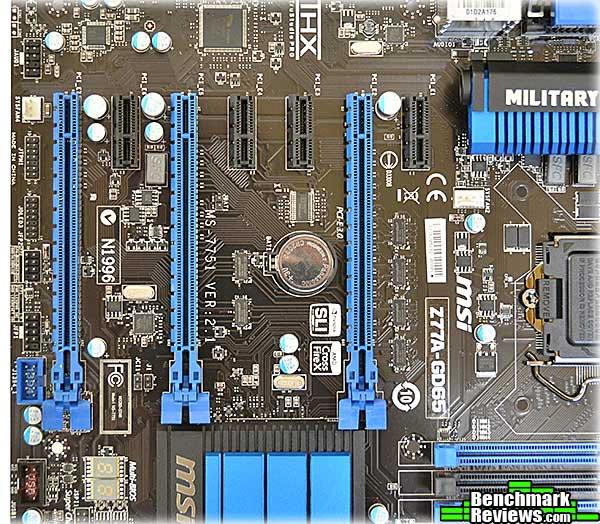
The CPU socket area is clear of obstructions although large CPU coolers will encroach on the nearer RAM slots. In this image you can clearly see the super ferrite chokes (handily labeled "SFC"), while the tantalum caps are the small black rectangles below the SFCs.

Let's take a closer look at this board in the next section.
Z77A-GD65 Detailed Features
Like the Z68 chipset, the Z77 supports the integrated GPU of modern Intel processors. What video ports a board provides are up to the vendor; MSI provides VGA, DVI, and HDMI outputs, any two of which may be used simultaneously. Starting from the left, there's a combination PS/2 port for a mouse or keyboard, two USB 2.0 sockets, the Clear CMOS button, RCA and optical audio outputs, two more USB 2.0 ports and the HDMI connector, a gigabit Ethernet port and two USB 3.0 connectors, the VGA and DVI ports, and last a standard analog audio panel.

At the bottom edge of the board are the front panel audio connector, a system fan connector, the Trusted Platform Module connector, the Voice Genie connector (for an optional voice control module), the MSI split front panel connectors JFP2 and JFP1, and the IEEE 1394 (FireWire) connector.

Continuing along the edge of the board we see three USB connectors, the first of which has a red interior. This "Super Charger" connector can provide 1.5 amps, triple the normal USB current rating, for charging iPads and other high-current devices. Above the USB connectors are the two BIOS chips and a switch to select which one will be used the next time you boot, a nice feature. Finally there's a two-digit POST code readout. MSI provides a list of POST codes and what they mean in the manual, but oddly omit the "everything's running OK" code of "A0". (Actually, according to the reviewer's guide it's supposed to show the CPU temperature after boot...maybe in a future BIOS update!)

At the front of the board, next to the main ATX power connector, are plug-ins for the supplied voltage probe wires. If you don't trust the BIOS readouts of your various voltages (and many overclockers don't), you can connect your own instruments and directly measure the voltage applied to the integrated GPU, CPU core, CPU uncore, memory, and Z77 chipset. At the corner of the board are power, reset, and OC Genie buttons.

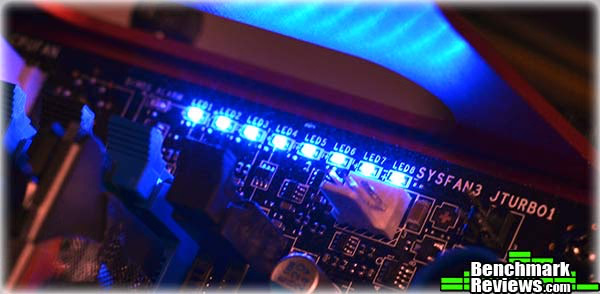
At the very right edge of this image is a row of very small LEDs which light up in sequence as more power phases are used. When your system's idling, only two or three will be lit; under load, all of them will light up.
Eight SATA ports are divided into two Intel 6Gb/s ports (two rightmost ports, in white), four Intel 3Gb/s ports (black), and two 6Gb/s ports from the Asmedia AMS 1061 controller (two leftmost ports, in white). Just to the right is the internal USB 3.0 connector, which is driven from the Z77 chipset.

MSI's motherboard seems to have a good basic set of features. Let's take quick look at the BIOS.
MSI ClickBIOS II and Control Center
The adoption of graphical UEFI BIOSes has been a welcome upgrade from the primitive character-based BIOSes we've lived with for decades. MSI's version is called "ClickBIOS II", and its main improvement over the version used on MSI's Z68 board is that it now supports 15 languages.
The ClickBIOS II is quite different from the original ClickBIOS that MSI included with their Z68 boards; in fact, it looks almost exactly like the more advanced version on MSI's 990FXA-GD80 motherboard. At the top we see the time, date, and BIOS version, with CPU information to the right and a nice Boot Device Priority selection bar just below it. The bottom two-thirds of the screen show six main "buttons' (three on each side), with a central area that displays information and settings relevant to the selected button.

I find MSI's BIOS to be a little clumsier to get around than other graphical UEFI BIOSes I've used. Some of it's the layout (although technically selecting to use XMP memory profiles could be considered "overclocking", I'd still prefer this item be in the main settings area rather than the overclocking settings). Some of it's the color choices: as shown below, many of MSI's information screens use a white-type-on-light-gray-background color scheme, which isn't exactly optimum for readability.

While the original ClickBIOS would warn you when you tried to set certain voltages too high, ClickBIOS II does not, a fault it shares with the version on the MSI 990FX motherboard. Look at this pick list for setting CPU voltage:

At least it doesn't read out to the millionth of a volt the way the 990FX version does! But Intel says the maximum CPU core voltage for the i5-2500K I used in this review is 1.5 volts. I can set over 2.0 volts in this BIOS, with no indication that the likely result would be an instantly fried processor. Some other vendors color-code voltages based on the CPU you're using, so you know that a voltage in yellow is potentially dangerous and a voltage in red is very bad.
Still, there are some nice features. The ones I like best are related to MSI's "OC Genie II" feature. In previous MSI motherboards, OC Genie merely applied a single automatic overclock. It was fast and guaranteed to work, but experienced users could always get more with manual overclocking. Now, you can save up to six overclocking profiles in CMOS as well as save and load them from a USB key.

But that's not all: there's a separate profile that takes effect when you press the "OC Genie II" button. Called "My OC Genie", this feature allows you to tweak any of the settings shown below, and they'll take effect the next time you boot if the OC Genie button is down.

Only one thing would make this more convenient: being able to designate one of the existing overclocking profiles as the OC Genie profile. As it is, the OC Genie profile is the one that you can't save to or read from a USB key. Also, there doesn't seem to be any way short of clearing CMOS to easily reset your system to its default values.
MSI also provides a Windows version of ClickBIOS II which replicates most of the UEFI interface in Windows. However, any changes you make in the Windows version require rebooting your system to apply, so it's not obvious why you'd ever want to use it in preference to the "native" version. A more interesting utility is Control Center:
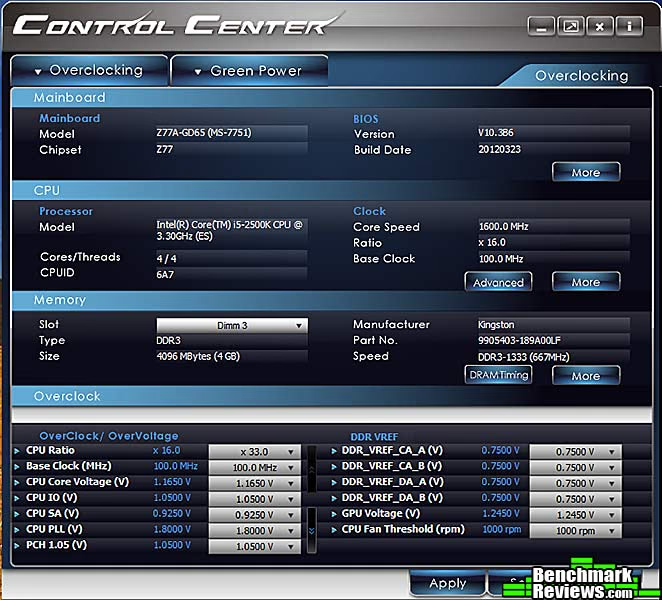
Control Center provides all the adjustments you'd normally do in the BIOS, but lets you change them live, from within Windows. You have very detailed control, as shown in this "Advanced" panel from the CPU clock setting section:
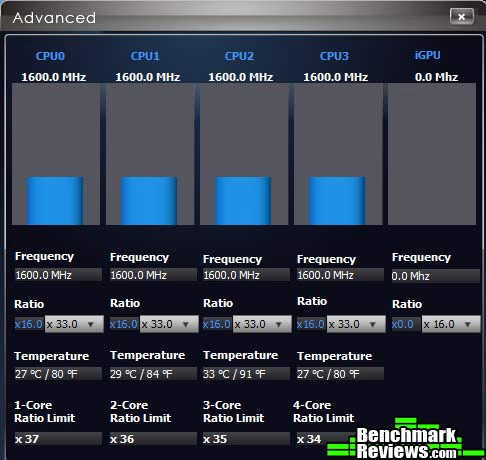
A nice feature is the real-time temperature readout, which lets you judge just how close to the edge you're pushing things. And unlike either the native or Windows version of ClickBIOS II, Control Center clearly flags potentially dangerous settings, as shown in this CPU voltage selection pick list.
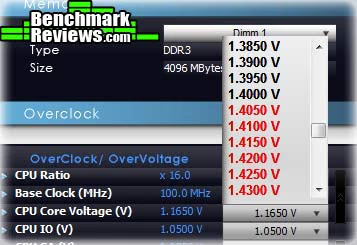
For this reason alone I'd suggest doing your overclocking from within Control Center. It's also more convenient and you don't have to reboot the system between changes. Once you find settings you like, you can boot into the native UEFI BIOS to save them or export them to a USB key.
Now we move onto the testing...
Motherboard Testing Methodology
Since the Z77 chipset is the successor to the Z68, I tested the MSI Z77A-GD65 motherboard against my favorite Z68 motherboard, the ASUS P8Z68V-Pro. I used an Intel Core i5-2500K processor in both motherboards, and both test setups used the same memory, hard drive, CPU cooler, and video card...the motherboard was the only thing that was different.
For the MSI Z77 motherboard, I tested the performance at stock CPU speeds, as well as the automatic overclock applied via MSI's "OC Genie II" and the best overclock I could achieve "by hand." Although the board supports Lucid Virtu MVP GPU virtualization, all benchmarks in this section were run with the AMD Radeon 6850 card, since using the Sandy Bridge integrated GPU takes some cache from the CPU cores as well as bandwidth from main memory.
Intel Z68 Express Test Platform
- Motherboard: ASUS P8Z68V-Pro (BIOS 1302)
- Processor: 3.4GHz Intel Core i5-2500K
- System Memory: 8GB (2 4GB DIMMs) DDR3-1600 (9-9-9-27)
- Primary Drive: Seagate Barracuda ST3500418AS 500GB
- Graphics Adapter: AMD Radeon 6850
- CPU cooler: Cooler Master Hyper 612 PWM
Intel Z77 Express Test Platform
- Motherboard: MSI Z77A-GD65 (BIOS 10.3B6)
- Processor: 3.4GHz Intel Core i5-2500K
- System Memory: 8GB (2 4GB DIMMs) DDR3-1600 (9-9-9-27)
- Primary Drive: Seagate Barracuda ST3500418AS 500GB
- Graphics Adapter: AMD Radeon 6850
- CPU cooler: Cooler Master Hyper 612 PWM
Benchmark Applications
- Operating System: Windows 7 Home Premium 64-Bit
- AIDA64 Extreme Edition v2.20.1800
- Futuremark PCMark Vantage v1.0.2.0 64-Bit
- TV and Movies
- Gaming
- Music
- Maxon CINEBENCH R11.5 64-Bit
- Street Fighter IV benchmark
- PCMark Vantage 64-bit v1.0.2.0
- x264Bench HD 3.0
- SPECviewperf-11:
- Lightwave 9.6
- Autodesk Maya 2009
- Siemens Teamcenter Visualization Mockup
- SPECapc LightWave 3D v9.6
- Handbrake 0.96 video transcoding
- Blender 3D rendering
- POV-Ray 3D rendering
AIDA64 Extreme Edition Tests
AIDA64 Extreme Edition is the evolution of Lavalys' "Everest Ultimate Edition". Hungarian developer FinalWire acquired the rights to Everest in late November 2010, and renamed the product "AIDA64". The Everest product was discontinued and FinalWire is offering 1-year license keys to those with active Everest keys.
AIDA64 is a full 64-bit benchmark and test suite utilizing MMX, 3DNow! and SSE instruction set extensions, and will scale up to 32 processor cores. An enhanced 64-bit System Stability Test module is also available to stress the whole system to its limits. For legacy processors all benchmarks and the System Stability Test are available in 32-bit versions as well. Additionally, AIDA64 adds new hardware to its database, including 300 solid-state drives. On top of the usual ATA auto-detect information the new SSD database enables AIDA64 to display flash memory type, controller model, physical dimensions, and data transfer performance data. AIDA64 v1.00 also implements SSD-specific SMART disk health information for Indilinx, Intel, JMicron, Samsung, and SandForce controllers.
All of the benchmarks used in this test- Queen, Photoworxx, ZLib, hash, and AES- rely on basic x86 instructions, and consume very little system memory while also being aware of Hyper-Threading, multi-processors, and multi-core processors. Of all the tests in this review, AIDA64 is the one that best isolates the processor's performance from the rest of the system. While this is useful in that it more directly compares processor performance, readers should remember that virtually no "real world" programs will mirror these results.

The Queen and Photoworxx tests are synthetic benchmarks that iterate the function many times and over-exaggerate what the real-world performance would be like. The Queen benchmark focuses on the branch prediction capabilities and misprediction penalties of the CPU. It does this by finding possible solutions to the classic queen problem on a chessboard. At the same clock speed theoretically the processor with the shorter pipeline and smaller misprediction penalties will attain higher benchmark scores.
Like the Queen benchmark, the Photoworxx tests for penalties against pipeline architecture. The synthetic Photoworxx benchmark stresses the integer arithmetic and multiplication execution units of the CPU and also the memory subsystem. Due to the fact that this test performs high memory read/write traffic, it cannot effectively scale in situations where more than two processing threads are used, so quad-core processors with Hyper-Threading have no real advantage. The AIDIA64 Photoworxx benchmark performs the following tasks on a very large RGB image:
- Fill
- Flip
- Rotate90R (rotate 90 degrees CW)
- Rotate90L (rotate 90 degrees CCW)
- Random (fill the image with random colored pixels)
- RGB2BW (color to black & white conversion)
- Difference
- Crop
The MSI Z77A-GD65 posts Queen and PhotoWorxx scores that are about 8% and 4% below those of the ASUS P8Z68V-Pro. This is a trend we'll see through most of the tests, but it's not unexpected: vendors often take several months to fine-tune their BIOSs for the best performance from new motherboards and processors. Over time I expect the scores of these boards would be virtually equal.

Similar results in the ZLIB and Hash tests...
...but virtual parity in the AES test. Surprisingly, overclocking doesn't significantly help scores here, with my manual overclock providing only a 3% improvement.

Let's move on to the PCMark Vantage benchmark.
PCMark Vantage Tests
PCMark Vantage is an objective hardware performance benchmark tool for PCs running 32- and 64-bit versions of Microsoft Windows Vista or Windows 7. It's well suited for benchmarking any type of Microsoft Windows Vista/7 PC: from multimedia home entertainment systems and laptops, to dedicated workstations and high-end gaming rigs. Benchmark Reviews has decided to use a few select tests from the suite to simulate real-world processor usage in this article. Our tests were conducted on 64-bit Windows 7, with results displayed in the chart below.
TV and Movies Suite
- TV and Movies 1 (CPU=50%, RAM=2%, GPU=45%, HDD=3%)
- Two simultaneous threads
- Video transcoding: HD DVD to media server archive
- Video playback: HD DVD w/ additional lower bitrate HD content from HDD, as downloaded from net
- TV and Movies 2 (CPU=50%, RAM=2%, GPU=45%, HDD=3%)
- Two simultaneous threads
- Video transcoding: HD DVD to media server archive
- Video playback, HD MPEG-2: 19.39 Mbps terrestrial HDTV playback
- TV and Movies 3 (HDD=100%)
- HDD Media Center
- TV and Movies 4 (CPU=50%, RAM=2%, GPU=45%, HDD=3%)
- Video transcoding: media server archive to portable device
- Video playback, HD MPEG-2: 48 Mbps Blu-ray playback
Gaming Suite*
- Gaming 1 (CPU=30%, GPU=70%)
- GPU game test
- Gaming 2 (HDD=100%)
- HDD: game HDD
- Gaming 3 (CPU=75%, RAM=5%, HDD=20%)
- Two simultaneous threads
- CPU game test
- Data decompression: level loading
- Gaming 4 (CPU=42%, RAM=1%, GPU=24%, HDD=33%)
- Three simultaneous threads
- GPU game test
- CPU game test
- HDD: game HDD
Music Suite
- Music 1 (CPU=50%, RAM=3%, GPU=13%, HDD=34%)
- Three simultaneous threads
- Web page rendering - w/music shop content
- Audio transcoding: WAV -> WMA lossless
- HDD: Adding music to Windows Media Player
- Music 2 (CPU=100%)
- Audio transcoding: WAV -> WMA lossless
- Music 3 (CPU=100%)
- Audio transcoding: MP3 -> WMA
- Music 4 (CPU=50%, HDD=50%)
- Two simultaneous threads
- Audio transcoding: WMA -> WMA
- HDD: Adding music to Windows Media Player
* EDITOR'S NOTE: Hopefully our readers will carefully consider how relevant PCMark Vantage is as a "real-world" benchmark, since many of the tests rely on unrelated hardware components. For example, per the FutureMark PCMark Vantage White Paper document, Gaming test #2 weighs the storage device for 100% of the test score. In fact, according to PCMark Vantage the video card only impacts 23% of the total gaming score, but the CPU represents 37% of the final score. As our tests in this article (and many others) have already proven, gaming performance has a lot more to do with the GPU than the CPU, and especially more than the hard drive or SSD (which is worth 38% of the final gaming performance score).

The TV and Movies suite concentrates on video playback and transcoding, but only uses two threads at a maximum, so most of the cores in these high-end processors are sitting idle.
While the Gaming benchmark relies on the hard disk and video card for over 50% of its score (see the Editor's Note above), we're using the same HDD and video card for both platforms, so the results for these motherboards are directly comparable.
CINEBENCH R11.5 Benchmarks
Maxon CINEBENCH is a real-world test suite that assesses the computer's performance capabilities. CINEBENCH is based on Maxon's award-winning animation software, Cinema 4D, which is used extensively by studios and production houses worldwide for 3D content creation. Maxon software has been used in blockbuster movies such as Spider-Man, Star Wars, The Chronicles of Narnia, and many more. CINEBENCH Release 11.5 includes the ability to more accurately test the industry's latest hardware, including systems with up to 64 processor threads, and the testing environment better reflects the expectations of today's production demands. A more streamlined interface makes testing systems and reading results incredibly straightforward.
The CINEBENCH R11.5 test scenario comprises three tests: an OpenGL-based test that models a simple car chase, and single-core and multi-core versions of a CPU-bound computation using all of a system's processing power to render a photo-realistic 3D scene, "No Keyframes", the viral animation by AixSponza. This scene makes use of various algorithms to stress all available processor cores, and the CPU performs all rendering: the graphics card is not involved except as a display device. The multi-core version of the rendering benchmark uses as many cores as the processor has, including the "virtual cores" in processors that support Hyper-Threading. The resulting "CineMark" is a dimensionless number only useful for comparisons with results generated from the same version of CINEBENCH.

Overclocking helps a lot in the multi-core rendering benchmark: OC Genie's fairly conservative overclock provides a solid 23% performance boost, while my manual overclock gets a 40% increase. CINEBENCH is a good benchmark to thrash multi-core CPUs since it will keep every core fully saturated.
Let's take a look at some CPU-limited gaming results in the next section.
CPU-Dependent 3D Gaming
Street Fighter IV uses a new, built-from-scratch graphics engine that enables CAPCOM to tune the visuals and performance to fit the needs of the game, as well as run well on lower-end hardware. Although the engine is based on DX9 capabilities, it does add soft shadows, High Dynamic Range lighting, depth of field effects, and motion blur to enhance the game experience.
The game is multi-threaded, with rendering, audio, and file I/O all running in different threads. The development team has also worked to maintain a relatively constant CPU load in all parts of the game so that on-screen performance does not change dramatically in different game scenarios.

I ran the Street Fighter IV benchmark at its lowest resolution (640x480) will all graphical features turned down to the minimum possible settings. This makes the video card much less of a factor in the results, biasing towards processor performance. The scores we see here replicate the rankings we've seen in previous tests.
Handbrake Media Encoding
It's a truism that consumer-level computer performance reached the "fast enough" point years ago, where increases in system performance don't make thing any faster for most people. Web browsing, e-mail, word processing, and even most games won't benefit dramatically from a super-fast CPU. There are some exceptions, though, and media encoding is one of them: transcoding video, especially high-definition video, can bring the strongest system to its knees. Fortunately, media transcoding is one of those things that (depending on the design of the code, of course) that scales really well with both clock speed and the number of cores, so the more you have of both, the better your results will be.
The free and open-source Handbrake 0.96 video transcoder is an example of a program that makes full use of the computational resources available. For this test I used Handbrake 0.96 to transcode a standard-definition episode of Family Guy to the "iPhone & iPod Touch" presets, and recorded the total time (in seconds) it took to transcode the video.

Not much to see here. OC Genie and manual overclocking reduces the encoding time in this benchmark by 19% and 29%, respectively.
x264 HD Benchmark 3.19
Tech ARP's x264 HD Benchmark comprises the Avisynth video scripting engine, an x264 encoder, a sample 720P video file, and a script file that actually runs the benchmark. The script invokes four two-pass encoding runs and reports the average frames per second encoded as a result. The script file is a simple batch file, so you could edit the encoding parameters if you were interested, although your results wouldn't then be comparable to others.

Same rankings...

...and in the last two runs as well. On average, my manual overclock increased the scores by about 37% across all runs.
SPECviewperf 11 tests
The Standard Performance Evaluation Corporation is "...a non-profit corporation formed to establish, maintain and endorse a standardized set of relevant benchmarks that can be applied to the newest generation of high-performance computers." Their free SPECviewperf benchmark incorporates code and tests contributed by several other companies and is designed to stress computers in a reproducible way. SPECviewperf 11 was released in June 2010 and incorporates an expanded range of capabilities and tests. Note that results from previous versions of SPECviewperf cannot be compared with results from the latest version, as even benchmarks with the same name have been updated with new code and models.
SPECviewperf comprises test code from several vendors of professional graphics modeling, rendering, and visualization software. Most of the tests emphasize the CPU over the graphics card, and have between 5 and 13 sub-sections. For this review I ran the Lightwave, Maya, and Seimens Teamcenter Visualization tests. Results are reported as abstract scores, with higher being better.
Lightwave
The lightwave-01 viewset was created from traces of the graphics workloads generated by the SPECapc for Lightwave 9.6 benchmark.
The models for this viewset range in size from 2.5 to 6 million vertices, with heavy use of vertex buffer objects (VBOs) mixed with immediate mode. GLSL shaders are used throughout the tests. Applications represented by the viewset include 3D character animation, architectural review, and industrial design.
Maya
The maya-03 viewset was created from traces of the graphics workload generated by the SPECapc for Maya 2009 benchmark. The models used in the tests range in size from 6 to 66 million vertices, and are tested with and without vertex and fragment shaders.
State changes such as those executed by the application- including matrix, material, light and line-stipple changes- are included throughout the rendering of the models. All state changes are derived from a trace of the running application.
Siemens Teamcenter Visualization Mockup
The tcvis-02 viewset is based on traces of the Siemens Teamcenter Visualization Mockup application (also known as VisMockup) used for visual simulation. Models range from 10 to 22 million vertices and incorporate vertex arrays and fixed-function lighting.
State changes such as those executed by the application- including matrix, material, light and line-stipple changes- are included throughout the rendering of the model. All state changes are derived from a trace of the running application.

The SPECviewperf suite is a good example of a real-world test of applications that would normally be the province of a high-end workstation: the individual tests comprise code and models from real applications, running scripts that do real work.
SPECapc Lightwave
SPECapc (Application Performance Characterization) tests are fundamentally different from the SPECviewperf tests. While SPECviewperf tests incorporate code from the various test programs directly into the benchmark, the SPECapc tests are separate scripts and datasets that are run against a stand-alone installation of the program being benchmarked. SPECapc group members sponsor applications and work with end-users, user groups, publications and ISVs to select and refine workloads, which consist of data sets and benchmark script files. Workloads are determined by end-users and ISVs, not SPECapc group members. These workloads will evolve over time in conjunction with end-users' needs and the increasing functionality of PCs and workstations.
For this test, I ran the SPECapc "Lightwave" benchmark against a trial installation of Newtek's Lightwave 3D product. The benchmark, developed in cooperation with NewTek, provides realistic workloads that simulate a typical LightWave 3D workflow. It contains 11 datasets ranging from 64,000 to 1.75 million polygons and representing such applications as 3D character animation, architectural review, and industrial design. Scores for individual workloads are composited under three categories: interactive, render and multitask.
The benchmark puts special emphasis on processes that benefit from multi-threaded computing, such as animation, OpenGL playback, deformations, and high-end rendering that includes ray tracing, radiosity, complex textures and volumetric lighting. The test reports three scores: Animation (multitasking), Animation (interactive), and Rendering. The numeric scores represent the time it took to complete each section of the benchmark, in seconds, so lower scores are better.
I've found the SPECapc Lightwave 3D test to be an excellent indicator of overclock stability. In many cases, overclocked systems that will make it through every other benchmark here will crash in this test. It's also one of the most "fun" benchmarks to watch, as multiple windows with various complex rendering tasks appear and disappear on your screen.

This is one of the most "real" benchmarks, since it's just a set of scripts that control a standard Lightwave installation (SPECviewperf uses embedded Lightwave code).
Blender
Blender is an open-source, free content creation suite of 3D modeling, rendering, and animation capabilities. Originally released in 2002, it's available in versions for Mac OS X, Windows, Linux, and several Unix distributions. It supports rigid and soft-body objects and can handle the draping and animation of cloth, as well as the rendering and animation of smoke, water, and general particle handling.
Our Blender test renders multiple frames of an animation of a rotating chunk of ice, with translucency and reflections. Rendering of this model uses ray-tracing algorithms and the program reports the rendering time for each of the animation's 25 frames. The results are a summation of the rendering times for all frames and the lower the score, the better.

The MSI Z77A-GD65 is 8% slower than the ASUS P8Z68V-Pro at stock speeds, but manual overclocking improves its score by 32%.
POV-Ray
The Persistence of Vision ray tracer is a free, open source 3D modeling program that uses ray-tracing algorithms to generate realistic three-dimensional images. Ray tracing is very computationally intensive, and the POV-Ray program has a handy built-in benchmark to let you check the performance of your system.

Let's see how well Intel's native USB 3.0 performs in the next section.
Intel Native USB 3.0
More than two years after SuperSpeed USB 3.0 was announced at the 2010 Comdex, Intel finally has native support for this standard built into the Z77 Express chipset. While motherboard vendors have previously had to use NEC or Renesas controllers to get USB 3.0 capability, four native ports are now available without any extra chips. This simplifies the board layout and keeps costs down.
USB 3.0 performance with storage devices has not proven as fast as you'd expect from the raw transfer rate defined in the USB 3.0 specification. Vendors like ASUS have applied their own tricks like "USB 3.0 Boost" to address this, but Intel says their native implementation will provide superior performance. I've previously tested ASUS' P9X79 WS motherboard with USB 3.0 with a Patriot Pyro SE SATA 6G SSD in a USB 3.0 dock, so I had those figures ready. I used the same AIDA64 disk benchmark to get read transfer rates for the MSI Z77A-GD65's USB 3.0, and the results are below-- the ASUS results are on the top and the MSI results are on the bottom.

Looks as if Intel's right: their USB 3.0 implementation shows a huge performance improvement, over 70% faster in linear reads, at a trivial cost in CPU utilization.
But there's more: check out Lucid Virtu MVP in the next section.
Lucid Virtu MVP
When the Sandy Bridge CPUs were introduced with the Cougar Point chipset family (P67, H67, etc.) there was a surprising limitation: you could choose a desktop system based on the P67 chipset, but that disabled the Sandy Bridge internal GPU. Or you could buy an H67 motherboard that enabled the GPU, but locked out overclocking features. In other words there was no way to use all of the capabilities of the CPU you'd purchased.
When the Intel Z68 chipset was introduced, motherboards built around it sported Lucid Virtu technology, a way to integrate the use of both the Sandy Bridge integrated GPU and a separate video card. Benchmark Reviews has an article describing the previous version of Lucid Virtu here. Virtu offered users the ability to make the most effective use of both the Sandy Bridge integrated GPU (iGPU) as well as a separate graphics card. Users could chose "Virtu i-mode", wherein the iGPU was the primary display mechanism, with the graphics card only being used when its performance was required, or "Virtu d-mode", in which the graphics card is the primary display mechanism, freeing the iGPU to drive a second monitor or be used for compute tasks like Intel's "Quick Sync" video transcoding.
At about the same time, NVIDIA announced their Synergy technology, similar to the Optimus feature that some notebook computers have been using for a couple of years. Like Virtu, Synergy would use the low-power integrated GPU for most tasks but seamlessly switch to the discrete graphics card under load conditions. Originally slated to be formally introduced in June 2011, nary a word has been heard from NVIDIA since the original announcement. In the meantime, Lucid's stepped up their game with Virtu MVP.
Virtu MVP is the latest iteration of Lucid's GPU virtualization software, and it expands on its predecessor's capabilities with two new features: HyperFormance and Virtual VSync. Let's take a look:

The main Virtu MVP control panel looks pretty much like the previous version. You can turn GPU virtualization on or off, and select whether or not you see a "Virtu" icon in games.

The "Performance" panel is where the new features are. HyperFormance "improves overall game performance and frame rate" while "Virtual VSync" lets users with enable VSync at rates otherthan 60FPS, a real benefit if you have a 120Hz monitor. The problem these performance features attempt to resolve is that your video card's frame rate rarely matches up to your monitor's refresh rate, especially in cases where the card can't generate enough FPS to make normal 60-FPS vsync feasible. Lucid's software trys to solve this by "Detecting, predicting, removing and replacing redundant rendering tasks, to enable the best visual quality with cleaner and smoother frames, and peak responsiveness."
Lucid has a white paper explaining HyperFormance and Virtual VSync in detail here.
So what does this mean to the game play experience? I ran two graphics benchmarks (both DX10 because that's all the iGPU of the i5-2500K supports) comparing the performance of the iGPU, Radeon 6850, and Lucid Virtu MVP with HyperFormance turned on and off. The results were amazing.

With the Lucid Virtu version shipped with Z68 motherboards, I saw about a 3%-7% frame rate hit. This made sense because Virtu has to copy each rendered frame from the video card's frame buffer to the iGPU frame buffer in main memory. And in the Heaven benchmark, with HyperFormance turned off, there's a 3.68% drop in frame rate. But with HyperFormane turned on, the frame rate increases by 14%

In 3DMark Vantage, the HyperFormance increases are huge: 60% in the Jane Nash test and 63% in the New Calico test. How does Virtu MVP accomplish this?
I've read through Lucid's white paper, and as best I can determine the way HyperFormance works is to elminate "redundant frames", which Lucid defines as frames that wouldn't be shown completely because they would be interrupted by a monitor refresh interval. In these cases render of the redundant frame is aborted and the time that would have been spent rendering it is devoted to the next frame. You'd think this would result in some jerkiness in the displayed images, but I didn't see any, so I guess Lucid's onto something.
This makes the HyperFormance benchmark scores understandable: of course you can get more FPS if some of the frames are simply displayed multiple times, rather than each frame being a unique render. So while the effect may be that of a higher FPS, you're not really seeing the same thing you'd see if the video card could actually generate that many FPS. Futuremark has already announced plans to upgrade 3DMark to detect Virtu and provide a more realistic frame rate result. However, I can report that visually, I didn't see anything amis and the perceived performance was definitely better with HyperFormance turned on...which is of course the whole point.
Z77A-GD65 Overclocking
MSI is proud of their "OC Genie II" overclocking feature. By pressing down the latching "OC Genie" button on the motherboard (with the power off) and then booting, an instant, safe overclock is applied to the processor and memory. Pressing this button set the core multiplier on my i5-2500K to 42, selected the XMP profile in my memory, and bumped the CPU core voltage from 1.192 volts to 1.35 volts. This resulted in an average benchmark score improvement of 17.03%.
With manual overclocking, I settled on a multiplier of 48 with a VCore of 1.45 volts (as set in the BIOS).

As you can see from the benchmark results, this helped scores significantly. I noticed at this overclock that the CPU power phase LEDs spent most of their time maxed out, so it's obvious the Z77A-GD65's power circuitry is up to the task. The system would boot into Windows with a multiplier of 49 but would crash during benchmarks, even though CPU temperatures stayed well below the 80 degrees threshold. Given this I suspect I've run into the overclocking limit of my particular 2500K, but 4.8gHZ on all cores is still a pretty good overclock.
Z77 Express Final Thoughts
The MSI Z77A-GD65 motherboard is the first Z77 Express motherboard that Benchmark Reviews has tested. As such, it's impossible to compare its features and performance to other Z77 motherboards. Making things more complex is the fact that we do not have any "Intel third generation Core processors" to test with it, and these are the CPUs it was really designed for. For whatever reason, Z77 Express motherboards are becoming available weeks before we expect the new Intel CPUs, so we've no choice but to test with Sandy Bridge silicon.
We did have some problems with the MSI board: the initial review sample was delivered with a non-functional Ethernet port, and while the replacement board functioned perfectly throughout the testing regimen, a subsequent BIOS update seems to have disabled the Ethernet port again. MSI says the problem lies with a bug in the Intel-supplied DOS-based BIOS update utility and that the problem has since been fixed. In any case, it should not be an issue for users performing BIOS updates through the built-in update utility.

If you've looked at the performance scores turned in on the various benchmarks, you'll see that the MSI board was beaten by the ASUS Z68 board in every test, albeit only slightly. This is not unexpected for a motherboard based on a new chipset, since it always takes vendors some time to optimize their BIOSes for the new silicon. As MSI releases BIOS updates I expect the performance of this board will improve until it matches Z68 performance.
Taken on its own, the Z77A-GD65 is an appealing board. Although its price and model number would seem to make it an updated version of MSI's own Z68A-GD65 board, its feature set is more than competitive even with the $40-more-expensive MSI Z68A-GD80 I reviewed a few months ago. Compared to that board:
-
Z68 board has an extra PCI-E power connector near the first PCI-E slot to provide extra power
-
Z77 board has no PCI slots; Z68 board has two
-
Z77 board has four PWM fan headers; Z68 board has only one
-
Z77 board has two-digit POST code display
-
Z77 board has dual on-board BIOSes
At an MSRP of $189.99, the Z77A-GD65 is the same price as the Z68A-GD65, which also sells for about $189.99 on Newegg. It's $40 cheaper than the Z68A-GD80. Since this board uses a newer chipset with somewhat more functionality than the older one, there's little reason to buy a new Z68 system today.
The board benefits from MSI's mil-spec components, and while enthusiasts will appreciate features like the voltage test points, POST code readout, power phase LEDs, and the like, any user can benefit from the OC Genie II overclocking and native USB 3.0. I also applaud MSI's decision to eliminate PCI slots, which have really hung around longer than they should.
For gamers, Lucid Virtu MVP can boost the performance of any graphics card (although, sadly, there's still no support for SLI or CrossFireX) substantially in many games, while providing significant power savings in non-game usage.
Taken on its own, the Z77 Express chipset is somewhat disappointing: it doesn't provide any more PCI-E lanes than the Z68 Express, and like its predecessor, they're only PCI-E 2.0 instead of 3.0. The native USB 3.0 ports, slightly more versatile PCI-E lane allocation, and native support for the "Intel third generation Core processors" are really its only new features.
MSI Z77A-GD65 Conclusion
IMPORTANT: Although the rating and final score mentioned in this conclusion are made to be as objective as possible, please be advised that every author perceives these factors differently at various points in time. While we each do our best to ensure that all aspects of the product are considered, there are often times unforeseen market conditions and manufacturer changes which occur after publication that could render our rating obsolete. Please do not base any purchase solely on our conclusion, as it represents our product rating specifically for the product tested which may differ from future versions. Benchmark Reviews begins our conclusion with a short summary for each of the areas that we rate.
This is the first Z77 Express motherboard we've reviewed, and we weren't able to test it with the processor it was designed for. This puts MSI at somewhat of a disadvantage, but it's all we've got to work with, so it's what we'll use.
Normally the stock performance difference between motherboards using the same chipset is small to nonexistent, especially once all vendors learn how to tweak their BIOSes for the best performance. These days, with so much of the circuitry that was formerly on the motherboard moved to the CPU and chipset, the distinguishing features for enthusiast motherboards become overclocking ability and extra features. MSI adds value to their system with their mil-spec components, software bundle, and other features. While their Big Bang series represents the very top end of their motherboard product line (and is priced to match), the Z77A-GD65 should satisfy all but the most rabid enthusiast. Unless you keep bottles of LN2 in your garage, this board should be everything you need.

Even ignoring the mil spec components, the quality of the board is excellent. Solder masking is precise and components are installed straight and true. My one complaint is the stickers MSI plasters the board with: stickers on the CPU socket cover, stickers on the SATA ports, and a sticker on the last PCI-E slot. Every one of them left residue that I had to scrape off with a thumbnail.
The Z77A-GD65's base functionality is enhanced with the switchable dual BIOS, POST code display, voltage test points, power phase LED display, on-board power and reset buttons, and OC Genie II button. Utilities provided in the software package sweeten the deal. One small disappointment is the three-year warranty: given the mil-spec components and the fact that some competitors offer five-year warranties, I expected more.
MSI stays with their traditional corporate blue and black color scheme. It's nice to see the most of the lettering on the board will be oriented correctly with the board installed in a tower case with a window.
Although this is the first Z77 board that Benchmark Reviews has tested, I still rate the performance as "very good"...with a Sandy Bridge CPU, anyway. Although it's disappointing that its benchmark scores were slightly lower than those of the comparison Z68 board, the difference will never be noticeable in real-world use. The Z77A's real performance will remain an unknown until we can test it with a "third generation Intel Core processor" against other Z77 Express motherboards. In the meantime the excellent performance of the Intel native USB 3.0 and Lucid Virtu MVP more than make up for the difference.
At $189.99, this is a high end board that comes in at a mid-range price. It's much cheaper than most X79 motherboards, and unless you keep bottles of LN2 in your garage, it's likely you'll never need more capability and features than this board provides.
But if you already have a good Z68 system, there's no compelling reason to upgrade. The functional differences between Z68 and Z77 and much smaller than between P67 and Z68. If you're building a new rig from scratch, though, this would make an excellent platform to work with, even with Sandy Bridge CPUs.
Pros:
+ Z77 Express brings native USB 3.0 at last
+ Lucid Virtu MVP
+ Slot spacing ideal for SLI/Crossfire setups
+ OC Genie II provides quick, safe overclocks
+ POST code display and dual switchable BIOS make troublehooting and disaster recovery easy
+ Mil spec components
Cons:
- Stickers leave residue on the board
- OC Genie kinda conservative
- No compelling reason to upgrade from Z68...unless you depend on USB 3 mass storage
Ratings:
- Performance: 8.5
- Appearance: 8.5
- Construction: 9.50
- Functionality: 8.75
- Value: 9.0
Final Score: 8.85 out of 10.
Quality Recognition: Benchmark Reviews Silver Tachometer Award.
Benchmark Reviews invites you to leave constructive feedback below, or ask questions in our Discussion Forum.
Reader comments from the original article
14 comments were posted before commenting closed. They are preserved as written. Original avatars no longer resolve and are shown as a placeholder.
Mistaken Video Port shookems Permalink:
The third video port is an HDMI not Display Port. Otherwise great review.
RE: Mistaken Video Port David Ramsey Permalink:
Oh, good catch! I've edited the specifications to reflect this.
price THUMPer Permalink:
Price is now 169 on newegg.
RE: MSI Z77A-GD65 LGA1155 Motherboard wrong Permalink:
The board has PCI-E 3.0 not 2.0
RE: RE: MSI Z77A-GD65 LGA1155 Motherboard David Ramsey Permalink:
No, it doesn't. The Z77 express chipset provides eight PCI E2 .0 lanes. In the very near future it may be possible to install a processor that provides PCIE 3.0 lanes, but not as of the time of this review.
great & complete review dawgamerhybrid Permalink:
Thx for the great review, ive been "building" my ultimate hybrid system since before the z68 got released and i still didn't pull the trigger :). Would i merrit from waiting for another brand's (asus, gigabyte,...) z77 release to compare with the msi... or should i just pull that trigger allready, questions... The fact that it doesn't yet have native pci 3.0 kinda dissapoints me. Also i'm quite shure that after a few bios updates the z77 gd65 will perform above par in comparison to the z68a gd65 which allready had a ton of modifications.
RE: great & complete review David Ramsey Permalink:
No Z77 motherboard will ever have "native" PCI-E 3.0. The PCI-E 3.0 lines are provided by the Ivy Bridge CPU.
extra cash colman Permalink:
is this mobo worth the extra cash u pay over the MSI Z77A-G45
HELP!!! Martin Rønning Permalink:
I have a problem! I try OC but when Windows starts up, my computer just stops in the loading Screen for windows.... Same if i use OC-genie And sometimes it appear a2 in right bottom corner on the screen (rest is black) My computer specs: I7-3770K Intel prosessor MSI z77a-gd65 motherboard H100 cpu cooling (corsair) 12GB ram Dominator GT / ram fan (corsair) MSI hd r6800 series HAWK And i got a H2Go case from MountainMods.com
RE: HELP!!! David Ramsey Permalink:
My only guess would be that your overclocked settings in OC Genie are too high. Try loading the defaults in the BIOS before using OC Genie, and then checking the "My OC Genie" page to make sure the settings are reasonable.
HELP!!! Martin Rønning Permalink:
Il test it when Im home. Im crossing my fingers :P
PCIx16? Drnkbeer Permalink:
Now MSI is being sneaky and not informing people that they decide to put a second GFX in the 2nd PCI-E 3.0 port it would be reduced to 8x as would the original 16x. Which to me seems ridiculous. Was tempted to get a Mobo that would SLI but if the main card gets reduced what the hell is the point? Does anyone know of any motherboards that can run two video cards at 16x PCI-E 2.0, with 1155 and can accept 1600 DDR3 RAM?
RE: PCIx16? David Ramsey Permalink:
Several comments: 1. This is true of ANY Z67/Z68/Z77 motherboard except high-end boards with PLX chips. You've only got 16 PCI-E lanes from the CPU, so provisioning 2 x16 slots is impossible without extra hardware. 2. If you're using an Ivy Bridge chip, you've got PCI-E 3.0 lanes with twice the bandwidth as PCI-E 2.0 lanes, so those two x8 slots are the equivalent of two x16 slots if you're using a PCI-E 3.0 compliant graphics card. 3. But even if you're running Sandy Bridge CPU and older graphics cards, guess what? Nothing out there saturates 8 PCI-E lanes anyway, so games won't play one FPS slower on a 2x8 SLI or Crossfire system than they would on a 2x16 system. But if you want to spend extra money, yes, there are many LGA1155 motherboard that can supply 2x16: ASUS Maximum V Extreme, ASUS P8Z77-WS, ASUS P8Z77-V Premium; EVGA Z77 FTW. MSI doesn't seem to have any boards like this, but again, unless you're running triple or quad cards, you don't really need a board with a PLX chip.
Black screen JOHN Permalink:
Bios update failed.. blank screen, anybody knows how to restore bios,, have blank screen, I try to reset removing battery and clear cmos and nothing happen, is another way to do it>>>???