
Gigabyte Aivia Osmium Mechanical Keyboard
Gigabyte Aivia Osmium Keyboard Review
Manufacturer: Gigabyte
Product Name: Aivia Osmium Mechanical Gaming Keyboard
Model Number: GK-Osmium
UPC: 818313015358
Price As Tested: $129.99 (NewEgg /Amazon)
Full Disclosure: The product sample used in this article has been self-supplied.
Even though Gigabyte's reputation is based on computer components, it is making a serious effort to establish a foothold in the gaming peripheral market. The Gigabyte Aivia Osmium Mechanical Gaming Keyboard is sure to help the company's efforts by giving it even more positive exposure in the gaming community. This keyboard is very solid and is packed with features, which includes Cherry MX Red mechanical key switches, backlit keys with illumination control, integrated USB 2.0 and USB 3.0 ports, and much, much more. Due to the fact that mechanical gaming keyboards are dropping in price, gamers are defecting from dome-based keyboards in droves. The Gigabyte Aivia Osmium Mechanical Gaming Keyboard is certain to be the choice of many of these gamers.

There are a number of different things that a gamer looks for when purchasing a keyboard, and each gamer prioritizes these differently. If versatility is your thing, then the Gigabyte Aivia Osmium provides you with five gaming profiles and up to 70 macros memorization. If it's feel, you will be delighted with the smooth, yet solid and responsive Cherry MX Red mechanical keys. If it's a cool looking keyboard that you are looking for, this one plays that part as well.
Gigabyte Aivia Osmium Mechanical Gaming Keyboard Features
- Cherry MX Red mechanical keys
- Anti-ghosting capability - 64 simultaneous key strokes
- Adjustable backlighting
- Integrated USB 2.0 and USB 3.0 ports
- Removable wrist rest
- Five gaming profiles - 70 macros memorization
- 18K gold-plated connector with two meters with braided cord
Gigabyte Aivia Osmium Mechanical Gaming Keyboard Specifications
Interface: USB 2.0
Activation: Cherry Red Mechanical Switch
Switch Life: 50 million times
Peak Force: 45g
USB Port: USB3.0 + USB2.0
Audio: Microphone-in/ Earphone-out
Weight: 1500g ±10%
Dimensions: 454(L)* 257(W)*45(H) mm
Cable Length: 2.0m ±10%
Color: Black
Source: www.gigabyte.com
Closer Look: Gigabyte Aivia Osmium Keyboard
Packaging is certainly not one of the major factors in the process of determining what gaming keyboard is best for you, nor does it determine the quality of the keyboard that lies within. In this case, however, the packaging is consistent with the product. The retail box is visually captivating, providing a high resolution image that is close to actual size of the product and, on the reverse side, clearly defines the features of the Gigabyte Aivia Osmium Keyboard.

When you open the retail box, you will notice how well protected the keyboard is inside the internal foam frame. Considering the rigidity of the box along with the foam frame, this box could sustain some serious punishment without compromising the integrity of the product. The contents of the box include the keyboard, additional keys, a key removal tool, and the literature for the keyboard.

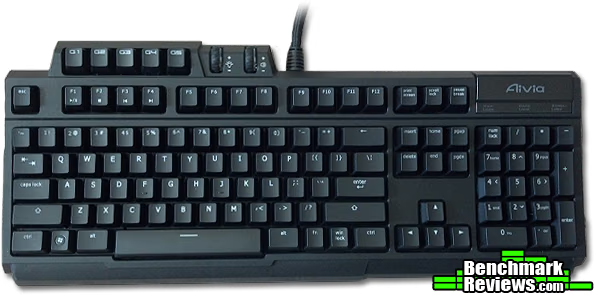
The layout of the Gigabyte Aivia Osmium Mechanical Gaming Keyboard is really no different than any other standard keyboard. What you will find is that it includes five programmable keys at the top-left portion of the keyboard. To the right of those keys you will find two wheels that control the illumination and volume. Another useful button on the keyboard is the win lock key, which is located just a few keys over from the spacebar. For those of you who have not had a keyboard with a win lock key, you will appreciate having the ability to lock the windows key so you do not inadvertently activate it during a gaming session.

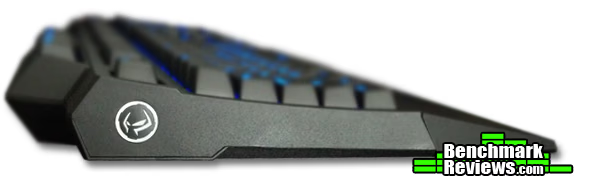
The left-side of the keyboard is adorned with the "Ghost" icon, which is the symbol and name of the software that powers the macros for the Gigabyte Aivia Osmium. Even though it is lying flat in this image, the keyboard includes two feet towards the rear and two feet towards the front of the keyboard providing the user with the ability to find the optimal elevation for him or her.
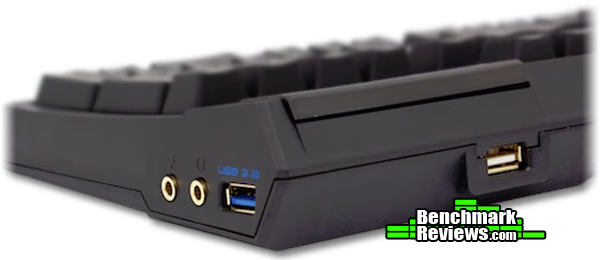
The right side of the keyboard contains headset and microphone ports as well as the USB 3.0 output. Not pictured is the USB 2.0 output, which is on the back of the board or right around the corner from the USB 3.0 output.

Next, let's look at the features of the Gigabyte Aivia Osmium Mechanical Gaming Keyboards in more detail.
Gigabyte Aivia Osmium Keyboard Detailed Features
As you can see below, this small partition of the keyboard almost looks detachable. In reality, it is a large button that allows you to toggle between the five profiles that the Gigabyte Aivia Osmium Keyboard provides. You will know what profile you have selected by the backlighting color of "Aivia." In the "Ghost" software, which we will discuss on the next page, you can manipulate the profile color of "Aivia" to either stay on permanently or to go into "breathing" mode. In "breathing" mode, the profile light will slowly blink, or "breathe."

As mentioned earlier, the macro keys are located on the upper-left side of the keyboard. For those of you that have had gaming keyboards with programmable macro keys, you know how beneficial they are, especially when playing a game that has a ton of commands. These macros also come in handy when you are not gaming. Having hotkeys assigned to perform tasks, such as opening a browser or email, is extremely convenient.

These two wheels are located directly to the right of the macro keys. The wheel to the left manipulates the keyboard's backlighting. Pressing down on the wheel will activate or deactivate the backlighting, and spinning it up or down when the backlighting is activated will, obviously, adjust the intensity of the backlighting. The volume button works in the same manner. Pressing down on the volume wheel will either mute or activate the volume. When volume is activated, spinning the wheel adjusts the intensity of the volume.

This view provides a better perspective of the location of the headphone and microphone jacks as well as the USB 3.0 and USB 2.0 outputs.
You will notice in the image below that the Gigabyte Aivia Osmium is pictured without the wrist rest. I personally prefer using the wrist rest, however, having the option to remove it is important to many consumers, especially those that plan on employing the keyboard for uses other than gaming.
The Cherry MX Red key switches are perfect for gaming. These keys are not tactile, which means that you will not feel the key engage. Other keys, such as the Cherry MX Brown keys, are tactile, so you will feel a "bump" when you depress a key. Cherry MX Red are smooth and sensitive, so you will certainly notice how seamless your movement is from key to key when gaming. Even for typing, these keys have a great feel. If you are coming from a dome-based keyboard, you will appreciate the solid feel of the keys. These keys will make a bit of noise, but are muted compared to some of the other mechanical keys out there.
Gigabyte Ghost Software
The literature that comes with the Gigabyte Aivia Osmium Mechanical Gaming Keyboard will point you to the right URL in order to download the Ghost software. After it is installed and you open the software, you will come to the window below. This window basically displays the Gigabyte peripherals that are accessible on your computer as well as directing you to the Aivia Forum and the official Gigabyte Website.

Clicking on "PROFILES" will bring you to this window. You will notice that there are five color tabs directly below where it reads "PROFILES." The brightest color indicates the profile selected. From here, you can click on each profile button and customize it for the selected profile.

When clicking on one of the buttons within a particular profile, you will arrive at this screen. You can select from the predefined commands and program a button to execute the desired command.
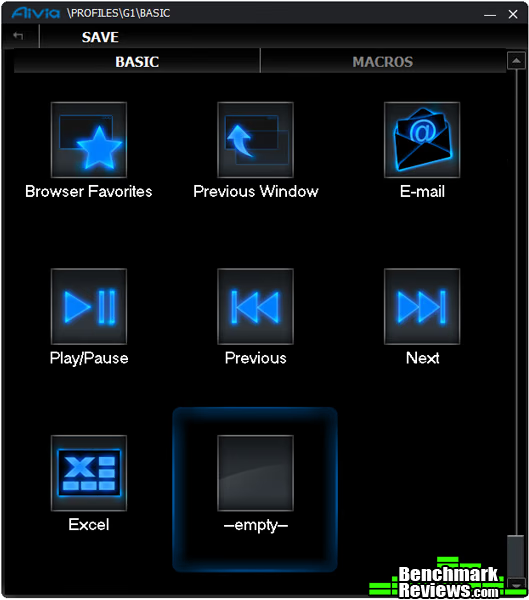
If you don't find a predefined command that suits you under the "BASIC" tab, then click on "MACROS." In this window, you can click on "EDIT" under an available macro slot. This will take you to another window where you have the ability to record a macro. You may record up to 100 macros using the Ghost software.

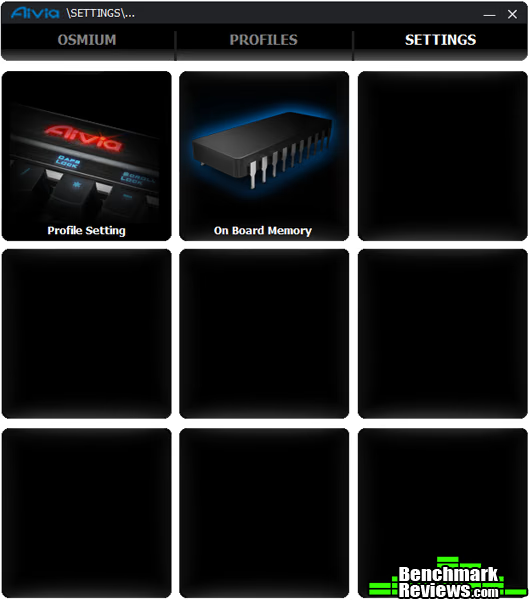
Under the "SETTINGS" tab, you will have two options.If you go to "Profile Setting," you will arrive at a window that displays the five different profiles and provides you with the option to disable the profiles that you are not currently using. Going to the "On Board Memory" section simply gives you the option to completely erase all of the macros that you recorded. It basically sets the keyboard back to the factory settings.
Testing & Results
Testing Methodology
The best way to test a gaming keyboard is to put it through its paces a while playing a variety of games and performing a number of various day-to-day tasks. Even though this method of testing is subjective, it should, nonetheless, provide a relatively accurate account of the keyboard's versatility and its ability to perform its key functions.
Test System
-
Motherboard: Gigabyte GA-990FXA-UD3
-
System Memory: 16GB (2 x 8GB) DDR3 1333 G.Skill Ripjaws X Series
-
Processor: AMD FX-6100 Zambezi 3.3 GHz Six-Core Processor
-
Audio: Realtek ALC899 On-Board Audio
-
Video: EVGA GeForce GTX 550 TI
-
Optical Drive: Pioneer Black Internal BD/DVD/CD Writer BDR-207DBKS
-
PSU: Corsair HX Series HX750 750W GOLD Certified Modular Active PFC Power Supply
-
Monitor: HP w2338h (24") & Samsung SyncMaster PX2370 (24")
-
Operating System: Windows 7 Ultimate
Software Tested
- Microsoft Office (Outlook, Word, Excel)
- Adobe CS5 (Dreamweaver, Photoshop)
- Battlefield: Bad Company 2
- Company of Heroes
- Assassin's Creed III
Results
For everyday use, the Gigabyte Aivia Osmium Keyboard has performed brilliantly. It was used extensively for typing in the past month, and the article you are currently reading was completed through its use. While sitting down for long sessions of non-stop typing, the feel and sound of the Cherry MX Red mechanical keys is simply a pleasure. In terms of feel, the keys are solid, yet are very smooth when depressed. The clicking sound is audible, but it is not at all distracting. If you are migrating over from a dome-based keyboard, utilizing the Gigabyte Aivia Osmium Mechanical Gaming Keyboard will be a new experience, but one that you will be happy to repeat.
When put to use during gaming sessions, the Gigabyte Aivia Osmium Keyboard, again, did not disappoint. As discussed earlier, the Cherry MX Red keys are non-tactile, so they are very smooth. There is no additional little hitch when depressing the keys, such as what happens when using a mechanical keyboard with Cherry MX Blue or Brown switches. In my opinion, the Cherry MX Red keys are the perfect keys for a keyboard that will have multiple uses. In addition, the keys have the perfect sensitivity. What I mean by that is, when pressing down on a key, it is activated almost immediately.
The Ghost software made life easier for me this past month. I utilized both the predefined commands and recorded macros for gaming and everyday applications. These hotkeys are extremely convenient when you want to open an application quickly rather than clicking your way to the desktop or through the start menu. When employing the Ghost software for gaming, it was also beneficial. You may not see as much of a benefit when playing FPS games, however, when playing RTS games, it makes a huge difference.
Mechanical Keyboard Final Thoughts
In terms of input devices, a keyboard is really where "the rubber meets the road." I would venture to say that the majority of gamers out there use one keyboard for both everyday use and for gaming. For those gamers that switch to a different keyboard to play games, it might just be time to take a look at the Gigabyte Aivia Osmium. This is a keyboard that performs both the role of the everyday keyboard and the role of the gaming keyboard brilliantly.I do have a couple of suggestions for this keyboard. Let me preface the following by acknowledging that this is totally picking nits: the ports on the right side, which include the headset jack, microphone jack, and the USB 3.0 output, would be better served by being located on the back of the keyboard alongside the USB 2.0 output. If one was to use those ports, it could interfere with mouse manipulation. Also, even though the blue backlit keys are fine, it would be nice to have the ability to change colors.
One could argue that the same thought process that goes into justifying the purchase of a new bed is similar to justifying the purchase of a great keyboard; "I spend a third of my life on it, I should ensure that I make the right purchase." If you share that attitude, then the Gigabyte Aivia Osmium Mechanical Gaming Keyboard should be given serious consideration. There has been as surge in the number of mechanical keyboards on the market, several of which are at a lower price point than the Gigabyte Aivia Osmium. However, considering its quality, performance, and functionality, you will not be disappointed by purchasing this keyboard. I wasn't; not at all. In fact, I had to purchase one for my wife because she was threatening to steal mine.
Gigabyte Aivia Osmium Conclusion
Before sharing with you my conclusion regarding the Gigabyte Aivia Osmium Mechanical Gaming Keyboard, I would like to point out that this entire review is based on my personal experience with it and is, therefore, subjective. Some of the products we review at Benchmark Reviews are impossible to test objectively, keyboards being one of the product types that fall in that category. I would recommend that you do not base your decision to purchase this product based solely on this review.
For more than a month, the Gigabyte Aivia Osmium Keyboard has been used extensively and thoroughly put through its paces. During this period, this keyboard has performed at a level that exceeded my expectations, regardless of the application (gaming or everyday use). The keys have a great feel to them; solid, responsive, and seamless transition from key to key. For those individuals accustomed to a dome-based keyboard, I anticipate typing on the Gigabyte Aivia Osmium to be a very positive experience.
Even though the Gigabyte Aivia Osmium Keyboard has a standard layout, the designers were still able to achieve and attractive look. Backlit keys on a mechanical keyboard just looks great; I would like to have more color options for the backlighting than just blue, however. Some of the other gaming keyboards out there go overboard in terms of styling and use too many colors, or simply the wrong colors. This keyboard is basic black and with the lighting incorporated lighting features, it looks really good. I also appreciate the fact that the keyboard's surface has texture to it; so do the keys, but not quite as much as the rest of the surface areas.
As soon as you pull this keyboard out of the box, you will notice the quality of the construction. It has some weight to it; it is a mechanical keyboard after all. It certainly won't double as a fly-swatter, like some of the dome-base keyboards out there. The Gigabyte Aivia Osmium Keyboard is constructed mainly of hard plastic, yet maintains an extremely solid feel. The thick, two meter long braided cord with 18K gold-plated connectors just screams quality.
In terms of functionality, there are a number of features this keyboard has that you will appreciate. Probably the most notable feature, the Cherry MX Red mechanical switches, which are the high-end switches in the mechanical key world, provide a second-to-none experience. The feel and sensitivity of these keys are first rate all the way. Also, the Ghost software coupled with the profile keys on the board make everyday tasks easier and they greatly increase your gaming capability. Also, the wheels that control the backlighting for the keyboard and system volume are a nice touch. And, I can't forget the fact that the keyboard has a microphone jack, and headphone jack, a USB 3.0 output, and a USB 2.0 output, even though the first three mentioned might be in the mouse interference zone.
There are less expensive mechanical keyboard alternatives out there. As of December 2012 the Gigabyte Aivia Osmium sells for $129.99 (NewEgg /Amazon). Yet, I highly doubt that you will regret owning the Gigabyte Aivia Osmium Mechanical Keyboard. Considering that it has Cherry MX Red mechanical switches, is feature-rich and built of such quality, it may be difficult to find its equal at this price point.
Pros:
+ Cherry MX Red mechanical switches
+ Integrated USB 2.0 and USB 3.0 ports
+ Removable wrist rest
+ Adjustable backlighting
+ Ghost software - 5 gaming profiles
+ Quality of construction
Cons:
- Positioning of headphone/mic jacks & USB 3.0 port
- More variety of backlighting colors
- Expensive price
Ratings:
-
Performance: 9.75
-
Appearance: 9.00
-
Construction: 9.50
-
Functionality: 8.75
-
Value: 8.50
Final Score: 9.1 out of 10.
COMMENT QUESTION: What's the best keyboard you've ever used?
Reader comments from the original article
6 comments were posted before commenting closed. They are preserved as written. Original avatars no longer resolve and are shown as a placeholder.
Great Keyboard crap software Polly Permalink:
Why is it that hardware manufacturers cannot make support software, over worked, poorly laid out, lack of flow, no tool tip or like, if you gave a student a few dollars and a free set of requirements the he could not make software worst than this. ABSOLUTELY GREAT KEYBOARD. epic fail on the Ghost software
RE: Gigabyte Aivia Osmium Mechanical Keyboard Argos Permalink:
Well, it is a very good looking board, but as always, no special adaptations for FPS gamers. Still waiting for manufacturers to see the light.
USB3 socket on USB2 keyboard ????? huwyngr Permalink:
I'm puzzled as to how they get a USB3 socket on a keyboard that connects to the computer by USB 2 ...... well I'm puzzled that the review does not say that you can't get USB3 speeds that way .... Or have they devised a way to do this? In which case I can't understand why they put a USB2 socket on .... What am I missing?
RE: USB3 socket on USB2 keyboard ????? Greg Schepers Permalink:
Good question. The Gigabyte Aivia Osmium's braided cord is two meters in length and has four separate connections, which include the microphone jack, the headphone jack, the USB 2.0 connection, and the USB 3.0 connection. Pushing the gold-plated USB 3.0 connector into the USB 3.0 port located on the rear I/O of your PC (or any other USB 3.0 port on your PC) will give you USB 3.0 speeds from the keyboard. I apologize for not including this information in my original review.
RE: RE: USB3 socket on USB2 keyboard ????? huwyngr Permalink:
Top marks to your quick and informative reply Greg .... Sorry they hadn't invented a USB2 to 3 converter If it interests you here's the link to my post about the review -- I sysop on Compuserve on PCHardware and often post a link to a review here that catches my eye in the emails I get from you. #community.compuserve.com/n/pfx/forum.aspx?tsn=1&nav=messages&webtag=ws-pchardware&tid=165657 Although this is the first time I've raised a query; more frequently it's drawing attention to a bit of hardware that sounds interesting.
RE: RE: RE: USB3 socket on USB2 keyboard ????? Greg Schepers Permalink:
huwyngr... I appreciate your help, sharing the link, and again I apologize for omitting this information from my original review.