
Installed Memory vs RAM Usable by Windows
Most PC users are familiar with the 4GB system memory limitation of 32-bit Windows Operating Systems, which is why 64-bit computing has become the standard for computer enthusiasts. Occasionally though, a computer system will not report the correct amount of RAM installed. In this article, our 64-bit Windows 7 test system had 6.00 GB of installed memory but indicates only 4.00 GB usable RAM available. While some may dismiss this as a case of defective RAM, you might be surprised by the culprit. Benchmark Reviews troubleshoots Installed Memory vs RAM Usable by Windows.
Diagnosing system memory problems is usually a strait-forward chore: test each module individually using free tools such as Microsoft Memory Diagnostic or Memtest86+. This process usually roots out the defective module, and allows you to move on with replacement. Unfortunately, not all problems are so easily solved. In some cases, the computer system will work without errors or crashing, but the amount of installed memory is more than what Windows reports as usable. This is where troubleshooting can take you to task.
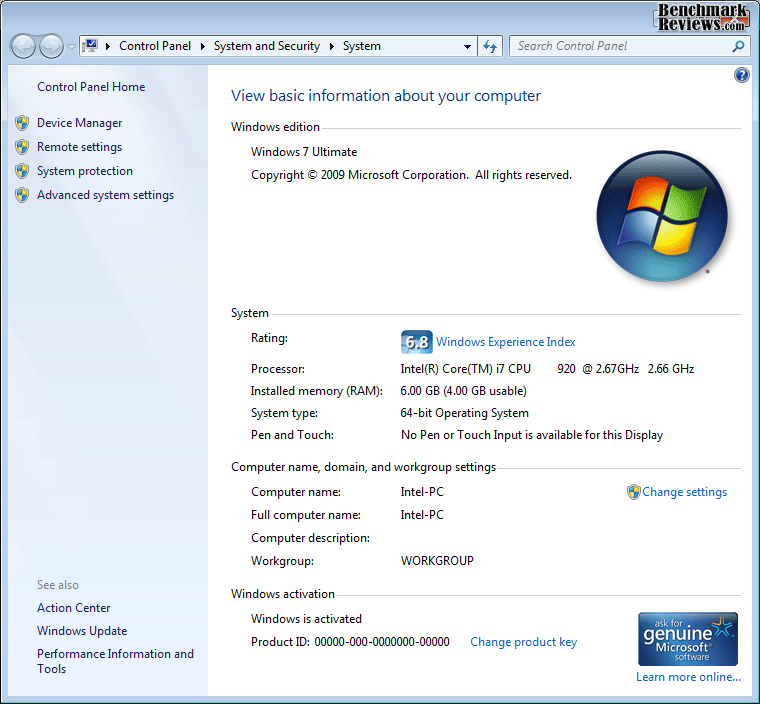
Windows Installed memory (RAM): 6.00 GB (4.00 GB usable)
Modern computer hardware is very durable, but factory defects and improper handling still account for the majority of failures. System memory, often referred to as RAM (Random Access Memory), is the middleman between the processor and Operating System. RAM is installed into DIMM (Dual Inline Memory Module) sockets on the motherboard, which adds another component into consideration when troubleshooting. The mainboard can occasionally be to blame for memory problems, too, making it difficult to discern between faulty RAM or motherboard. But what about the CPU?
Many new processors have an integrated memory controller (IMC) built into the CPU, such as the triple-channel DDR3 controller equipped on Intel Core i7 Nehalem LGA1366 processor series. Subsequent dual-channel AMD and Intel processors have utilized this technology, further complicating the process of troubleshooting bad system memory (unless you have compatible RAM and CPU components on hand to test with). In the next section, Benchmark Reviews gives a brief overview of how to diagnose desktop memory problems, and reveals how a faulty IMC can cause Windows hardships.
Diagnosing RAM Problems
Diagnosing computer problems requires an analytical approach that narrows the field of potential culprits with each pass. Just like mechanics diagnose a vehicle by inspecting air, fuel, and electrical systems, computer technicians divide problems between hardware and software. The starting point of any diagnostic repair begins with symptoms, and memory problems can demonstrate a multitude of problems. Making matters more difficult to diagnose, some hardware malfunctions often share the same symptoms. Begin the troubleshooting process by narrowing the possibilities.
Problem: Hardware or Software
The first step towards successfully diagnosing a problem begins with properly identifying the source. If a computer system begins to unexpectedly reboot, this is a sign of hardware failure. Likewise, if Windows logs system errors or applications begin to crash, there could be a software problem. While this article focuses on PC memory, there are several software-related problems that could create similar symptoms:
-
File corruption: Improperly closed programs and files may suffer file corruption, and could cause Windows errors or application crashes. Most NTFS-formatted drives can be repaired using the 'CHKDSK /R or /F' command.
-
Virus infection: Operating System's infected with a computer virus may randomly restart the system or cause application crashes.
-
Malware installation: Malicious software (spyware, adware, malware, badware, etc) may cause unexpected restarting or application closure.
Occasionally, inexperienced computer users may install more RAM than the Operating System can properly map to the memory space. 32-bit Microsoft Windows Operating System's are a good example, which are limited to 4GB (or less) of memory. Even when 64-bit O/S's are used, the computer's BIOS may have memory limitations of its own. Collectively, these many examples should demonstrate that RAM is not always to blame for failed-memory symptoms.

Gigabyte GA-X58A-UD7 Intel X58-Express Triple-Channel DDR Motherboard
When software has been removed from the equation, all that remains is hardware. Once hardware diagnostics begin, it's a good idea to disconnect the system's boot drive to prevent possible corruption or unintentional changes. When RAM is the suspect, you can't rule out its accomplices: the motherboard and processor.
For example, our 64-bit Windows 7 / Intel X58-Express test system has a total of 6GB RAM physically installed (3x 2GB). There should be 6144MB (6GB) reported by the motherboard's BIOS, but only 4096 (4GB) is given as available. Since this is a triple-channel system, it might seem that one of the three modules is faulty, or even one of the DIMM slots. Troubleshooting this problem was tricky, and required more tools and hardware than most technicians will have on hand to properly diagnose. In the final section, Benchmark Reviews describes the process taken to discover the source of the missing RAM from the available system memory.
Troubleshooting System Memory
Although our test system uses an Intel X58-Express triple-channel motherboard with three 2GB DDR3 modules installed for a total of 6GB RAM, the same problem could exist on any other motherboard with more or less capacity. So when the BIOS on our test system began to report less RAM than was installed, the first step was to verify the amount in Windows. Since this 64-bit Windows-7 computer functioned perfectly stable, even with the memory and processor overclocked, it was hard to believe that a memory module had gone bad. In fact, this is where we learned our first clue.
The easiest way to troubleshoot system memory is by replacing it with known-good components. When this isn't possible, the existing modules can be individually tested using free tools such as Microsoft Memory Diagnostic or Memtest86+. After the memory has proven itself operational, the blame shifts to the motherboard, with a remote chance of the processor causing problems. Diagnosing motherboard and processor defects is possible by using software to focus stress tests at a particular component, such as Lavalys EVEREST does. Unfortunately, there's only one guaranteed solution: replace the hardware.
Using three difference triple-channel memory kits to troubleshoot, 3GB (3x1GB), 6GB (3x2GB), and 12GB (3x4GB), each time the system started the BIOS would report an available amount of memory that suggested one of the modules was undetected. Inspecting the memory settings inside the BIOS suggested otherwise, giving us the ability to set latency timings for each of the three modules. Here was another clue: the third module could only modify the CAS latency, while the other settings were unavailable. Visiting the Windows Resource Monitor delivered another valuable clue: 6144 MB of memory installed, but 2050MB was Hardware Reserved.

Windows 7 Resource Monitor - Memory Tab
Despite all of the obvious symptoms and indicators, our diagnosing tests and troubleshooting steps had removed system memory from the list of potential suspects. The next step was to replace the computer's motherboard, and thanks to our many Motherboard Reviews over the past few years there were plenty of replacements on hand. After taking the time to update firmware on each an every motherboard we tested, each installation ended with the same result: the BIOS reports less memory than installed. By this point, even the most die-hard hardware enthusiasts would have run out of options, but we still have one suspect remaining: the processor.
As the introduction eluded, processors now include an integrated memory controller (IMC) built into the CPU, such as the triple-channel DDR3 controller equipped on Intel Core i7 Nehalem LGA1366 processor series. I don't imagine that consumers and technicians would ever get to the point of replacing memory, motherboard, and processor, but anything's possible. In this particular case, I happened to own two Intel Core i7-920 processors for use in our Best CPU Cooler Performance series. Removing the first processor and replacing it with a second identical CPU was all the proof needed: the BIOS reported 6144MB of memory available, and the Windows System properties displayed Installed memory (RAM): 6.00 GB (6.00 GB usable). Success!
Not so fast... this victory would cost the average person hundreds of dollars in unnecessary expenses if they took to the stores for replacement components. Even a seasoned computer technician would not find the problem right away. So what could speed up discovery for other people trying to diagnose similar problems? Look for the signals. In this case, Windows-7 displayed two forms of proof that all of the memory installed was actually detected. If you find yourself with a system where all of the memory modules appear visible to Windows, but the full amount of memory is not available, begin checking individual memory channel settings (for latency timing) in the BIOS. The processor's integrated memory controller is a great technological advancement, and the dawn of a new era in troubleshooting RAM problems.
Reader comments from the original article
35 comments were posted before commenting closed. They are preserved as written. Original avatars no longer resolve and are shown as a placeholder.
RE: Installed Memory vs RAM Usable by Windows SteinSchocK Permalink:
If have seen some i7 with missing memory. Often it helps just to reassemble the CPU. Or some Pins in the Socket are bend, could be fixed with a needle. Seems that it can happen that the CPU has no proper seat or is twisted a tine bit. Or by tightening the Cooler to much. Quite often it only happen with OC and @ stock everything works. So please make sure, if the CPU is really the case or bad contact in some way. I am active @ PCGH-Forum and we have/had some issues like that, most was solved without changing anything at least. I hope you can get some more light on to it. Best wishes SteinSchocK
RE: RE: Installed Memory vs RAM Usable by Windows Olin Coles Permalink:
I am aware that sometimes it is not a defective CPU, and occasionally poor contacts between the landing grid array and processor could cause similar problems. In this case, however, it was a bad processor that's been reseated several times to no avial.
Installed Memory vs RAM Usable by Windows rjohnson11 Permalink:
I encourage anyone that has memory issues or problems with EVGA based motherboards to go directly to our EVGA forum for assistance ##evga.com/forums/ Sometimes in an X58 based motherboard the CPU must be lined up absolutely perfect or you will see the problem that you troubleshot. Never rush a CPU install on this type of motherboard. Double and triple check the CPU pin alignment BEFORE you close the CPU locking mechanism best regards rjohnson11 EVGA Forum Moderator
RE: Installed Memory vs RAM Usable by Windows David Ramsey Permalink:
Really? I mean, the CPU only fits in the socket one way, and in my experience there's only a fraction of a millimeter of "play" in the positioning of the CPU...
Voltage Tweak scheherazade Permalink:
Common issue: #lmgtfy.com/?q=x58+triple+channel+n ot+working Simply bump up your QPI voltage and it'll be fine. Worst comes to worst, play with the ram divider to try a few different frequencies (slower is not always more likely to work). (i.e. Mine works in tripple channel at 1600, but won't at lower speeds.) This issue is super common with people running 6 dimms (you can almost count on it). Slightly less common with 3 dimms.
It seems like you didn't read the article... Olin Coles Permalink:
So I just bumped the QPI/Vtt Voltage from 1.15 to 1.25 and 1.30 without a change. Oddly enough, my other i7-920 work perfectly fine. Perhaps it's not what you say it is, but instead, what I spent three pages explaining?
RE: It seems like you didn't read the article... scheherazade Permalink:
It //is// a CPU issue. The real clue is that when you post, it will say 'dual channel'. A tool like CPU-Z (and windows) will identify all 6 slots worth of dimms. The bios will also list all 6 if you go under the section that shows timing data. The dimms are working, and are in communication with the mainboard. You are not in dual channel because a dimm is offline. A dimm is offline because you are in dual channel. Essentially, the IMC is overloaded and can't handle 3 channels. continued ...
RE: It seems like you didn't read the article... scheherazade Permalink:
...continued You can increase the robustness of the IMC by raising its voltage, or you can decrease the load on the IMC by finding a friendlier memory divider. Try 1.35v, as that is the top end of the normal range for an i7 (intel spec). OCers often go over this limit by a good amount. OCing usually needs more QPI voltage. Filling 6 slots usually needs more QPI voltage. And, having a 'lemon' memory controller usually needs more QPI voltage. When I initially encountered this, I went to the MSI forums. When I got there, I found a wall of threads on the same issue. Looking around, it was everywhere, on every i7 mainboard forum. Hence, why just googling will turn up hits on missing ram or channels. -scheherazade
RE: It seems like you didn't read the article... scheherazade Permalink:
... But if your cpu is messed up, then it's messed up. My condolences.
RE: It seems like you didn't read the article... doug Permalink:
Is he saying none of his RAM would work--boot fail? If so, then that's missing the point. It seems like that's what he is saying because he's messing with RAM timings and voltages. How can you change the timings when they are inaccessible?
CPU Steve Permalink:
Guess which doofus dropped the cpu onto the socket, bending several pins? Uh huh. (Lower left corner of the socket in this pic... ##cpusolutions.com/mm8004744CPU/Images/MBAM2GAMA78GMSH.jpg )I've had the very issue discussed ever since. Win7 Showed the same "hardware reserved" for 2gb of ram. It's been runnin like a champ for 5/6 months tho. Guess it's time to give the pin bending surgery another try.
RE: Installed Memory vs RAM Usable by Windows Steve Permalink:
##cpusolutions.com/mm8004744CPU/Images/MBAM2GAMA78GMSH.jpg
RE: Installed Memory vs RAM Usable by Windows John Permalink:
I've seen memory go missing in Windows when the CPU cooler was too tight, probably bending the motherboard a little so some of those pins didn't contact just right. Either loosening the cooler or changing it would make all of the memory become available again.
you didn't check the interconnects... Captain Obvious Permalink:
FIRST: run Memtest86 or Memtest86++, full cycles, and see if the *socketing* of one module is creating erors: simply re-socketing the module can sometimes fix such. ( took about 4 full install/test cycles to get my first Athlon to connect reliably to RAM, and the erors were showing-up only in the near-final controller-tests iirc? ). Secondly, if you test a module, pull it & re-place it, you DON'T know it's reliable now. ( see the first item ) Thirdly, Memtest86/Memtest86++ should have identified that some memory wasn't being usable, directly, thereby showing the problem. When testing, SIMPLIFY the system, so as few variables as possible are interacting, otherwise you're just doing voodoo... Cheers,
RE: Installed Memory vs RAM Usable by Windows juan Permalink:
Did it died? Did it died? Did it died? Did it died?
RE: Installed Memory vs RAM Usable by Windows Keith Permalink:
I had this happen on a dual core AMD Opteron 170. They sent me a new chip and all was well. I had suspected the memory but after ruling that out decided it was the CPU.
32Bit win7 OS BIOS is correct Ron Permalink:
My system is a 32bit win7 system, with 4G RAM the BIOS is reporting the correct amount, but Windows is reporting that 2.3G is usable. I have another Win7 32bit system, similar MB, the BIOS reports the full 4G, but Win7 is reporting 2.8G is usable. What could be the culprit here?
RE: 32Bit win7 OS BIOS is correct Olin Coles Permalink:
It's possible that the video card is reserving some memory space on these systems. You can look at the Windows 7 Resource Manager for more details of the break-down.
RE: 32Bit win7 OS BIOS is correct Ron Permalink:
I am using the internal video resource, and i have it set to 512Mb, I will be double checking the resources tab, thanks.
RE: RE: 32Bit win7 OS BIOS is correct Doug Permalink:
After all of my work trouble shooting this I sent my motherboard back to Gigabyte and they said it was a corrupted BIOS. I didn't have time to check if the returned Gigabyte was actually fixed because I bought the new upgraded version. However, after I reinstalled everything in the new board, it all worked beautifully. Thus, it was a motherboard issue. And I reseated the CPU in the old board twice.
Rated Memory Speed Steve Permalink:
Well...I have performed an extended memory test and my memory passed. I have 16GB's of installed memory which Windows verifies at 1600MHZ. But...My memory is 1866MHZ. If I attempt to run the memory @ 1866 Windows says only 3.97 GB's are available. I have already RMA'd the motherboard which is an MSI990FXA-GD80 and have the latest BIOS installed. I have tried setting the timings according to manufacturers specifications and even tried bumping up the DRAM voltage. I am running an AM3+ 8150 Processor. Yes I reseated it. So...aside from purchasing another processor what else can I do?
RE: Rated Memory Speed David Ramsey Permalink:
Sounds to me as if you're running a 32-bit operating system. What OS do you have?
RE: RE: Rated Memory Speed Steve Permalink:
I am running Windows 7 64 bit OS. Windows 7 Home Premium 64 bit is capable of using 16GB's of system memory and like I said it does show the full 16Gigs but only if I run the 1866 memory at 1600.
RE: RE: RE: Rated Memory Speed David Ramsey Permalink:
Actually, I don't see where you said the full 16GB shows up if you run it at 1600MHz. But based on what you describe, it sounds like the memory. The motherboard on AMD systems really has nothing to do with the memory timings since the memory controller's in the CPU. That said, the easiest solution is simply to run the memory at 1600MHz. I know it's frustrating not getting every last iota of performance out of the memory you paid for, but really, you'll never see a whit of difference between 1600MHz and 1866MHz except in synthetic memory bandwidth tests: not a single extra frame per second in any game or anything...
RE: RE: RE: RE: Rated Memory Speed Steve Permalink:
If you right click on the 'My Computer' icon on your desktop (yes it can be placed there in Win7 although it's not there by default) it tells you how much memory is installed and, if something's amiss, how much useable memory you have. Useable memory is not the same thing as available memory. You are right that it really makes no appreciable difference in performance. My performance index is already at 7.7 so can't get much more out of the PC. What bothers me is that I am unable to figure out why this is happening.
RE: Installed Memory vs RAM Usable by Windows Steve Permalink:
Have decided to take Mr. Ramsey's suggestion and order different memory for the PC. Ordered Corsair 1866mhz memory. It is a matched set and may provide better functionality. Hate not having an answer to a computer problem. Hopefully this will solve the problem and allow the memory to run at its rated speed. Interestingly enough on my Crosshair Formula V motherboard the memory runs at 1866 and Windows see's and uses all of the memory. Even though my Kingston Hyper X memory passed the extended memory test it may not be compatible with the MSI990FXA-GD80 motherboard as Mr. Ramsey suggested. Worth a shot as memory isn't that expensive.
RE: Installed Memory vs RAM Usable by Windows Steve Permalink:
The new Corsair 1866 matched set of memory made absolutely no difference. Waste of money. Still have no answer. Defective CPU??? Still waiting to hear back from AMD tech support!
RE: Installed Memory vs RAM Usable by Windows Steve Permalink:
AMD granted me an RMA based on the information I provided. In the meantime I installed an FX4100 into the computer in question. The Corsair memory is running @ 1864MHZ (close enough) and Windows shows 16GB's of memory installed and all of it is useable. Wonder what AMD will find with the 8150? If they say it is not defective...???
RE: RE: Installed Memory vs RAM Usable by Windows Olin Coles Permalink:
I doubt they'll spend time with it - you'll probably just get a replacement. Glad to see my article is helping to offer answers to mysterious problems.
RE: Installed Memory vs RAM Usable by Windows Steve Permalink:
Many thanks Mr. Coles. Went to so many different forums searching for answers. Never would have suspected the processor as the computer was running perfectly. Thanks to you, and AMD's willingness to assist I don't have to spend any more money. Hopefully the new processor will provide the same results as the replacement FX4100.
RE: Installed Memory vs RAM Usable by Windows Steve Permalink:
Received confirmation today from AMD tech support. They indicated that the processor I sent back to them is, in fact, defective. A replacement processor is on the way. (1-5 Business Days) Hoping this is the solution that was long awaited.
RE: Installed Memory vs RAM Usable by Windows Steve Permalink:
I received and installed the brand new FX8150 Processor. If I run the memory at 1866MHZ Windows crashes. If I run it at 1800MHZ Windows says only 3.99GB's are useable. I have the memory running at 1720MHZ. Windows sees and uses all 16GB's of memory at this speed. I have accomplished nothing. Still don't have a solution to this problem. Am at a loss to explain why Windows will run the memory @ 1864MHZ (Bus speed @ 233...Multiplier at 17.5) with the FX4100 Processor and see and use all 16GB's but not with the FX8150. Seems the MSI990FXA-GD80 doesn't like the FX8150.
RE: RE: Installed Memory vs RAM Usable by Windows David Ramsey Permalink:
Steve, I wish I still had that motherboard so I could try to duplicate your problem. I know it's frustrating, but you've probably reached the point of diminishing returns. Your best bet is to just run the memory at 1729MHz. It's not as if you'll see any performance difference...
RE: Installed Memory vs RAM Usable by Windows Steve Permalink:
You are correct Mr. Ramsey. I will not see any performance difference. Not with the FX8150. When I had the FX4100 installed and running @ 4077MHZ and the memory @ 1864MHZ the computer was like lightning. Everything was instantaneous. Took a couple of seconds for MSN to come up with the 8150 but with the 4100 it was instant just like the games I am running. With the SSD, the 8150, 2 6870's in crossfire and 1866 memory this computer should be like lightning but it runs better with the 4100. The fact that I don't know what the answer is...That is the problem. It is eating at me.
RE: Installed Memory vs RAM Usable by Windows Steve Permalink:
MSI came through with a revised BIOS that has made my life easy. All I had to do, after flashing the BIOS, was set the memory to 1866MHZ, leave everything on AUTO (except the DRAM Voltage which is slightly higher) and when Windows came up it acknowledged that 16GB's of memory are now usable. Windows is stable and CPUZ indicates that the memory is running @ 1866MHZ. Problem solved. Now I am a happy man!