
Thermaltake Armor A60 Case VM20001W2Z
Thermaltake Armor A60 Case Review
Not much is able to be changed within an enclosure in order to make it innovative. Generic functionality such as more fans, a different design, and flashier lights seem to be added with the creation of every new case released. Thermaltake, however, has noticed this trend, and has opted to go away from the norm by including "the world's first SideClick EasySwap design" within their latest case, the Thermaltake Armor A60 (VM20001W2Z). Join Benchmark Reviews as we review Thermaltake's latest case.The Armor A60 is, in essence, similar to any other case out there, but the SideClick EasySwap design makes it unique. It allows a user to quickly and easily swap harddrives through a small hole in the side of the case.
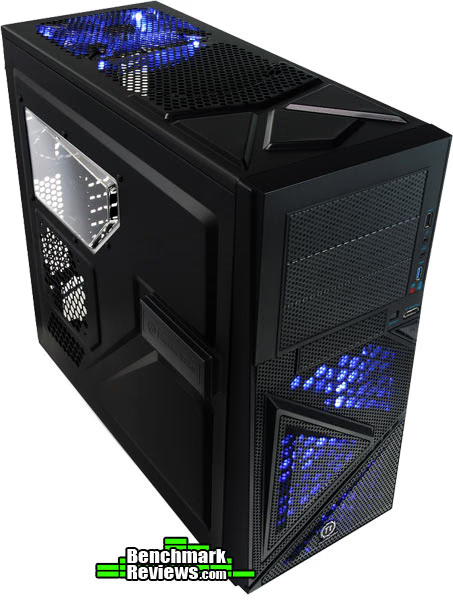
Althought it's hard to judge a case based solely on performance, other contributing factors such as appearance and functionality play an important role as well. Although the Armor A60 is not anything groundbreaking or breathtaking, it's another step in the right direction towards the perfect case.
Manufacturer: Thermaltake
Product Name: Armor A60
Model Number: VM20001W2Z
Price As Tested:$89.99 at NewEgg
Full Disclosure: The product sample used in this article has been provided by Thermaltake.
Armor A60 Features
- The world's first SideClick EasySwap design for 3.5" HDD
- Built-in latest USB 3.0 SuperSpeed connector
- Supports up to 7 fans for optimized air flow
- Convenient drive installation with 90° rotated cage
- Top and front blue LED-fan for the ultimate combat ambience
VM20001W2Z Specifications
| Case Type | Mid Tower |
|---|---|
| Material | SECC |
| Front Bezel | Material Mesh |
| Color | Black |
| Side Panel | Window |
| Motherboards | mATX, ATX |
| Motherboard Tray | No |
| 5.25" Drive Bay | 3 |
| Ext. 3.5" Drive Bay | 1 |
| Int. 3.5" Drive Bay | 5 and 1x2.5" SSD |
| Expansion Slots | 7 |
| Front I/O Ports | USB 3.0, 2.0, e-SATA, HD Audio |
| Cooling System |
Front: 120mm Rear: 120mm Top: 200mm Optional: front, top, bottom, side |
| Liquid Cooling Capable | No |
| Liquid Cooling Embedded | No |
| PSU Supported | ATX PSII |
| Dimension (H*W*D) |
18.9 x 8.3 x 19.7 Inch 480 x 210 x 500mm |
| Net Weight | 15.7lb |
Closer Look: Exterior
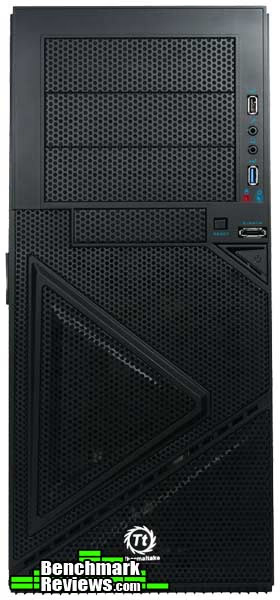
The Armor A60 bears a unique look, something which resembles a piece of armor or a type of military vehicle plating. The front of it is an example of this; three protruding triangles are positioned on the bottom, in front of the fan. This allows the fan's LED light to shine through, giving the front of the case an awesome look. Alongside the various ports (including an eSata port), the power and reset buttons sit. I'll examine this in greater detail on the next page.
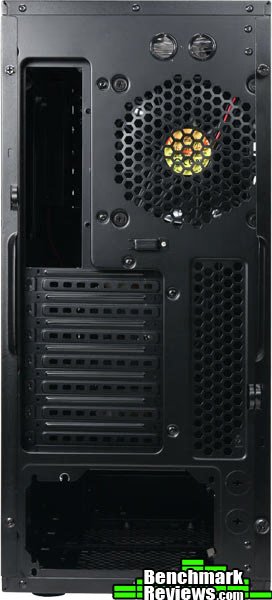
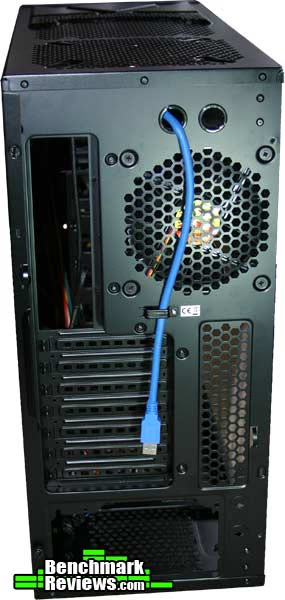
The back of the case features a bottom-mounted PSU, a fan near the top, as well as four water cooling holes in total (two on top + two on bottom). A USB 3.0 cable runs out one of the top water cooling holes, due to the lack of USB 3.0 headers available.
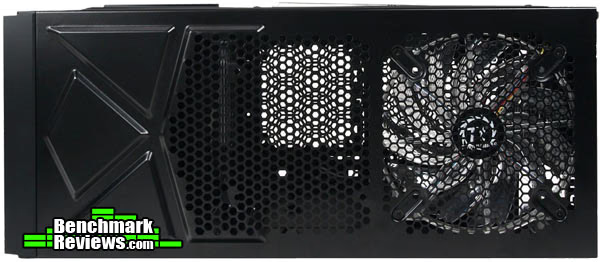
The right side of the case has a port-hole style window similar to other Thermaltake cases. Below this window is room for another fan surrounded by small ventilation holes. On the right side, the SideClick SATA HDD bay exists.
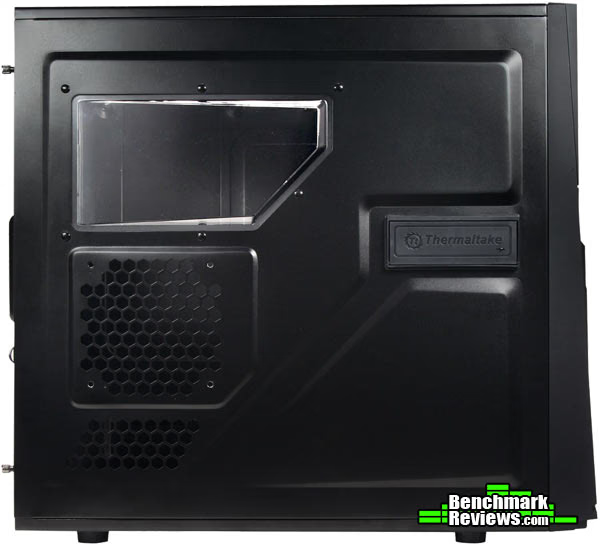
The other side of the case is nothing special; it's simply a continuation of the black panel.
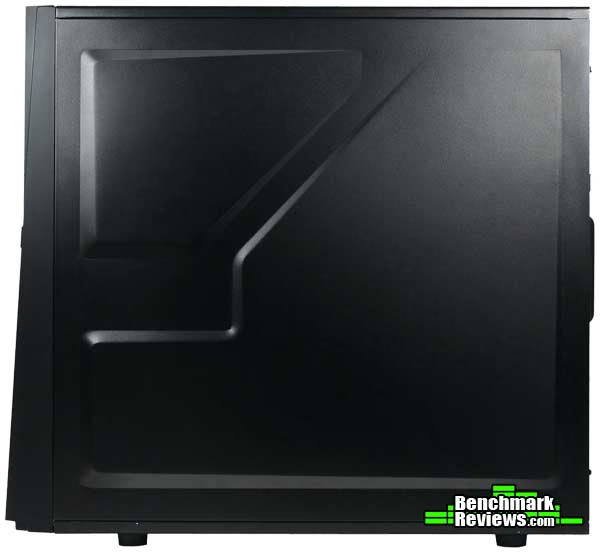
The top of the case holds a single 230mm fan as well as room for another 120mm fan.
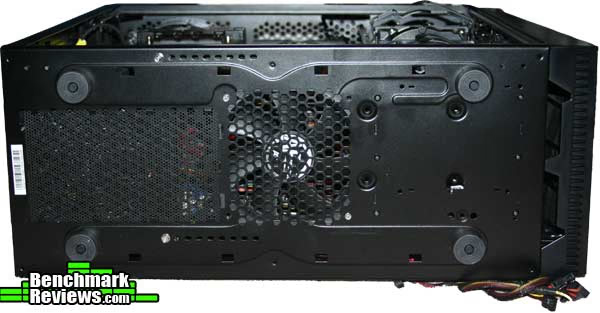
Four small feet are positioned on the bottom of the case, each about 3cm in length. Another fan is able to be installed here as well.
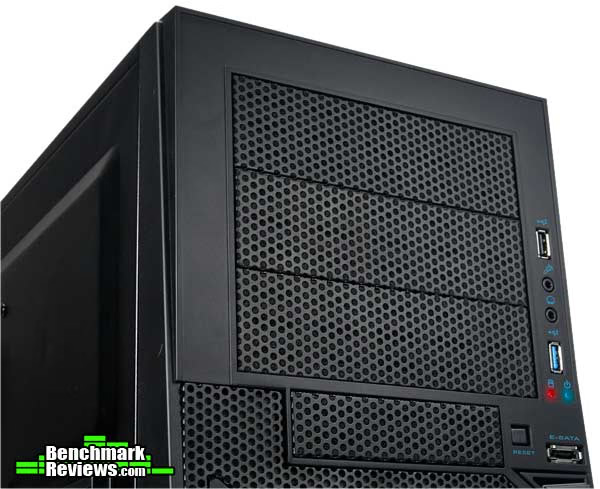
Detailed Exterior Features
Now let's take a closer look at the few features which may be of interest. The majority of Thermaltake's cases seem to have some sort of mesh; this allows airflow while still appearing cool. The top of the front of this case is a perfect example. Covering the drive bays, the meshy texture is positioned here.
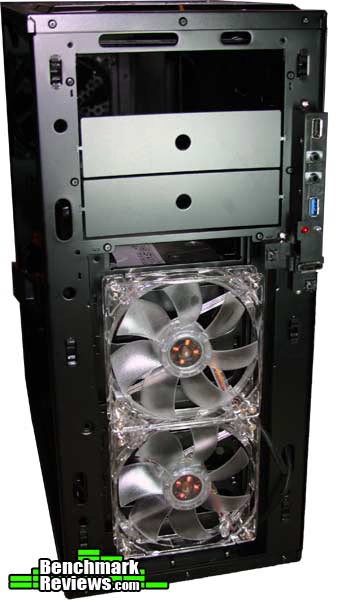
Without the front panel on, we can see the bare bones of the exterior of the case. Near the bottom of the front, two case fans are able to be installed.
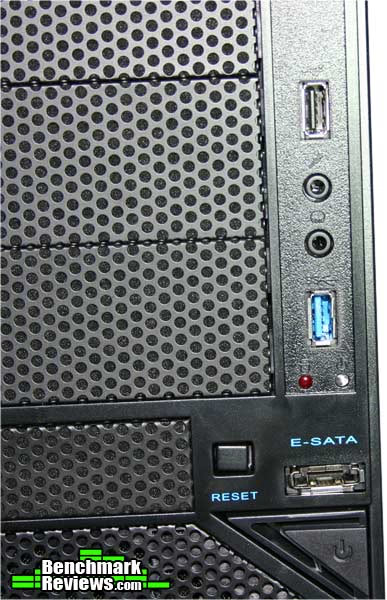
Audio + mic, USB 3.0, USB 2.0, and an eSata port can be seen on the front of the case.
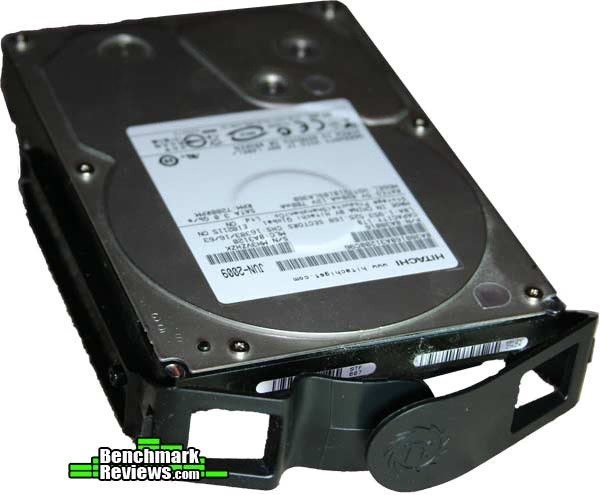
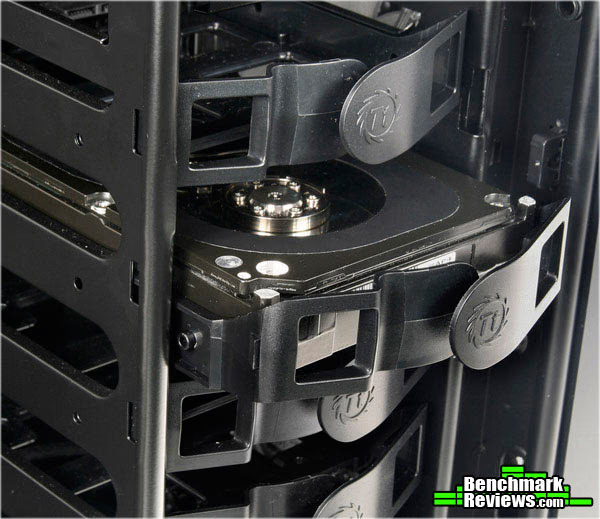
The SideClick harddrive comes with a HDD mount, which slides in and out of the side of the case.
Here's a closer look at the USB 3.0 cable coming out of the back of the case. It may be a nuisance, especially when one wants to use the top water cooling ports for their water cooling setup.
Closer Look: Interior
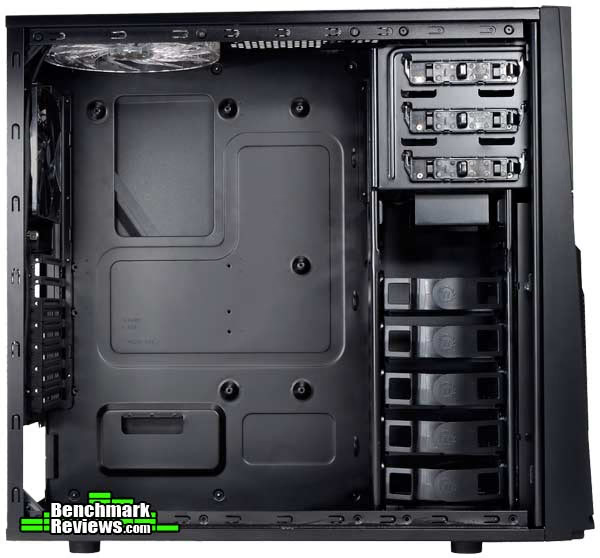
The entire inside of the Armor A60 is fully black. On the right side of the case we find three 5.25" drive bays, as well as a single floppy disk drive bay and 5 3.5" harddrive cages. Thermaltake has included toolless adapters here for everything (excluding the floppy disk drive), which allows you to easily swap harddrives and optical drives.
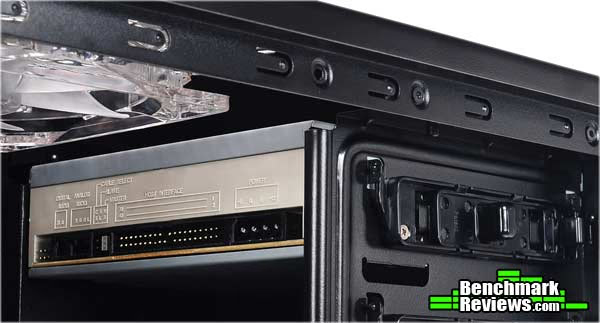
As you can see, an optical drive fits nicely inside the 5.25" drive bays.
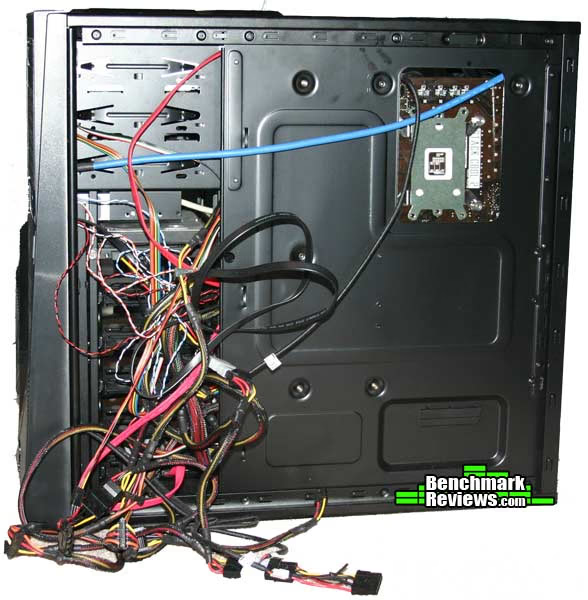
There's a few centimeters of space between the back of the motherboard tray and the side of the case, which doesn't really allow for that great of cable management. It was difficult, but I was able to achieve a decent amount of organization within the case; however, I was required to use the space behind the drive bays as opposed to the space behind the motherboard. This wasn't really a problem, but with many cables, it could get messy. I would have definitely liked to see a bit more space added on to make cable management easier.
Here's the finished product. As you can see, I was able to achieve decent cable management. Near the bottom of the case, however, it's a bit messy; that's where all the cables from the power supply ran underneath the motherboard.
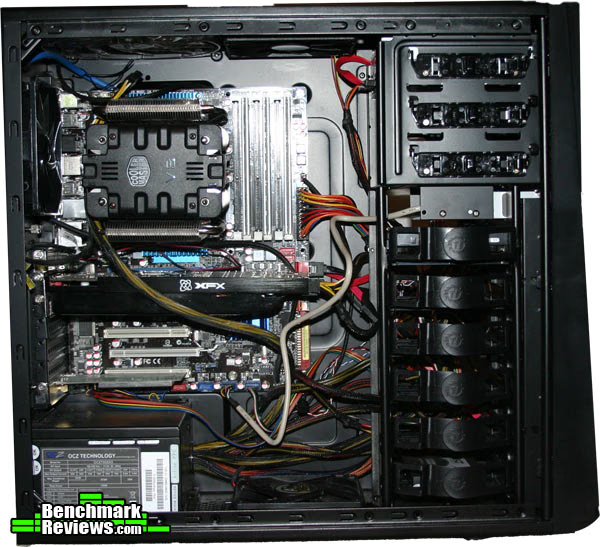
Detailed Interior Features
Let's take a closer look at the key feature included with the case: the easy-click harddrive. As stated before, this is basically a small hole on the side of the case which allows you to install and remove internal harddrives quickly and easily. Although this may seem like a gimmick to some users, others may find this small feature extremely helpful. If you tend to exchange harddrives often, then you'll be part of the latter group and find yourself using this very often. The harddrive goes into a cage, which allows you to slide it into the case from the side.
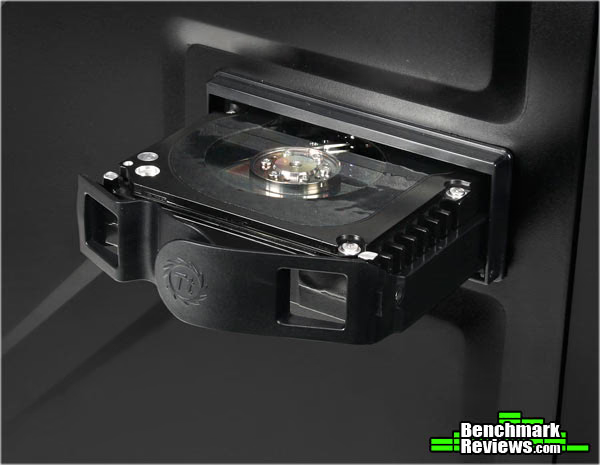
After pushing it in, the harddrive clicks into places and Windows will instantly recognize it (if you're running the storage drive in AHCI mode - which lets you use hotswapping capabailites).
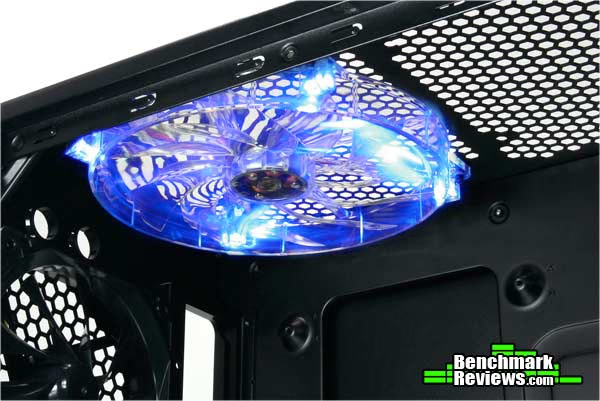
There are many fans which are able to be installed inside the case. The 230mm fan included, positioned at the top-back of the case, provides good airflow in order to cool the CPU.
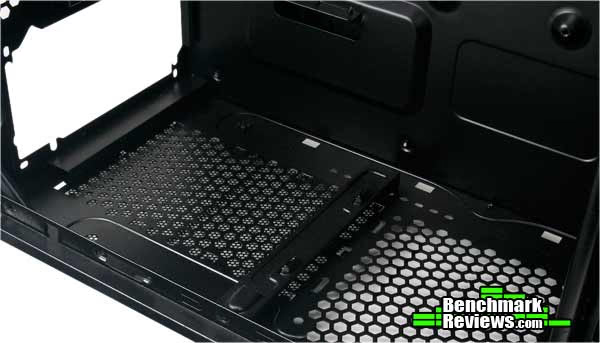
Similar to other Thermaltake cases, a dust cover is included below the bottom-mounted power supply, which simply prevents dust from getting into the PSU.
Thermaltake Armor Final Thoughts
The Thermaltake Armor A60 resembles any other case from Thermaltake: they include fans in the same spots, similar drive bays, and generally a similar design to most of their other recent cases. Essentially the only thing which makes this case unique is it's unique armor-like look as well as the SideClick Drivebay functionality. It seems like Thermaltake is slowly improving their cases with every release; they're adding more features (ie USB 3.0), a refined design, more fans, etc.
I find that, although this is a solid case, it seems just a tad too expensive compared to similar Thermaltake enclosures. If the SideClick functionality seems like a great feature to you, and you can see yourself using it often, then the A60 would indeed be a good purchase. However, that's about it; if you're not going to use it, it might be a good idea to seek out a similar, less-expensive case.
Armor A60 Conclusion
With support for up to 7 fans, you can be sure the components in your case are kept cool. Overall, the performance of this case is great.
The two blue LED fans as well as the armor-like design makes this case's appearance a unique one - however it may not be for everyone. I find the overall aesthetics of the case look very professional yet simplistic, however some may dislike the armor design of the case.
The Armor A60 is made out of SECC, which is what the majority of all modern cases are made out of. The case is relatively heavy, especially with all components installed. At 15.1LB, the weight is pretty noticeable.
With all the functionality a case is expected to have - and more - it's hard to give the A60 a bad score in functionality. USB 3.0 is supported, as well as the included SideClick EasySwap feature.
The Armor A60 is currently priced at $89.99. This price is a tad bit expensive for a mid-tower case with only a few added features.
If you're one who finds yourself in dire need of the latest technology (front-panel USB 3.0 in this case), a unique looking case, or a case which allows you to swap harddrives quickly and easily, then the Armor A60 will be a good purchase. It includes all the expected functionality and more - it's only the price which is a bit too steep.
Pros:
+ SideClick functionality
+ Unique appearance
+ SuperSpeed USB 3.0 functionality
Cons:
- High Price
- Heavy Weight
Ratings:
- Performance: 9.00
- Appearance: 8.50
- Construction: 8.00
- Functionality: 9.00
- Value: 7.00
Final Score: 8.3 out of 10.
Questions? Comments? Benchmark Reviews really wants your feedback. We invite you to leave your remarks in our Discussion Forum.
Reader comments from the original article
4 comments were posted before commenting closed. They are preserved as written. Original avatars no longer resolve and are shown as a placeholder.
RE: Thermaltake Armor A60 Case VM20001W2Z ehume Permalink:
This is a better review than another I just read. You make clearer the nice features. However, "There's a few centimeters of space between the back of the motherboard tray and the side of the case." A few centimeters? Two centimeters would be a luxury. Are you sure you don't mean millimeters? How about measuring? But overall, I liked the review. A nice 'almost' by Tt.
Not worth the money Robert Johnson Permalink:
I realize the price is fairly low but lack of really good cable management is a terrible lack of a design feature and makes this chassis a 'no buy' decision
RE: Thermaltake Armor A60 Case VM20001W2Z David Ramsey Permalink:
Does the drive bay for the SideClick port use a SATA backplane of some sort? I assume it does, but the review doesn't say...
yet the case of my choise. dozenkai Permalink:
Saw a pic wher the cables were neatly packed behind the drivebays. The swap drive does it for me for torrent software. Furthermore excellent cooling possibilities. enough room for my 6870 crossfire. A Scythe Mugen 2 Rev. B fits in. + some more extras. For a decent price.