
QNAP TS-409 Pro 4-Drive SATA Gigabit NAS
QNAP TS-409 Pro NAS
Times are a little tough right now for many small business owners, so any product that offers to save them money while still performing every function they require is sure to interest many of them. The task of providing an affordable product, that cuts overhead yet still performs up to par is not any easy undertaking. Most small businesses today have at least some level of data storage needs. It may be as simple as storing bookkeeping records, emails and customer contact information, it may involve storing legal documents or patient records, it may involve storing work product such as digital artwork or CAD drawings, or it may even involve hosting the company's retail sales website. The bottom line is that in today's business world it is hard to find a small business that doesn't have some need to store their digital data. This is where the Network Attached Storage servers come in and today Benchmark Reviews will be taking a close look at one of these NAS Servers, the QNAP TurboStation TS-409 Pro.
The idea that a device as small as the QNAP TS-409 Pro can fully replace an multi-thousand dollar rack server is a little hard to swallow and the honest truth is that it can't. But the question that may need to be asked is not whether the TS-409 Pro can replace the large rack mounted server but whether you really need that extremely expensive, loud, electricity hogging, Bill Gates retirement fund supplementing server that you have to hide in the back room or closet. The average server for a small business cost well over a Thousand Dollars and the software that most run on them (Windows Server) usually cost more than the server does. But the cost doesn't end there. Those big, loud servers require lots and lots of juice from your local electric company. An easy way to put it into perspective is to imagine turning on five light bulbs. But instead of turning them off when we leave the house, we are going to leave them on, every day, every night, every year. Now if we only had to turn on one of those light bulbs we should see a noticeable reduction in power usage. Most of these small NAS servers use anywhere from 1/5 to 1/10 of the power required to run a typical rackmounted server. So back to the question of whether you really need one of those full blown rack servers. If your company has hundreds of employees that need constant access to the server or if your server hosts your retail web site that services thousands of readers or customers a week then you most likely will not be replacing that rack server anytime soon with a small device such as the TS-409 Pro, however, if you are like the rest of us who's business consists of a small number of employees and who use their servers more for storing important documents and files then you might just be surprised at how well a small NAS server could perform for you.

A Network Attached Storage server should not be confused with an external USB hard drive that hooks up to your network rather than plugging in to the USB port of your computer. These little devices are actually miniature computers, most of them running a very small version of Linux or Unix. The TS-409 Pro actually has a 500mhz CPU and 256MB of DDRII Ram inside. While that may pale in comparison to your desktop computer or your rack mount server it may surprise you with everything that it provides.

Some of the uses for the TS-409 Pro include the following:
-
File Server: File sharing across Windows/ Mac/ Linux/ Unix and centralized management.
-
FTP Server: Support data access from remote location via FTP (max. 32 concurrent connections); FTP with SSL/ TLS (explicit) mode; Passive FTP port range control.
-
Backup Server: Client-side backup software-NetBak Replicator supports Instant, Schedule, and Auto-sync backup; 3rd party backup software support: Acronis True Image, CA Brightstor ARCserver Backup, EMC Retrospect, Symantec Backup Exec.
-
Printer Server: Network printer sharing via USB (support Windows & Mac platform); Support all-in-one printer (max. 3 sets).
-
Remote Replication: Block-level remote replication supports instant, schedule backup management; support synchronization mode.
-
Web Server: Establish users own web page and interactive websites with editable PHP.ini, SQLite and MySQL dual support.
-
My SQL Server: Support MySQL database server.
-
UPnP Media Server: Support UPnP/ DLNA multimedia technology; share stored photos and home videos on TV, listen to music on Hi-Fi system via DMP; Enjoy more than hundreds of worldwide Internet radio (built-in TwonkyMedia); Support DLNA media playing with PS3, Xbox360, PSP; Support Nokia N95 (DLNA control point)
-
Download Station: Support PC-less BitTorrent/ FTP/ HTTP download; Unique remote download control software: QGet (Windows-based application), allows you to control the download tasks of multiple Turbo Stations on one PC via LAN/ WAN; BitTorrent download supports DHT (automatic relaying if interrupted); Download configuration (current seed number, configurable port range, bandwidth control, download percentage, UPnP NAT port forwarding for BitTorrent download); Download status list management (download percentage); Support access from Mac by Mozilla Firefox.
About the company: QNAP Systems, Inc.
QNAP Systems, INC. (QNAP) is a devoted and dominant provider of Internet Appliance products. With solid and integrated expertise on the Linux embedded platform, QNAP has delivered more than 30 models of network storage and surveillance products in the past 5 years. These products provide consumers with storage, backup, surveillance and many other professional applications that constitute the core competency of QNAP. Today, QNAP continues to lead the industry in innovation with its award-winning servers. For example, TS-101 was honored "the best choice of Computex" and QBack-25 honored the 1st place by Chip Magazine. To keep the proud and success, QNAP is dedicated to providing top quality products and best support for customers.
What Makes QNAP Different?
-
The Most User-friendly User Interface
-
Hot-Swappable Hard Disks & Automatic Data Rebuilding
-
RAID Level Disk Configurations + Hot Spare
-
Leading RAID technology - RAID Recovery
-
Hot-swappable & Redundant Power Protection
-
Remote Data Management
-
Data Backup & Remote Replication
-
Embedded Linux
-
Cross-platform Support
-
Built-in DNS & DDNS Support
-
Web Page Management
-
User Quota
-
Journaling File System
-
SNMP Management & E-mail Warning
-
WINS Server
-
Backup/Restore User's Setting
-
System Upgrade
Closer Look: QNAP TS-409 Pro
There seems to be a trend over the last few years towards simplistic server design. NAS servers sometimes are forced to fight in two different arenas. In the home user market, the trend is towards esthetically pleasing case design, not only does it have to perform well, it has to be easy on the eyes. In the corporate market, the opposite seems to be true, the trend seems to be towards understated, simplistic, boarder-line dull case designs.
There is little mistaking that the QNAP TS-409 Pro was aimed at the corporate market. Although there is nothing necessarily unpleasing about the looks of the little box, if not for the mesh front cover, it could easily be mistaken for a small uninterruptible power supply device. That's not a bad thing, it's just the focus on these small boxes is all business, no room for needless fluff here.
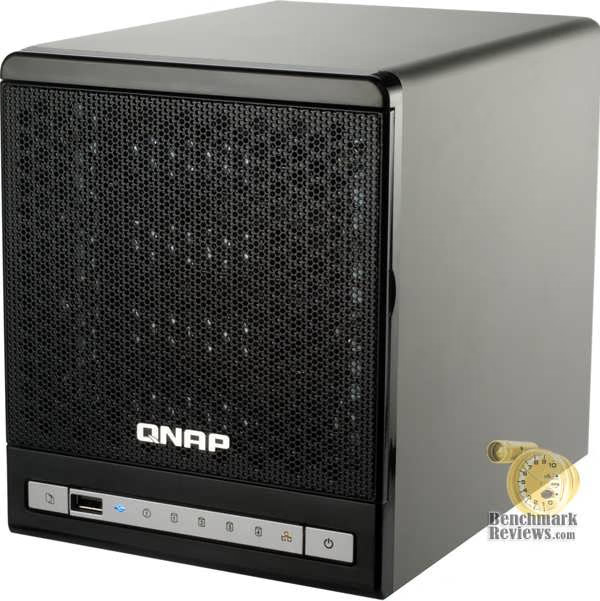
The image above is the front view of the QNAP TS-409 Pro. It stands around 8" tall, 7" wide, and 9" deep. The build quality seems very solid and the finish is muted but very nice. The TS-409 Pro is large enough to house four SATA Hard Drives from the simplest single drive setup to a complex RAID-6 disk array. While the disk array capability alone makes this little box a valuable addition to any office, you would be missing out on some of it's best features if that was all you used it for.

The front of the TS-409 Pro sports a power button, a power LED, an USB LED, a LED for network activity, and a LED for each hard drive installed. It also has a USB 2.0 port that can be used to connect either an USB drive, USB printers, pen drives, card readers, USB Hubs, USB UPS, or even a digital camera. There is also a button for One Touch Copy which will copy the entire contents of a USB drive plugged into the front port to a folder on the server. The drives are hidden behind a black mesh door. Simple, understated, but effective at relaying the current status of the server.
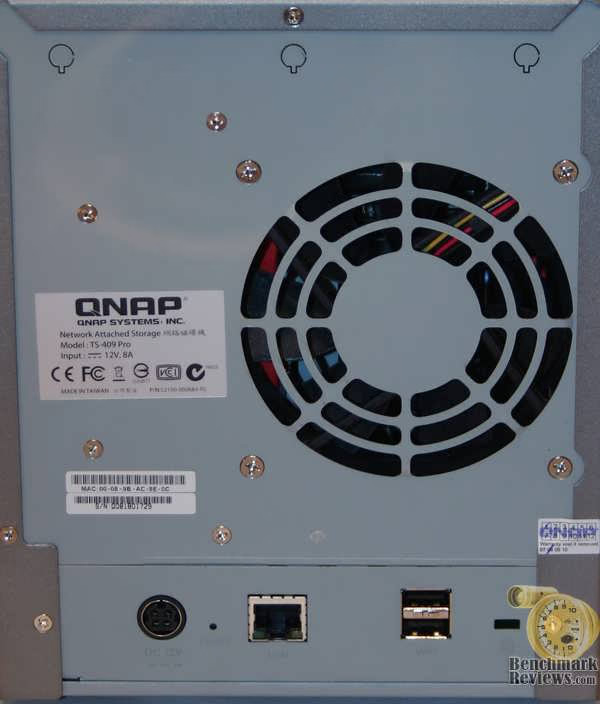
The back of the TS-409 Pro is about as plain as you can get. There is a rear fan to dissipate the heat from the board and the hard drives. Two USB 2.0 ports, a single Gigabit Ethernet jack and a power plug round out the connection options. While only the front USB port can be used with the One Touch Copy button, all three can be used with USB hard drives, printers, and other USB devices.
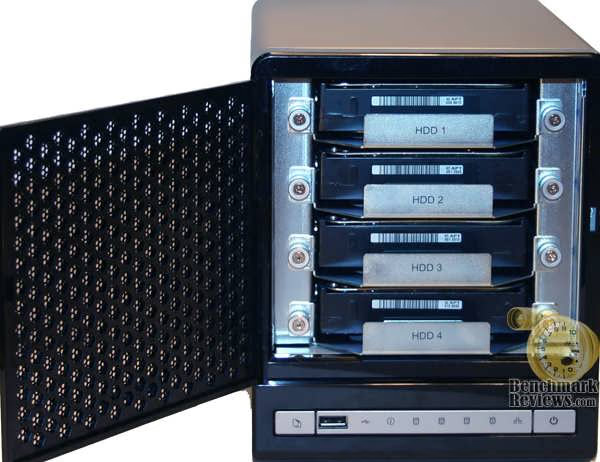
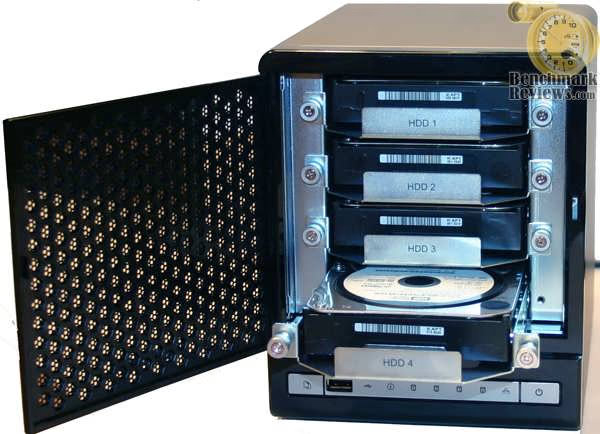
Access to the four hard drive bays is easily gained by swinging open the black mesh door. Two screws hold each of the four hard drive brackets securely in place. The TS-409 Pro supports hot-swap design which offers the non-stop and easy-to-manage service. When HDD failure occurs, the administrator can be alerted by e-mail alarm and LED indication. The failed drive can be replaced by hot swapping without turning off the server. The intelligent data rebuilding features allow users to the new drive without suffering from any system downtime. No lock on the hard drive bay door but I guess when your dealing with a server that is this small locking the bay door probably wouldn’t be much of a deterrent given a thief would probably just take the entire device.
Detailed Features
The TS-409 Pro makes both initial setup as well as upgrading very easy for the owner. It supports what it calls flexible RAID Expansion. Basically what this means is that you can start out with one or two small hard drives and as your needs require you can install not only additional drives but larger hard drives. All of this is done on the fly without every requiring the server be shut down. There is a limitation to this feature however. Your RAID array will be limited to a multiple of the smallest hard drive installed. For example if you have two 250GB hard drive installed and you add a 750GB drive to the array it will limit you to 3x250GB. Until you replace both 250GB hard drives with larger drives you will not be able access all available storage space.

Installing the hard drives into the TS-409 Pro is a very simple procedure. Once the hard drives are mounted in their respective tray, the tray is then slid into place in one of the four mounting slots. The trays slide in very easily and feel very secure going in. The SATA connection and power are automatically seated once the tray is slid completely in the server. Two thumb screws then secure the tray in place.
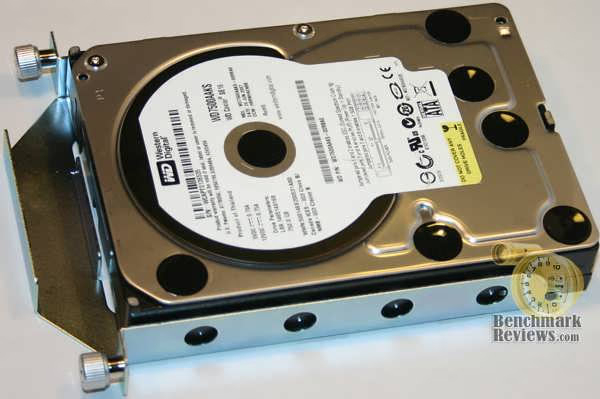
While it would have been nice if the hard drive trays would have been screwless this really isn’t that much of a bother. Given that you probably won’t be switching drives out unless you have a failure or an upgrade it is probably worth the extra two minutes installing four screws in the drive tray to ensure that the drive is perfectly seated to make the proper SATA and power connections.

Due to the small size of the TS-409 Pro there is no room for an integrated power supply. The included power supply is a 96W (8A) external power adapter brick. Given that the TS-409 Pro is rated at 18W in sleep mode and 44.6W in operation this should be plenty of power. The rest of the accessories provided are pretty basic, very short ethernet cable, power cord and 16 screws.

With Online RAID Level Migration, users can start from one drive firstly and add more drive members to upgrade the RAID level in the future with the data retained. There is no need to turn off the server during the process. The TS-409 Pro also supports S.M.A.R.T (Self-Monitoring Analysis And Reporting Technology) which basically monitors the hard drives and notifies you of any potential problems. It is also embedded with HHS Technology which will check each disk and scan for bad blocks to prevent potential data loss.

With Online RAID Capacity Expansion, users can select to purchase the most cost-effective hard drives for initial server setup and upgrade to larger ones in the future. All the stored data will be kept and seamlessly moved to the newly installed hard drives. There is no need to turn off the server during the process. While the TS-409 Pro allows you to swap out your smaller drives for larger ones, don't expect this process to be a quick one. You will have to do one drive at a time and wait till the new drive is properly synchronized before you can replace the next one. Depending on the size of the drives and the amount of data stored on them this can take hours if not possibly days to complete the entire 4 drive swap.
TurboStation Setup
For those that have never had the opportunity to set up a Windows Advanced Server system you may not be able to fully appreciate the software included in a NAS server like the QNAP TS-409 Pro. While Windows Advanced Server is a very robust operating system, it can also be a very difficult system to get working properly, especially when you are trying to add all the features that come standard on the TS-409 Pro. I would argue that the biggest benefit in selecting a NAS server rather than a full blown rack mounted Windows Server setup is the ease of configuration. While the small NAS servers may never have the raw power of the full blown servers, they usually can be setup without ever reading a manual or spending hours on Google trying to figure out what you are doing wrong. For the small business that is paying a technician to setup their server this ease of setup may actually save more than the entire purchase price of the NAS system.
If you were to ask your computer technician to setup a Windows Server system that would be able to securely host shared files and folders for your employees; create private shared folders that only a select few employees could access; of course you want your employees to be able to access their work from home or on the road; create an automatic backup configuration so your critical data is backed up; would like to have a couple of printers networked so everyone could use them; would be nice if everyone’s Ipod could access a large collection of music on the server and while your at it can we also serve up movies, songs and pictures to our PS3 and Xbox 360; oh and one more thing could you set it up so it hosts the company’s website? Now tell them that you would really would like that all completed in a couple of hours and watch their reaction.
While a request like that might be able to be accomplished by a very talented computer technician, it would probably never be completed anywhere close to the time restraints you requested. The good news is you can probably accomplish every one of those requests yourself on the TS-409 Pro and have an hour to spare.
Ease of Setup
Setting up the TS-409 Pro is amazingly simple. Of course the first step is actually installing your hard drives in the NAS box. Once that is done, you will connect the box to your network. QNAP supplies a Setup CD for Windows that quickly finds the TS-409 Pro and installs the newest firmware. It also includes an easy install Wizard that will pretty much setup everything for you after you answer a few simple questions. You can also do this manually if you would like which is what I chose to do. All the screenshots below are accessed from your web browser by simply entering in the ip address of your server and the port you assigned it.
In my setup I chose to use four 750GB hard drives in a RAID-5 configuration. After formatting, this yielded an usable area of 2059.78GB for my data. RAID-5 divides the data over all four hard drives in a manner that any one drive can fail without losing any data.

Microsoft Networking
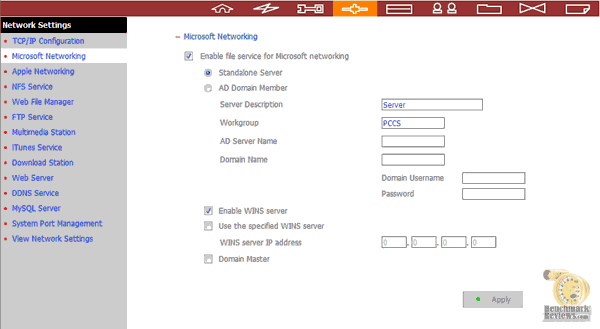
Given that I primarily use Windows XP and Vista on my machines I needed to setup the TS-409 Pro to work on a Windows network. This involves putting a checkmark in the “Enable file service for Microsoft Networking” box and the “Enable WINS server” box. I also gave my NAS server a name which in my case was “Server” and assigned it to a Workgroup. Click “Apply” and the system is now seen by your Windows machines.
Network Shares
Next we need to setup some folders to store our data in. This will be referred to as Network Shares. This is a very simple process of simply typing in a new “Network Share Name” which will create a new folder on the server’s hard drive and list it as a shared folder under Windows Networking. There are options to give full access to everyone or limit access. You can also grant read only access to the folder to guests.

TurboStation Setup Cont.
Users and Groups
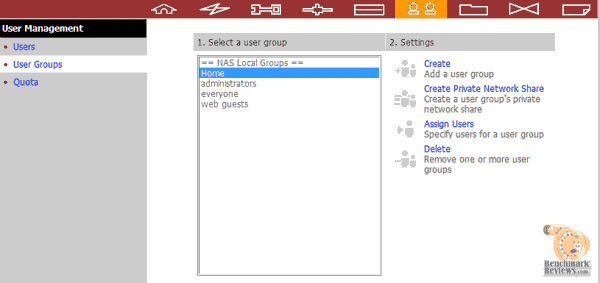
Now that my Windows machines can see my server I needed to setup my users and passwords. I would suggest taking some time to figure out exactly how you want people to be able to access the data on your server. In my case, I have three groups I created, administrators, Home, and web guests. There is already a default group called “everyone” but I would suggest creating others if you are going to be dealing with users of differing security levels. The TS-409 Pro allows for 128 unique groups to be created.
Once you have your groups created you are ready to add some users and passwords. These users will be used for both Windows and FTP access so I would suggest using secure passwords if you are going to give access to your server from the internet. The TS-409 Pro allows for 1,024 unique users which should be more than enough. One thing to note, is that a user may only be logged on from one machine at a time, so you can not create a generic user thinking that you can use it to log on from numerous machines at the same time. Each concurrent connection will require a unique user name and password.
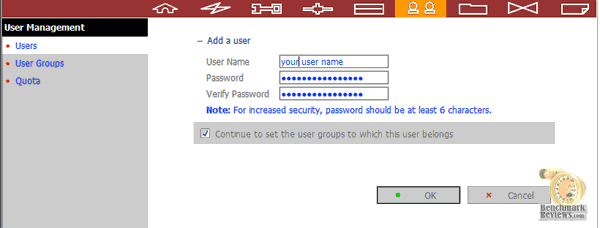
Once your users are created, you will need to assign them to groups. Every user you create is automatically assigned to the "everyone" group. You may elect to assign them to multiple groups. For example, I created a user named "bob" which I assigned to the group "web guests" and of course "bob" is assigned to the group "everyone". What this allows me to do is give all members of a particular group access to any of my shares I choose. So, if one of my users is a member of the group “home” and I have granted access to all members of the “home” group to one of my shared folders then any user that belongs to the “home” group will have access to that folder. Of course I can select to just give a select few unique users access to any of the folders I choose without giving the entire group access to that folder. Again, granting users or groups access to folders works for both Windows Networking as well as FTP access so make sure that if you do enable FTP access you are using secure passwords.

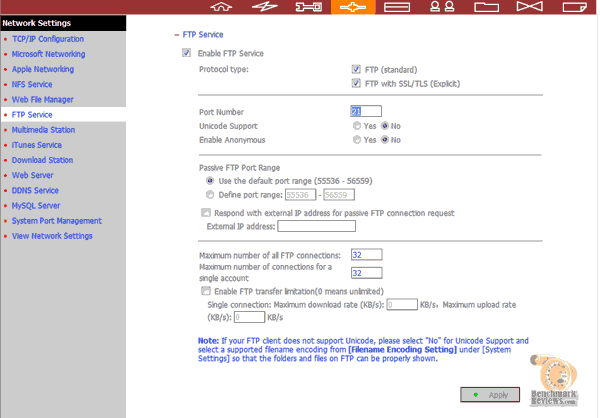
Now that the users, groups and shared folders are set up the hard part is over. Allowing my users to access the shares over the internet is literally one checkmark away. Checking the box marked “Enable FTP Service” and clicking “Apply” is all that is required to turn on the FTP service for the server. This single page here is one of the simplest options but truly differentiates your NAS server from a shared folder on your desktop. With a simple checkmark I was able to give anyone I want access to my server over the internet. I also can restrict access to only folders that I want them to see and I can restrict their access to “read only” if I choose. I chose to create a group called “web users” for just this situation. Every user that belongs to the “web users” group has read only access to a folder I created just for that group. Why Microsoft can’t make it this easy I will never understand.
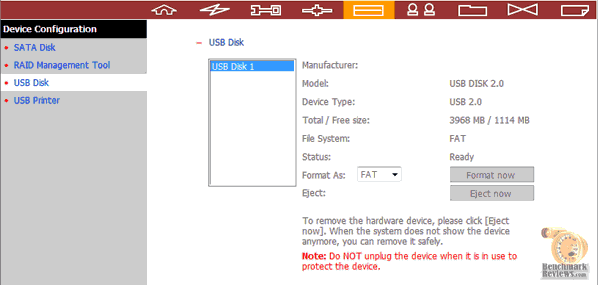
The TS-409 Pro has three USB 2.0 ports which all allow the connection of an USB Flash drive or an USB hard drive. By default a Network share is created called “Qusb” which you can assign permissions to as you wish. Simply plug in the USB drives to any of the three ports and your users have automatic access to the drives. Leave it plugged in to expand the storage of your NAS server. While QNAP says the ports work for other USB devices, I tried hooking my Zune player to the front port with no success. I must admit though, this feature has been pretty handy to me. I usually leave my Western Digital external USB drive hooked up to the server and have my critical files backed up on my USB drive.
TurboStation Feature Setup
One Touch USB Auto Copy
When a USB device such as digital camera, digital camcorder, or pen drive is connected to the front panel USB port, data in the USB device can be backed up to the TS-409 Pro, or data in the TS-409 Pro can be backed up to external USB device automatically by simply pressing the USB copy button. In the meantime, an external storage device can be connected to TS-409 Pro via USB port for alternative data backup. Nothing really surprising here, the button works as stated. I haven't found it much quicker to push the button than to use software to make my transfers. I seem to always end up opening the software to verify that my data was in fact copied, so I don’t know if it is really saving me any time to push the button first.

Printer Server
You can share your printer device over the network by simply connecting USB printers to the TS-409 Pro's USB port (Max. 3 sets) and enabling the printer sharing function. I tested three different USB printers and was able to get all three working. I do believe that you are limited to the printer only feature of an all-in-one printer. I did run into a few problems with the USB Printer Server feature however. You will need to read the manual on setting up this feature. I actually found the QNAP forums to be very helpful while configuring my printers. I also experienced some problems with the occasional print job that seemed to disappear. I would hit print, my computer seemed to think everything printed fine, but nothing ever printed. This may have been only a small annoyance in my setup given that I can see the printer from my desk and if it didn’t print often a second attempt would work just fine, but in an office where you are printing to another room or printing documents for someone else to retrieve this would be a huge issue. Given that I already have a network capable printer I chose not to continue using this feature.

Backup Server
Data backup may sound time and effort-consuming for most users. QNAP's Turbo NAS now brings you the enterprise-class technology to make backup extremely simple and efficient! The intelligent automatic backup software, NetBak Replicator, is provided for users to perform real-time synchronization or schedule backup from multiple PCs to the TS-409 Pro. Furthermore, the data in the TS-409 Pro can also be backed up to external FAT format hard drive. The TS-409 Pro also works well with other backup software, e.g. Acronis True Image, CA BrightStor ARCserver Backup, and EMC Retrospect. QNAP actually addresses three different backup needs with the TS-409 Pro. First, the need for backing up software and data files that are on a user's client machine such as email, contacts, favorites, and personal document folders. Second, the need to backup entire folders on the server to an attached USB drive. (I found this feature very handy) And third, is and option called Encrypted remote replication which provides a high level of data protection. Files can be backed up from TS-409 Pro to other QNAP NAS products in remote locations. Advanced options including data compression, block-level incremental backup, and data synchronization are supported to optimize the bandwidth and time for data backup. Although I was unable to test the third option, the first two work very well. You of course are not required to use QNAP's client side software for backing up your personal files. Any backup software that will copy files to a shared network folder will work just fine.

Multimedia Station
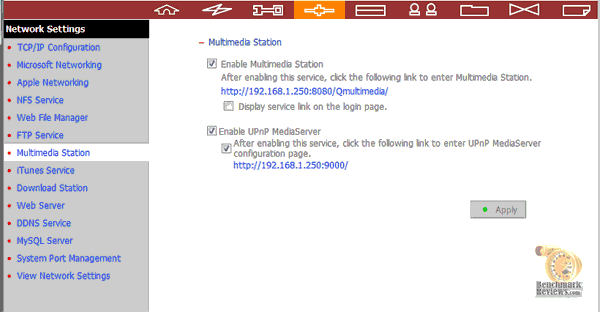
The TS-409 Pro also includes the addition of a very easy to configure Multimedia Station server. Basically what this feature allows you to do is store your photos, movies, and music in Qmultimedia folder on the server. Files stored in this folder will be served up to any multimedia player that support UPnP such as a PS3, XBOX 360 or any of the numerous compliant media players. Files can also be accessed by any computer by simply adding /Qmultimedia after the address of the server. For instance in my case it would be https://192.168.1.250:8080/Qmultimedia and playing the files from your browser. I don’t know how useful this feature will actually be to the typical small business, but I guess it never hurts to have the feature available. The added benefit of this feature over just giving access to all your media files is that the user has the option to play only the files you drop in the Qmultimedia folder. They do not have the option to delete them, copy them, or alter them in any way.
iTunes Server
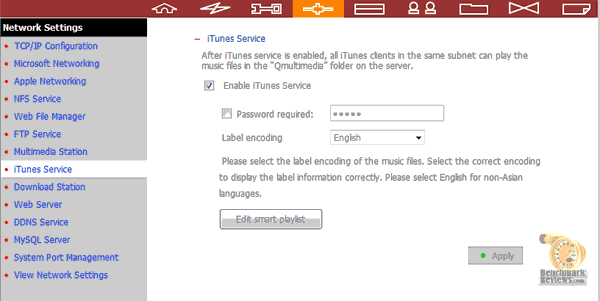
You know a company is doing something right when other products are making specific programs just to support their device. The Ipod is obviously one of those devices. The Itunes server is a neat little feature that allows you to store your music files on the server and give anyone you want access to those files through the Itunes player. This function is very useful. You can save the mp3 files on the TS-409 Pro instead of different computers at home, and then stream those files to any computer that connects. Also, you can select the music files and export them to your iPod.
Digital Media Player devices e.g. Roku's Sound Bridge, have become increasingly popular recently. Some of these devices start to support music playing by iTunes on the network. You can use these devices to play the mp3 files on the TS-409 Pro without turning on the computer.
Web Server
The TS-409 Pro also makes setting up your own web server very easy. Just like most the other features, it is only a box click away to enable the feature. I was able to easily enable the feature and transferred my website into the Qweb directory. I then ran into a slight snag. At first I thought everything was working perfect. My computers could see the site with no problem, everything was fast, and my initial reaction was “wow, that was easy”. The problem began when other tried accessing my website. I later discovered that my internet provider was blocking an outgoing port 80 which is used by web browsers. Although I believe that there are ways around this, it was not as simple as changing the port used by the Web Server feature. Not really a fault of the TS-409 Pro just thought I might point out that this feature may give you some problems hosting from your home.
Download Station
The Download Station allows you to assign a download job to the server and it will download the files for you. It can be a file stored on a FTP site, HTTP site or it can even be a Bit Torrent file. For Bit Torrent’s it does allow you to control the maximum download and upload speed. I guess I just need to get used to this feature being present on all the new NAS servers. I just cringe at the idea of using the company server to download Bit Torrent files. The thought of your employees telling your company server to download the latest pirated movie torrent doesn’t seem like great idea to me, especially since it can be controlled over the internet. I did test it though and it does work just fine and I guess for those very large Torrent files it would be more efficient to have the NAS box running than your desktop running 24/7. You can choose to enable this feature or leave it disabled.
I know that most times the testing methodology is just a page more comparible to any legal disclaimer. But hopefully, I can persuad you to read it through. You see, I will do something more people should do in their work: I will educate you. It's almost guaranteed.
Please continue on to the next page to learn the difference between a Megabyte, and a Mebibyte. You probably had no idea there was such a thing, but it's time to correct our slow-learning industry with the facts.
NAS Testing Process
Since Benchmark Reviews doesn't have a vast array of Network Attached Storage devices in our collection product resources, we do our best to compare products to as many related devices as possible. In this review, QNAP TS-409 Pro was compared to the D-Link DNS-323 SATA RAID Gigabit NAS, the Synology CS407, the QNAP TS-109pro as well as the older QNAP TS-201. All five are Gigabit-speed Ethernet network devices, and all five share the same RAID-0, RAID-1, JBOD, and single disk capability.
In case you're not up to speed with network terminology, our you're just new to the technology, here is a little refresher for you. The basic unit data measurement is called a bit (one single binary digit). Computers use these bits, which are composed of ones and zeros, to communicate their contents. All files are stored as binary files, and translated into working files by the Operating System. This two number system is called a "binary number system". In comparison, the decimal number system has ten unique digits consisting of zero through nine.
Have you ever wondered why your 500GB hard drive only has about 488GB once it has been formatted? Most data files use the binary number system to express file size, however the prefixes for the multiples are based on the metric system. The nearest binary number to the metric amount of 1,000 is 1,024; which means that 1,024 bytes is named a Kilobyte. So even though a metric "Kilo" equals 1,000, a binary "Kilo" equals 1,024. Are you confused yet? Don't be surprised, because even the most tech savvy people often mistake the two. Plainly put, the Kilobyte is expressed as 1000 bytes, but it is really comprised of 1,024 bytes.
Most network engineers (myself included) are not fully aware that the IEC changed the way we calculate and name data chunks when they published the new International Standards back in December 1998. The International Electrotechnical Commission (IEC) removed the old metric prefixes for multiples in binary code with new prefixes for binary multiples made up of only the first two letters of the metric prefixes and adding the first two letters of the word "binary". For example, instead of Megabyte (MB) or Gigabyte (GB), the new terms would be mebibyte (MiB) or gibibyte (GiB). While this is the new official IEC International Standard, it has not been widely adopted yet because it is either still unknown by institutions or not commonly used.
Personally, I think the IEC took a confusing situation and simply made it more of a mess. As I mentioned earlier, the Kilobyte was previously expressed as 1000 bytes, even though it was really comprised of 1,024 bytes. Now, the Kilobyte really is expressed correctly as 1000 bytes, and the Kibibyte is the item comprised of 1,024 bytes. In essence, the IEC just created a new name for the binary item and left the existing name for the metric item. Hopefully that clears things up, and you can thank Benchmark Reviews for training the next generation of Network Engineers.
Testing Methodology
Although each of the devices we tested can accommodate several different disk configurations, it was decided that the single disk test was the best way to measure throughput. This configuration removed the chance that RAID array overhead would effect the test results.
Connected directly to the onboard Attansic L1 Gigabit Ethernet controler of the Asus P5K by a CAT6 patch cable, the NAS products received one test transfer followed by three timed transfers. Each test file was sent to 750GB Western Digital WD7500AAKS HDD installed in the NAS for a time write test, and that file was sent back to an identical 750GB Western Digital WD7500AAKS drive in the test system to record the read test.
The transfer tests: read and write, were conducted on each NAS appliance using a set of 100 MiB files and then a set of 1 GiB files. Tests were also run using a set of 1 MiB files. All tests were repeated under Windows XP, Windows Vista, and using an FTP client under Vista. For the non FTP tests, simple Windows File Sharing was used. Files were cut from one device and pasted into a folder on the other device.
NAS Comparison Products
-
Synology Cube Station CS407 4-Bay SATA Gigabit NAS
-
QNAP TS-201 SATA Gigabit NAS Server
-
QNAP TS-109 Pro Gigabit NAS Server
-
QNAP TS-409 Pro Gigabit NAS Server
Support Equipment
-
Western Digital 750GB SATA-II 7200 RPM Hard Disk Drives
-
3-Foot Category-6 Solid Copper Shielded Twisted Pair Patch Cable
-
Attansic L1 Gigabit Ethernet controler of the Asus P5K
-
100 Binary Megabytes Test File (100 MiB/Mebibyte = 104,857,600 bytes) (Set of 30)
-
1024 Binary Megabytes Test File (1 GiB Gibibyte = 1,073,741,824 bytes) (Set of 3)
-
1 Binary Megabyte Test File (1 MiB/Mebibyte = 1,048,576 bytes) (Set of 3,000)
Test System Hardware
-
Motherboard: ASUS P5K (Intel P35 chipset)
-
Processor: Intel Q6600 Core 2 Quad 3.2GHz with 1600MHz Front Side Bus
-
Cooling: Tuniq Tower 120
-
Video: EVGA GeForce 8800 GTX
-
Audio: Onboard Sound
-
O/S Hard Disk: Western Digital WD1500ADFD 10,000 RPM SATA
-
Data Hard Disk: Western Digital 750GB SATA-II 7200 RPM
-
Optical Drive: Optiarc DVD/RW AD-71705
-
PSU: PC Power and Cooling 750w
-
Operating System: Windows XP Professional SP-2, Windows Vista Ultimate
Testing Results
Given how much the testing results vary from one NAS product to another one really never knows what to expect before the tests are completed. Performance results can even vary significantly among the same manufacture’s product line. While I had high hopes for the TS-409 Pro given that it is a new release targeted at the corporate customer, I also had my reservations about it given the poor performance of the TS-201. Prior to running my actual benchmark tests, I had to play with the little box for awhile. I will admit my initial informal test blew me away. Using an FTP client transferring rather large ISO files I was showing over a 40MB per second transfer rate. This was even running through my switch. Unfortunately my actual benchmark setup could not average this high.
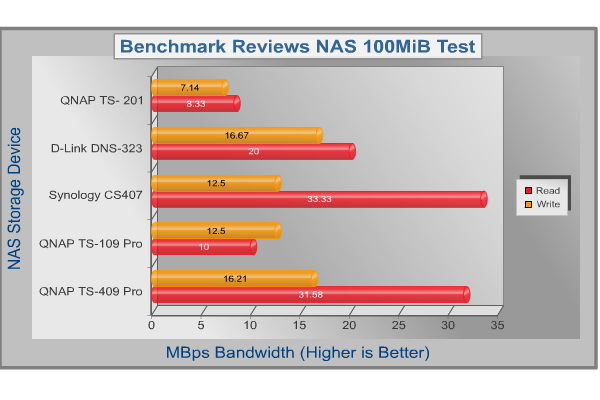
Starting with the 100 MiB (100 binary megabytes / 104,857,600 bytes) file size test the QNAP TS-409 Pro Gigabit NAS turned in some good numbers. Strangely I couldn’t hit the numbers I got during my informal testing, but it still managed to post some very respectable averages. Please keep in mind that the tests are run using standard Windows File Sharing rather than the faster FTP protocol. Read speed is faster than write speed, but that is pretty standard not only for NAS servers but servers in general. The TS-409 Pro turned in the following averages for transferring 100MiB files:
Write = 16.21 MiB per second

1000 MiB File Test
Read = 32.61 MiB per second
Write = 16.48 MiB per second

After using the TS-409 Pro for a week or so I noticed some very troubling discrepancies that didn’t jive with my test results. First I noticed that the system seemed quite a bit slower when using Windows File Sharing under Vista than it did under XP. While this may not have anything to do with the TS-409 Pro and may in fact be a problem with Vista’s File Sharing performance in general, I felt it was worth a second look. I also noticed some very troubling issues when working with small files. I therefore went back and ran the test again under Vista and under Vista using a FTP client rather than standard File Sharing. I ran all the test multiple times given that some of the numbers seemed to contradict my earlier findings.
My end results were basically this: the system does better in XP than it does in Vista, the system does much better when dealing with large files and seems to slow to almost a halt when dealing with very small files (10Kb files for instance), FTP transfer is for the most part faster with the strange exception of reading small files. I have now used the TS-409 Pro for over 3 weeks as a primary server and while I really do enjoy quite a few of the features of the TS-409 Pro, I do find the slow transfer rate when dealing with small files a nuisance. It is during those times that I must admit I miss my full blown Windows 2008 server.
TurboStation Final Thoughts
Network Attached Storage devices have come along way in a short time. When you think about the market they have to compete in it is pretty overwhelming. Not only do they get compared to rack mounted servers costing Thousands of Dollars that are running Operating Systems costing Thousands of Dollars, they still have to keep up with every other NAS device on the market. It wasn’t that long ago when all we expected out of a NAS box was to share files over our network. Now, we would turn our noses up at a product that only offered simple file sharing. When you look at the small size of the TS-409 Pro it really is amazing just what all this little box can do. So let's recap the highlights that will most likely capture interest:
-
Four SATA-II hard disk drive storage, with single disk and RAID 0/1/5/6, 5 + Spare, JBOD, and Single capability.
-
Hot Swap Upgrades and Drive Replacement
-
Three High-Speed USB 2.0 ports cabable of connecting flash drives, hard drives, printers, cameras, and other devices.
-
Windows Active Directory Services and NT4 support with login via Samba/AFP/FTP/Secure FTP/HTTPS/SSL/Telnet.
-
Web Server with Built-in phpMyAdmin
-
MySQL Server
-
Less than 45W under load
-
Support for 1,024 users
The above list is by no means exhaustive of the TS-409 Pro’s features, nor is it necessarily the most important features. This little box is so cram packed full of features that it would take a much longer review than this one to even come close to covering all of them. I did try and at least take a look at most of them, and put into use for my own business quite a few of them. It amazes me how good the software is in these little devices. I think Microsoft would be well served to spend a little time and money on making their Server software run this efficient and user friendly. With the way technology is developing, I don’t expect it to be very long before there is zero difference in read/write performance between the small NAS servers and the full blown rack mount servers. This little device runs at 500mhz and 256mb of ram. I could easily see in a few years 1Ghz to 1.5Ghz and 1GB of ram in these little boxes and throw in a few 2TB hard drives and you would be set. At that point the justification for those large Microsoft boxes gets harder and harder to make. When you consider that a large business may have to pay $25 or more per client license for Windows Server and this little box already has 1,024 client licenses.
So where does the QNAP TS-409 Pro call home. I would have to say the typical small business could probably make good use of this little box. It probably is a little expensive for home use and not quite powerful enough for large corporation requiring a large number of simultaneous connections.
QNAP TS-409 Pro Conclusion
My rating of the overall packaging and presentation is somewhat high, as QNAP has done an excellent job of educating consumers with plenty of box-top information so they can make an informed purchase. I would say the box is aimed toward the informed buyer as the information provided might be a little overwhelming to someone new to NAS servers. I personally like the all business approach to the box information rather than pasting catch phrases all over it.
While the TS-409 Pro may not win any beauty pageants, I personally like its understated looks. The overall appearance is still appealing with a strong emphasis on functional. The mesh drive door blends in nicely yet is extremely functional for added cooling. Keeping the home users happy with a design that doesn't look boring isn't easy, just as it is difficult to keep the corporate image intact without too much pizazz.
QNAP has built a very solid little NAS with the TS-409 Pro. The swinging mesh drive bay door is solid, fits very nice and for the most part doesn’t even appear to be a door, yet is very functional for cooling. The overall feel of the box is very solid and there is really no moving parts other than the door that look like they could be easily broken. Not that a network appliance will see a lot of careless handling or harsh environments, but the TS-409 Pro should stand up to years of normal use.
The expectations on performance for these small NAS devices is getting higher and higher. Although it may not be fair to compare the bandwidth performance of these little boxes with a full blown rack server that is exactly what we do. We may say we know it can’t beat that $5,000 SCSI RAID system on the back rack, but the reality of it is that when we read the benchmark results we immediately wish that it could beat the rack system. The TS-409 Pro does a very good job of reading and writing data over the network when compared to its peers, i.e. other NAS boxes. Around 30MiB per second read speed is not shabby at all for a NAS box. It is the extra features and the ease of setup that really add the value to these little devices. I did have a few problems with small files and some problems with the printer sharing but overall my experience with the TS-409 Pro is very positive. I’m keeping it until something better comes along.
The TS-409 Pro says it can support up to 32 simultaneous connections at any one time but I have a feeling that would bring this little box to it’s knees if it had knees. Another problem comes down to the need for large amounts of storage space. The home user is probably more likely to have a need for vast amounts of storage with the trend towards keeping their multimedia on a central server coupled with a large game collection, while the typical small business might never have a need for 4TB of storage. Most small businesses that could make use of a NAS device like the TS-409 Pro will probably do just fine with the two drive model, and most home users that have a need for vast amounts of storage space may cringe at the sticker price. A larger business that has need for vast amounts of storage is most likely going to have a larger number of employees than the TS-409 Pro can handle at any given time. I would see it being more of a secondary server to one of these larger business rather than a primary server. That doesn’t mean that the TS-409 Pro isn’t a great value, it just means it may not be a great value to every customer out there.
The QNAP TS-409 Pro SATA Gigabit NAS is going to be an excellent alternative to the basic workgroup and domain level file servers most resellers use for small business networks, and the additional functionality should not go overlooked. If your needs require large amounts of data storage and it is unlikely that you will have numerous users trying to transfer data at the same time, I imagine you would be very pleased with the QNAP TS-409 Pro. The ease of setup alone might save you more than the purchase price compared to a standard Windows Server. As far as NAS performance goes, this little device will hold its own right now with the best of them. The feature set is amazing, the performance is good, the cost is not prohibitive on a corporate budget, and any one of the many features could be well worth the purchase price alone. Simply adding it as a secondary server to backup your rack mount server could be a life saver.
Pros:
+ Very versatile NAS
+ Excellent Gigabit Ethernet network performance compared to other NAS devices
+ Multiple options for RAID configurations
+ Small footprint, small power requirements
+ Windows ADS compatible
+ Three USB 2.0 ports for printers, flash drives, hard drives, and other devices.
+ 4 Terabyte storage capacity
+ Very easy to configure
Cons:
- No eSATA connectivity
- May be expensive for home users, not powerful enough for larger corporate users
- Slow transfer speeds when dealing with a large number of small files.
- AC power adapter brick adds to overall footprint
- Problems with USB print jobs disappearing
Ratings:
-
Presentation: 9.25
-
Appearance: 9.00
-
Construction: 9.00
-
Functionality: 9.50
-
Value: 8.25
Final Score: 9.0 out of 10.
Excellence Achievement: Benchmark Reviews Golden Tachometer Award.
Questions? Comments? Benchmark Reviews really wants your feedback. We invite you to leave your remarks in our Discussion Forum.