
HP Touchpad Performance Hacking Guide
In our previous guide: Root Hacking the HP Touchpad Tablet PC, Benchmark Reviews showed you how to enable Developer Mode on the HP Touchpad, and, with the new capabilities this mode enables, to download and install the Preware applications manager. In this installment, we'll show you how to dramatically improve the performance of your Touchpad by disabling excessive logging functions and overclocking its dual-core processor.
Excessive Logging
Most computers maintain log files, which are records of operations they've performed and errors they've encountered. Reviewing log files can help isolate the causes of a problem. Developers must decide how much information to log: too little, and you might miss useful information; too much, and you slow the system down and fill its storage with log data.
HP seems to have erred on the side of "too much" with the Touchpad, which logs just about everything. Perhaps this was to help HP track down WebOS and application bugs in a new platform, but there's so much logging going on that it has a noticeable effect on the Touchpad's performance. In fact, there are so many logging features we'll need to do this in three parts. Let's start with the simplest one first. For this step we don't need any extra software.
Step 1: Open the Phone and Video Calls application.
Step 2: Touch the Dial Pad icon at the upper left of the screen. When the dial pad appears, type ##LOGS# (##5647#) and click the Dial button.

(Note: If you can't get to the dial pad, it's because you don't have any voice over IP accounts configured. The easiest solution is to create a Skype account-- you don't have to use it, just create it.)
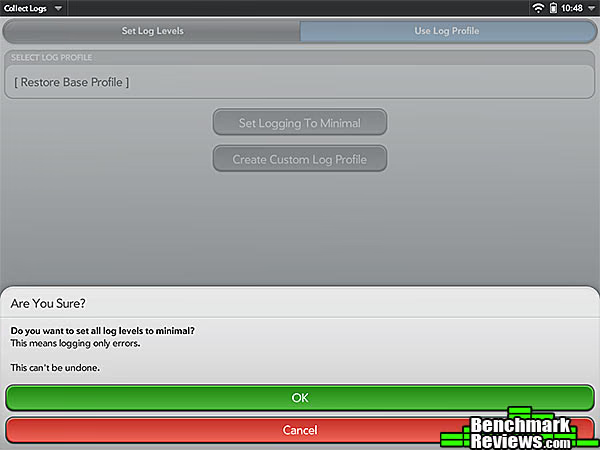
Step 3: When the logging level screen appears, click the Set Logging to Minimal button and then click the confirmation at the bottom of the screen.
OK, that's the first part. But there's still some logging going on, and we'll need to download some utility software to deal with it. To do that, we'll use the Preware application we installed in the first article.
Step 1: Run Preware. Select Available Packages, then Linux Applications, then Utilities.
Step 2: In the list of utilities, select EOM Overlord Monitoring.

Step 3: Install the package by tapping the Install button at the bottom of the screen. It's interesting to note that the stock tablet will upload rather a lot of data that you might not want uploaded!
For the last part, we'll use Preware to install two system patches that will disable the last logging items.
Step 1: Run Preware.
Step 2: Touch Available Packages, then Patch, then System. Select Muffle System Logging, and tap the Install button. This will disable all system-level logging except for errors. Tap Later when asked if you want to restart the system.
Step 3: Tap the Back arrow button at the top left of the screen, then tap the Misc selection. Select Remove Dropped Packet Logging, and tap Install. At this point you can go ahead and restart the system. When it's finished restarting, you can run Preware again and select Installed Packages, then Patch. You should see these two patches in the list:

At this point we've disabled or at least "turned down" the excessive logging in the system. This in itself is enough to speed things up noticeably, but we're not finished yet. Let's overclock that Touchpad!
Installing Uberkernel and Govnah
On a desktop system, we'd overclock by dropping into the BIOS at boot time and tweaking multipliers and system clocks. On the Touchpad, we overclock by patching the kernel. Fortunately, talented hackers have already done this, and made several pre-overclocked kernels available.
The Touchpad's Qualcomm APQ8060 "Snapdragon" processor's two cores dynamically clock themselves between 192MHz and 1.2GHz when in use; unused cores can actually drop down to 0MHz to save power. Patched kernels that raise the upper limit to 1.5GHz or even higher are available. We'll stick to the 1.5GHz for now; if you want to try the 1.7 or 1.9GHz kernels, have fun...but stability problems have been reported with these higher clocks.
Before you overclock your unit, it's important to make sure you're running the latest system software. As of the time of this writing, that's version 3.0.2. To check, open the launcher, select the Settings tab, and click the System Update application. It will let you know if you need to update anything.
We'll find and install the overclocked kernel and some utilities using Preware. If you haven't yet installed Preware, go to our Root Hacking the HP Touchpad article, which will describe how to install this program manager.
Preware operates on the basis of feeds, which are repositories of programs. (Bear in mind that since "Preware" refers to the Palm Pre smartphone, much of the software will be for these phones and not the Touchpad.) We'll need to add a couple of feeds to Preware to get the stuff we need.
Step 1: Run Preware and tap the Preware menu at the top left of the screen.
Step 2: Select Manage Feeds from this menu, then scroll to the bottom of the screen to reveal the New Feed area.
Step 3: In the Name field, type webos-testing-all; in the URL field, enter https://ipkg.preware.org/feeds/webos-internals/testing/all. Leave the Is Compressed switch set to "On".
Step 4: Tap the Add Feed button at the bottom of the page. You may be prompted to "Update Feeds" at this point, but you might as well wait until you've added the next feed.
Step 5: Add one more feed with the name webos-testing-armv7 and a URL of https://ipkg.preware.org/feeds/webos-internals/testing/armv7. Again, leave the Is Compressed switch set to "On".
At this point, go ahead and let Preware update its feeds. If it doesn't offer to do this for you, tap the Preware menu at the upper left of the screen and select Update Feeds.
Now that we've configured our new feeds in Preware, we can install a patched kernel and a utility to control it. The kernel we'll be installing is called Uberkernel, and the utility is called Govnah.
Step 1: Run Preware and select List of Everything.
Step 2: Find Govnah in the list. You can tap the A-Z tab at the bottom of the screen for an alphabetically-sorted list, or tap the magnifying glass at the top right of the screen and type in the search field.

Step 3: Tap Govnah and then tap the Install button at the bottom of the screen.
Step 4: Now find and install Uberkernel in the same way.
Step 5: After you've installed Uberkernel, you must restart your Touchpad. Hold down the power button until a menu appears, then select the red Shut Down button.
After your Touchpad restarts, we can configure overclocking.
Overclocking the Touchpad
Now that Uberkernel has been installed, all we need to do is to run Govnah to set it up the way we want. Open the launcher and start Govnah.

The first item listed is PROFILE. Tap this and you'll see you can select between two profiles: Palm Default and OnDemandTctl1512. Select the second profile.
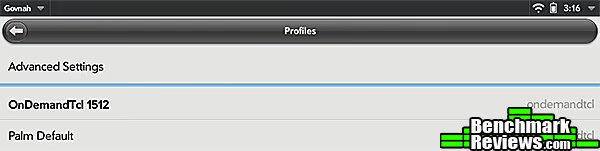
Once you do that, Govnah will reflect your change on the main page.

That's it! You're overclocked (no need to reboot). Just like Intel's Sandy Bridge processors, what you've done is raise the clock speed at which the processor will run under load, without affecting the lower clock speeds it will set under low-load or idle conditions. Reports on the web are that this overclock doesn't seem to affect battery life at all.
There are lots of other tweaks you can make with packages you find on Preware's feeds. Two I've added are Faster Card Animations HYPER Version, which speeds up the animations used by the "cards" in the WebOS user interface, and Increase Touch Sensitivity and Smoothness, which does pretty much what it says. Again, bear in mind that many of the things you'll find on Preware feeds are designed for Pre smartphones, so make sure whatever you're installing is actually designed for the HP Touchpad.
With the overclock and disabled logging, using the Touchpad is much more pleasant: way smoother and nicer than the stock Touchpad experience. If you have any Touchpad hints of your own, pass them along!
Reader comments from the original article
18 comments were posted before commenting closed. They are preserved as written. Original avatars no longer resolve and are shown as a placeholder.
Bug in Muffle System Logging Martin Permalink:
People have reported a bug with Muffle System Logging, so it's probably best to wait until a fix is posted. Go here: #forums.precentral.net/hp-touchpad-homebrew/297651-muffle-system-logging-blocking-email-attachments.html but be aware that the fixes posted have had mixed results for people.
good webOS sites joshua Permalink:
good guide, I found majority of this stuff and more over at some dedicated webOS communities. #webosbuzz.com (they have apps and games, emulators) #precentral.net
Thanks so Much Enigma8750 Permalink:
I would just like to thank the writer's of Benchmark Review's.com for their compiling information on my Little touchpad. I really love it and I thank you so much for helping to make it even better than it already is.. When you guys figure out how to install Android on it, Please let us know. Be the first..
Change logging level without voice account Claude Permalink:
To change the logging level without creating a voice account, go to "Device Info" and select "Custom Apps" from the App Menu. You can then enter the special command ##LOGS#
Resource Questions walter Permalink:
Can any one suggest. 1. Any slide type keyboard for webos/hp/touchpad? 2. Any Better browser? Want to organize favorites. 3. Any programs that will allow me to stream windows media player files? 4. So much talk about putting on andriod but not done yet where should I Look. **I know this might not be the best place or most appropriate location but have to start somewhere. And I just did this overclocking*** Thanks
RE: Resource Questions David Ramsey Permalink:
1. Any Bluetooth keyboard will work. I'm not aware of any "slide out" types, though. 2. No. 3. No. 4. There's nothing ready for prime time yet.
help brennan Permalink:
i just did what steps 3 and 4, where you enter the new feeds and it said directions are obsolete, see #testing.preware.org... can anybody help. im new to webOS. thanks
help jedediah Permalink:
hey brennan i was getting the same thing too but if you look up at the top of the list both are already inputed into the system.. at least on mine it was... hope it helps
Faster Card Animation etc.. Xelaenil Permalink:
I was not able to install Faster Card Animations HYPER Version and Increase Touch Sensitivity and Smoothness from the preware list of applications. I found them, but at time of installation it had an error and I don't think it ever installed. Anyone else? On the adding I encountered a couple of errors but continued on and it all seemed to work fine. Like Jedediah, when I looked at the list it was already added, so I continued with the update too. thanks... Hopefully my touchPad will work better because of this article...
No Muffle system logging D Hutch Permalink:
Once I get to step 2 there is no muffle system logging to select, nor is there the dropped packet logging in step 3 help please
RE: No Muffle system logging David Ramsey Permalink:
Hm. I wonder if your preware has all the correct feeds. Tap the Preware menu button in the upper left hand corner of the screen, then select "Manage Feeds" from the drop down menu. You should see six feeds whose names start with "webos-" and they should all be turned on (well, except maybe "webos-kernels-testing".
Mr. Gilbert Permalink:
I am only seein 3 feed with webos, what should i do Thanks
RE: HP Touchpad Performance Hacking Guide David Ramsey Permalink:
You should do a Google search for "preware" and find some PreWare forums (there are lots). The folks there can help. Apparently the list of available feeds has changed since this article was written.
Update 3.0.477 Aaron Z Permalink:
Hey David,I just got my touchpad and it came with the newest webos update on it, 3.0.477. When i followed the steps here I am getting some differences. Is this guide still valid for the newest update? I hear it did fix some of these issues, as well, but I am still interested in overclocking.
RE: Update 3.0.477 David Ramsey Permalink:
Aaron, I must admit I don't know. The over clocking hack comprises a recompiled kernel, so I suspect it wouldn't work with the new WebOS, at least not until someone applies the hack to the new kernel. My only suggestion would be to check some of the WebOS forums around the interwebs and see what other folks have done.
RE: RE: Update 3.0.477 Aaron Z Permalink:
Will do. Thanks. Awesome to see your dedication to this thing so long after HP has abandoned it.
RE: HP Touchpad Performance Hacking Guide Aaron Z Permalink:
By the way, I at least set the logging to minimal and Installed EOM Overload Monitoring and 3.0.477 is FLYING with just that
RE: RE: HP Touchpad Performance Hacking Guide David Ramsey Permalink:
Yeah, I'm kinda surprised they haven't turned this stuff off in the new OS builds.