
SteelSeries Kinzu Optical Gaming Mouse
SteelSeries Kinzu Optical Gaming Mouse Review
In the past year numerous manufacturers have hopped onto the gaming peripheral bandwagon in an attempt to expand their businesses. Gaming mice have become incredibly fancy, with 6000DPI, 1200Hz polling rate, and anywhere from five to twenty buttons. As companies attempt to product differentiate, the design of gaming mice are becoming more exaggerated. SteelSeries take a different approach this time for the minimalistic Kinzu optical mouse. Benchmark Reviews peaks under the covers of this ordinary looking mouse to see where it lies amidst the hundreds of gaming mice out on the market.

At first glance this mouse may seem nothing more than an ordinary OEM mouse. It is fairly light-weight, with three buttons and a scroll wheel. Its $34.99 price tag however is an instant attraction for any gamer looking for a basic gaming mouse. This price is below any offering from Microsoft or Razer. One instant concern for some potential buyers is that SteelSeries Kinzu is an optical mouse, not lazer. Some would wonder how Kinzu would compare to a "6000 DPI" mouse. Benchmark Reviews will take the discussion further as we dive into the details of the SteelSeries Kinzu.
About SteelSeries, Denmark
SteelSeries may be new to some people since it's a Europe-based company. Their size and product line is comparable to Razer. SteelSeries prides in high quality products.What originally began as a small two-person operation in Copenhagen back in 2001 has become a global leader in professional gaming products. SteelSeries recognized the need for superior, high-quality professional gaming gear that would give players a competitive edge.Fast-forward to today, and they've come a long way since their first glass mousepad. They have global offices in North America, Europe, and Asia, providing an integrated portfolio of products designed specifically for gaming.
SteelSeries does not claim to invent or reinvent the gaming industry. Nor do they focus on one specific product, copy other companies or follow the crowd. SteelSeries lets the community decide whether or not they are worthy. Their goal is to make the best products possible and give gamers that competitive edge. SteelSeries does their best to support the growth of the professional gaming industry and give back to the gaming communities.
SteelSeries Kinzu Features
-
Ambidextrous lightweight ergonomic finger-tip / palm design
-
Slip-resistant coating for superior mouse grip and control
-
Gaming Grade optimizations for pro gaming CPI values
-
CPI toggle for on-the-fly high & low sensitivity adjustments
-
SteelSeries ExactRate offers customizable report rate (125Hz-1000Hz) / 1 ms response time
-
Acceleration on/off toggle via software
-
50 Inches Per Second and 20G of acceleration
-
Low-friction high-performance polyethylene feet
SteelSeries Kinzu Specifications
-
Frames per second: 9.375
-
Inches per second: 50
-
Megapixels per second: 3.75
-
Counts Per Inch (CPI): 400 - 3200
-
Acceleration: 20 G
-
Buttons: 3
-
Cord: 2 m / 7,9 ft (braided to improve durability)
-
Polling: up to 1000 Hz
-
Lift distance: ~2.0mm
-
Large pressure points that reduce friction for optimized glide
-
Driverless, plug-and-play feature for LAN gamers
-
Built-in memory for 3 profiles
-
Measurements: 117 x 64 x 36 mm / 4,6 x 2,5 x 1,43 in
-
Operating systems: Win XP / Vista / Win 2000 / Mac OS
*Configuration software only available for Windows operating systems
Closer Look: SteelSeries Kinzu
The SteelSeries Kinzu comes in an recyclable environment friendly cardboard box. Design is fairly good for a thirty dollar mouse. However, first impressions of the Kinzu through the see-through plastic wasn't all that great. It was a little plain and just didn't seem capable of anything outstanding.

The contents of the SteelSeries Kinzu is exactly what anyone purchasing it would expect: Mouse and Manual. There was no expectation to find any secret compartments that contained additional goodies, which is how SteelSeries manages to sell the Kinzu at such a low price.

The instruction manual explains basic mouse usage and features. The Kinzu has the capability to store three different profiles, default settings can be adjusted by downloading and installing the configurator from the SteelSeries website. Press and hold the auxiliary button to toggle between three profiles, and click to toggle between two CPI settings for each profile. This is essentially the on-the-fly adjustment feature for the mouse.

The back of the box lists the features and instructions for the Kinzu. Note that SteelSeries points out on their website that DPI is not the correct term for measuring sensitivity and they prefer to use the abbreviation CPI. A more neutral stand is to think of DPI as natively how small a movement can be detected by the laser/optical sensors, thus triggering a signal to move the mouse (Razer's definition for their "true" DPI specifications), and CPI for each inch of movement how many times to tell the OS to move the mouse. These two abbreviations are used interchangeably and for many products that leads to slight ambiguity. For most users DPI/CPI corresponds to sensitivity settings for the mouse, with a higher number simply meaning a pixel of movement on the screen for a shorter movement range.
SteelSeries should consider printing the explanation of using CPI on the box in future products to eliminate confusion since unfortunately the majority of other companies use DPI as their form of measurement, not always correctly too. SteelSeries is not incorrect in their interpretation of CPI, except their interpretation seems to lead to possible inflation of the number since algorithms can be applied to increase sensitivity without the sensor actually being able to pick up smaller increments of moving.

Generally speaking, all basic functionality we expect in a gaming mouse is present in SteelSeries Kinzu. Programmable buttons are not included with the Kinzu as it's a value mouse. Next Benchmark Reviews will take a look at the details of the mouse itself.
SteelSeries Kinzu Detailed Features

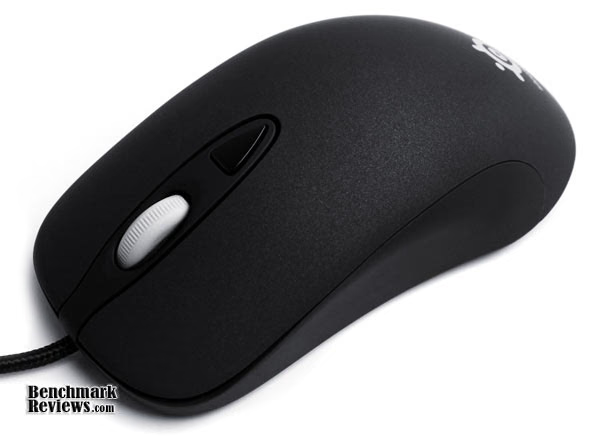
From the side we see a nice curvature for gripping. In general the SteelSeries Kinzu is a light mouse and relatively small compared to the monster gaming mice that exist on the market . It's shaped like an old fashioned mouse but the material and curves help define a modern, high-quality gaming mouse.

The SteelSeries logo is etched on the back of the Kinzu. Becuase the surface is covered with a thin rubbery material, you will never feel the logo. It is also safe from being scratched off after frequent use, a common situation that happens even among the top gaming mice from other manufacturers.

Most mice now use teflon feet as it reduces friction significantly, not much SteelSeries can do to differentiate here. Standard plastic often makes a scratching noise when moved, teflon doesn't.
The SteelSeries Kinzu's red sensor light also happens to be the notification for profile swap, blinking every time profile is toggled.

Overall the SteelSeries Kinzu is built well, high quality, and turning out to be a very usable mouse. Next Benchmark Reviews will take a look at the software side of Kinzu.
SteelSeries Kinzu Software
SteelSeries Kinzu's configurator is available for download on their website. It's a small file and very compact program that allows adjustment of profiles. The lightweight configurator is fast and unlike other heavy weight drivers, the mouse does not freeze up when saving changes. There are a total of three profiles that can be adjusted and saved right onto the mouse, and configurations maintain even without the configurator.

There are a couple of additions that would've made the configurator more powerful. In order to see the effect of adjustments the profile has to be saved first and then toggled to the profile. Also, increments between CPI settings are pretty significant and there's only four possible settings. That's ok for profiles, since sensitivity can be changed along with CPI to bring down differences between profiles, but then CPI toggle becomes a functionality that doesn't seem as useful if increments are that large.
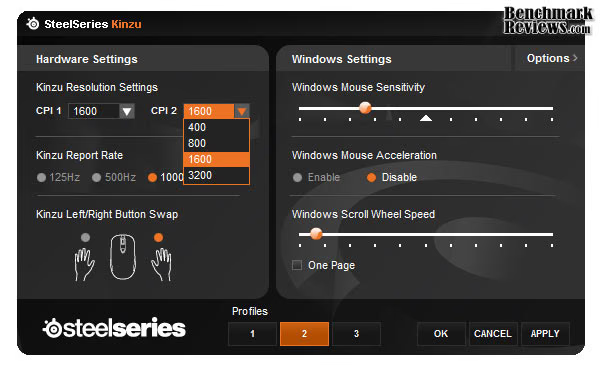
A lot of the functionality for the Kinzu configurator is based off Windows' native settings. It's nice to be able to set everything in one program.

The SteelSeries Kinzu configurator doesn't give any big surprises, as the hardware is more of the limit here in terms of functionality. Other than that, the software does what it's supposed to do. The Kinzu configurator is light weight and easy to use.
SteelSeries Kinzu Testing & Results
Testing Methodology and System
Games tested include:
- Warcraft III, the Frozen Throne
- Crysis Warhead
- Counter Strike 1.6
- Several online MMORPGs
I used the SteelSeries Kinzu for 2 weeks as my primary mouse for both work and entertainment. I usually use hard-surfaced mouse mats, in this particular case I chose to use the SteelSeries 4HD mouse pad. Other gaming mice I own include Microsoft SideWinder, Razer DiamondBack, and Razer Orochi.
Test Results
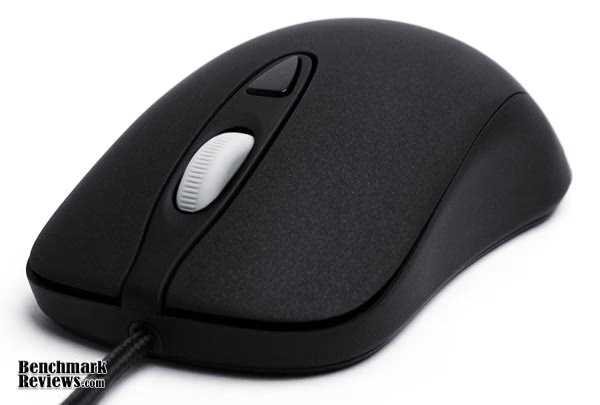
Surprising would be the one-word summary. The SteelSeries Kinzu is extremely comfortable to use. The Kinzu isn't much of a hand-rest like larger gaming mice due to its smaller size, but the grip is simply one of the best due to the surface material. Most mice with shiny plastic as surface material will see visible traces of dust and dirt particles, and long term use can lead to accumulation of oils/residue where the tips/edges of the fingers rest. The SteelSeries Kinzu has no such problems and allows easy cleaning due to its simplistic designs.
In game performance is also impressive. Response time is one of the key statistics, as competitive gaming is impossible unless your mouse reacts instantly to your movement. The SteelSeries Kinzu's 1ms response time is perfect for fast pace action.
The Kinzu performs well on many types of surfaces, even paper. Tracking is very accurate for both small scale movements and fast crazy swinging. Profile toggling is very useful and usable. For example when I do Photoshop work I'd prefer setting the sensitivity much lower than I do fro RTS/FPS games. The scroll wheel has an extremely nice grip, responsive, and the scroll amount/speed can all be adjusted through the Kinzu Configurator.
Overall the SteelSeries Kinzu performs just like a high-end gaming mouse, except with some features slimmed and removed.
SteelSeries Final Thoughts
If we take a look at the gaming mice market today, 90% of them have profiles and multi-programmable buttons. The Kinzu doesn't. Does this make the Kinzu less of a gaming mice? That thought probably goes through a lot of buyers. There is a misconception that gaming mice = mice with at least five buttons and crazy CPI. A gaming mouse is all about accuracy, precision, and comfort. It's about carrying out the actions you intend for it to do. Programmable buttons are all simply "add-ons" that could possibly help your game.
I prefer keyboard macros over mouse macros in gaming due to one simple reason: pressure on one side of the mouse from a click will cause the mouse to shift in the direction of the click. I play games fairly competitively, and usually keep mouse sensitivity high, so such a shift could prove fatal. This is especially problematic for mice that have programmable buttons on both sides as you will have to apply presure on the other side to balance the click. If the location of the button is where your fingers usually rests, then you'll be clicking buttons on both sides. If not, then clearly there are usability issues.
This doesn't mean programmable buttons aren't useful, and clearly a lot of people like using it. But they are not necessary and definitely should not be used to judge whether a mouse is high-end. In this case I will stress that the Kinzu is very basic, but performs very well.
Another note is the difference between laser and optical (LED light) mice. The main comparison lies in the inherent nature of laser vs. LED, as laser is more capable of measuring small scale movement/changes. In general the native DPI for laser mice can shoot right over 2000 while most optical mice manage around 400 to 800. Most optical mice would require algorithms to increase sensitivity, and how well an optical mouse does that at higher sensitivity determines whether or not it's a good mouse. For the Steelseries Kinzu, the tracking feels very accurate and comparable to the experience laser mice.
Kinzu Gaming Mouse Conclusion
If there exists a mouse that does everything, but only mediocre at each, then its direct opposite would be the SteelSeries Kinzu. The Kinzu only does so much being a basic gaming mouse, but it performs very well in everything it does do. The foundation for the mouse, including CPI, response time, and processing power, are all high end. The Kinzu's 1ms response time is as fast as gaming mice gets. Optical mice uses image processing to determine mouse movement, and the Kinzu can process 9375 frames per second. To place this in perspective, Razer's $59.99 DeathAdder only manages 6400 frames per second. The maximum CPI setting is 3200, more than enough for 99% of gamers in the world (statistically most professional gamers operate their mice around 800-1600 CPI). The SteelSeries Kinzu definitely performs great as a basic gaming mouse.
SteelSeries' packaging and presentation of the Kinzu is decent, but the mouse looks a little plain. Somehow the more I use and look at the Kinzu the more I start to appreciate its design. Everything makes so much sense, from the positioning of the buttons to the curvature of the mouse. However if first impressions matter the most, then the Kinzu certainly fails to give that initial wow.
The build and quality of the Kinzu is excellent, partially due to the low number of functional parts. It is fairly safe to say there are no flaws in the build or design. One thing I would recommend against doing is scratching the mouse. In an attempt to find out how the logo was etched I scratched off a tiny piece of the surface coating. Curiosity kills the cat, but this time it almost killed the mouse.
The only thing lacking a little for the SteelSeries Kinzu is functionality. The Kinzu performs well in everything it can do but it really doesn't have any big bonuses. Programmable buttons are quickly becoming a standard for gaming-grade mice. Another trend is Bluetooth/wireless capability. Of course by now we should point out that the Kinzu has a bigger brother, the SteelSeries Xai lazer mouse which fills in a lot of the gaps in terms of functionality. But that brings the price right up into the $80 range, a standard for gaming mice of that calibre.
What makes the Kinzu stand out is its price. At $34.99 there is almost no reason why someone looking for a basic gaming mouse wouldn't choose this over competitor products. If you find the appearance a little dull then that's unfortunate, but for those not looking for an extravagant mouse, the SteelSeries Kinzu will suit your needs. Notice the word "basic" is used as opposed to "low-end" when it comes to the Kinzu. That's because the Kinzu is every bit as high-end as a $60+ mouse when it comes to gaming performance, it just doesn't have the bells and whistles that a normal user would call "overkill". This also brings us to the next point, is the SteelSeries Kinzu suitable for everyone? Like all gaming mice the Kinzu targets a very specific population, which means an average user would probably not be able to feel the difference between the Kinzu and a $10 mice.
In the end is the SteelSeries Kinzu worth $34.99? I would say definitely, at least for the serious gamers out there. It is the cheapest gaming mouse on the market, with most of the other low-end gaming mice starting around $40.00. For those looking for a gaming mouse with more functionality, Kinzu's bigger brother Xai might be more suitable, as will many other high-end mice on the market. But for those looking for a basic gaming mouse, this is it.
Pros:
+ Very low price for a gaming mouse of this quality
+ Configurator very simple to use
+ On-the-fly profile toggle placed well
+ Surface coating offers excellent grip and comfort
+ Ambidextrous
+ Configurations stored on mouse
Cons:
- Limited functionality for a gaming mouse
- Looks a little plain
Ratings:
-
Performance: 9.25
-
Appearance: 9.00
-
Construction: 9.50
-
Functionality: 8.00
-
Value: 9.25
Final Score: 9.0 out of 10.
Excellence Achievement: Benchmark Reviews Golden Tachometer Award.
Questions? Comments? Benchmark Reviews really wants your feedback. We invite you to leave your remarks in our Discussion Forum.
Reader comments from the original article
13 comments were posted before commenting closed. They are preserved as written. Original avatars no longer resolve and are shown as a placeholder.
Kinzu SteelSeries Eric M Permalink:
I've never had so many problems with a mouse as I did with my Kinzu. Never again will I buy a SteelSeries device as their customer support might as well be non existent. From the time I bought the mouse on NewEgg I had issues, if I ever barely lifted the mouse I would have to remove and reconnect the USB to the keyboard. Everything else about the mouse was great, yes it looks plain but I prefer function over aesthetics. Now only if I could get the SS Kinzu to function properly.
Kinzu Din Moderen Permalink:
Eric, did you update the firmware? That solved all problems (their support answered this almost instantly for me).
Steelseries Arild Permalink:
All my steelseries products have died or started to fail in such a way that it was no longer useful for the purpose i bought it for, playing ql in online competitions. This is however only limited to the 6G and 7G keyboard and 3 different Ikari opticals, which was a shame, best grip I ever had on a mouse. They have good products, but all of which I tried started failing after a week to max a month. Never buying a steelseries product again until they can show they are using better parts that yields a longer life-time for their products.
RE: SteelSeries Kinzu Optical Gaming Mouse cody Permalink:
I agree. Steel series products tend to fall apart quite quickly. Thankfully my Xai is getting replaced for free. I recommend the G5. can never go wrong with it.
Steelseries Kinzu Optical Gaming Mouse Mushy Permalink:
Had my SS Kinzu along with other SS equipment for well over a year now, I use them all for CS:S gaming, never once has any of the equipment failed on me, I find them to be relly reliable pieces of equipment. I suspect faults with them are of your own or of your system, they are perfect in my eyes.
Kinzu controll madness rich Permalink:
this mouse worked very well in FPS games np at all was solid and fast . but for a online rpg the precision needed to click hotbar icons it was Bad no matter how i set it useing there divers it still wasn't up to the job to fast or to slow. and the middel mouse started having click troubles after only a month on ventrilo . i removed it and reconnected my toshiba x20 it's a bit bulky and im not a fan of the slick pastic on it . but far as precision clicks it blows the kinzu outta the water and does my FPS games jest fine . sorry steelseries but your mouse about drove me nuts on my rpg trying to get it under controll were done .if for FPS games only it's fine .
*facepalm* Wes Permalink:
You shouldn't be clicking your skills in RPGs, keybind them.
Workin bad since installed Dejan Permalink:
This mouse made me crazy. Bought to replace old MS mouse and this randomly one click transforming to double click. I've tried ALL, just did 30 min test in control panel in order to define is this is problem in double click speed settings and this is for sure randomly.
Felt quite content Sun Down Permalink:
It feels great, though the shape of the chassis is a bit underwhelming. I was hoping for a slightly more claw-friendly shape for my thumb, ring and pinky fingers. The build quality feels great overall. The minimalistic design attracted me to it. It screams functionality over design, and for my part it sure did. The tactile response of the Kinzu is just perfect, unlike the extremely sensitive DeathAdder. The cord felt a little bit too stiff, but it's tolerable. For the price offered, it's an awesome mouse. A great all-rounder which I definitely recommend.
bad quality Dan Permalink:
Same problem as Dejan, double click instead of simple click randomly and release of dragging randomly. I'm taking a lot of poison in Skyrim when i'm just managing my chests. Don't try to manage your banking account with this mouse. And this is already an exchange by the store and the problems are back.
Left and right problem? Theo Permalink:
Hi! i have the kinzu and a have this problem.... My left click is right and right is left i have tried to change it in sttings it fixed it for internet but not in games... i can't fix it in the game. I tried with another mouse its the same problem. Ihad this problem befor on my laptop but is disapered after 2 months and its verry anoying... PLEASE help me whit this!!
Left right reverse Dishi Permalink:
For the left and right reverse, you know kinzu has three mode, so press and hold the Sensitivity button and release it, do this until you get your desire sensitivity and correct right left button, does anyone know how to solve single click transform into double click??
Mouse DoubleClick Solved dota Permalink:
know how to solve single click transform into double click?? here: 1. open control panel ==> mouse 2. change mouse double-click speed to fastest.. 3. done.