
Using Dual-Monitors to Optimize Productivity
Dual-Monitor Optimized Productivity
Historically most people couldn't justify the expense of a dual-monitor setup in spite of the productivity gains multiple screens afford. So most people were relegated to drooling over the possibility while watching movies like "Swordfish" (possibly the most eye popping multi-monitor setup ever) or the 2008 remake of "The Day The Earth Stood Still" which reflects not only the broad adoption of multi-display configurations, but also demonstrates currently available "next generation" display technologies like Microsoft's "Surface".

Today, even entry level PC's as well as nearly all laptops have graphics cards capable of multi-monitor support - so at Benchmark Reviews we decided to address the most important questions: "Will you really be more Productive?", "What do you need to know?", and "What will it cost?". Benchmark Reviews will answer all of these questions in-depth in this article on Using Dual-Monitors to Optimize Productivity.
Dual-Monitors: Why, Why, Why?
Many single monitor users don't understand the advantages of a multi-monitor system and consider it an attempt to "be cool" with no real advantage. As a former member of that camp, I can tell you "coolness" aside, there are real, demonstrable advantages to having two screens. As I contemplated multi-monitor use for this article I quickly assembled a list of advantages based on my 6+ years of multi-monitor usage both at work and at home. Most of the advantages I identified quickly were focused on my work usage, so I decided to watch my wife work on her computer to see what benefit she got (she has a 17" laptop with a 23"LCD). I quickly saw how a completely non-technical user is able to leverage two screens. Over the course of 30 minutes she launched Outlook in one window and checked her email on her laptop screen - a friend had sent a link to a youtube video which she clicked on. IE opened on the monitor and she played the video while continuing to respond to emails. When the video was done she logged in to Facebook to check up on her friends. While she was chatting with one of them when they mentioned Twilight which sparked her to launch Media Center and start the movie playing (on her laptop screen). When she was done chatting, she moved the movie to the larger screen and continued watching. I was pretty amazed to say the least - she is definitely getting her monies worth!
One of the most frequent questions heard with regard to dual monitors is - "What applications 'support' multi-monitor configurations?". The strictest answer would be very few - but that would ignore the fact that most applications don't need to be aware that there are multiple monitors, the OS handles that - and quite nicely even going back to XP. There are a few games that support monitor spanning (most notably MS Flight Simulator) but for the most part applications don't need to know there is second monitor to take advantage of it. Many applications are now using dock-able toolbars - when undocked (floating) these can easily be moved to a different monitor than your "work area" for that application thereby increasing your workspace and effectiveness. If you decide you really need applications to span monitors there is a tool called UltraMon (www.realtimesoft.com/ultramon) that will allow you to spoof the OS into thinking two or more monitors are really one giant one.
So here are the key observations - most computer users today multi-task applications to a degree unheard of even 5 years ago (how many apps are open on your task bar right now?) and this multi-tasking is a significant driver of multi-screen productivity increases. It allows the user to have two applications running full screen, yet visible and easily accessible at one time. Of course you can accomplish similar results by running each application in a smaller window (rather than full screen) on a single monitor), but it is much more labor intensive as you're constantly resizing and moving windows. Couple this with the ever growing interaction of applications - need to add an image to an email? just drag the image from Picasa and drop it on the email message. Sure you can do that while using a single monitor, but the mechanics of how escape most people since they can't see both application windows. Do you IM a lot? You can reserve an entire screen for chat's and still check email, surf the web, play a game, or gasp - do real work on the other screen. The list of advantages is nearly endless, but the point is - if you do more than one thing at a time on your computer you would almost assuredly benefit from being able to utilize two screens.
Dual Monitors: What You Need To Know
While many of the same rules apply when buying two screens as when buying one, I'll state a few of the more often forgotten ones that are especially relevant in multi-screen setups.
Are the monitors height adjustable? Ideally you should be able to adjust the monitor so that the center of the screen is just below eye height when you're sitting in front of them.
What input formats are available (VGA, DVI, HDMI, etc) and do they match what your video card can output? This can definitely be one of the "gotchas" - my first multi-monitor setup at home had a graphics card with one DVI and one VGA connection. While most monitors today will likely be able to handle multiple source types, the less expensive models often forgo connection types as a means for saving money.
Is there an OSD (On Screen Display) for calibrating color? This is particularly imporatant as it is all but a certainty that the two monitors will "look" different out of the box and one or both will need to be calibrated.
Do you have enough desk space - this is the most overlooked aspect! This is often not considered until boxes are being unpacked and there is a reality check about how things are going to be set up. As a frame of reference the following graphics depict visually how much desk space is used for the average dimensions of widescreen dual 20", 22", 24" and 26" monitors when sitting on a 4 foot desk and a 5 foot desk. Note that I have added the width of a 30" monitor also a frame of reference - you can see just how much more space you get for significantly less money ;).
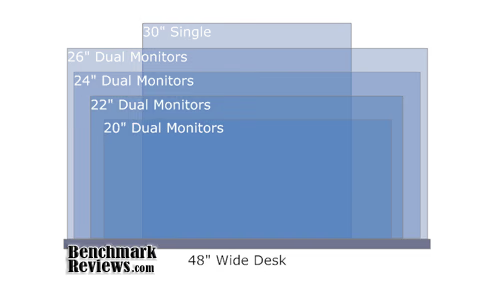
48" Wide Desk Overlayed With Approximate Dual Monitor Usage
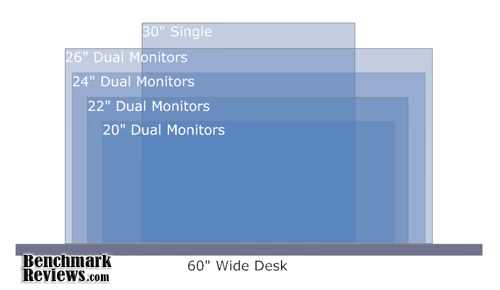
60" Wide Desk Overlayed With Approximate Dual Monitor Usage
Configuration Considerations:
Monitors placed side by side are more likely to highlight manufacturing and configuration variances that would not otherwise be obvious. In an ideal situation both monitors would have identical manufacture dates (month and year) to improve the chances that they are using identical components. Because margins on electronics are so slim, manufacturers change components all the time to take advantage of better component prices. While two components may meet a minimum spec required by the product manufacturer, their actual specs may vary significantly causing two "identical" monitors to have different display characteristics.
Whenever possible, the source connection used should be the same for both monitors (ie both using DVI connections) to ensure calibration consistency. Many graphics cards are now exclusively DVI, but there is still a solid contingent that offer both DVI and VGA for compatibility. If your graphics card doesn't have two of the same type of connection, get an adapter rather than using two different input types. VGA - DVI adapters cost around $5 and will go a long way toward making your monitors display consistent colors.
Calibrate your monitors - yes this really will make your life better. Two monitors used side by side with radically different color profiles can cause eye-strain (at least that is my personal experience). You can calibrate manually using just your eyes to tell you what looks good, or you can invest in a hardware based color calibration tool. While you can spend a fortune on a calibrator, even an inexpensive one like the ColorVision Spyder 2 for $69 will produce much better results than you're likely to get with just your naked eyes.
Dual-Monitors: Basic Setup
Once you have two monitors connected to your computer the OS should immediately recognize the second monitor and will usually start mirroring the main desktop on to the second screen. To make that monitor useful, we need to pop in to the display settings and change a few things. Start by right clicking on your desktop - for Windows XP select "Settings" then click the "Settings" tab in the dialog box; for Vista select Personalize then select the Display Settings link (bottom of the list); for Windows 7 select "Screen Resolution". You should now be viewing a window that looks like the one below:

The first thing to do is click Identify Monitors. This should briefly display a 1 on monitor 1 and a 2 on monitor 2. If the monitor displaying 1 isn't the monitor physically on the left, click and drag monitor one so that it is to the right of monitor 2.
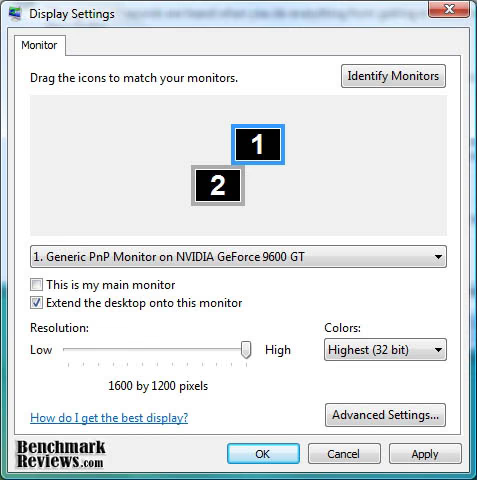
The shot above is an examply of what the screen looks like while the monitors are being re-arranged.

Your screen should now look similar to the one above. Now we need to set the Main Monitor and tell windows to extend the desktop across both monitors (as opposed to merely mirroring the same desktop). First click on the monitor where you would like the Start Menu and Task Bar to appear - check the "This is my main monitor" checkbox if it isn't already checked. Now select the other monitor and check the "Extend the desktop onto this monitor" checkbox. You now have the basics configured to enjoy your multi-monitor setup!
How Much Will It Cost?
The question everyone hates asking... Of course you could spend a ton of money, but you don't necessarily need to. Below is a list of monitor selections for each standard widescreen size between 20" and 26". Each monitor size has a selection focused on price and a selection focused on features - the selections made were based largely on the overall value of the monitor while taking in consideration feedback and history. Where possible displays with native 16x10 resolution were picked over 16x9 resolution as 16x10 is optimized for computer work and 16x10 will of course still display 16x9 movies quite nicely.
20" Monitor Selections
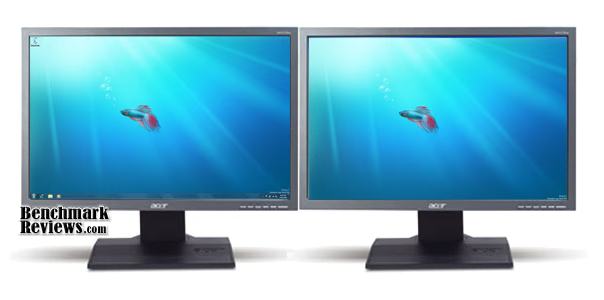
Acer B203Wbdmr - $150
-
Aspect Ratio: 16x10
-
Resolution: 1680 x 1050
-
VESA Mount: Yes
-
Input: D-Sub & DVI
-
Stand Adjustments: Height, Pivot, Swivel, Tilt
-
Speakers: Yes
-
Response Time: 5ms
-
USB: No
Acer X203H bd - $130
-
Aspect Ratio: 16:9
-
Resolution: 1680 x 900
-
VESA Mount: Yes
-
Input: D-Sub & DVI
-
Stand Adjustments: Tilt
-
Speakers: No
-
Response Time: 5ms
-
USB: No
22" Monitor Recommendations

Hanns-G Hi-221DPB - $150
-
Aspect Ratio: 16x10
-
Resolution: 1680 x 1050
-
VESA Mount: Yes
-
Input: D-Sub & DVI
-
Stand Adjustments: Tilt
-
Speakers: Yes
-
Response Time: 5ms
-
USB: No

Samsung T220HD - $260
-
Aspect Ratio: 16x10
-
Resolution: 1680 x 1050
-
VESA Mount: No
-
Input: D-Sub, DVI, HDMI(2), Component
-
Stand Adjustments: Tilt
-
Speakers: Yes
-
Response Time: 5ms
-
USB: No
-
ALSO INCLUDES A TV TUNER and Audio out (Stereo and Optical)
24" Monitor Recommendations

Samsung T240HD - $298
-
Aspect Ratio: 16x10
-
Resolution: 192 x 1200
-
VESA Mount: No
-
Input: D-Sub, DVI, HDMI(2), Component
-
Stand Adjustments: Swivel & Tilt
-
Speakers: Yes
-
Response Time: 5ms
-
USB: No
-
ALSO INCLUDES A TV TUNER and Audio out (Stereo and Optical)

ASUS VW246H - $220
-
Aspect Ratio: 16x10
-
Resolution: 1920 x 1080
-
VESA Mount: Yes
-
Input: D-Sub, DVI, HDMI
-
Stand Adjustments: Tilt
-
Speakers: Yes
-
Response Time: 2ms
-
USB: No
26" Monitor Recommendations

Asus VW266H - $300
-
Aspect Ratio: 16x10
-
Resolution: 1920 x 1200
-
VESA Mount: Yes
-
Input: D-Sub, DVI, HDMI, Component
-
Stand Adjustments: Tilt
-
Speakers: Yes
-
Response Time: 5ms
-
USB: No
-
ALSO INCLUDES Audio out (Stereo and Optical)

Samsung 2693HM - $470
-
Aspect Ratio: 16x10
-
Resolution: 1680 x 1050
-
VESA Mount: No
-
Input: D-Sub, DVI, HDMI
-
Stand Adjustments: Height, Pivot, Swivel, Tilt, Rotate
-
Speakers: Yes
-
Response Time: 5ms
-
USB: No
Dual-Monitor Conclusion
While it is difficult to quantify objectively, the observable behavior of most computer users provides strong subjective evidence that when users have more than one display it takes very little time for them to begin to maximize usage of the additional screen. Even non-technical users leverage the additional space after only a brief introduction to the concepts. Understanding that:
-
Users now exhibit an increased ability and comfort multi-tasking their work.
-
Operating systems have advanced to the point at which they support multi-screen configurations out of the box.
-
Setup and configuration has been simplified to the point that even a novice user can accomplish it.
-
LCD prices have reached a point where a decent configuration can be had for less than $300 and a great 26" system can be had for less than $800
it's easy to conclude that dual monitor configurations allow for maximum productivity at a minimum cost. So whether you were holding back due to price, fear of complexity, or uncertainty about the productivity gain - there is no excuse at this point. You should now have enough of a basic understanding to confidently buy, setup and configure your own dual monitor system.
Questions? Comments? Benchmark Reviews really wants your feedback. We invite you to leave your remarks in our Discussion Forum.
Reader comments from the original article
2 comments were posted before commenting closed. They are preserved as written. Original avatars no longer resolve and are shown as a placeholder.
RE: Using Dual-Monitors to Optimize Productivity Nathan Permalink:
Haven't seen the film so I just looked Swordfish up and I do have to agree, that is one amazing multi screen support system! That said, I think I'll have to be content with two monitors. Two's a company, three's a crowd as they say and I think a third monitor would be a distraction. Personally, I prefer to use both monitors to concentrate on the same task.
RE: Using Dual-Monitors to Optimize Productivity Kirk Permalink:
Way back when we started with XP, I installed a second monitor at my wife's computer desk. No way did she want the second monitor, because it took up too much space. I told her that I was too busy to remove it, but that it would go on the next weekend. When I went to remove it, she told me to leave it in place... because she now did her banking on one monitor, and e-mail on the other, etc., etc. Now she's interested in a third monitor when we move to Win7!